
Setup: Samsung SSD Data Migration V.4.0 User Manual
Content
Samsung SSD Data Migration V.4.0
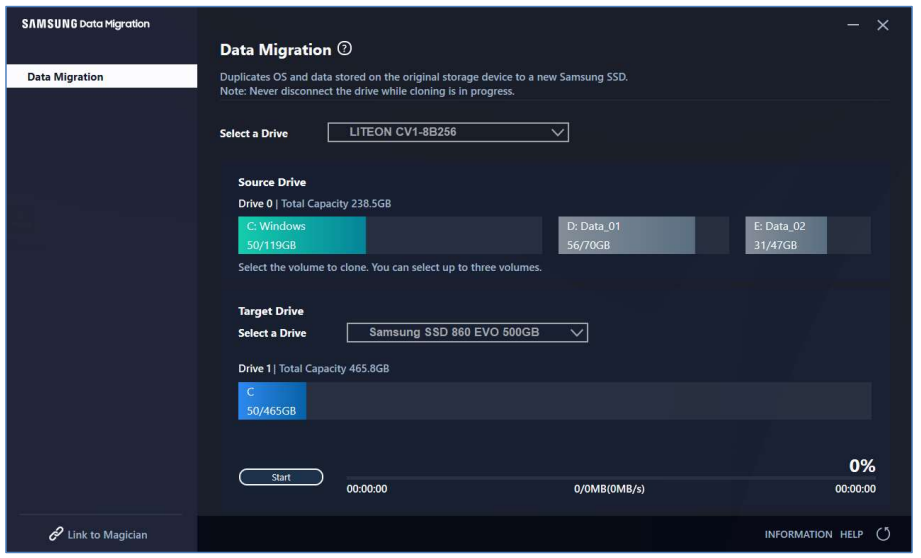
Introduction
Samsung SSD Data Migration V.4.0 is a powerful, user-friendly software tool designed to simplify the process of transferring your operating system, applications, and personal data from your existing storage drive—whether HDD or SSD—to a new Samsung SSD. This data migration solution is ideal for users upgrading their storage to enjoy faster boot times, improved system responsiveness, and enhanced overall performance. By leveraging Samsung SSD Data Migration V.4.0, you can seamlessly clone your entire system without reinstalling Windows or your applications, saving both time and effort.
Key benefits of Samsung SSD Data Migration V.4.0 include its intuitive interface, support for multiple volumes (including the system C: drive), and the ability to adjust partition sizes during the migration process. The software is especially valuable for gamers, content creators, and professionals seeking a hassle-free upgrade to Samsung’s high-speed NVMe or SATA SSDs, such as the 990 PRO or 870 EVO. Unique selling points include automatic shutdown after successful migration, support for both MBR and GPT partition types, and compatibility with a wide range of Windows operating systems.
The target audience includes PC enthusiasts, IT professionals, and everyday users looking to upgrade their storage without complex technical steps. Samsung SSD Data Migration V.4.0 is free to download directly from Samsung’s official website, making it an accessible solution for anyone with a compatible Samsung SSD. While the software itself is free, users will need to purchase a Samsung SSD, with prices varying by capacity and model (typically ranging from $50 for entry-level drives to over $300 for high-performance NVMe models). Availability is global, with downloads and support accessible through Samsung’s regional websites.
Specifications
Technical Details
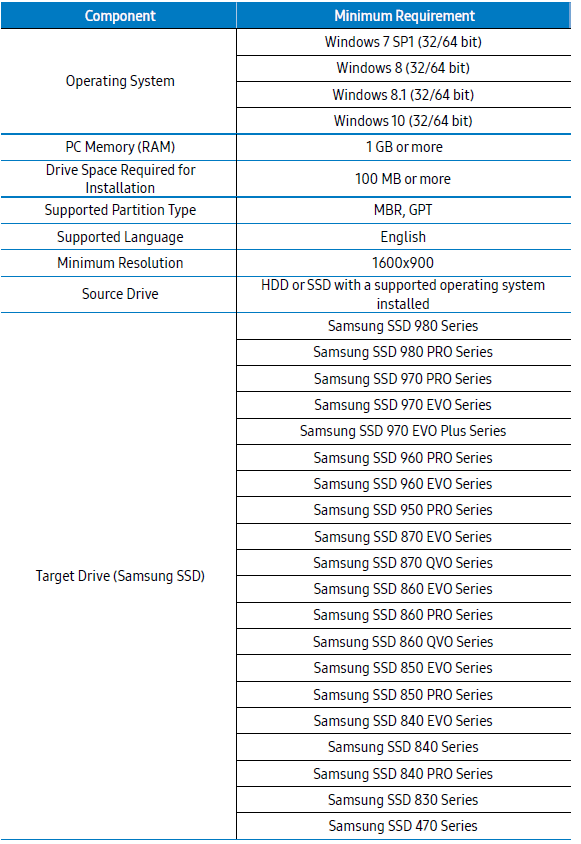
- Operating System: Windows 7 SP1, 8, 8.1, 10 (32-bit or 64-bit)
- RAM: Minimum 1 GB
- Storage: 100 MB or more required for installation
- Partition Types: MBR, GPT (NTFS file system)
- Monitor Resolution: Minimum 1600 x 900
- Source Drive: HDD or SSD (any brand)
- Target Drive: Samsung SSD (all series supported)
- Volume Support: Up to three volumes, including the system C: drive
- Encryption: Not supported for encrypted drives
Key Features
- Intuitive wizard-based interface for easy data migration
- Automatic shutdown upon successful completion
- Partition size adjustment during migration
- Supports the exclusion of specific folders from cloning
- No data loss on source drive—only target drive is overwritten
Performance: Cloning speed varies based on system hardware and data volume, but users typically report full migrations in under an hour for standard consumer setups. For example, cloning 232 GB took about 36 minutes in a real-world test[3]. No official benchmark data is published, but the process is generally faster than manual OS reinstallation and application transfer.
Comparison: Unlike some third-party cloning tools, Samsung SSD Data Migration V.4.0 is tailored specifically for Samsung SSDs, ensuring compatibility and reliability. It lacks some advanced features found in professional disk utilities,, but offers a streamlined, worry-free experience for most users. Alternatives like Acronis True Image or Macrium Reflect offer more customization but may require purchase and additional configuration.
Precautions
- When the content of the Source Drive (e.,g. HDD) is cloned using this software, all data on the Target Drive (Samsung SSD) will be deleted and will be impossible to recover. Therefore, if you have stored any data that you would like to keep on the Target Drive, please back it up in advance.
- Samsung Electronics assumes no responsibility for any loss of data that may occur on the Target Drive in the course of using this software and will not be held liable for data recovery services. Even if the cloning fails, data stored on the Source Drive will not be affected.
- If you are cloning the Source Drive to the Target Drive (Samsung NVMe SSD) using this software, make sure that you install the Samsung NVMe Driver first.
Improvements
- Support for new models
- Improvements to the cloning compatibility
System Requirements
Limitations
- This software supports the Windows operating systems listed in the User Manual only.
- This software supports the Samsung SSDs listed in the User Manual only. OEM storage devices provided through a computer manufacturer or supplied through another channel are not supported.
- This software can only clone a Source Drive on which an operating system has been installed. It cannot clone a drive without an operating system installed on it.
- When the Source Drive has two or more volumes (e.g. volumes to which drive letters, such as C:, D:, or E:, are assigned), this software can clone the C: volume on which an operating system is installed and two more volumes. The System Reserved Partition, which is created automatically during Windows installation, is cloned automatically.
- The OEM Partition, which is created by the computer manufacturer when shipped from the factory, is not cloned. However, it will be automatically cloned if the computer manufacturer is Samsung and SRS (Samsung Recovery Solution) 5, SRS 6, or SRS 7 has been installed. (Versions lower than SRS 5 are not supported.)
- After cloning the Source Drive to the Target Drive, their data sizes may differ by a few gigabytes. This is normal. During cloning, the software does not copy virtual memory (page files, hibernation files, etc.) automatically created and managed by the operating system.
- This software cannot clone encrypted drives. In order to clone an encrypted drive, you must remove its password first.
- If the motherboard chipset drivers are not up to date when cloning, this software may not function properly.
- If you have multiple operating systems installed on your computer (e.g., Windows 7 installed on the C: volume and Windows 8 installed on the D: volume), then the cloned drive may not function properly in some cases.
- If the Source Drive is damaged (e.g,. it has bad sectors), then the cloned drive may not function properly.
- Before attempting to clone a drive using this software, it is recommended that you close all open programs and allocate sufficient memory first.
- If you have instant recovery software installed on your computer, then this software may not function properly.
- If the Source Drive has been converted to a dynamic disk, then the software may not function properly.
- The Program Files, Windows, and Recycle Bin folders will not be displayed when scanning for files to exclude from cloning.
- If the Target Drive is a Samsung NVMe SSD and it does not have the Samsung NVMe Driver installed on it, then this software may not function properly.
- If a portable device (e.,g,. an external USB device) is connected to the Target Drive for cloning, then this software may not function properly because of the USB adapter.
- If the OS version installed in the original drive does not support the GPT partition, and when it is duplicated in a drive exceeding 2TB, the MBR partition type will be applied to the duplicated drive. As MBR does not support large drives, the space exceeding 2TB will remain unallocated.
Boot from the cloned Target Drive
If the Target Drive is connected via USB
STEP 1. Connect the Target Drive to the computer internally.
- Disconnect the USB cable from the Target Drive.
- Connect the cloned Target Drive.
When there is only one connectable drive inside the computer, remove the Source Drive and then connect the cloned Target Drive.
STEP 2. Change the boot priority to the cloned drive.
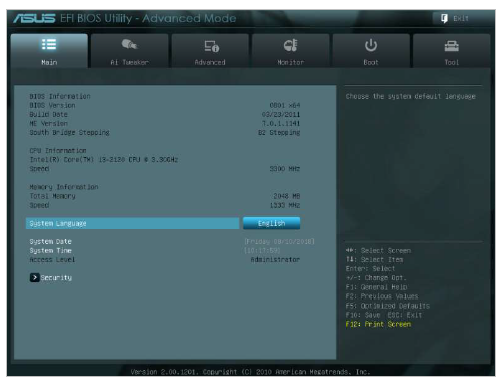
- Turn on the computer and enter the BIOS screen using the BIOS access key.
Open the Boot menu.
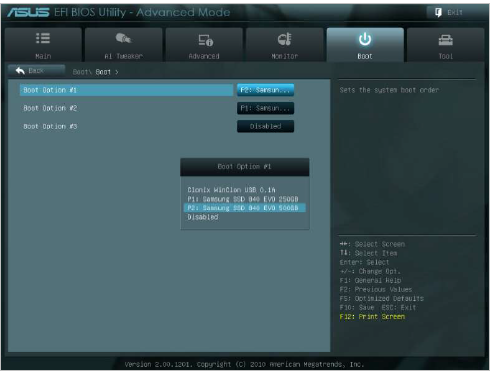
- Place the Target Drive above the Source Drive to give the cloned drive a higher boot priority.
- Press the F10 key to save the change.
- Press the ESC key to exit the BIOS screen.
The BIOS access key and boot priority change method may differ depending on the computer manufacturer or the motherboard specifications.
STEP 3. Boot from the Target Drive
Check whether the operating system boots from the Target Drive.
If the Target Drive is connected via SATA
STEP 1. Change the boot priority to the cloned drive.
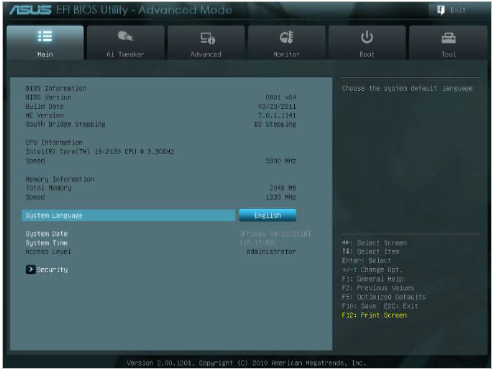
- Turn on the computer and enter the BIOS screen using the BIOS access key.
Open the Boot menu.
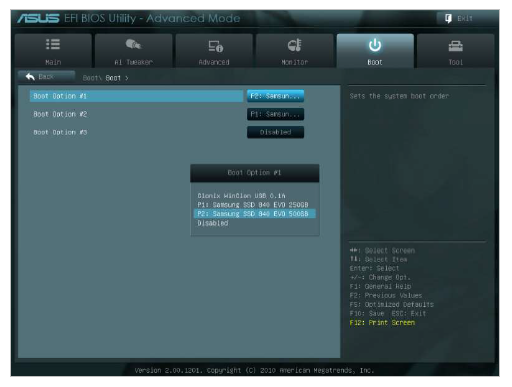
- Place the Target Drive above the Source Drive to give the cloned drive a higher boot priority.
- Press the F10 key to save the change.
- Press the ESC key to exit the BIOS screen.
STEP 2. Boot from the Target Drive
- Check whether the operating system boots from the Target Drive.
The BIOS access key and boot priority change method may differ depending on the computer manufacturer or the motherboard specifications.
Troubleshooting
Common Issues and Solutions
- Target Drive Not Recognized: Ensure the Samsung NVMe Driver is installed if using an NVMe SSD. Refresh the drive list in the software if the drive does not appear.
- Cloning Fails or Stalls: Check that the target drive has sufficient free space. Exclude unnecessary files or folders if the source data exceeds the target capacity.
- Error During Migration: Restart the computer and try again. Ensure no other disk utilities are running during the process.
- Data Loss: Samsung SSD Data Migration V.4.0 will erase all data on the target drive. Always back up important files before starting.
Preventive Measures
- Close all unnecessary applications before starting the migration.
- Use a reliable power source to avoid interruptions.
- Regularly update your Samsung SSD firmware and drivers.
Warranty and Support
Samsung provides standard warranty coverage for its SSDs, but the Samsung SSD Data Migration V.4.0 software is offered “as-is” with no liability for data loss. For technical support, visit Samsung’s official support portal or contact their customer service team. Always refer to the user manual for detailed instructions and troubleshooting steps.
Pros & Cons
Advantages
- Ease of Use: A Simple, step-by-step wizard makes migration accessible to all users.
- Speed: Faster than manual OS reinstallation; real-world tests show efficient cloning times.
- Free of Charge: No cost for the software, which is a significant value compared to paid alternatives.
- Reliability: Specifically optimized for Samsung SSDs, reducing compatibility issues.
- Safety: Source drive data remains untouched; only the target SSD is affected.
Disadvantages
- Limited Customization: Lacks advanced features like disk imaging or incremental backups found in professional tools.
- Windows Only: No support for macOS or Linux systems.
- No Encryption Support: Cannot migrate encrypted drives.
- Data Overwrite: All data on the target drive is erased during migration—always back up first.
Value for Money: Samsung SSD Data Migration V.4.0 delivers excellent value as a free, dedicated tool for Samsung SSD owners. While it may not replace comprehensive backup solutions, it excels at its core purpose: fast, reliable system migration.
Customer Reviews
User feedback for Samsung SSD Data Migration V.4.0 is generally positive, with many praising its simplicity and effectiveness. Most users report successful migrations with minimal technical knowledge required, often completing the process in under an hours. Common praises include the intuitive interface, fast cloning speeds, and the peace of mind that comes with a seamless upgrade.
However, some users note limitations, such as the inability to migrate encrypted drives or select specific files for transfer. A few have encountered recognition issues with NVMe drives, emphasizing the importance of installing the correct drivers beforehand. Star ratings on tech forums and download sites often average 4 out of 5, reflecting its reliability for most use cases.
Frequently mentioned issues include the lack of macOS support and occasional software glitches, but these are outweighed by the overall positive experience. For anyone upgrading to a Samsung SSD, Samsung SSD Data Migration V.4.0 is highly recommended as the first-choice migration tool.
Faqs
How do I set up samsung SSD Data Migration V.4.0 for the first time on a Windows PC?
What should I do if samsung SSD Data Migration V.4.0 fails to detect my new Samsung SSD?
Can samsung SSD Data Migration V.4.0 clone drives with different partition types like MBR and GPT?
How can I optimize the performance of my Samsung SSD after using samsung SSD Data Migration V.4.0?
What are the key features of samsung SSD Data Migration V.4.0 that simplify data transfer to Samsung SSDs?
Is samsung SSD Data Migration V.4.0 compatible with all Samsung SSD models?
What common problems might occur during cloning with samsung SSD Data Migration V.4.0 and how can I fix them?
How often should I update samsung SSD Data Migration V.4.0 and perform maintenance on my Samsung SSD?
More samsung manuals
Leave a Comment