
Setup: Samsung DC Toolkit 2.1 User Manual
Content
Samsung DC Toolkit 2.1
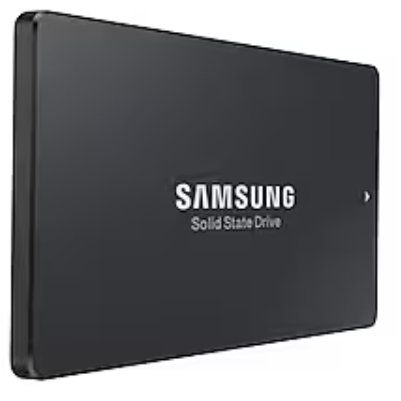
Introduction
The Samsung DC Toolkit 2.1 is a specialized command-line diagnostic and management utility designed exclusively for Samsung datacenter-grade SSDs, including models such as the 860 DCT, 883 DCT, 983 DCT, PM863, PM863a, SM863, SM863a, and PM963 non-customized. This powerful software offers IT professionals, system administrators, and data center operators a robust suite of tools to monitor, maintain, and optimize the performance and reliability of Samsung enterprise SSDs in mission-critical environments.
Key benefits of the Samsung DC Toolkit 2.1 include advanced drive health monitoring, secure data erasure, firmware updates, and detailed diagnostic reporting. Unique selling points are its CLI (command-line interface) flexibility, deep integration with Samsung’s proprietary SSD controllers, and support for both SATA and NVMe interfaces on select models. These features make it an essential tool for enterprise storage management, ensuring data integrity, maximizing drive lifespan, and simplifying compliance with data sanitation standards.
The target audience includes enterprise IT teams, data center managers, and OEMs who require granular control over their Samsung SSD assets. Typical use cases range from firmware management and secure erase operations to performance tuning and predictive failure analysis. The Samsung DC Toolkit 2.1 is available for both Windows and Linux platforms and is distributed free of charge by Samsung, ensuring broad accessibility for qualified users[5][6]. Since this is a specialized enterprise tool, retail pricing is not applicable—availability is through Samsung’s official support channels and authorized partners.
Technical Specifications and Key Features
The Samsung DC Toolkit 2.1 is engineered for compatibility with a select range of Samsung datacenter SSDs, providing a comprehensive set of diagnostic and management functions. Below are the core technical specifications and features:
Supported Devices
- PM863, PM863a, SM863, SM863a, PM963 non-customized
- 860 DCT, 883 DCT, 983 DCT, 983 DCT M.2, 983 ZET
Platform Support
- Windows (Server 2008, Server 2012, Windows 7 Pro, Windows 8 Pro, 32-bit and 64-bit)
- Linux (multi-language support)
Core Functionality
- Device Detection: Lists all connected Samsung SSDs
- Disk Details: Displays comprehensive device information (SATA only)
- SMART Monitoring: Provides health status, temperature logs, and lifetime estimates
- Secure Erase: Performs ATA Format Unit for complete data sanitization (SATA only)
- Firmware Management: Updates, downloads, and commits firmware (SATA & NVMe supported)
- Capacity Adjustment: Sets the maximum address to modify the user-available capacity (SATA only)
- Diagnostic Logs: Extracts FA, PLP, DSLR, and on-demand dumps for advanced troubleshooting
- Health Monitoring: Collects device metrics for proactive maintenance
Performance and Benchmarks
While the Samsung DC Toolkit 2.1 itself does not provide performance benchmarks, the supported SSDs—such as the 883 DCT—deliver up to 550 MB/s sequential read, 320 MB/s sequential write, and high random IOPS, backed by Samsung’s V-NAND and advanced controller technology. The toolkit ensures these drives operate at peak efficiency through precise firmware and configuration management.
Comparison with Similar Products
Unlike consumer tools like Samsung Magician, the DC Toolkit 2.1 offers deeper, CLI-driven control tailored for enterprise environments. It is not compatible with non-Samsung SSDs or consumer models, setting it apart from generic SSD utilities. For newer Samsung datacenter drives, version 3.0 is available, but 2.1 remains the standard for its targeted drive series.
Features
This user guide describes the commands necessary to interact with Samsung SSD drives. The functionality includes:
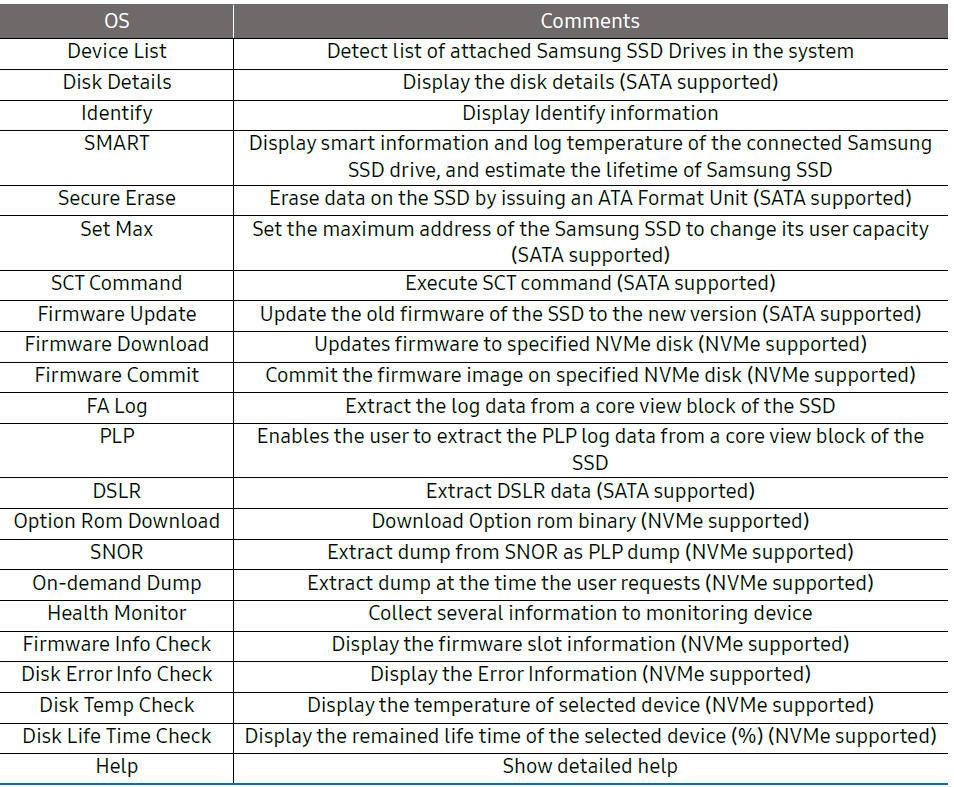
SATA Products
“Not Supported” in the tables below indicates the feature is not supported due to the Operating System availability.
860 DCT
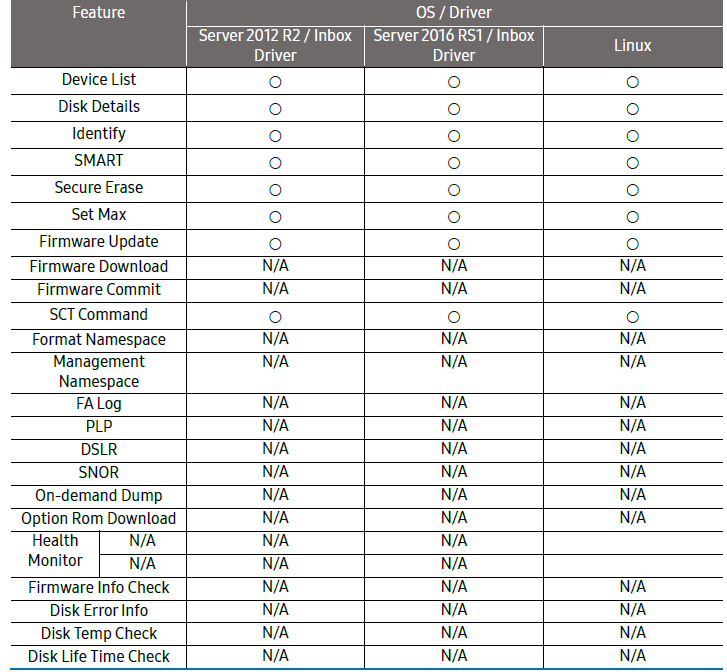
PM/SM863, PM853T
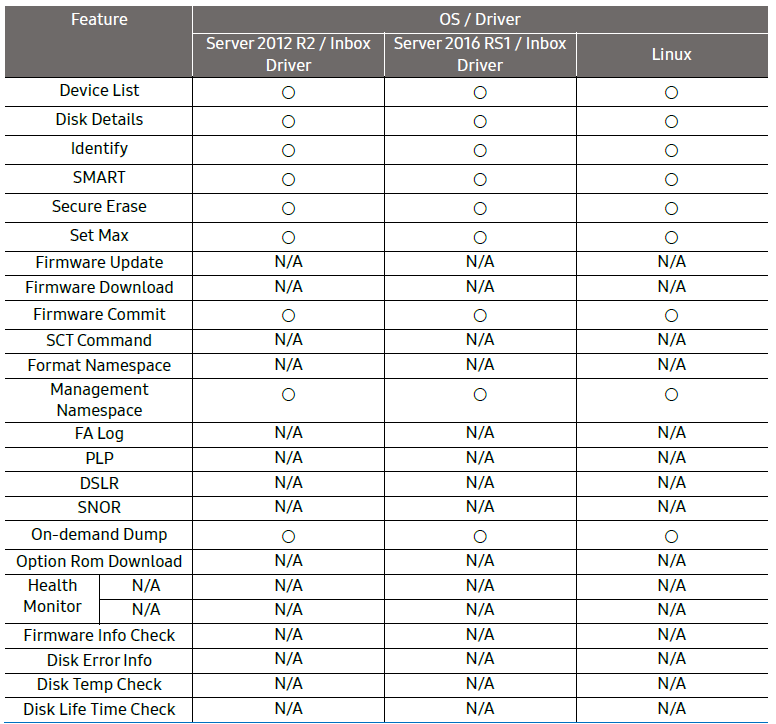
PM/SM863a
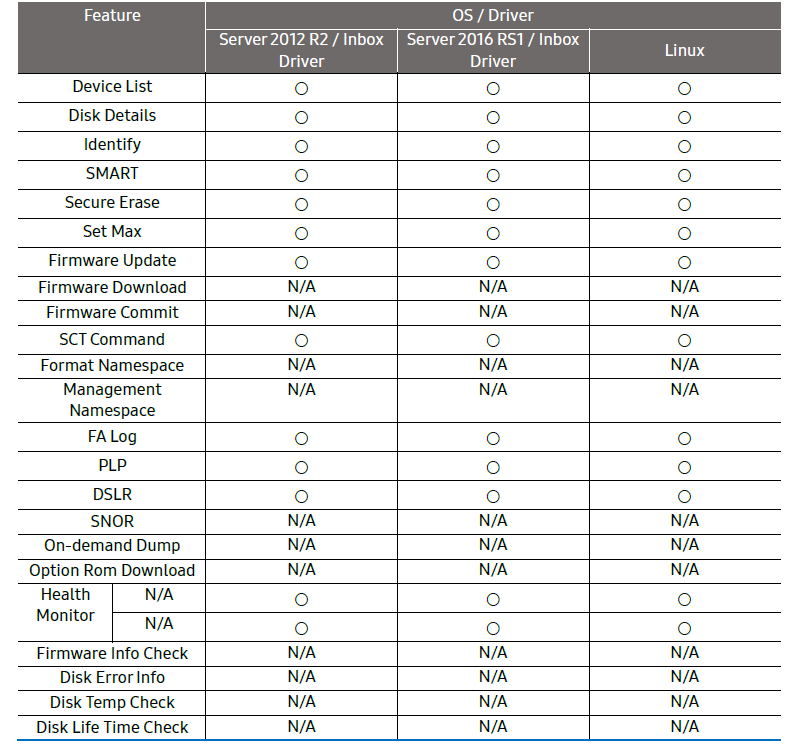
883DCT, PM/SM883
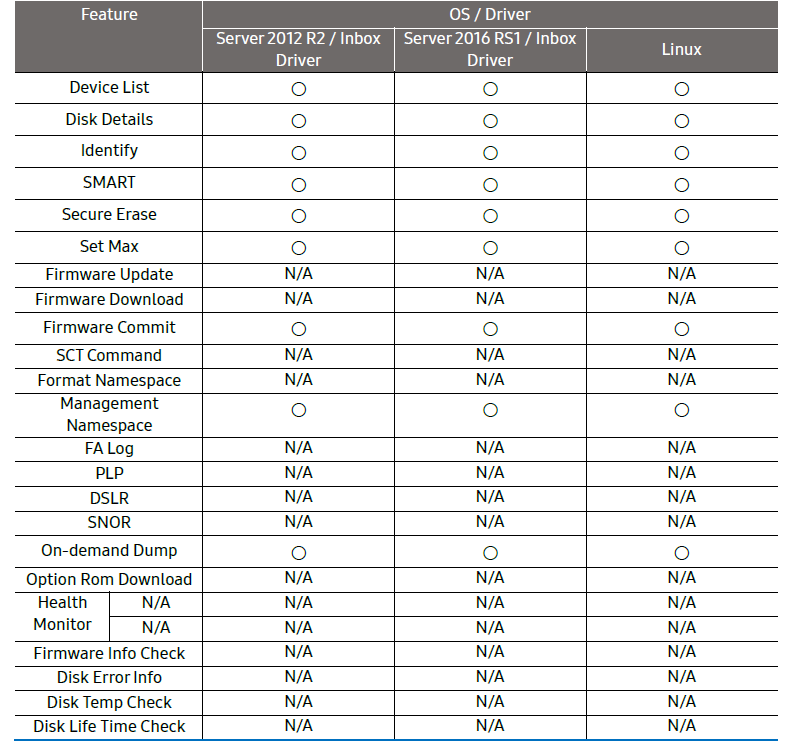
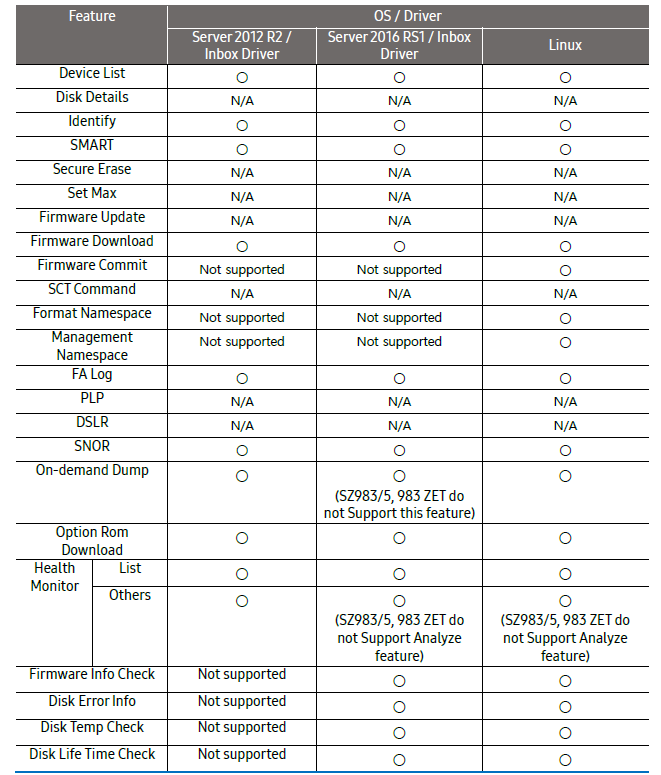
NVMe Product – Support Function per OS Version
“Not supported” in the tables below indicates the feature is not supported due to the Operating System availability.
PM/SM953
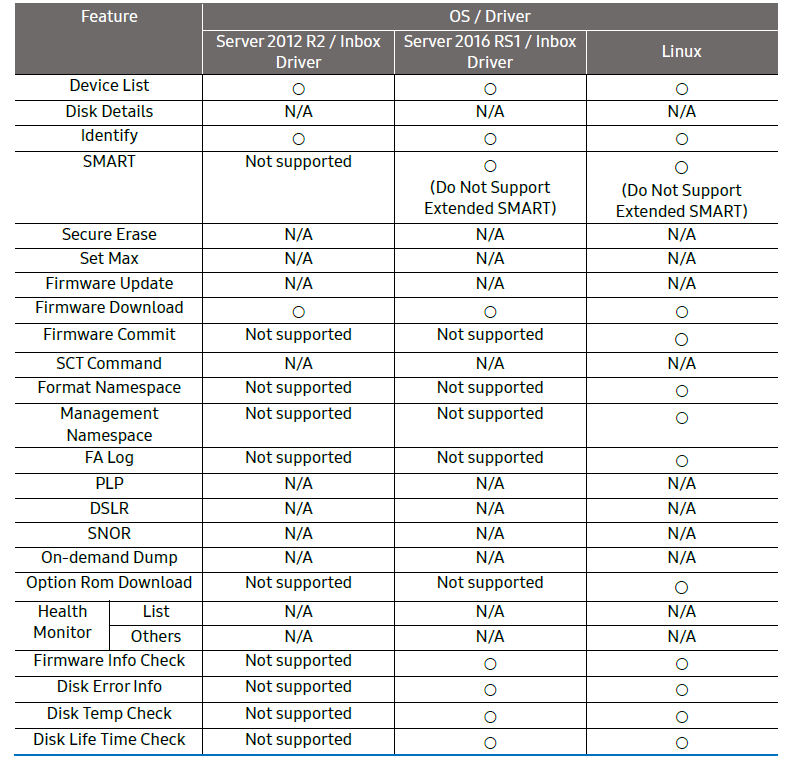
PM963
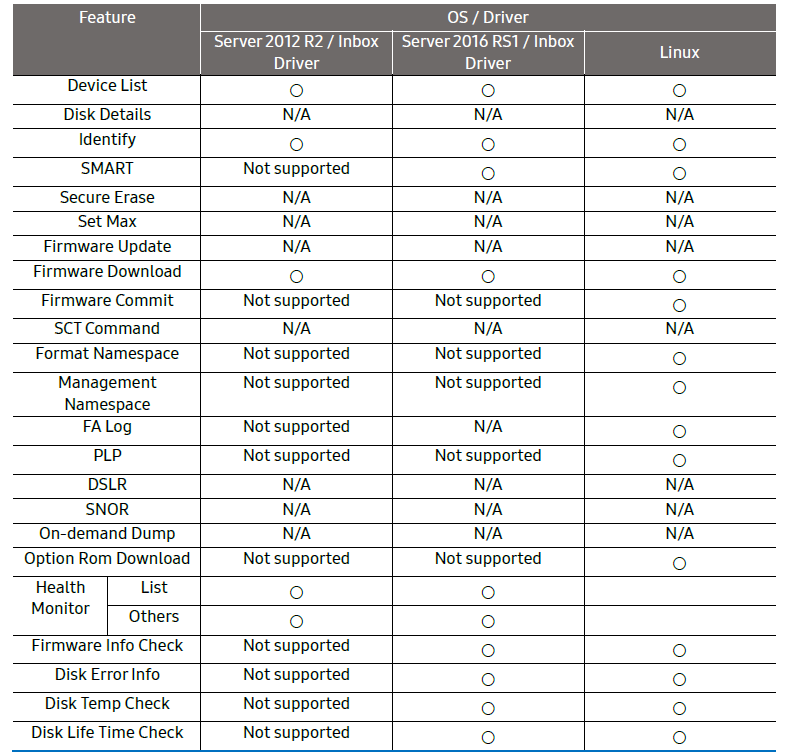
PM983, SZ983, SZ985, 983 ZET, 983 DCT, 983 DCT M.2
Command Line Options
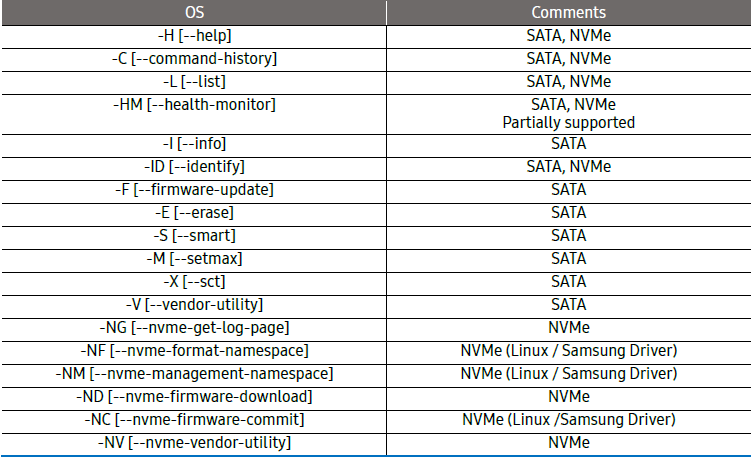
The Samsung DC Toolkit uses Command Line Interface (CLI)
The table given below briefly explains the available command-line options. The detailed description of each feature is provided in the next sections of this chapter. For the purpose of illustration, the name of the tool for all examples will be “DCToolkit” to simplify documentation.
How to Use DC Toolkit
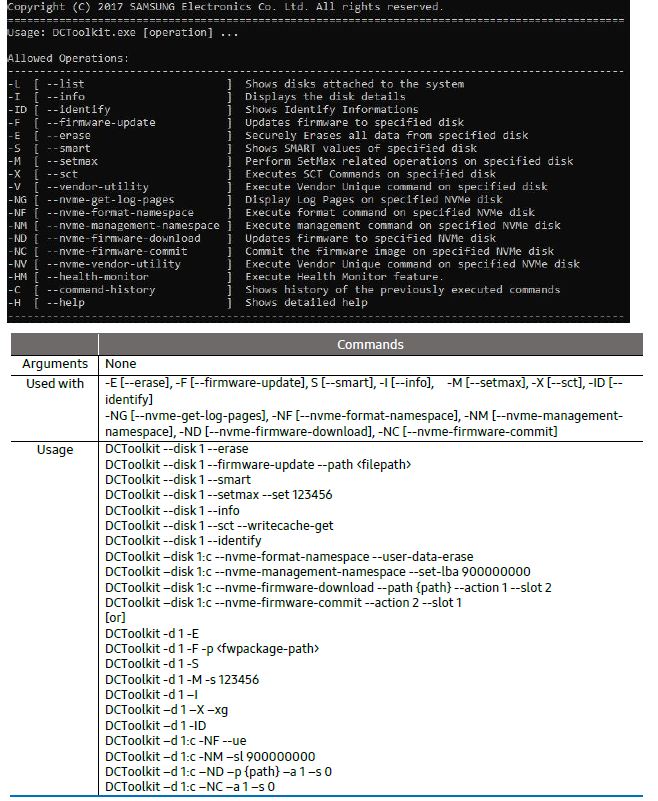
Starting the Samsung DC Toolkit software.
Find a DCToolkit file and execute.
Troubleshooting Common Issues
Effective use of the Samsung DC Toolkit 2.1 requires awareness of common issues and their resolutions. Below are typical problems, solutions, and support options:
Common Problems and Solutions
- Drive Not Detected: Ensure the SSD is properly connected and recognized by the OS. Use the
-L(--list) Command to verify detection. - Firmware Update Failure: Confirm the SSD model is supported and the firmware file is correct. Use the
-F(--firmware-update) command for SATA drives. - Secure Erase Not Working: This feature is SATA-only. Ensure the drive is not frozen (try a power cycle) and that the OS supports the ATA command.
- Command Errors: Review the command syntax and ensure administrator/root privileges. Consult the user guide for correct usage.
Error Codes and Fixes
While specific error codes are not listed in the public documentation, most issues relate to unsupported operations or drive states. Always check the command output for detailed error messages and refer to the official Samsung DC Toolkit 2.1 user guide for interpretation.
Preventive Measures
- Regularly monitor drive health using SMART and diagnostic logs
- Keep firmware up to date to avoid compatibility and performance issues
- Back up critical data before performing secure erase or capacity adjustments
Warranty and Support
Samsung enterprise SSDs typically come with a 5-year limited warranty or a TBW (terabytes written) warranty, depending on the model. The DC Toolkit 2.1 is provided as a free support tool, but direct technical support is available through Samsung’s business support channels. For urgent issues, contact Samsung support via their official website or your authorized reseller.
Pros and Cons of Samsung DC Toolkit 2.1
Advantages
- Enterprise-Grade Features: Offers deep diagnostic and management capabilities not found in consumer tools.
- CLI Flexibility: Enables scripting and automation for large-scale deployments.
- Comprehensive Drive Support: Covers a wide range of Samsung datacenter SSDs.
- No Cost: Free to download and use for qualified users.
- Regular Updates: Samsung maintains and updates the toolkit for compatibility and security.
Disadvantages
- Limited Compatibility: Only works with specific Samsung enterprise SSDs—not consumer models or other brands.
- Command-Line Only: No graphical interface, which may deter less technical users.
- Feature Gaps: Some advanced functions (e.g., secure erase) are SATA-only.
- Learning Curve: Requires familiarity with CLI and Samsung’s documentation for optimal use.
Value for Money
As a free, specialized tool for Samsung enterprise SSDs, the DC Toolkit 2.1 delivers exceptional value for its target audience. Alternatives are either generic (and less capable) or proprietary to other manufacturers.
Customer Reviews and User Feedback
User feedback on the Samsung DC Toolkit 2.1 highlights its effectiveness for enterprise SSD management, though the niche audience means detailed public reviews are limited. Common praises include:
- Reliable Diagnostics: Users appreciate the accurate health monitoring and logging features.
- Essential for Data Centers: System administrators value the ability to perform secure erase and firmware updates at scale.
- Stable and Well-Maintained: The tool is regularly updated to support new drive models and firmware versions.
Complaints typically focus on the lack of a GUI and the learning curve associated with CLI tools. Some users have noted that certain features are restricted to specific drive types or interfaces. Overall, the Samsung DC Toolkit 2.1 is highly recommended for IT professionals managing Samsung datacenter SSDs, provided they are comfortable with command-line interfaces.
For those considering purchase, this toolkit is a must-have companion for supported Samsung enterprise SSDs, ensuring optimal performance, security, and longevity in demanding environments.
Faqs
How do I install and set up samsung DC Toolkit 2.1 on Windows Server?
What are the common problems with samsung DC Toolkit 2.1 not detecting my Samsung SSD?
How can I use samsung DC Toolkit 2.1 to update SSD firmware safely?
Is samsung DC Toolkit 2.1 compatible with non-Samsung SSDs or consumer Samsung SSDs?
What key features does samsung DC Toolkit 2.1 offer for SSD performance monitoring?
How do I troubleshoot samsung DC Toolkit 2.1 errors during secure erase or set max commands?
What are the system requirements and dependencies for running samsung DC Toolkit 2.1 on Linux?
How often should I use samsung DC Toolkit 2.1 to maintain my Samsung enterprise SSD’s health?
More samsung manuals
Leave a Comment