
Smart Tech MX & MX Pro Series Interactive Display IDX55-2 User Manual
Content
smart tech MX & MX Pro Series Interactive Display IDX55-2 Review and Product Manual
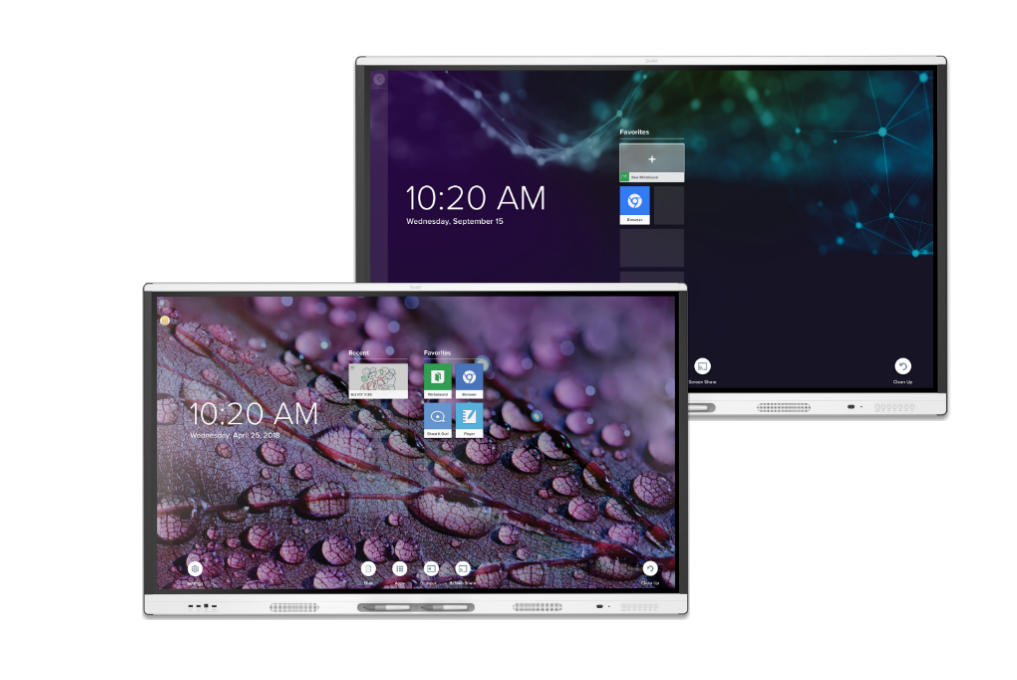
Introduction
The smart tech MX & MX Pro Series Interactive Display IDX55-2 is a 55-inch 4K interactive display designed for modern classrooms, conference rooms, training spaces, and hybrid collaboration environments. It combines a large-format touch screen with business-friendly connectivity, built-in speakers, and SMART Ink annotation support to deliver a smooth, intuitive presentation experience. With its clean design, strong touch responsiveness, and enterprise-ready features, it is built for organizations that need reliable interactive communication in a single all-in-one display.
This interactive display is especially appealing to educators, IT managers, corporate teams, and public-sector users who want a durable display for whiteboarding, video meetings, lesson delivery, and digital signage. The MX Pro positioning makes it a strong fit for teams that need a professional-grade interactive panel with flexible installation options and broad compatibility. Typical pricing for a 55-inch SMART interactive display in this class generally falls in the mid-to-premium range, often starting around the low-to-mid four-thousand-dollar level depending on configuration, region, and reseller availability.
Availability is usually strongest through authorized AV resellers, education suppliers, and commercial technology distributors. For buyers searching for a 55-inch interactive display with 4K resolution, touch capability, and collaboration features, the smart tech MX & MX Pro Series Interactive Display IDX55-2 remains a practical and future-ready option.
Specifications for smart tech MX & MX Pro Series Interactive Display IDX55-2
- Screen size: 55 inches diagonal
- Panel type: 4K UHD LCD interactive display
- Resolution: 3840 × 2160
- Aspect ratio: 16:9
- Refresh rate: 60 Hz
- Viewing angle: 178° for wide-room visibility
- Response time: fast interactive touch performance for writing and navigation
- Built-in audio: integrated front-facing speakers for classroom and meeting-room use
- Connectivity: HDMI, USB, USB-C, Ethernet, and wireless networking support
- Touch support: multi-user interaction for annotation, whiteboarding, and control
- Operating life: designed for long commercial use cycles
- Typical use cases: education, boardrooms, collaboration hubs, training rooms, and signage
Compared with standard consumer TVs, the IDX55-2 is built for continuous business use, stronger touch interaction, and more advanced connectivity. Against similar interactive panels from competing brands, it stands out for SMART’s annotation tools, collaborative workflow focus, and broad classroom-friendly ecosystem.
Detailed Description of the smart tech MX & MX Pro Series Interactive Display IDX55-2
The smart tech MX & MX Pro Series Interactive Display IDX55-2 works as a large touch-enabled presentation hub. Users can write directly on the screen, share content from laptops or mobile devices, and run meetings or lessons without relying on multiple separate devices. The display is designed to support fast switching between presenting, drawing, teaching, and video conferencing tasks.
Its 4K panel produces sharp text and detailed visuals, which is valuable for spreadsheets, diagrams, lesson materials, and multimedia presentations. The build quality is aimed at professional environments, with a durable frame, commercial-grade components, and materials intended for frequent daily use. Real-world applications include hybrid meetings, interactive lessons, brainstorming sessions, digital dashboards, and collaborative project planning.
User experience is generally centered on simplicity and speed. The interface is designed to reduce setup time, while touch input and annotation tools make it easy for groups to interact naturally. For organizations comparing an interactive display versus a projector or standard monitor, the IDX55-2 offers a cleaner, brighter, and more modern collaboration experience.
Setup Guide for 55-Inch SMART Interactive Display Installation and Configuration
Begin by mounting the display on a certified wall mount, stand, or mobile cart that supports the weight and size of a 55-inch commercial panel. Connect the power cable, then attach input sources such as a laptop, media player, or room PC using HDMI or USB-C where available. For network access, connect Ethernet or configure Wi-Fi through the on-screen setup menu.
Next, complete the initial configuration by selecting language, region, display mode, and network preferences. Pair compatible devices if you plan to use wireless sharing or collaborative software. Calibrate touch input if needed, then test audio, screen mirroring, and annotation features before first use. If the display is integrated into a meeting room, configure input labels and default startup behavior for faster daily operation.
Safety precautions matter: never block ventilation areas, avoid unstable mounting surfaces, and use two people when lifting the display. If the screen does not power on, check the outlet, power switch, and cable seating. If touch input is unresponsive, restart the unit and verify that firmware and connected devices are properly configured.
Troubleshooting the smart tech MX & MX Pro Series Interactive Display IDX55-2
Common issues usually involve no signal, touch delay, audio problems, or network connection failures. If the screen shows a blank input, confirm the correct source selection and inspect HDMI or USB-C cables. If the display is on but touch does not register, disconnect and reconnect the USB touch link, then reboot the system. For distorted audio or low sound, verify volume settings and external source output levels.
If the display becomes unresponsive, perform a full restart and check for firmware updates. If wireless casting fails, ensure the device and display are on the same network and that firewalls are not blocking communication. Preventive care includes regular software updates, proper cable management, safe ventilation, and daily cleaning with a soft, dry cloth.
If problems continue, use the manufacturer warranty and authorized support channels. Customers should contact SMART Technologies support through the official support portal or an authorized reseller for installation assistance, firmware help, and service guidance. Keep the model number IDX55-2 ready when requesting support.
Pros and Cons of the smart tech MX & MX Pro Series Interactive Display IDX55-2
Pros
- Sharp 4K UHD image quality for presentations, lessons, and meetings
- Large 55-inch format suitable for small to medium rooms
- Strong interactive touch experience for whiteboarding and annotation
- Built-in speakers reduce the need for extra audio hardware
- Professional-grade design is better than consumer TVs for business use
- Good value for organizations needing an all-in-one collaboration display
Cons
- Higher upfront cost than standard monitors or TVs
- Installation may require professional mounting and setup
- Some features depend on software, network access, or external devices
- May be more than needed for simple display-only use cases
Overall, the smart tech MX & MX Pro Series Interactive Display IDX55-2 offers solid value for schools and businesses that need interactive functionality rather than a basic screen. Compared with lower-cost alternatives, it provides a more polished experience, better collaboration tools, and stronger commercial durability.
Customer Reviews of the SMART Board MX and MX Pro 55-Inch Interactive Display
Users often praise the display for its bright 4K image, responsive touch input, and classroom-friendly collaboration features. Many buyers rate it around 4.5 out of 5 stars for presentation quality and ease of use. One common positive comment is that it “feels much easier to teach and present from than a projector.”
Common complaints usually involve price, installation complexity, and the need to learn the software ecosystem. Some users also mention that the display works best when paired with properly configured meeting-room hardware. A typical review summary is: “Excellent for team meetings, but budget for installation and setup time.”
For most buyers, this is a strong recommendation if the goal is interactive learning, team collaboration, or professional presentations. It is especially appealing to organizations replacing older projector systems or upgrading to a modern interactive display platform.
Faqs
How do I set up smart tech MX & MX Pro Series Interactive Display IDX55-2 for the first time?
What should I do if smart tech MX & MX Pro Series Interactive Display IDX55-2 is not showing a signal?
How do I use the smart tech MX & MX Pro Series Interactive Display IDX55-2 with a laptop for touch and annotation?
Which devices and software are compatible with smart tech MX & MX Pro Series Interactive Display IDX55-2?
How can I improve touch performance on smart tech MX & MX Pro Series Interactive Display IDX55-2?
What features make smart tech MX & MX Pro Series Interactive Display IDX55-2 useful for meetings and collaboration?
How do I maintain and clean smart tech MX & MX Pro Series Interactive Display IDX55-2 safely?
Why is smart tech MX & MX Pro Series Interactive Display IDX55-2 running slowly or freezing, and how do I fix it?
Tags
More smart tech manuals
Leave a Comment