
Smart Tech SMART Document Camera 330 User Manual
Content
Introduction
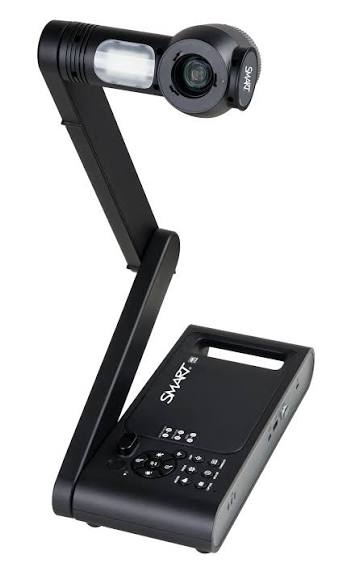
The smart tech SMART Document Camera 330 is a classroom-ready visualizer designed to display 3D objects, printed materials, microscope slides, and handwritten work with clarity and speed. Built for teachers, trainers, and presenters, it helps turn physical content into a live digital display for projectors, interactive whiteboards, and TVs. The camera’s 1.3 MP CMOS sensor, 5.2x optical zoom, and up to 30 frames per second deliver smooth, detailed image capture for everyday instructional use.
One of the biggest advantages of the SMART Document Camera 330 is its integration with SMART Notebook software and SMART Board environments, making it especially useful for interactive lessons and collaborative presentations. It also supports image capture to SD or SDHC memory cards and connected computers, giving users flexible ways to save and share content. Microscope mode without adapters adds extra value for science classrooms and lab demonstrations.
This model is best suited for schools, training rooms, and organizations that need a reliable document camera for live demonstrations and visual instruction. While it has been discontinued, it remains available through secondary sellers and refurbished channels, with typical pricing often found in the budget-to-midrange used market. For buyers comparing legacy classroom document cameras, the smart tech SMART Document Camera 330 still stands out for its strong zoom, flexible output options, and simple operation.
Specifications
- Image sensor: 1.3 megapixel high-resolution CMOS sensor
- Effective resolution: 1280 x 1024
- Frame rate: Up to 30 frames per second
- Zoom: 5.2x optical zoom, 8.0x digital zoom
- Focus: Automatic or manual focus
- Output resolutions: SXGA, WXGA, 720p, and XGA
- Video output: DVI-D and VGA, with composite video support
- Storage support: SD and SDHC memory cards, USB storage, and connected computer saving
- Microscope mode: Supported without adapters
- Power: 12V DC adapter, 100V–240V AC input
- Weight: Approximately 7 lb. 10 oz.
- Comparison: Compared with newer document cameras, the SMART Document Camera 330 offers lower resolution but strong classroom-friendly optical zoom and legacy SMART software integration
For quick benchmarking, the SMART Document Camera 330 is more focused on dependable presentation performance than ultra-high-definition capture. It is a practical choice when compatibility, zoom range, and live teaching use matter more than modern 4K output.
Detailed Description
The smart tech SMART Document Camera 330 functions as a live visual presenter. Place a document, object, specimen, or textbook page under the camera, and the sensor captures the image in real time for display on a connected screen. The camera can be used in three major ways: connected to a computer for software-based presentation, connected directly to a projector or television for standalone viewing, or paired with SMART teaching tools for interactive lessons.
Its build is practical and classroom-oriented, with a folding design that makes it easier to store between sessions and transport between rooms. The camera’s body and arm assembly are designed for frequent setup and breakdown, which suits shared educational environments. The zoom lens helps users show small details clearly, while the microscope mode makes it especially useful in science labs for viewing slides and tiny objects.
In real-world use, this document camera works well for demonstrating handwriting, showing art techniques, reviewing homework, and magnifying instructional materials. Users often appreciate its simple controls and flexible output options, which reduce setup complexity during class. For instructors who need a dependable visualizer rather than a feature-heavy media device, the smart tech SMART Document Camera 330 delivers a straightforward and familiar workflow.
Setup Guide
Setting up the smart tech SMART Document Camera 330 is relatively simple and can be completed in a few steps. First, unfold the camera and position it on a stable, level surface near your display or computer. Next, connect the power adapter and choose your output connection, such as DVI-D, VGA, or composite video depending on your display device. If you are using a computer, connect the USB-B cable as required and install any compatible SMART software before launching the camera.
After powering on, place a document or object under the lens and use the zoom and focus controls to adjust the image. If your setup includes SMART Notebook or a SMART Board system, select the camera source inside the software to integrate it into your lesson flow. For storage, insert an SD or SDHC card before capturing images if you want to save files directly to removable media.
For troubleshooting during setup, check that the correct input source is selected on the projector or monitor, and confirm that the camera is switched to the proper output mode. Avoid placing the camera near liquids or unstable edges, and do not force the arm or lens mechanism. If the image appears dim, adjust room lighting or reposition the subject to reduce glare.
Troubleshooting
Common issues with the smart tech SMART Document Camera 330 usually involve connections, lighting, or focus. If there is no image on screen, verify the power connection, cable seating, and display input selection. If the picture is blurry, switch between automatic and manual focus, then zoom in slightly before refocusing. When the image looks washed out or too dark, adjust classroom lighting and move reflective materials away from direct lamp glare.
If the camera is not saving to an SD card, check that the card is formatted correctly and is fully inserted. If USB storage is not recognized, reconnect the drive and confirm compatibility. When using a computer connection, make sure the software source is set to the document camera rather than the default webcam input. Error messages may also appear if the output mode does not match the display device, so confirm whether the camera is set for VGA, DVI-D, or composite output.
To prevent problems, keep the lens clean, store the camera folded when not in use, and avoid cable stress at the ports. Since this model is discontinued, warranty service and support may vary by seller. For help, contact SMART Technologies support through the official support channel, or consult the retailer, reseller, or refurbished equipment provider that supplied the unit.
Pros & Cons
Pros
- Strong 5.2x optical zoom for classroom demonstrations and detail work
- Up to 30 fps for smooth live viewing
- Works with SMART Notebook and SMART Board environments
- Supports SD, SDHC, USB, and computer-based image saving
- Microscope mode without adapters adds science classroom value
- Flexible output options make it easy to connect to older displays
Cons
- Lower resolution than modern HD and 4K document cameras
- Discontinued model, so availability is limited
- May require legacy connectors for best compatibility
- Best suited for schools using older SMART ecosystems
For value for money, the smart tech SMART Document Camera 330 can still be a smart buy on the used market if compatibility and zoom are more important than cutting-edge image quality. Compared with newer alternatives, it is less advanced, but it remains practical for institutions that need a dependable visualizer with familiar classroom controls.
Customer Reviews
Customer feedback on the smart tech SMART Document Camera 330 is generally positive among educators and AV buyers who value reliability over modern resolution. Many users rate it around 4 out of 5 stars for ease of use, optical zoom quality, and strong classroom integration. Teachers often praise its ability to show workbook pages, manipulatives, and science specimens clearly during lessons.
Common complaints include its older design, discontinued status, and lower image quality compared with newer document cameras. Some users also note that setup may take extra effort in mixed hardware environments. A typical testimonial reads: “It still works well for our classroom lessons and connects easily to our SMART setup.” Another common comment is: “Great zoom and easy controls, but not as sharp as newer models.” For buyers needing a budget-friendly legacy visualizer, it remains a reasonable recommendation.
Faqs
How do I set up smart tech SMART Document Camera 330 for the first time?
What should I do if smart tech SMART Document Camera 330 is not showing an image on my projector or TV?
Can smart tech SMART Document Camera 330 work with SMART Notebook software and SMART Board interactive whiteboards?
How do I get the clearest image from smart tech SMART Document Camera 330 during lessons or presentations?
What file-saving options does smart tech SMART Document Camera 330 support?
Is smart tech SMART Document Camera 330 compatible with modern computers and display setups?
Why does smart tech SMART Document Camera 330 look blurry when I zoom in?
How should I clean and maintain smart tech SMART Document Camera 330 for long-term use?
Tags
More smart tech manuals
Leave a Comment