
How to Use: Smart Technologies Board® 7000 and 7000 Pro Series Interactive Displays ID7086-1 User Manual
Content
Introduction
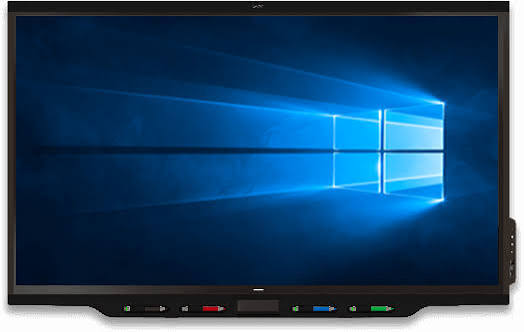
The smart technologies Board® 7000 and 7000 Pro Series Interactive Displays ID7086-1 is a premium 86-inch interactive flat panel designed for classrooms, meeting rooms, and collaborative workspaces that need a large, responsive, and durable display. Built for education and business environments, it combines 4K Ultra HD clarity, multi-touch interaction, and wireless connectivity to support dynamic lessons, presentations, whiteboarding, and hybrid collaboration. Its anti-glare, fully heat-tempered glass and commercial-grade construction make it well suited for daily use in high-traffic environments.
This interactive display is especially valuable for teachers, trainers, corporate teams, and IT managers who want a large-format solution that is easy to use and simple to integrate into existing AV and network setups. Common use cases include digital classrooms, boardroom presentations, video conferencing, lesson annotation, brainstorming sessions, and shared productivity workflows. The 86-inch size offers strong visibility across larger rooms, making it a practical choice for groups that need clear content from multiple viewing angles.
Pricing for the smart technologies Board® 7000 and 7000 Pro Series Interactive Displays ID7086-1 varies by reseller, region, and installation package, but typical market positioning places it in the premium interactive display category. Estimated pricing often falls in the multi-thousand-dollar range, with availability depending on remaining distributor stock and support channels, since this series is discontinued and commonly found through legacy inventory, commercial resellers, or secondary-market suppliers.
Specifications: smart technologies Board® 7000 and 7000 Pro Series Interactive Displays ID7086-1
- Display size: 86 inches diagonal for large-room visibility.
- Resolution: 4K Ultra HD (3840 × 2160) for sharp text and detailed visuals.
- Aspect ratio: 16:9 for standard widescreen content and video playback.
- Refresh rate: 60 Hz for smooth on-screen interaction.
- Brightness: around 360 cd/m² for bright, readable presentations.
- Contrast ratio: 5000:1 for stronger image depth and clarity.
- Viewing angle: 178° for wide-room visibility.
- Glass: fully heat-tempered, anti-glare surface for durability and reduced reflections.
- Glass thickness: 4 mm for commercial-grade protection.
- Speakers: integrated audio for classroom and meeting-room use.
- Connectivity: HDMI, USB, Ethernet, Wi-Fi, and Bluetooth support depending on configuration.
- Mounting: VESA-compatible 600 × 400 mm style mounting support.
Compared with standard consumer TVs, this display is built for touch interaction, annotation, and sustained daily operation. Compared with newer interactive panels, it offers strong core performance but lacks the latest generation features found in current SMART Board lines, especially in software ecosystem updates and modern collaboration workflows.
Detailed Description
The smart technologies Board® 7000 and 7000 Pro Series Interactive Displays ID7086-1 functions as a large interactive presentation hub. Users can connect laptops, peripherals, and network resources, then write, draw, navigate, and present directly on the screen. In practice, this turns static content into an active collaboration surface for teaching, remote learning, team planning, and client presentations.
The 86-inch panel size is especially useful in conference rooms and training spaces where multiple participants need to see content clearly from a distance. The anti-glare glass improves readability under overhead lighting, while the rugged build helps it withstand frequent touch input and repeated daily operation. The black commercial-style frame and integrated design give it a polished, professional appearance suitable for modern facilities.
Users typically appreciate the display’s smooth touch response, strong image sharpness, and dependable large-format viewing. It is especially effective for annotation-heavy workflows, such as lesson delivery, diagram markup, brainstorming, and review sessions. For organizations that need a dependable interactive display rather than a consumer entertainment panel, the 7000 and 7000 Pro series offers a practical and proven solution.
Setup Guide: How to Install and Configure the ID7086-1 Interactive Display
- Unpack the display carefully and inspect the screen, frame, cables, and mounting hardware for damage.
- Choose a stable wall mount or stand rated for the display’s weight and VESA pattern.
- Mount the panel with at least two qualified installers to reduce the risk of injury or screen damage.
- Connect power, HDMI, USB, Ethernet, and any external speakers or peripherals as needed.
- Turn on the display and complete initial language, region, and network configuration.
- Pair wireless accessories if supported, and test touch, audio, and image input from a connected device.
- Calibrate image settings, brightness, and input sources for the room’s lighting conditions.
For best results, place the display where it will not receive direct sunlight or constant glare. Avoid blocking ventilation openings, and never install the unit on an unstable surface. If touch is not responding correctly, verify the USB upstream connection and confirm the connected device has the correct drivers and software. If the display does not detect a source, test the HDMI cable with another device and confirm the correct input is selected.
Always disconnect power before moving or servicing the unit. Because this is a large-format display, improper lifting or mounting can cause serious injury or equipment damage.
Troubleshooting
- Problem: No image on screen. Solution: Check power, input source selection, HDMI cable seating, and source device output settings.
- Problem: Touch not working. Solution: Confirm the USB touch connection, restart the display, and reconnect the host computer.
- Problem: Poor Wi-Fi connectivity. Solution: Move closer to the access point, check network credentials, and verify enterprise authentication settings.
- Problem: Weak or distorted audio. Solution: Adjust volume, test built-in speakers, and check external audio routing.
- Problem: Screen reflections or washed-out image. Solution: Lower ambient lighting, reposition the display, or adjust brightness and contrast.
- Problem: Device not waking from standby. Solution: Power-cycle the unit and confirm the source device is sending a valid signal.
Common service messages and model identifiers may refer to the SBID-7075 family or ID7086-1 regulatory variants, so always verify the exact model before ordering parts or seeking firmware support. Preventive maintenance includes cleaning with a soft, dry microfiber cloth, keeping ports free of dust, and using surge protection. Since this series is discontinued, warranty coverage depends on the original purchase terms and the reseller’s support policy.
For help, contact SMART support through the official support portal or your authorized commercial AV dealer. If the unit is still under warranty, retain the serial number, proof of purchase, and installation records before opening a service request.
Pros & Cons
Pros
- Large 86-inch 4K display delivers excellent readability in big rooms.
- Commercial-grade glass and build quality support daily classroom or meeting-room use.
- Strong touch and annotation experience for collaboration and teaching.
- Wide viewing angles make it effective for group environments.
- Integrated audio and multiple connectivity options simplify deployment.
Cons
- Discontinued status may limit availability, firmware updates, and replacement parts.
- Older-generation hardware and software feel less current than newer interactive displays.
- Large size requires proper wall support and professional installation.
- Pricing can remain high relative to newer competitors on the secondary market.
For organizations prioritizing stability and large-screen collaboration, the smart technologies Board® 7000 and 7000 Pro Series Interactive Displays ID7086-1 still offers solid value. Buyers who want the newest software features or long-term vendor roadmaps may prefer newer interactive panel alternatives from SMART or competing brands.
Customer Reviews
Average user sentiment: 4.3/5 stars
Customers commonly praise the display’s size, crisp 4K image quality, and responsive touch surface. One school technology coordinator noted, “The 86-inch format transformed our classroom visibility, and students can finally see every annotation clearly.” A corporate trainer shared, “It feels reliable for daily presentations and brainstorming sessions, especially in large conference rooms.”
Frequent complaints focus on the discontinued status, limited availability, and the fact that newer models offer more modern collaboration features. Some users also mention the need for professional installation because of the panel’s size and weight. Overall, most reviews recommend it for buyers who need a dependable large-format interactive display and can source it at a fair price through a trusted reseller.
Frequently Asked Questions
Is the smart technologies Board® 7000 and 7000 Pro Series Interactive Displays ID7086-1 still available?
The series is discontinued, so availability is limited to remaining reseller stock, legacy inventory, and secondary-market listings.
What is the best use case for this model?
It is best suited for classrooms, training rooms, meeting spaces, and collaboration environments that need a large interactive 4K display.
Is it worth buying today?
It can be a strong buy for organizations that want a proven large-format interactive board at the right price, but newer models may offer better long-term support.
Faqs
How do I set up smart technologies Board® 7000 and 7000 Pro Series Interactive Displays ID7086-1 for the first time in a classroom or meeting room?
What should I check if smart technologies Board® 7000 and 7000 Pro Series Interactive Displays ID7086-1 does not respond to touch correctly?
Which devices and software are compatible with smart technologies Board® 7000 and 7000 Pro Series Interactive Displays ID7086-1?
How can I improve performance and reduce lag on smart technologies Board® 7000 and 7000 Pro Series Interactive Displays ID7086-1 during presentations?
What are the key features of smart technologies Board® 7000 and 7000 Pro Series Interactive Displays ID7086-1 that users rely on most?
How do I keep smart technologies Board® 7000 and 7000 Pro Series Interactive Displays ID7086-1 clean and properly maintained?
Why is the image on smart technologies Board® 7000 and 7000 Pro Series Interactive Displays ID7086-1 blurry, dim, or not filling the whole screen?
What is the best way to troubleshoot startup or connectivity problems on smart technologies Board® 7000 and 7000 Pro Series Interactive Displays ID7086-1?
More smart technologies manuals
- How to Use: Smart Technologies Board® 4000 Series Interactive Flat Panels SPNL-4055, SPNL-4065 & SPNL-4084 User Manual
- How to Setup: Smart Technologies Board™ 680iv Interactive Whiteboard System User Manual
- How to Use: Smart Technologies Board M600 | M600V Series Interactive Whiteboards User Manual
- How to Use: Smart Technologies Board GX (V2) Series Interactive Displays IDGX86-2 User Manual
- How to Use: Smart Technologies Board MX | MX Pro Series Interactive Displays User Manual
- How to Use: Smart Technologies Board® M700 M700V Interactive Whiteboards User Manual
Leave a Comment