
How to Use: Smart Technologies Board MX | MX Pro Series Interactive Displays User Manual
Content
Smart Technologies Board MX | MX Pro Series Interactive Displays: Complete Product Manual
Introduction
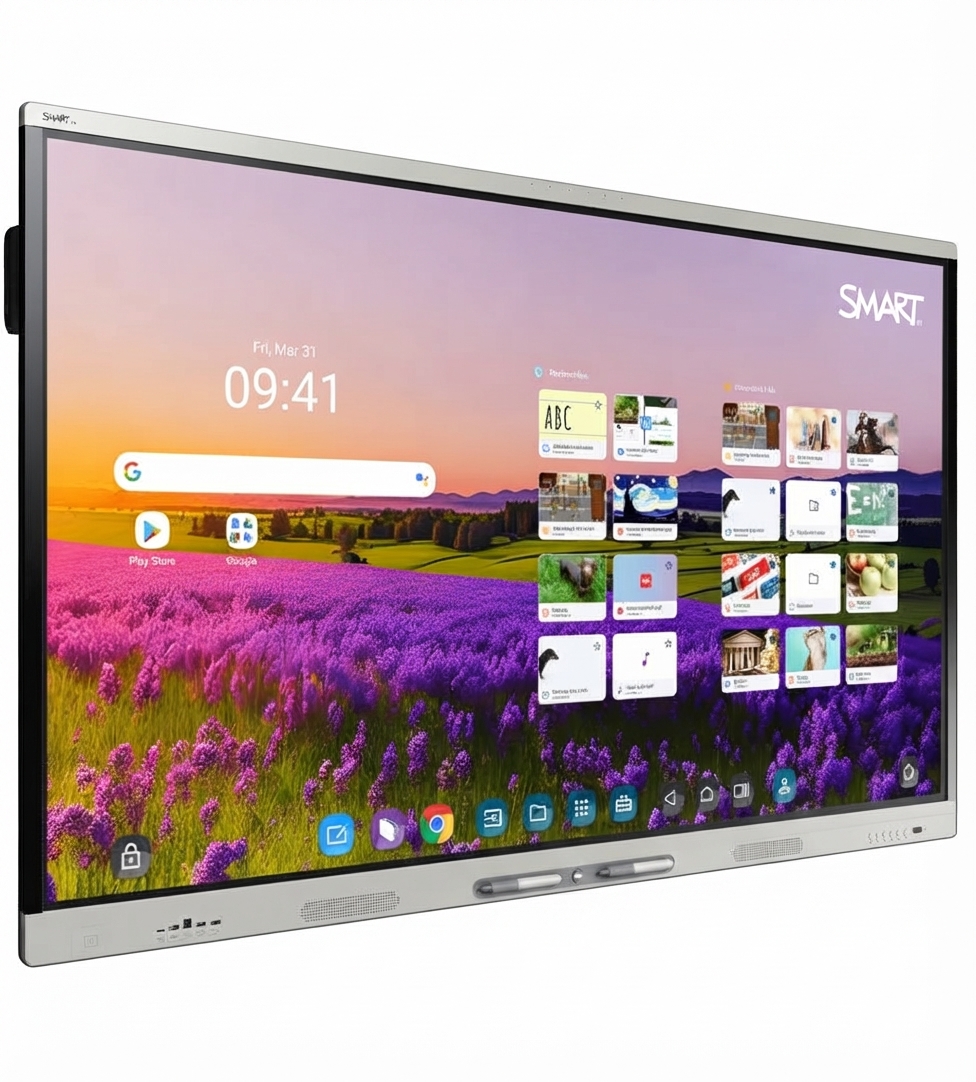
The smart technologies Board MX | MX Pro Series Interactive Displays are designed for modern classrooms, meeting rooms, and collaborative workspaces that need a reliable, high-clarity large-format touchscreen. Built around a 4K UHD interactive panel, the series delivers crisp visuals, responsive touch performance, and a clean all-in-one collaboration experience. Available in 55-inch, 65-inch, 75-inch, and 86-inch sizes, these displays fit everything from compact huddle spaces to large conference rooms.
One of the main strengths of the smart technologies Board MX | MX Pro Series Interactive Displays is multi-user interactivity. Teams can write, erase, move content, and annotate at the same time, making it especially useful for brainstorming, lessons, hybrid meetings, and interactive presentations. The display is also known for strong viewing angles, anti-glare performance, and built-in collaboration features that reduce the need for external peripherals.
This series is a strong choice for educators, corporate teams, government environments, and training centers that want an interactive display with dependable day-to-day performance. In terms of pricing, the MX Pro Series typically falls in the mid-to-premium range, with market availability varying by size, configuration, and reseller. New and refurbished units may still be available through business AV dealers and enterprise suppliers, though some MX models are now discontinued and mainly supported through legacy documentation and warranty channels.
Specifications and Key Features of the MX Pro Series
- Display sizes: 55", 65", 75", and 86" for flexible room deployment
- Resolution: 4K UHD (3840 × 2160) for sharp text, diagrams, and video playback
- Refresh rate: 60 Hz for smooth visuals in presentations and lessons
- Touch capability: Multi-touch support with fast, responsive annotation and gesture control
- Viewing experience: Wide viewing angles and anti-glare screen treatment for bright rooms
- Built-in collaboration tools: Digital whiteboarding, screen sharing, and annotation support
- Target use cases: Education, business collaboration, training, and digital signage-style presentations
- Performance comparison: Compared with standard commercial TVs, the MX Pro Series offers better touch interaction, writing precision, and collaboration software support; compared with newer premium boards, it remains a value-oriented option for buyers prioritizing core interactive features over the latest hardware generation
For buyers comparing interactive flat panels, the MX Pro Series stands out for combining enterprise-grade usability with a straightforward deployment model. The key advantage is not just the panel resolution, but the overall collaboration workflow that supports multiple users in real time.
Setup Guide for smart technologies Board MX | MX Pro Series Interactive Displays
Set up begins by mounting the display securely on a VESA-compatible wall mount or mobile stand rated for the screen size and weight. After positioning the unit, connect power, HDMI, USB, and network cables as needed. For most meeting-room installs, connect the display to Wi‑Fi or Ethernet, then complete the on-screen initial setup wizard.
Next, configure language, time zone, display mode, and source inputs. If the display includes embedded software or an iQ-style interface, sign in to the appropriate workspace or whiteboard account, then test touch response, audio output, and screen sharing. Pair wireless devices such as laptops, tablets, or accessories through the available connectivity options.
Before first use, verify firmware status, confirm that the panel is stable on the mount, and check all cable strain relief points. Safety precautions are essential: avoid over-tightening mounts, keep ventilation openings unobstructed, and disconnect power before making hardware changes. If the screen does not wake, is not detected by a source device, or touch input is delayed, restart the display and reseat all cables before advanced troubleshooting.
Troubleshooting Common Issues and Support Options
Common issues with the smart technologies Board MX | MX Pro Series Interactive Displays usually relate to input detection, touch calibration, audio, or network connectivity. If the screen shows no signal, confirm the correct input source, check HDMI seating, and test with another cable. If touch is unresponsive, reboot the display, disconnect and reconnect USB, and ensure the connected device has the proper drivers or software.
- No image: Check power, input source, and cable integrity
- Touch lag or drift: Recalibrate if supported, restart the system, and update firmware if available
- Audio problems: Verify volume, speaker output, and mute settings
- Network failure: Restart the router, confirm Ethernet or Wi‑Fi credentials, and test with a known-good connection
- Frozen interface: Perform a safe restart and close background apps before reopening the display software
Legacy MX models are discontinued, so software updates may be limited depending on the exact version. If the unit is under warranty, official support is still available through the manufacturer’s support channel and product documentation. For help, contact SMART support through the official support portal or through an authorized reseller or AV integrator that supplied the unit.
Pros and Cons of the MX Pro Series Interactive Display
Pros
- Excellent 4K UHD image quality for text-heavy and visual presentations
- Strong collaboration features for classrooms and meeting rooms
- Multiple size options make it easy to match room dimensions
- Reliable touch performance for interactive lessons and workshops
- Good value for organizations that want core functionality without paying for top-tier premium features
Cons
- Some MX models are discontinued, which can affect long-term update availability
- Newer competitors may offer faster processors or more advanced wireless sharing features
- Pricing varies significantly by reseller and condition, making comparison shopping important
- Advanced enterprise users may prefer newer display lines with expanded software ecosystems
Overall, the smart technologies Board MX | MX Pro Series Interactive Displays deliver strong everyday value for buyers who prioritize dependable touch interaction, clear visuals, and a simple collaboration workflow. They remain especially attractive for schools and businesses that want a proven interactive board rather than a high-cost flagship system.
Customer Reviews and User Feedback
Average user sentiment for the MX Pro Series is generally positive, with many buyers rating it around 4.3 out of 5 stars for ease of use, picture quality, and meeting-room performance. Customers frequently praise the bright 4K display, smooth annotation tools, and reliable classroom engagement. One common testimonial is that the board “makes presentations feel more interactive and easier to follow.”
Common complaints usually focus on price, setup complexity in larger deployments, and the fact that some models are no longer actively refreshed with new features. A few users also mention that they would like more advanced wireless collaboration options compared with newer alternatives. Despite those concerns, most reviewers recommend the display for schools, training rooms, and business collaboration spaces where stability matters more than cutting-edge extras.
Final Verdict
The smart technologies Board MX | MX Pro Series Interactive Displays remain a practical choice for organizations seeking a dependable interactive display with 4K clarity and strong collaboration tools. For buyers comparing interactive whiteboards, meeting-room displays, and classroom panels, the MX Pro Series offers a balanced mix of usability, performance, and room-friendly sizing.
Faqs
How do I set up smart technologies Board MX | MX Pro Series Interactive Displays for the first time?
Why is smart technologies Board MX | MX Pro Series Interactive Displays not responding to touch, and how can I fix it?
What devices and software are compatible with smart technologies Board MX | MX Pro Series Interactive Displays?
How can I improve performance on smart technologies Board MX | MX Pro Series Interactive Displays during meetings?
Why is the image on smart technologies Board MX | MX Pro Series Interactive Displays blurry or not filling the screen?
What is the best way to manage firmware updates on smart technologies Board MX | MX Pro Series Interactive Displays?
How do I clean and maintain smart technologies Board MX | MX Pro Series Interactive Displays without damaging the screen?
What should I do if smart technologies Board MX | MX Pro Series Interactive Displays cannot connect to Wi-Fi or the network?
More smart technologies manuals
- Features & Setup: Smart Technologies Document Camera 280 User Manual
- How to Use: Smart Technologies Board M600 | M600V Series Interactive Whiteboards User Manual
- Smart Technologies SRS-LYNC-XS Microsoft Lync Room System User Manual
- How to Use: Smart Technologies Board® 4000 Series Interactive Flat Panels SPNL-4055, SPNL-4065 & SPNL-4084 User Manual
- Smart Technologies GX-V2 Smart Board Display User Manual
- How to Use: Smart Technologies Board® 7000 and 7000 Pro Series Interactive Displays ID7086-1 User Manual
Leave a Comment