
Smart Technologies GX-V2 Smart Board Display User Manual
Content
Introduction to the Smart Technologies GX-V2 Smart Board Display SBID-GX165-V2
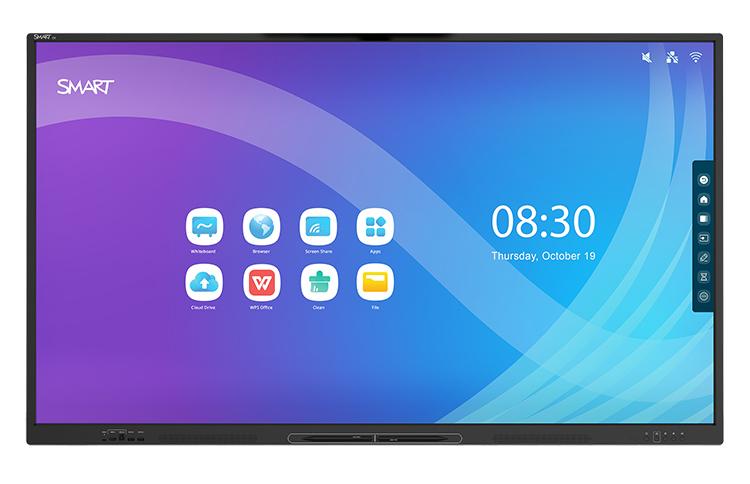
The Smart Technologies GX-V2 Smart Board Display SBID-GX165-V2 is a 65-inch interactive flat-panel display designed for modern classrooms, meeting rooms, and training spaces. It combines 4K UHD resolution, a fast 60 Hz refresh rate, and responsive touch performance to deliver a smooth writing and collaboration experience. Built for everyday teaching and business presentations, this smart board display supports digital whiteboarding, wireless collaboration, and multimedia sharing in a single large-format screen.
One of the biggest advantages of the smart technologies GX-V2 Smart Board Display SBID-GX165-V2 is its balance of usability and durability. The anti-glare tempered glass helps reduce reflections in bright rooms, while the wide 178-degree viewing angle makes content easy to see from almost anywhere in the room. With a lifespan rated at 50,000 hours or more, it is built for long-term deployment in high-use environments.
This model is especially well suited for teachers, corporate presenters, IT teams, and training coordinators who need an interactive display that is simple to install and reliable to operate. Typical use cases include lesson delivery, brainstorming sessions, video conferencing, and digital signage-style presentations. The estimated price range generally falls in the mid-to-premium segment for 65-inch interactive displays, often depending on reseller, region, and included accessories. Availability is commonly through education technology distributors, AV resellers, and enterprise suppliers.
Technical Specifications and Key Features of the GX-V2 Smart Board Display
- Model: SBID-GX165-V2
- Display size: 65 inches diagonal
- Resolution: 4K UHD, 3840 × 2160
- Aspect ratio: 16:9
- Refresh rate: 60 Hz
- Brightness: 400 cd/m² or higher
- Response time: 8 ms or faster
- Viewing angle: 178 degrees
- Backlight: LED
- Glass: Fully tempered, anti-reflective glass
- Estimated lifespan: 50,000 hours or more
- Power input: 100V to 240V AC, 50/60 Hz
- Typical power usage: about 74 W
- Weight: about 39 kg
- Mounting support: VESA-compatible wall mounting
Compared with similar 65-inch interactive displays, the smart technologies GX-V2 Smart Board Display SBID-GX165-V2 stands out for its solid brightness level, low response time, and classroom-friendly durability. It is positioned as a practical alternative to higher-priced premium collaboration panels while still delivering sharp 4K image quality and dependable touch interaction.
Detailed Product Description
The SBID-GX165-V2 is an interactive display that functions as a digital teaching and collaboration center. Users can write directly on the screen, present slides, annotate content, and connect external devices for a more interactive workflow. The display is designed to work as a central hub in a room, reducing the need for separate projectors, whiteboards, and presentation accessories.
In real-world use, the panel fits well in classrooms where teachers need fast transitions between lessons, whiteboarding, and multimedia playback. It also works effectively in conference rooms for brainstorming, training, and remote meetings. The build quality is practical and professional, featuring a black frame and durable tempered glass that can handle frequent daily use.
User experience is improved by the large 65-inch screen, strong visibility, and responsive touch performance. The anti-glare surface helps preserve clarity under ceiling lights and windows, while the wide viewing angle supports group viewing. As an interactive display for education and business, the GX-V2 series focuses on simplicity, reliability, and easy day-to-day operation.
Setup Guide for the Smart Technologies GX-V2 Smart Board Display SBID-GX165-V2
- Unpack the display carefully and inspect the screen, frame, cables, and accessories for shipping damage.
- Choose a stable wall mount or cart that supports the weight and VESA mounting pattern.
- Mount the display securely at a comfortable viewing height, following local safety and building guidelines.
- Connect the power cable to a grounded outlet rated for 100V to 240V AC.
- Attach HDMI, USB, network, and audio connections as needed for your room setup.
- Power on the display and follow the on-screen setup prompts for language, region, and input selection.
- Configure touch calibration, Wi-Fi or Ethernet connectivity, and connected device preferences.
- Test pen input, touch response, and external source playback before regular use.
For best results, keep cables organized and avoid blocking ventilation areas. If the display does not power on, confirm the outlet, power cord, and wall switch are all active. If touch input is inconsistent, check the USB connection and restart the system. Always avoid pressing hard on the glass and never expose the unit to moisture during installation.
Troubleshooting Common Problems and Support Tips
- No power: Check the AC outlet, power cable, and standby indicator.
- No signal: Confirm the input source, HDMI cable, and connected device output settings.
- Touch not working: Reconnect USB, reboot the display, and verify the selected input is paired correctly.
- Poor image quality: Adjust resolution to 4K UHD and confirm the source device supports the setting.
- Audio issues: Check volume level, mute status, and external speaker connections.
- Network problems: Verify Ethernet or Wi-Fi credentials and router access.
If the display shows startup or input errors, power cycling the unit and reseating the cables often resolves the issue. Preventive maintenance includes cleaning the screen with a soft microfiber cloth, keeping firmware current, and avoiding prolonged exposure to heat or direct sunlight. Warranty coverage and service options are typically handled through the reseller or authorized SMART support channel, so users should keep the purchase record and serial number available when requesting help.
Pros and Cons of the Smart Technologies GX-V2 Smart Board Display
Pros
- Sharp 4K UHD image quality for clear presentations and lessons.
- Large 65-inch format works well for classrooms and meeting rooms.
- Durable tempered, anti-reflective glass improves daily usability.
- Fast response time supports smoother writing and annotation.
- Good value for organizations that need a reliable interactive display without moving into ultra-premium pricing.
Cons
- No built-in premium collaboration features found in higher-end flagship boards.
- Weight and size may require two-person installation.
- Advanced room integration may need extra accessories or IT setup.
- Best suited to standard classroom and meeting-room use rather than specialized commercial environments.
Overall, the smart technologies GX-V2 Smart Board Display SBID-GX165-V2 offers strong value for schools and businesses that want dependable performance, but buyers needing higher-end processing or more advanced ecosystem features may prefer premium alternatives.
Customer Reviews and User Feedback
Average user sentiment is generally positive, with many owners rating the display around 4.4 out of 5 stars for clarity, touch response, and classroom usefulness. Teachers often praise the simple setup and bright, readable screen, while office users appreciate the large format and smooth annotation tools.
Common complaints usually involve the weight of the unit, the need for proper mounting hardware, and occasional setup complexity for networked environments. One typical user comment is: “The screen is bright, responsive, and easy to use once installed.” Another common takeaway is that teams value the display most when it is paired with a well-planned installation and reliable connectivity.
For schools, training centers, and business teams looking for a durable interactive panel, this model is a strong purchase recommendation. Buyers who need a dependable 65-inch smart board display for regular daily use will likely find it practical and cost-effective.
Faqs
How do I set up the smart technologies GX-V2 Smart Board Display SBID-GX165-V2 for the first time?
What should I do if the smart technologies GX-V2 Smart Board Display SBID-GX165-V2 is not responding to touch input?
Which devices and software are compatible with the smart technologies GX-V2 Smart Board Display SBID-GX165-V2?
How can I improve display performance and reduce lag on the smart technologies GX-V2 Smart Board Display SBID-GX165-V2?
Why is the smart technologies GX-V2 Smart Board Display SBID-GX165-V2 not connecting to Wi-Fi or casting devices?
What are the most useful features of the smart technologies GX-V2 Smart Board Display SBID-GX165-V2 for classroom or meeting use?
How should I clean and maintain the smart technologies GX-V2 Smart Board Display SBID-GX165-V2 safely?
What troubleshooting steps help when the smart technologies GX-V2 Smart Board Display SBID-GX165-V2 shows no signal or a blank screen?
More smart technologies manuals
- Smart Technologies 685ix2 Whiteboard System User Manual
- Smart Technologies SRS-LYNC-XS Microsoft Lync Room System User Manual
- Smart Technologies 330 Smart Document Camera User Manual
- Features & Setup: Smart Technologies Document Camera 280 User Manual
- How to Use: Smart Technologies Board MX | MX Pro Series Interactive Displays User Manual
- How to Use: Smart Technologies Board M600 | M600V Series Interactive Whiteboards User Manual
Leave a Comment