
Features & Setup: Smart Technologies Document Camera 280 User Manual
Content
SMART Document Camera 280: Complete Product Manual and Overview
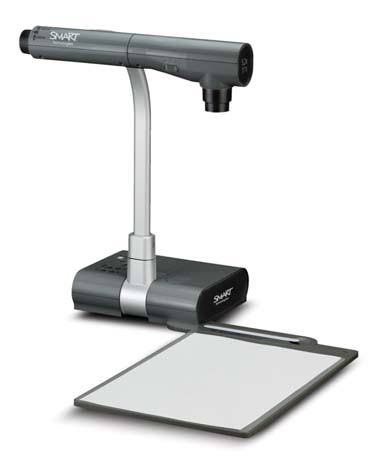
The SMART Document Camera 280 is a classroom-focused visual presentation camera designed to display printed pages, three-dimensional objects, microscope slides, and other physical materials on a connected projector or display. It is built for educators, trainers, and presenters who need a simple way to share live, detailed visuals with a group. The camera supports automatic focusing, powered zoom, and flexible positioning, making it practical for science lessons, document review, annotation, and interactive demonstrations.
One of the biggest advantages of the smart technologies Document Camera 280 is its versatility in instructional settings. Users can capture images directly from the camera, view content from a connected computer, or work with media from an SD memory card. Its optical zoom and digital magnification help users show fine details clearly, while the large shooting area makes it suitable for books, worksheets, lab samples, and classroom objects. The unit is especially useful in K-12 and higher education environments where visual clarity and ease of use matter most.
As of 2026, the SMART Document Camera 280 is an older discontinued model, so new units are typically found through secondary marketplaces, surplus equipment sellers, or legacy education suppliers. Estimated pricing varies widely by condition and included accessories, but buyers often see used or refurbished units in the low-to-mid hundreds of dollars. For organizations already using legacy SMART classroom hardware, it remains a practical budget-friendly option for replacement or backup use.
Technical Specifications for smart technologies Document Camera 280
- Image sensor: 1/3-inch progressive scan CCD with 850,000 pixels
- Effective pixels: 1024 × 768
- Maximum frame rate: 20 frames per second
- Output resolution: 600 TV lines
- Optical zoom: 5.2× powered optical zoom
- Digital zoom: 8×
- Lens range: F2.8 to 3.2, focal length 3.85 mm to 20.02 mm
- Shooting area: up to 16 7/8 in × 12 1/2 in for large documents
- Minimum capture area: 3 3/4 in × 2 3/4 in for detailed materials
- Auto focus support for quick setup and sharp image capture
- Compatible with projector and display-based presentations
- Supports image capture from connected computer and SD memory card
Compared with newer document cameras, the SMART Document Camera 280 offers lower native resolution and slower frame performance, but it still delivers dependable classroom presentation functionality. In relation to compact USB models, it is more of a dedicated AV device than a plug-and-play webcam-style camera. For legacy SMART environments, its integration and classroom-friendly design remain notable strengths.
Pros and Cons of the SMART Document Camera 280
Pros
- Reliable classroom presentation tool for teachers, trainers, and lecture halls
- 5.2× optical zoom helps reveal fine details without excessive image degradation
- Large shooting area supports books, worksheets, and lab materials
- Auto focus reduces setup time during fast-paced lessons
- Works well for showing 3D objects, microscope slides, and distant objects
- Good value for schools that already use older SMART classroom equipment
Cons
- Discontinued product, so availability is limited and support is legacy-based
- Lower resolution than modern 4K and Full HD document cameras
- Heavier and less portable than many current USB document cameras
- Windows compatibility may require extra setup in modern software environments
- Not ideal for buyers seeking the latest wireless sharing or app-based controls
For buyers comparing it with newer alternatives, the smart technologies Document Camera 280 is best understood as a dependable legacy classroom device rather than a cutting-edge imaging solution. It offers solid value when affordability and compatibility with existing equipment matter more than ultra-high resolution.
Customer Reviews and User Feedback
User feedback for the SMART Document Camera 280 is generally positive in education settings, especially among teachers who value dependable hardware and easy visual demonstration tools. Average impressions often fall around 4 out of 5 stars for performance in the classroom, with praise focused on zoom quality, image clarity for documents, and ease of use during lessons.
Common praise includes comments such as, “Great for showing student work and science demos,” and “The zoom is strong enough for detailed text and lab samples.” Frequent complaints mention its age, limited modern software compatibility, and the challenge of finding replacement units or updated driver support. Some users also note that newer document cameras offer sharper image quality and more flexible connectivity.
Purchase is recommended for schools, training centers, and buyers maintaining older SMART setups who need a cost-effective replacement. For new installations, a modern document camera may be a better long-term investment.
Faqs
How do I set up smart technologies Document Camera 280 for the first time?
Why is my smart technologies Document Camera 280 not showing an image on my computer?
What software and device compatibility does smart technologies Document Camera 280 require?
How do I get sharper text and better image quality from smart technologies Document Camera 280?
Can smart technologies Document Camera 280 be used for online classes and video meetings?
What should I do if the smart technologies Document Camera 280 image is blurry or out of focus?
How do I clean and maintain smart technologies Document Camera 280 for long-term use?
What are the most useful smart technologies Document Camera 280 features for presentations?
More smart technologies manuals
- Smart Technologies SRS-LYNC-XS Microsoft Lync Room System User Manual
- How to Use: Smart Technologies Board MX | MX Pro Series Interactive Displays User Manual
- Smart Technologies GX-V2 Smart Board Display User Manual
- How to Use: Smart Technologies Board M600 | M600V Series Interactive Whiteboards User Manual
- Smart Technologies 685ix2 Whiteboard System User Manual
- How to Use: Smart Technologies Board® 4000 Series Interactive Flat Panels SPNL-4055, SPNL-4065 & SPNL-4084 User Manual
Leave a Comment