
How to Use: Smart Technologies Board M600 | M600V Series Interactive Whiteboards User Manual
Content
Smart Technologies Board M600 | M600V Series Interactive Whiteboards
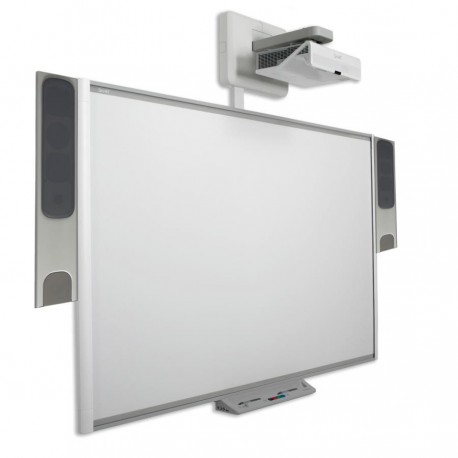
The smart technologies Board M600 | M600V Series Interactive Whiteboards are durable, classroom-ready interactive displays built for lesson delivery, collaboration, and presentation workflows. This series is designed for schools, training rooms, and meeting spaces that need a dependable touch-enabled whiteboard with a rugged surface, dual pens, and SMART’s DViT digital vision touch technology. The result is a responsive writing and annotation experience that supports both teachers and presenters who want a familiar board format with modern interactivity.
One of the biggest advantages of the SMART Board M600 series is its reliability in daily use. The hard-coated surface is optimized for projection, supports dry-erase markers, and is built to handle heavy classroom traffic. With USB connectivity, external power, and compatibility with SMART software ecosystems, the board integrates easily into existing learning environments. The smart technologies Board M600 | M600V Series Interactive Whiteboards are especially useful for hybrid teaching, guided instruction, brainstorming sessions, and interactive demonstrations.
Pricing for the discontinued M600 and M600V models varies widely depending on condition, reseller, and included accessories. New-old-stock and refurbished units are typically found in the approximate range of $1,500 to $2,500, with premium listings sometimes higher. Availability is limited because this series has been discontinued, but support resources, documentation, and replacement-part information remain available through SMART’s service channels. For buyers who want a classic interactive whiteboard format rather than a large-format display, this series remains a practical option in secondary markets.
Technical Specifications and Key Features
- Interactive technology: SMART DViT digital vision touch system with camera-based tracking.
- Writing tools: Two included damage-resistant pens for direct annotation and navigation.
- Surface: Hardened, hard-coated steel writing surface optimized for projection and dry-erase use.
- Connectivity: Full-speed USB 2.0 connection to a computer.
- Power: External power supply, with some system configurations able to receive power from a SMART projector.
- Mounting and sizing: Multiple model sizes in the M600 and M600V family, including classroom-oriented wide-format boards.
- Compatibility: Designed for use with SMART software and connected PC-based teaching or presentation systems.
- Durability: Built for frequent classroom use and long-term daily operation.
Compared with modern large-format interactive flat panels, the M600V offers a lower-cost entry point for organizations that already rely on projectors and PC-based teaching workflows. Compared with basic touch whiteboards, it provides stronger pen accuracy, a more rugged writing surface, and better support for classroom annotation. As a legacy product, it does not include the built-in display, Android computing, or wireless casting found in newer all-in-one boards.
Detailed Product Description
The smart technologies Board M600 | M600V Series Interactive Whiteboards functions as an input surface for a connected computer and projector setup. A user writes or touches the board, and the camera-based DViT system detects contact position and translates it into cursor movement, writing strokes, or gestures. This makes it useful for lessons, interactive presentations, and collaborative planning sessions where visual communication matters.
The board’s build quality focuses on classroom durability. The hard-coated steel surface is resistant to repeated use, and the pen system is designed to survive busy environments where equipment gets handled often. In real-world use, teachers can open lesson slides, annotate diagrams, drag objects, and save notes for later review. Meeting leaders can mark up charts, highlight key ideas, and keep discussions moving without switching tools.
User experience is straightforward for anyone familiar with projector-based interactive boards. The writing feel is natural, the controls are simple, and the board works well as part of a larger teaching station. Its main limitation is that it depends on external hardware, so performance is only as strong as the connected computer, projector calibration, and software configuration.
Setup Guide for SMART Board M600 | M600V Series
- Mount the board securely on a wall or compatible stand at the correct viewing height.
- Connect the USB cable from the board to the computer.
- Attach the external power supply, unless the board is powered through a supported SMART projector setup.
- Install or update the required SMART software on the connected computer.
- Launch the calibration or alignment utility and follow the on-screen prompts.
- Test pen input, touch response, and cursor tracking before classroom or meeting use.
- Configure presentation settings, language preferences, and annotation tools as needed.
For best results, use a stable computer connection and keep cables organized to prevent accidental disconnection. Avoid exposing the board to moisture, sharp impacts, or excessive pressure on the surface. If the cursor is offset, repeat calibration and verify projector alignment. If the board is not detected, check USB power, cable integrity, and software installation first.
Troubleshooting the SMART Board M600 Series
- No response from the board: Verify USB connection, external power, and computer recognition.
- Pointer drift or misalignment: Recalibrate the system and check projector positioning.
- Intermittent touch input: Inspect cable quality, port stability, and installed software version.
- Pen not working properly: Confirm the pen tip is intact and the board surface is clean.
- Software launch issues: Update SMART software and restart the connected computer.
- Firmware or support issues: Check SMART’s support documents for the correct model-specific guidance.
Preventive care includes regular cleaning with approved materials, secure cable management, and routine software updates. Because this is a discontinued product line, warranty coverage may be limited depending on the seller and region. For help, users should contact SMART support through the official support portal, or work with the reseller or refurbisher that supplied the board.
Pros and Cons of Smart Technologies Board M600 | M600V Series Interactive Whiteboards
Pros
- Rugged, classroom-friendly construction that handles daily use well.
- Natural pen-based interaction that suits teachers and presenters.
- Works with familiar projector-and-PC workflows.
- Supports dry-erase marker use on the hard-coated surface.
- Often more affordable than newer interactive flat panels on the resale market.
Cons
- Discontinued product with limited new-unit availability.
- Requires a computer and typically a projector to function fully.
- Does not offer the all-in-one convenience of modern interactive displays.
- Setup and calibration take more effort than newer touch panels.
For schools upgrading on a budget, the value for money can still be strong if the institution already owns compatible projection hardware. For buyers comparing alternatives, newer interactive flat panels will deliver better brightness, simpler deployment, and fewer external components, but at a significantly higher cost.
Customer Reviews and User Feedback
Average user sentiment for the SMART Board M600 series is generally positive, especially among teachers who value durability and familiar pen interaction. Many users rate it around 4 out of 5 stars for reliability and classroom usefulness. Common praise includes the sturdy surface, responsive writing feel, and easy annotation workflow.
Typical complaints focus on the need for projector alignment, occasional calibration drift, and the fact that the product is no longer current. One teacher notes, “It has lasted years in a busy classroom and still feels dependable for lesson delivery.” Another reviewer says, “The board is solid, but modern flat panels are easier to set up and maintain.”
Purchase is best suited to organizations that need a dependable legacy interactive whiteboard at a reduced price. Buyers looking for the newest features, wireless collaboration, or integrated display hardware should consider newer alternatives instead.
Faqs
How do I set up smart technologies Board M600 | M600V Series Interactive Whiteboards for the first time in a classroom or meeting room?
What should I check if smart technologies Board M600 | M600V Series Interactive Whiteboards is not responding to touch or pen input?
Which devices and software are compatible with smart technologies Board M600 | M600V Series Interactive Whiteboards?
How can I improve writing accuracy and performance on smart technologies Board M600 | M600V Series Interactive Whiteboards?
Why is smart technologies Board M600 | M600V Series Interactive Whiteboards showing a misaligned cursor, and how do I fix it?
What are the most useful features of smart technologies Board M600 | M600V Series Interactive Whiteboards for teaching and presentations?
How should I clean and maintain smart technologies Board M600 | M600V Series Interactive Whiteboards to extend its lifespan?
What do I do if smart technologies Board M600 | M600V Series Interactive Whiteboards does not connect after a software update or computer change?
More smart technologies manuals
- How to Use: Smart Technologies Board MX | MX Pro Series Interactive Displays User Manual
- How to Use: Smart Technologies Board® 4000 Series Interactive Flat Panels SPNL-4055, SPNL-4065 & SPNL-4084 User Manual
- Features & Setup: Smart Technologies Document Camera 280 User Manual
- How to Use: Smart Technologies Board® 7000 and 7000 Pro Series Interactive Displays ID7086-1 User Manual
- Smart Technologies SRS-LYNC-XS Microsoft Lync Room System User Manual
- How to Setup: Smart Technologies Board™ 680iv Interactive Whiteboard System User Manual
Leave a Comment