
Smart Technologies 330 Smart Document Camera User Manual
Content
smart technologies 330 Smart Document Camera: Complete Product Manual
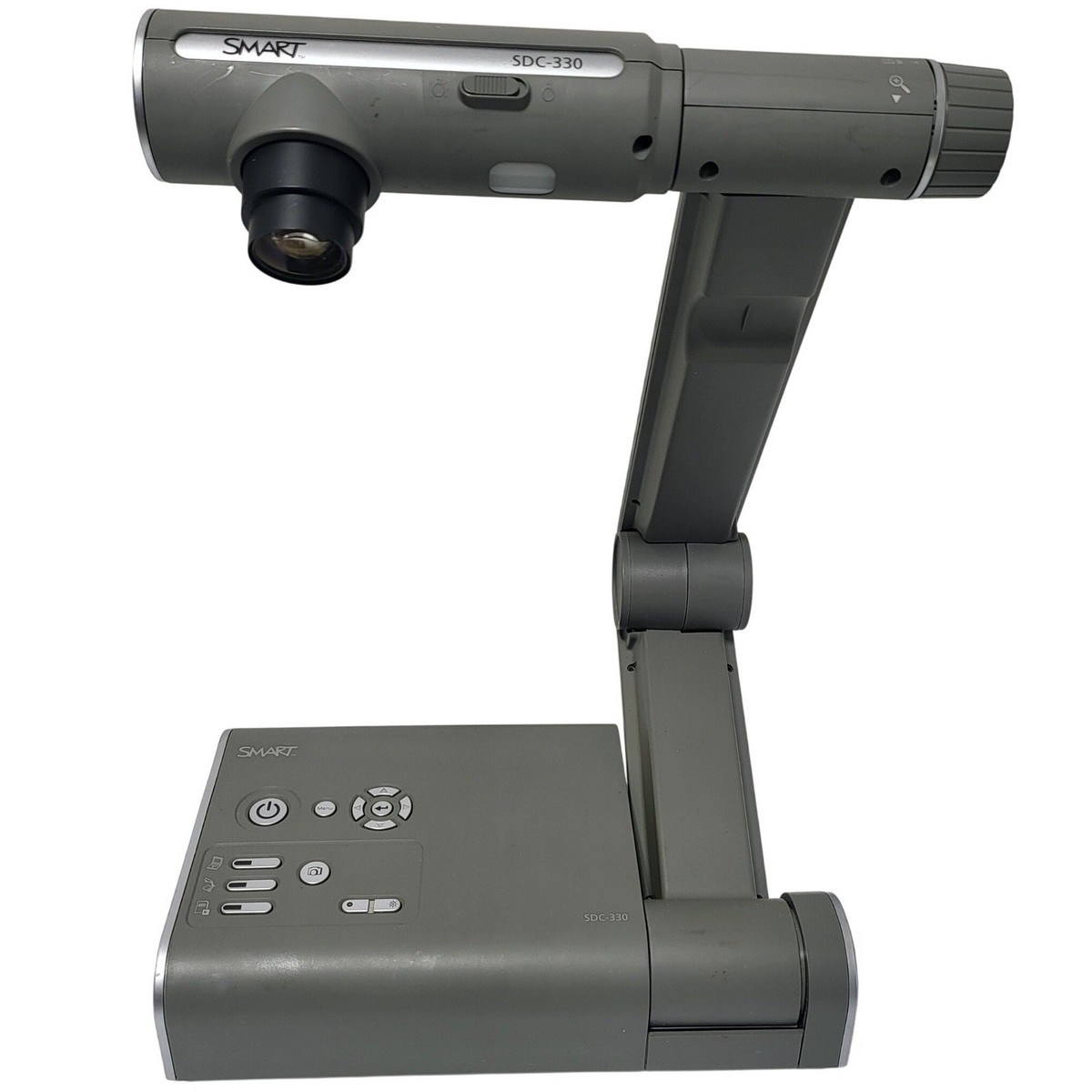
Introduction
The smart technologies 330 Smart Document Camera is a versatile visual presenter designed for classrooms, training rooms, conference spaces, and hybrid learning environments. It helps users display documents, books, 3D objects, worksheets, and live demonstrations with clear, detailed image quality. With a 1.3 MP CMOS sensor, 5.2× optical zoom, and up to 30 frames per second, the smart technologies 330 Smart Document Camera delivers smooth live capture for teaching, presenting, and sharing visual content in real time.
This model stands out for its collapsible design, bright LED camera lamp, microscope mode without adapters, and support for multiple output resolutions. It is especially useful for teachers, corporate presenters, science instructors, and anyone who needs a reliable document camera for interactive presentations. The built-in memory card and USB support also make it easy to store and transfer images without depending entirely on a computer.
For buyers searching for a document camera that balances performance, portability, and ease of use, this model remains a practical choice. Estimated pricing typically falls in the mid-to-upper professional range, with available market listings often around $949 to $1,495 depending on seller, condition, and support package. Availability is generally through education technology resellers, office AV suppliers, and support channels for legacy SMART products.
Specifications: smart technologies 330 Smart Document Camera technical details
- Image sensor: 1.3 megapixel CMOS sensor
- Effective image size: 1280 × 1024 pixels
- Frame rate: up to 30 frames per second
- Optical zoom: 5.2× powered optical zoom
- Digital zoom: 8.0×
- Focus modes: automatic and manual focus
- Output resolutions: SXGA, WXGA, 720p, and XGA
- Video output: VGA, DVI-D, and composite selectable
- Lens: f/2.8 to 3.2 with focal range from 3.85 mm to 20.02 mm
- Capture area: maximum 16 5/8 in × 13 1/4 in, minimum 3 5/8 in × 2 7/8 in
- Weight: 7 lb. 10 oz. (3.46 kg)
- Set up size: 11 3/8 in W × 16 3/8 in H × 14 5/8 in D
- Folded size: 11 3/8 in W × 3 3/4 in H × 12 1/4 in D
- Power: 100V AC to 240V AC, 50/60 Hz
- Power consumption: 21.6 W
- Operating environment: 32°F to 104°F, 30% to 85% humidity, non-condensing
Compared with smaller entry-level visualizers, the smart technologies 330 Smart Document Camera offers stronger zoom, richer output options, and better classroom integration. It sits below higher-end newer models in resolution, but it still provides dependable performance for presentation and instruction.
Detailed Description
The smart technologies 330 Smart Document Camera is built to capture live images from flat materials and physical objects, then send them to a display, projector, or computer. Its powered zoom and adjustable focus make it easy to highlight text, diagrams, lab samples, or small items during lessons and presentations. The microscope mode is especially useful in science classrooms, since it allows close-up viewing without additional adapters.
The unit is designed with portability in mind. Its collapsible construction makes storage and transport easier, while the security lock slot adds protection in shared environments. The bright LED camera lamp improves visibility when working with books, objects, or low-light setups. Supported software includes SMART Notebook, SMART Product Drivers, and Image Mate software, helping users integrate the camera into interactive lessons and capture workflows.
Build quality is solid and classroom-ready, with a durable body and a practical folding design. Users typically appreciate the simple controls, flexible output modes, and dependable image capture. For schools and organizations that need a straightforward document camera for everyday use, the smart technologies 330 Smart Document Camera remains a functional and proven option.
Setup Guide: how to install and configure the SMART Document Camera 330
- Unpack the camera, power adapter, cables, and any included software or documentation.
- Place the unit on a stable, flat surface with enough space for the camera arm and capture area.
- Connect the power adapter and turn on the device.
- Choose the desired video output connection, such as VGA or DVI-D, and connect it to your display or projector.
- If using a computer, install SMART Notebook, SMART Product Drivers, or Image Mate software as needed.
- Insert an SD or SDHC card if you want local image storage, or connect a USB memory stick through the built-in USB hub.
- Adjust output resolution to match your display, such as SXGA, WXGA, 720p, or XGA.
- Test auto focus, manual focus, zoom, and lamp settings before live use.
If the image does not appear, check cable seating, display input selection, and output format settings. For safety, avoid looking directly into the LED lamp at close range and keep liquids away from the unit. Do not force the folding mechanism or lens arm during setup.
Troubleshooting the smart technologies 330 Smart Document Camera
- No image on screen: Confirm the camera is powered on, the video cable is secure, and the monitor or projector is set to the correct input.
- Blurry image: Switch between auto focus and manual focus, then adjust zoom before refocusing.
- Dark image: Increase room lighting or turn on the LED camera lamp.
- Incorrect resolution: Match the camera output to the display’s supported setting, such as 720p or XGA.
- Memory card not detected: Reinsert the card, confirm compatibility, and check for write protection.
- USB storage not working: Try a different USB stick and ensure it is formatted correctly.
- Frame rate issues: Reduce resolution or simplify the display path if the system is overloaded.
Preventive care includes keeping the lens clean, storing the unit folded, and avoiding excessive cable strain. Warranty coverage depends on seller and purchase conditions, so buyers should keep proof of purchase and review the applicable support terms. For help, contact SMART Technologies support or the authorized reseller from which the unit was purchased.
Pros and Cons
Pros
- Strong 5.2× optical zoom for detailed close-up viewing
- Up to 30 fps for smooth live demonstrations
- Microscope mode without adapters for science and inspection use
- Multiple output options for flexible classroom and AV setups
- Collapsible design improves storage and portability
- Good value for institutions needing a dependable legacy document camera
Cons
- Lower resolution than newer premium document cameras
- Bulkier than compact modern visualizers
- Best suited to established SMART environments and legacy workflows
- Availability may vary because it is a previous-generation model
For users comparing alternatives, newer document cameras may offer higher image resolution and modern connectivity, but the smart technologies 330 Smart Document Camera still delivers dependable performance and classroom-friendly features at a reasonable professional cost.
Customer Reviews
Average user sentiment is generally positive, with many reviewers rating the unit around 4 out of 5 stars for classroom reliability and ease of use. Teachers often praise the zoom quality, sturdy build, and simple setup. One educator described it as “easy to fold, quick to connect, and great for showing worksheet details to the whole class.”
Common complaints include the size and the fact that newer cameras may offer sharper images or more advanced connectivity. Users also mention that it works best when paired with the right display resolution and software. Overall, buyers who need a practical, durable document camera for presentations and teaching usually recommend it, especially when purchased at a strong reseller price.
Frequently Asked Questions
- What is the smart technologies 330 Smart Document Camera used for? It is used to display documents, objects, books, and live demonstrations on a screen or projector.
- Does it work without a computer? Yes, it can output directly to a compatible display, and it also supports storage options for captured images.
- Is it good for science classes? Yes, microscope mode and close-up zoom make it useful for lab demonstrations and specimen viewing.
- Is the smart technologies 330 Smart Document Camera still worth buying? It is a solid choice for users who value reliability, classroom integration, and practical document-camera features over cutting-edge resolution.
Faqs
How do I set up smart technologies 330 Smart Document Camera for the first time?
Why is my smart technologies 330 Smart Document Camera showing a blank screen?
What are the main features of the smart technologies 330 Smart Document Camera?
Is the smart technologies 330 Smart Document Camera compatible with SMART Notebook and interactive whiteboards?
How do I improve image quality on the smart technologies 330 Smart Document Camera?
Can the smart technologies 330 Smart Document Camera capture microscope slides without adapters?
What should I do if the smart technologies 330 Smart Document Camera focus is not working correctly?
How should I clean and maintain the smart technologies 330 Smart Document Camera?
More smart technologies manuals
- Smart Technologies 685ix2 Whiteboard System User Manual
- Smart Technologies GX-V2 Smart Board Display User Manual
- Smart Technologies SRS-LYNC-XS Microsoft Lync Room System User Manual
- Features & Setup: Smart Technologies Document Camera 280 User Manual
- How to Use: Smart Technologies Board MX | MX Pro Series Interactive Displays User Manual
- How to Use: Smart Technologies Board M600 | M600V Series Interactive Whiteboards User Manual
Leave a Comment