
Setup: Acer Aspire All-in-one Computer User Manual
Content
Acer Aspire All-in-one Computer
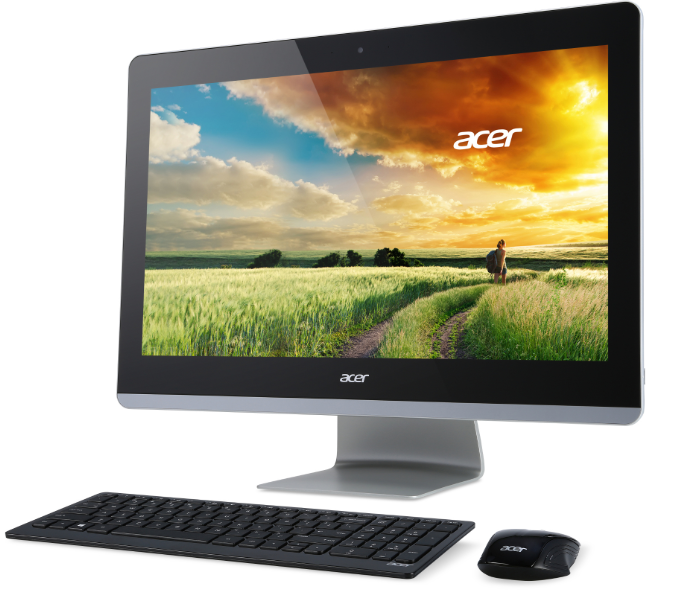
The Acer Aspire All-in-one Computer offers a sleek, space-saving desktop solution combining powerful performance and modern design. Perfect for home offices, students, and casual professionals, it integrates all computing components into a single, elegant unit, minimizing clutter while maximizing functionality. Delivering seamless multitasking capabilities with up-to-date Intel Core Ultra or AMD Ryzen processors, the Aspire All-in-one is crafted to meet everyday productivity and entertainment needs with ease.
Key benefits include vibrant full HD or QHD displays with narrow bezels, AI-enhanced processing features, and ergonomic stands that allow tilt, swivel, and height adjustments for user comfort. The inclusion of advanced connectivity options such as Wi-Fi 7, multiple USB ports, and HDMI supports versatile device integration. Coupled with enhanced privacy features like biometric facial recognition and webcam shutters, it ensures security along with excellent performance.
This computer targets users who require reliable performance for web browsing, office applications, media consumption, and light creative work in a compact footprint. The estimated price range typically falls between $700 and $1,200, depending on configuration and region, making it a competitively priced option widely available through major retailers and Acer’s official channels.
Specifications of Acer Aspire All-in-one Computer
- Processor: Up to Intel® Core™ Ultra 7 (e.g., 155U) or AMD Ryzen™ AI 300 Series
- Memory: Up to 32 GB DDR5 dual-channel (expandable depending on model)
- Storage: Up to 2 TB M.2 PCIe SSD for fast data access and ample space
- Display: 23.8" or 27" Full HD (1920x1080) IPS or 1440p QHD with Acer Bluelight Shield™ and near-borderless bezels
- Graphics: Integrated Intel UHD or Intel Graphics with AI Boost for smooth visuals
- Connectivity: Wi-Fi 7, Bluetooth 5.0/5.3, multiple USB Type-A and Type-C ports, HDMI output
- Webcam: High-definition 5.0 MP with privacy shutter and Windows Studio effects
- Design: Thin, ergonomic stand with tilt (-5° to 25°), swivel (up to 30°), height adjustment (up to 120 mm), and optional VESA mount
- Operating System: Windows 11 Home pre-installed
Compared to similar all-in-ones, the Acer Aspire stands out with AI-enhanced processing, higher memory capacity, and advanced connectivity like Wi-Fi 7, offering superior multitasking and media capabilities in a compact design.
Acer Touch Tools
Acer Touch Tools makes using your Windows device easier and more convenient. You can select, drag, or tap on small items in the user interface.
You can run Acer Touch Tools, from Start or from the Desktop taskbar.
Touch tool controls
The Touch Tools control panel has several icons:
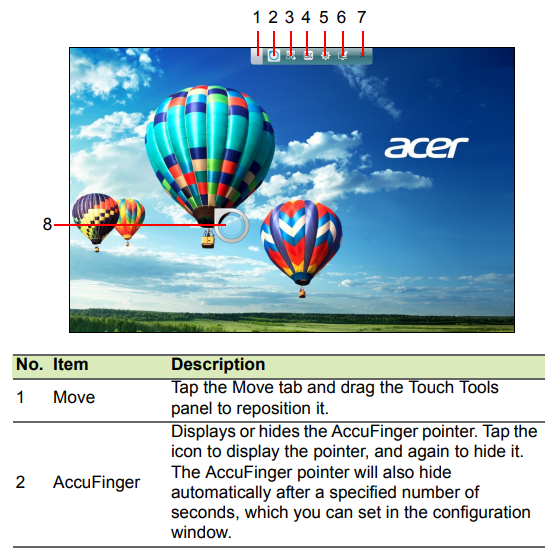
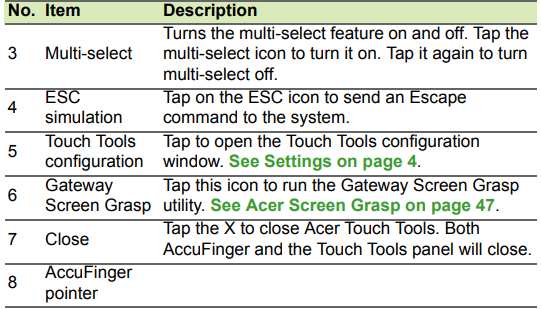
Pointing
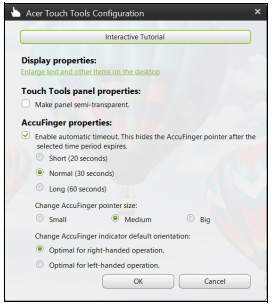
The AccuFinger pointer's fine tip allows you to work with even very small screen elements. This can be particularly helpful when using operating system settings and configuration windows with small buttons, boxes, or other small items.
Using AccuFinger
With AccuFinger, you can:
- Point: Place your fingertip on the pointer pad and drag it around. The pointer direction changes automatically as you move around the screen.
- Select: Perform all standard touch screen cursor commands, including tap, double-tap, drag, and drag-select, etc.
- Drag: To drag something, position the AccuFinger pointer on it, press briefly on the pointer pad to activate drag mode, then drag the selected item to a new position.
- Display: Display a context-sensitive menu by holding your fingertip on the pointer pad for a moment until the menu appears, then stop touching the pad and select a menu command.
- Text edit: You can select text in supported programs by tapping on a word or text block to select it or insert the cursor. You can then type or perform other operations on the selected text.
RepliView
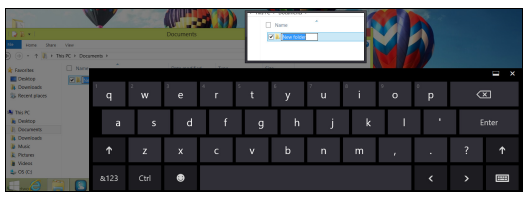
- Your touch device’s onscreen virtual keyboard can sometimes block your view of where you are typing. RepliView displays a small pop-up window above the onscreen keyboard that displays a view of where you are typing so that you can see what you are doing. This feature operates automatically when Touch Tools is running.
Settings
You can adjust the settings to suit your needs, including setting the AccuFinger pointer size and timeout. You can also select either right or left-hand operation, which optimizes pointer orientation for the selected mode.
Acer Screen Grasp
Acer Screen Grasp is a handy screen capture tool that allows you to capture all or part of anything that’s displayed on your computer’s screen. It works for both the desktop and Start screen applications.
To launch Acer Screen Grasp, press <Ctrl> + <Shift> + <PrtSc>. Once you have opened the application, you can activate the launch gesture: Tapping the screen with three fingers.
Note
The three-finger gesture is disabled by default. You can enable it from Settings.
Overview
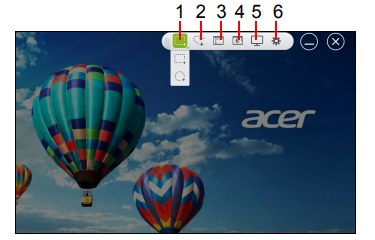
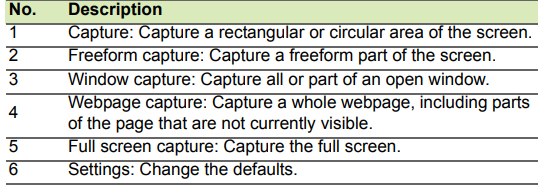
The toolbar at the top of the screen allows you to change screen capture options and settings.
Adjusting the Settings
Tap the Settings icon to adjust the defaults for Acer Screen Grasp.
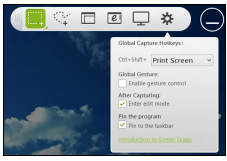
You can enable or disable the launch gesture (tap the screen with three fingers), set the app to launch the editing tool after capturing, pin the program to the taskbar, view a short introduction tutorial, or view the Help content.
The editing tool
After you’ve captured the screen, you can edit the image.
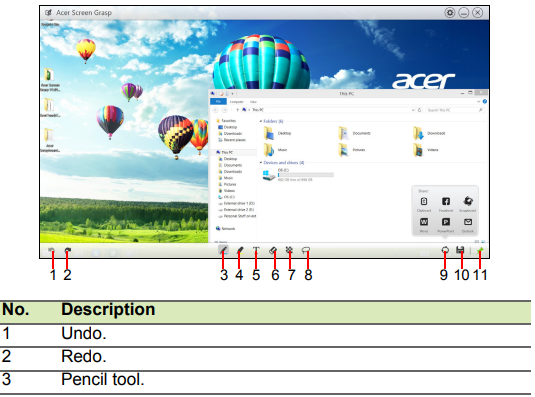
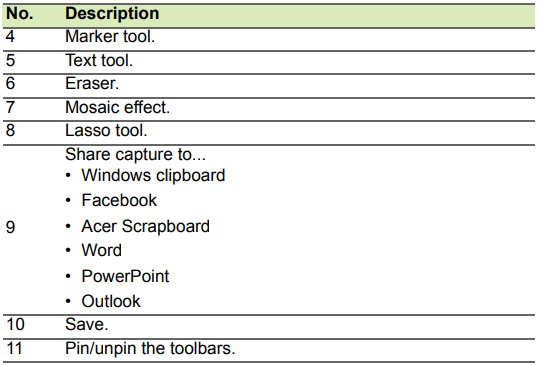
Setup Guide for Acer Aspire All-in-one Computer
Follow these steps to set up your Acer Aspire All-in-one Computer:
- Unpack the device carefully and place it on a stable desk or table.
- Connect the power adapter to the unit and plug it into a power outlet.
- Attach the wireless keyboard and mouse by syncing via Bluetooth or using the included USB receiver.
- Power on the system using the button located on the back or side of the display.
- Complete the Windows 11 out-of-box setup, including connecting to Wi-Fi 7 or Ethernet networks for internet access.
- Adjust the ergonomic stand to your preferred tilt, swivel, and height settings for comfortable viewing.
- Configure peripheral devices via USB or Bluetooth as needed (printers, external drives, etc.).
Troubleshooting tips: If the system does not power on, check the power connections and try a different outlet. For network issues, restart the router and verify Wi-Fi credentials. Use the Windows Troubleshooter for device recognition problems.
Safety warnings: Avoid placing the unit near water or heat sources. Use only the supplied power adapter. Ensure proper ventilation to prevent overheating.
Troubleshooting Acer Aspire All-in-one Computer
- Problem: The computer won't start. Solution: Verify the power supply, check the power button, and ensure the battery (if any) is charged.
- Problem: No display or black screen. Solution: Check display connections, restart the device, or reset by holding the power button for 10 seconds.
- Problem: Wi-Fi connectivity issues. Solution: Restart the router, update network drivers, or use an Ethernet connection temporarily.
- Error codes: Refer to Windows 11 error messages; common fixes include a system update or driver reinstall.
- Preventive measures: Regular software updates, avoid liquid spills, and clean vents to maintain airflow.
The device typically comes with a one-year limited warranty covering hardware defects. Acer support is available via the official website, phone, or authorized service centers for additional help.
Pros & Cons of Acer Aspire All-in-one Computer
Pros
- Compact, space-saving design with ergonomic adjustability
- Powerful Intel Core Ultra or AMD Ryzen processors with AI enhancements
- Bright, sharp displays with blue light filtering for eye comfort
- Comprehensive connectivity options,s including Wi-Fi 7 and multiple USB ports
- Included wireless keyboard and mouse enhance convenience
- Competitive price point balancing performance and features
Cons
- Integrated graphics suitable for casual use; not ideal for heavy gaming or professional graphic design
- Memory on some models may start at 8GB, which might require upgrading for intensive multitasking.
- Limited upgrade options due to all-in-one form factor
Overall, the Acer Aspire All-in-one Computer offers excellent value for users seeking a stylish, efficient desktop for everyday tasks compared to bulkier tower PCs or less flexible laptops.
Customer Reviews of Acer Aspire All-in-one Computer
Users praise the Acer Aspire All-in-one Computer for its sleek design, ease of setup, and solid performance in routine tasks such as office work and media streaming. Common positive remarks highlight the sharp display quality, quiet operation, and reliable connectivity.
Some complaints focus on limited memory capacity in entry models and modest graphics performance that may not suit gamers or creative professionals. However, many customers find the price-to-performance ratio excellent for general use, recommending it for students and home users seeking a neat desktop solution.
Average user ratings generally range around 4 out of 5 stars, with testimonials noting responsive customer support and satisfactory warranty services.
Faqs
How do I set up my acer Aspire All-in-one Computer for the first time?
What should I do if my acer Aspire All-in-one Computer is running slow or lagging?
Can I use the acer Aspire All-in-one Computer for video conferencing and remote work?
What are the connectivity options available on acer Aspire All-in-one Computer models?
How do I maintain and clean my acer Aspire All-in-one Computer to ensure longevity?
Does the acer Aspire All-in-one Computer support upgrades like adding more RAM or storage?
What AI features are included in the latest acer Aspire All-in-one Computer models?
Is the acer Aspire All-in-one Computer compatible with both Windows and other device ecosystems?
More acer manuals
- Setup: Acer Veriton All-in-one Computer User Manual
- Setup: Acer DA241HL Desktop Computer User Manual
- Setup: Acer Veriton N Series Computer User Manual
- Acer Gaming LCD Monitor 22 inches User Guide
- Setup & Usage: Acer Aspire Z5700 Series AZ5700-U2102 Desktop User Manual
- How to Connect: Acer LED Monitor X34 User Guide
Leave a Comment