
Setup: Amazfit Bip S SmartWatch User Manual
Content
Amazfit Bip S SmartWatch
Introduction
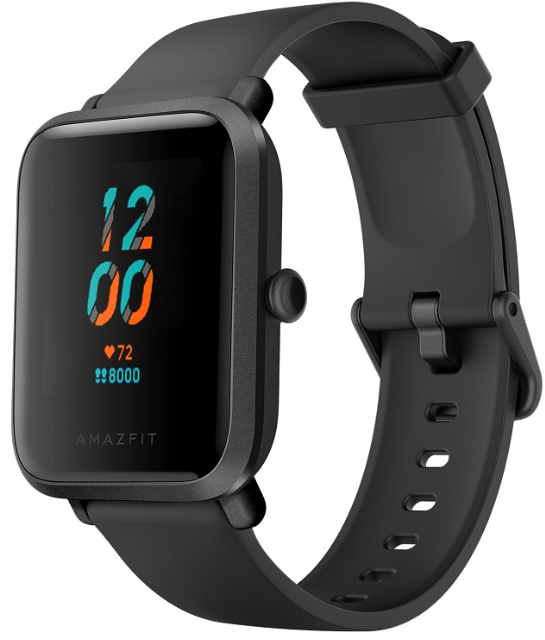
The Amazfit Bip S SmartWatch is an affordable and feature-rich device designed for fitness enthusiasts and casual users alike. It offers a compelling blend of health tracking, sports modes, and smart features, making it a standout in the budget smartwatch category. With its 1.28-inch color transflective display and Always-On Display, it provides excellent visibility even in bright outdoor conditions. Key benefits include real-time heart rate monitoring, sleep tracking, built-in GPS, and a long-lasting battery life. Targeted at fitness-conscious individuals and those seeking a stylish smartwatch for everyday use, the Amazfit Bip S is priced approximately between $50 and $70, depending on the region and retailer. It's widely available online and in select stores.
Specifications
Below are the detailed specifications of the Amazfit Bip S SmartWatch:
- Display: 1.28" color transflective screen, 176x176 pixels, Always-On Display
- Materials: Polycarbonate body, Gorilla Glass screen, 20mm interchangeable silicone strap
- Water Resistance: 5 ATM (50 meters)
- Features: Real-time heart rate monitoring, sleep tracking, step counter, sedentary reminder, incoming call and app notifications, sport modes (10), GPS+GLONASS, music control, weather forecast, compass, and more
- Battery Life: Up to 40 days typical use, 22 hours with continuous GPS
- Connectivity: Bluetooth 5.0
Compared to similar budget smartwatches, the Amazfit Bip S stands out with its built-in GPS and long battery life, making it ideal for runners and cyclists.
Watch Face Functions, Navigation, and Button Instructions
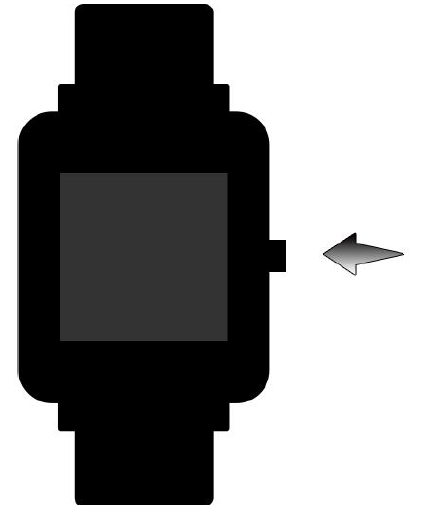
Amazfit Bip S features a touch screen with a reflective display and one physical button.
Functions Navigation
The screen can be navigated by swiping left/right or up/down.
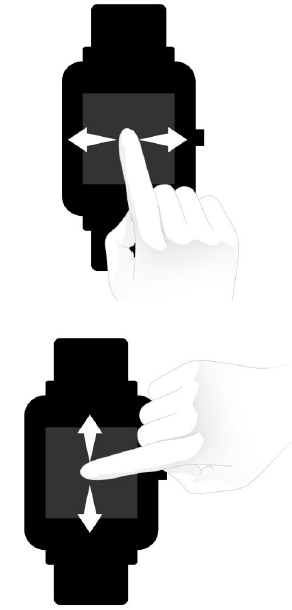
The watch face page is displayed by default, and you may:
- Swipe up on the watch face page to view historical message notifications.
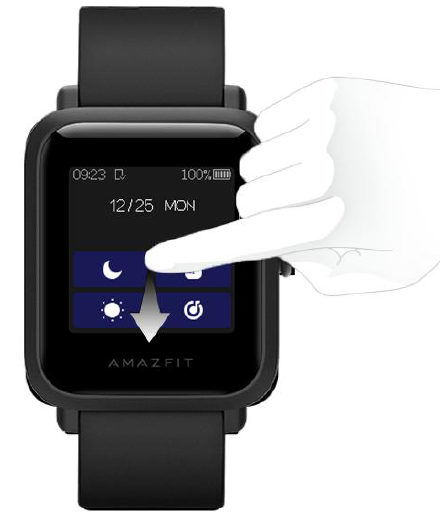
- Swipe down on the watch face page, or swipe down on the edge of any other page (except the settings page) to enter the control center, where you can set up Do Not Disturb, screen lock, brightness, and music playback on your mobile phone. You can also check the watch's battery level and connection status.
- Swipe left on the watch face page to view the function list, where you can tap the corresponding function to enter its details page.
- Swipe right on the watch face page to quickly access Music control, Status, PAI, Heart rate, and Weather.
Physical Button Operations
Short-press the physical button once to:
- Unlock the screen.
- Turn off the screen if the watch face page is currently displayed.
- Return to the previous menu level if any other page is currently displayed.
- Scroll up and down on the page during the workout.
- Unlock the page when swimming.
Long-press the watch button to:
- Turn on the watch.
- Quickly start a specific workout. (Users can set the quick start item in "Settings" - "Long press button settings")
- Pause the workout if you are on the workout page.
- Long-press for 10s to reboot the watch.
Charging
- Plug the charger's USB connector into a mobile phone charger or a computer USB port to charge the watch.
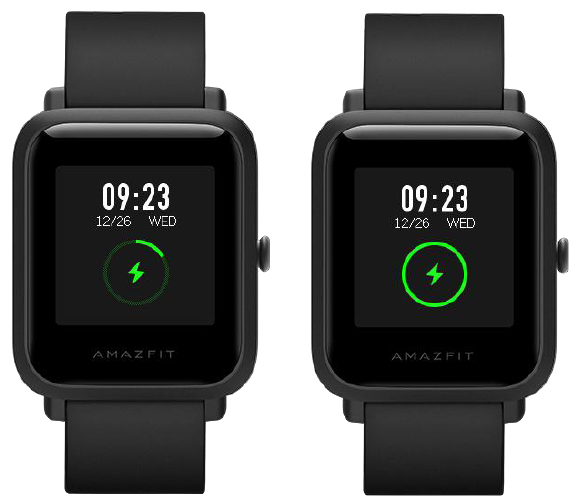
- Place the watch onto the charging base. Be sure to align the metal contacts on the back of the watch with the golden pins of the charging base, and keep the watch button pressed firmly against the charging base.
- After the watch is properly put onto the charging base, the charging icon will appear on the screen, indicating that the watch is being charged.
During charging, you can view the current time and receive incoming call alerts and app notifications.
It is recommended to use computer USB ports or mobile phone chargers from a well-known brand to charge the watch. The charger's rated output voltage should be 5V, with an output current above 1A.
Use of Functions
Download the Amazfit app via the mobile phone before using the Amazfit Bip S. You need to pair the watch using the Amazfit app to enjoy its full functionality. In addition, a paired watch allows the saving of data generated on the watch to your personal account in the cloud.
Device Pairing and Unpairing
- Please download the Amazfit app through the app stores, and register or log in to your account.
- Open the app, go to "Profile – Add device – Watch – Amazfit Bip S" and scan the QR code on the watch. This will quickly pair the device.
- Once paired, it is usually necessary to perform a system upgrade on the watch. Please wait while this is happening and keep the phone connected to both the Internet and the watch via Bluetooth, so as to ensure a successful upgrade. Before updating your device, please fully charge your device or make sure it has a 10% battery left,t and make sure your phone screen is , on and do not perform other operations on your phone during the upgrade.e
- After the watch is paired and upgraded, its functions are available. The Amazfit app can also be used to operate or configure watch functions.
- If you need to unpair your watch, open the Amazfit app and choose "Unpair" on the device page.
Watch Face
- To replace the watch face, either long-press the watch face or go to "Settings → Watch face settings", swipe left and right to browse through the available watch faces, and tap the new watch face to complete the replacement.
- Go to the Watch face settings page. If you see a custom button under the thumbnail, it means the watch face is editable. Use tapping or swiping to switch the functions displayed in the currently selected box, which is highlighted. Tapping in a gray area to make that the currently selected area.
- To replace the watch face from the app: Tap "Profile – Amazfit Bip S – Watch face settings" to download more watch faces on the Watch Face Store.
Control Center
Swipe down on the watch face page, or swipe down from the edge of any other non-watch face page (except the settings page) to enter the control center.
Watch App Settings
Watch app refers to various functions that can be used independently on the watch, such as Status and Workout. By default, the apps are displayed in the order shown in the following figure. You can customize the app displayed on the screen based on your personal preferences. To do this, open the Amazfit app and tap "Profile" -> "Amazfit Bip S" -> "Watch app settings" and select the app that you wish to display.
Status
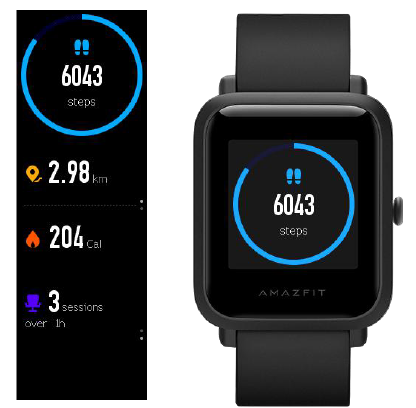
In the status details page, you can view today's number of steps updated in real-time, heart rate measured in the last minute, distance traveled, calories burned, and idle alerts.
Heart Rate
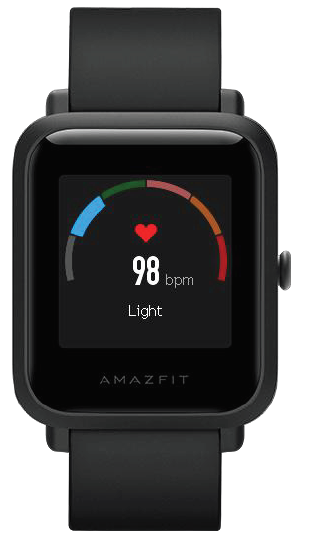
- The watch will start heart rate measurement automatically once the heart rate details page is opened. During measurement, it's required to properly wear the watch and keep the back of the watch fairly close to your skin until the watch can measure a stable heart rate.
- If you want to turn on the all-day measurement function, open the Amazfit app, go to "Profile – Amazfit Bip S – Heart Rate Measurement" and choose to turn on the all-day measurement function.
Notes: With the all-day measurement function on, the watch will regularly measure your heart rate.
Settings
The Settings cannot be set to hidden. In the settings page, you can find options to replace the watch face, change the quick start item for long button press, adjust brightness, find your phone, about, and regulatory information, turn off, and reset.
- Watch face: the watch currently has 4 built-in watch faces, which can be switched based on your preferences.
- Long button press settings: Select a workout item to quickly start when the watch button is pressed and held.
- Brightness adjustment: brightness is divided into 5 grades, and you may press the "+" or "-" button to adjust the screen brightness.
- Find phone: You can use the watch to find your mobile phone when the watch is connected with the Amazfit app . For Android mobile phones, the phone can be found only when the app is running in the background.
- About: You can view the firmware version and Bluetooth address of the watch in the About page.
- Turn off: this is a feature to turn off the watch.
- Reset: This is a feature to reset all data, and you can press and hold the watch button to reset. After a factory reset, you need to re-bind the watch before it can be used again.
Please note: the watch will lose all the data if you reset your watch to factory settings.
Workout Settings
Tap Workout and swipe up to see the workout settings entry. You can set whether auto pause, heart rate alert, pace alert, and lap alert should be enabled during workouts, as well as the swimming lane length. When these alerts are enabled, the watch will vibrate to remind you when the set value is reached (see the "Alerts during Workouts" section for details).
GPS and AGPS
When you enter the workout preparation page for an outdoor exercise such as outdoor running, the watch will automatically start GPS positioning and alert you as soon as your location is confirmed. The GPS positioning will be disabled automatically once you finish your workout.
GPS positioning should be performed in an open area outdoors. Please wait for the positioning process to complete before starting your workout. If you are in a crowd, raising your watch to your chest level may speed up the positioning process.
Assisted Global Positioning System (AGPS) uses the orbital information of the GPS satellites to help the watch to perform GPS positioning faster. When the watch is connected with your mobile phone via Bluetooth, the watch will actively synchronize and update AGPS data with the Amazfit app. The watch needs to synchronize this data with the app regularly, as otherwise the AGPS data will expire and the positioning speed may be affected. In this case, the watch will remind you to connect to the app to update AGPS data before you start your workout, so it can speed up the positioning process.
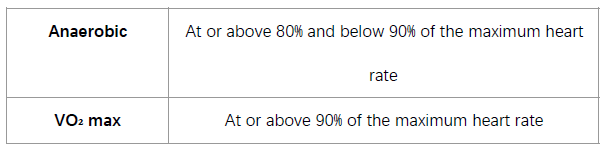
Introduction to Workout Heart Rate Zones
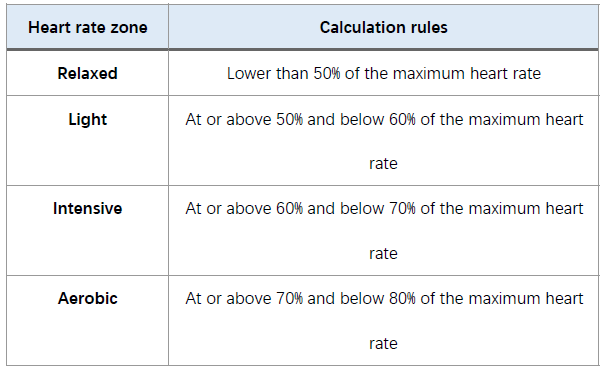
During workouts, the watch will calculate which zones your heart rate belongs to based on your personal information. These zones can help you understand the effectiveness and intensity of your workout. The watch will display your current heart rate zones in the heart rate data column. When the workout ends, you can use the app to view the workout duration of each heart rate zone in the "Details" page for this workout record.
The watch provides six zones by default:
The default heart rate zones are calculated based on the estimated maximum heart rate. The watch calculates the maximum heart rate by deducting your age from 220.
Daily Maintenance of the Watch
- The watch is water-resistant.t It is recommended to clean the watch and watch strap regularly with clean water and dry them with a soft cloth before wearing.
- Don't use detergents such as soap, hand sanitizer, or bath foam when cleaning to avoid chemical residues from irritating the skin or corroding the device.
- When you wear the watch in a bath (for models that allow this), when swimming (for models that allow this), or when you are sweating, please clean and dry the watch as soon as you can.
Precautions
- The watch can withstand a pressure equivalent to 50 meters underwater. Therefore, it can be used when swimming in pools and shallow beaches. However, it can't be used when diving or in a sauna.
- Do not operate the watch underwater. After contacting water, do not operate the touch screen or charge the watch until the watch is wiped dry with a soft cloth.
- The watch is not resistant to corrosive liquids such as acidic and alkaline solutions and chemical reagents. Damage or defects caused by abuse or improper use are not covered under our warranty.
Troubleshooting
Here are some common issues and solutions for the Amazfit Bip S:
- Heart Rate Monitoring Issues: Ensure the watch is snugly fitted and restart the device if necessary.
- GPS Not Connecting: Move to an open area and restart the GPS feature.
- Notification Alerts Not Working: Check notification settings in the app and ensure Bluetooth is enabled.
- Warranty and Support: Refer to the manufacturer's website for warranty details and contact their support team for assistance.
Pros and Cons
Pros:
- Long Battery Life: Offers up to 40 days of typical usage.
- Excellent Outdoor Visibility: The display is bright and clear even in sunlight.
- Built-in GPS and GLONASS: Provides accurate tracking for outdoor activities.
- Waterproof: Suitable for swimming and diving up to 50 meters.
Cons:
- Limited Watch Faces: Fewer customization options compared to competitors.
- Screen Resolution Could Be Better: While functional, the resolution is not as sharp as some other smartwatches.
- No Workout Detection: Users must manually start tracking workouts.
Overall, the Amazfit Bip S offers excellent value for money, especially considering its price and features.
Customer Reviews
Users generally praise the Amazfit Bip S SmartWatch for its long battery life, built-in GPS, and affordability. Common praises include its ease of use, comfortable design, and accurate heart rate monitoring. However, some users mention the limited watch faces and the lack of automatic workout detection as drawbacks. The watch is highly recommended for those seeking a budget-friendly smartwatch with robust fitness tracking capabilities.
Typical star ratings range from 4 to 5 stars, with many users endorsing it as a great budget option.
Faqs
How do I set up my amazfit Bip S SmartWatch for the first time?
What should I do if my amazfit Bip S SmartWatch is not pairing with my phone?
Can I use my amazfit Bip S SmartWatch with any type of phone?
How often should I clean and maintain my amazfit Bip S SmartWatch?
What are the key features that make amazfit Bip S SmartWatch different?
How do I optimize the battery life of my amazfit Bip S SmartWatch?
Can I customize the watch face on my amazfit Bip S SmartWatch?
How do I troubleshoot connectivity issues with my amazfit Bip S SmartWatch?
More amazfit manuals
- Setup: Amazfit PowerBuds Pro Earbuds User Manual
- Usage & Setup: Amazfit Bip 6 Smartwatch User Manual
- Setup & Pairing: Amazfit T-REX 3 Smartwatch User Manual
- Setup & Usage: Amazfit GTR 2 A1952 User Manual
- Setup & Pairing: Amazfit Active-Edge Rugged Smartwatch A2212 User Manual
- Setup & Pairing: Amazfit Balance 2 Fitness Watch User Manual
Leave a Comment