
Setup & Usage: Amazfit Nexo Smartwatch User Manual
Content
Amazfit Nexo Smartwatch
Introduction
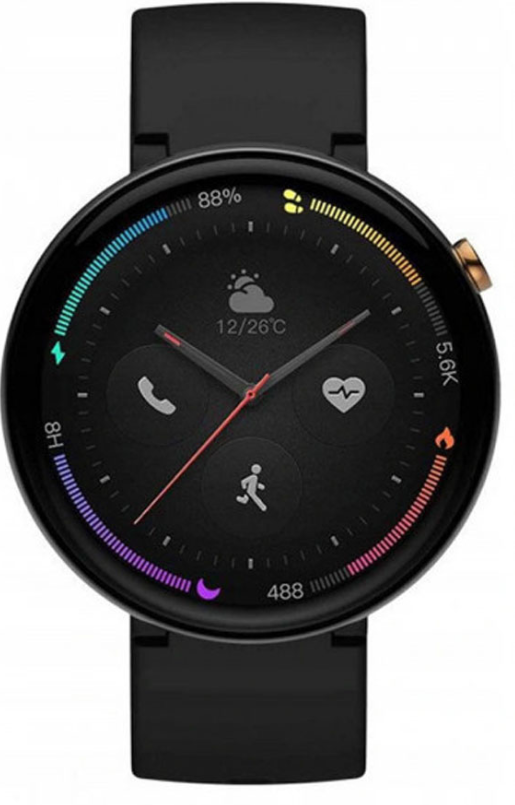
The Amazfit Nexo Smartwatch is a cutting-edge wearable device designed for both fitness enthusiasts and tech-savvy users. This smartwatch offers a unique blend of health monitoring, smart features, and sleek design, making it an appealing choice for those seeking a versatile wrist companion. Key benefits include advanced health tracking with real-time ECG support, a high-resolution AMOLED display, and the ability to make 4G LTE calls thanks to its built-in eSIM technology. The Amazfit Nexo is ideal for individuals looking to upgrade their fitness routine or enhance their daily productivity with a stylish and feature-rich smartwatch. Available in a price range of approximately $200-$300, it is widely available on platforms like Geekbuying and Giztop. The Amazfit Nexo is compatible with both Android (5.0 and above) and iOS (10.0 and above) devices, ensuring broad accessibility.
Specifications of the Amazfit Nexo Smartwatch
Here are the detailed specifications of the Amazfit Nexo Smartwatch:
- Display: 1.39-inch AMOLED with a resolution of 454*454 pixels, housed in a microcrystalline zirconium ceramic frame.
- Processors and RAM: Powered by Qualcomm Snapdragon Wear 2500 processor with 512MB RAM and 4GB of onboard storage.
- Health Features: Includes real-time ECG monitoring, heart rate tracking, and the Huami-PAI Health Assessment System.
- Connectivity: Supports Bluetooth 4.2 + BLE, Wi-Fi 2.4 GHz, and 4G LTE via eSIM for independent phone calls.
- Design and Build: Ceramic body with a silicone strap, offering a durable and comfortable fit.
- Battery Life: Features a 420mAh battery, providing up to a day of use on a single charge.
Compared to similar smartwatches like the Xiaomi Mi Watch, the Amazfit Nexo offers a more comprehensive health tracking system and stylish design, though it may lag slightly in terms of performance due to its lower RAM and storage capacity.
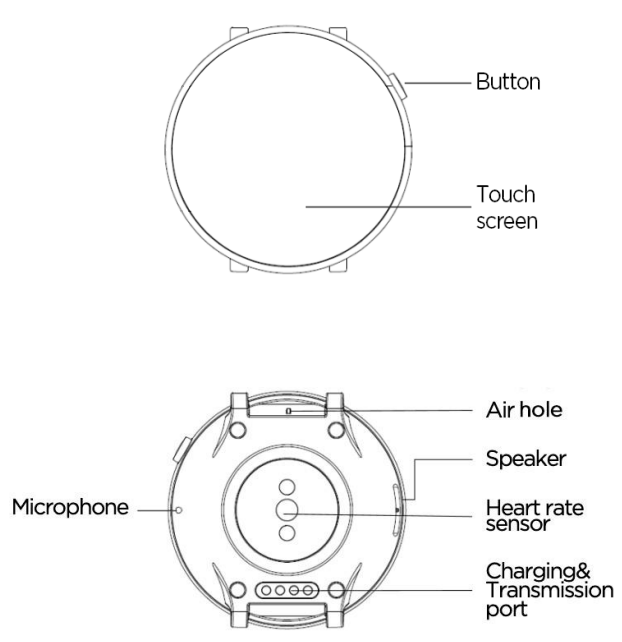
Appearance
Wear and Change Watch Straps
- It is recommended that the watch should be worn on the wrist as illustrated in the picture, comfortably with a tight fit. Being too tight or too loose will affect the normal data detection of the optical heart rate monitor.
- During activities, it's recommended to wear the watch comfortably and ensure a tight fit without slipping. Don't be too tight and ensure that the watch doesn't move freely.
- Note: Use sports watch straps when working out.
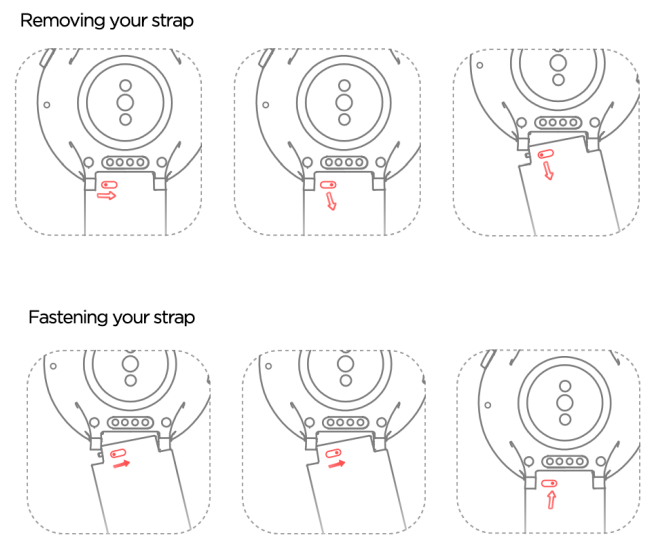
- Removing or installing a watch strap: Remove and replace the strap according to the method shown in the picture.
Turn On/Off
- Turn on
Long-press the button on the right side of the watch, and the watch screen will light up to display the splash screen. - Turn off
When the watch is powered on, long-press the side button for more than 5 seconds to enter the shutdown menu, where you can select Power off or Reboot. - Force reboot
When the watch is powered up, press the side button for more than 10 seconds to force a reboot.
Pair with Your Mobile Phone
Initial activation
- When the watch is activated for the first time, the QR code for binding will be displayed on the screen.
- Install and open the Amazfit app on your mobile phone, log i,n and follow the prompts to scan the QR code displayed to pair with the watch.
Pair with a new mobile phone
- Complete watch data synchronization on the Amazfit app of your old mobile phone.
- On the old mobile phonepleasese go to the APP>Profile>Amazfit Nexo>More settings>Click the Unpair button to unpair the watch.
- The watch will be restored to factory settings and rebooted, and it will be paired with the new mobile phone as it's activated for the first time.
Basic Operations
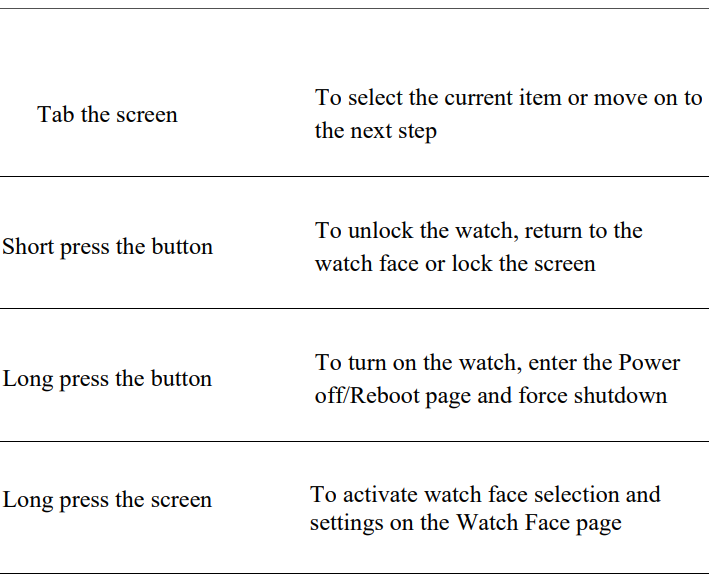
- Slide the screen up/down or left/right
- To scroll or switch pages
Charging
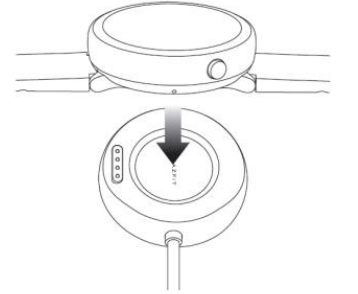
- Connect the watch to the charging base as shown in the picture, and plug the other end of the USB cable into the USB power adapter. At this time, the watch will show the charging status. Pay attention to the correct direction of installation and press tightly to make sure the watch won't slide loose from the base.
- Charging requirement: Use the recommended computer USB ports or brand mobile phone chargers to charge the band. The rated input voltage of such mobile phone chargers must be DC 5.0V, and the input current must be greater than 500mA.
- Note: Dry the charging contacts before charging so as not to cause bad contact and failure to charge due to sweat or other dirt.
Troubleshooting Common Issues
Here are some common issues and their solutions for the Amazfit Nexo Smartwatch:
- Connection Issues: Restart the watch or ensure that your phone is within range and connected via Bluetooth or Wi-Fi.
- ECG Data Not Recording: Check that the watch is properly fitted and ensure that the ECG function is enabled.
- Battery Draining Quickly: Adjust screen brightness, turn off unnecessary features, and ensure that the watch is updated to the latest firmware.
For further assistance, refer to the user manual or contact Amazfit support directly. The Amazfit Nexo Smartwatch comes with a standard warranty and dedicated customer service.
Pros and Cons of the Amazfit Nexo Smartwatch
Here is a balanced assessment of the Amazfit Nexo:
Pros
- Advanced Health Monitoring: Offers real-time ECG and comprehensive health assessment.
- Stylish Design: Features a sleek ceramic body and vibrant AMOLED display.
- Independent Calls: Supports 4G LTE phone calls with eSIM technology.
Cons
- Performance: May not match the speed of higher RAM and storage devices.
- Water Resistance: IP68 certified but not suitable for swimming.
- Battery Life: Limited to about a day on a single charge.
Overall, the Amazfit Nexo offers excellent value for its price, making it a solid choice for those seeking a stylish and feature-rich smartwatch.
Customer Reviews and Feedback
Users of the Amazfit Nexo Smartwatch have praised its health tracking capabilities, stylish design, and independent call support. However, some users mention that the battery life could be improved, and the performance may not be as smooth as higher-end models. The Amazfit Nexo generally receives a rating of around 4 out of 5 stars, with many users recommending it for its unique features and affordability.
For those looking for a comprehensive smartwatch with advanced health features, the Amazfit Nexo is a strong contender. Despite some limitations, its blend of style, functionality, and affordability makes it a popular choice among smartwatch enthusiasts.
Faqs
How do I set up the Amazfit Nexo Smartwatch for the first time?
What should I do if my Amazfit Nexo Smartwatch is not working properly?
Can I use the Amazfit Nexo Smartwatch to answer WhatsApp messages?
How often should I clean and maintain the Amazfit Nexo Smartwatch?
What are the key features that make the Amazfit Nexo Smartwatch different?
Can I install additional apps on the Amazfit Nexo Smartwatch?
Is the Amazfit Nexo Smartwatch compatible with all smartphones?
How can I optimize the battery life of the Amazfit Nexo Smartwatch?
More amazfit manuals
- Setup & Pairing: Amazfit ZenBuds Earbuds User Manual
- Setup: Amazfit Bip U Smartwatch A2017 User Manual
- Setup & Pairing: Amazfit T-Rex Smart Watch User Manual
- Setup & Pairing: Amazfit Active-Edge Rugged Smartwatch A2212 User Manual
- Setup: Amazfit GTS 2 Smartwatch User Manual
- Setup & Pairing: Amazfit T-REX 3 Smartwatch User Manual
Leave a Comment