
Setup: Amazfit GTS 2 Smartwatch User Manual
Content
Amazfit GTS 2 Smartwatch
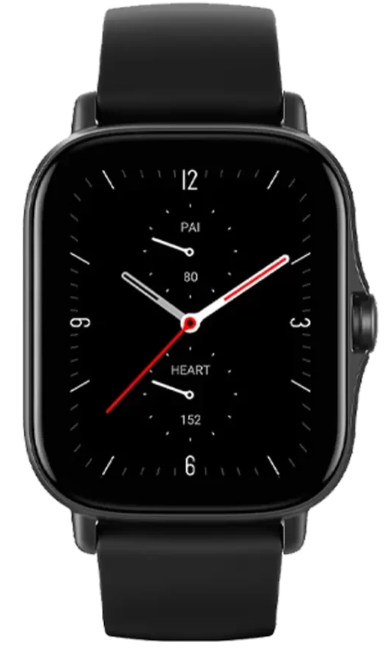
Introduction: Discover the Power of Amazfit GTS 2
The Amazfit GTS 2 Smartwatch is a feature-packed wearable designed for fitness enthusiasts, health-conscious users, and anyone seeking a stylish yet affordable smartwatch. Combining advanced health monitoring, smart connectivity, and a sleek design, the GTS 2 stands out with its real-time heart rate tracking, blood oxygen (SpO2) measurement, sleep analysis, and 90+ sports modes, making it a versatile companion for everyday life and workouts alike.
Key benefits include built-in GPS for outdoor activity tracking, Amazon Alexa support for voice commands, and a vibrant AMOLED display for crisp visuals. The watch also offers music storage and playback, phone call handling, and app notifications, all wrapped in a lightweight, waterproof body (up to 50 meters). Its long battery life and intuitive interface make it ideal for busy professionals, students, athletes, and tech-savvy users who want reliable health insights without constant charging.
The Amazfit GTS 2 Smartwatch is widely available online and in retail stores, with an estimated price range of $130–$170, offering excellent value compared to premium brands like Fitbit and Garmin. Whether you're tracking a morning run, monitoring your stress, or staying connected on the go, the GTS 2 delivers a comprehensive smartwatch experience at a competitive price point.
Specifications: Technical Details and Features
The Amazfit GTS 2 Smartwatch is engineered to deliver robust health, fitness, and smart features in a compact, modern design. Here are the detailed specs and capabilities:
- Display: 1.65-inch Super Retina AMOLED, 341 PPI, 2.5D glass, 3D bezel-less design
- Build: 42mm case, 9.7mm thickness, 26g weight, aluminum alloy frame, water resistance up to 50 meters
- Sensors: BioTracker 2 PPG (heart rate, SpO2, stress), accelerometer, gyroscope, barometer, compass, GPS, GLONASS
- Health Tracking: 24/7 heart rate, SpO2 (continuous and spot check), sleep stages (light, deep, REM), sleep breathing quality, stress tracking (manual and all-day), sedentary reminders, PAI Health Assessment
- Sports Modes: 90+ activities including running, swimming, cycling, and more; built-in GPS for outdoor workouts
- Smart Features: Amazon Alexa, phone call handling, music storage (3GB), music control, weather, app notifications, phone finder, alarm, timer, stopwatch
- Connectivity: Bluetooth, compatible with Android and iOS
- Battery Life: Up to 7 days typical use, 20 days in basic mode (varies by usage)
- Storage: 3GB for music and apps
Compared to similar smartwatches like the Fitbit Versa 3 and Garmin Venu, the Amazfit GTS 2 offers a broader range of sports modes and more detailed sleep tracking at a lower price, though some sensors may be less accurate than medical-grade devices[2][3][4]. It lacks advanced integrations like Spotify or Strava,, but excels in core fitness and health tracking.
Getting started
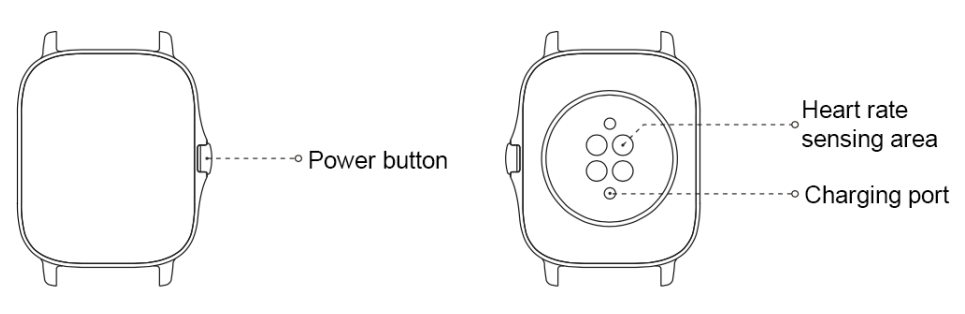
Appearance
Power on and off
Power on:
Press and hold the side button to power on the watch. The start screen will appear. If turning on the watch and blong-pressingng the side button doesn't work, charge the watch and retry.
Shut down:
When the device is on, press and hold the side button for 5 seconds to go to the power menu. You can select to shut down or restart the watch.
Force shut down:
When the device is on, press and hold the side button for 10 seconds to restart the watch.
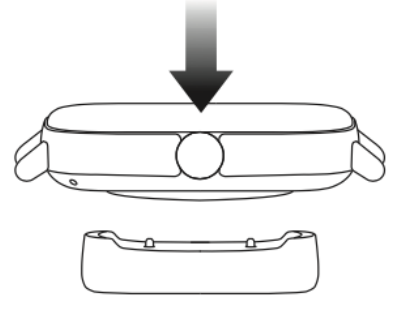
Charging
This product charges via a magnetic charging base. Please use the standard charging base accessory for charging. Align the charging port with the metal contacts on the charging base until the charging level indicator appears on the watch screen.
Note:
Use the original charging base and ensure the charging port is dry.
Use a computer USB port or a charger with a rated output voltage of 5V and a rated output current above 1A to charge your watch.
Wearing & Replacing a Watch Strap
Put the strap on with comfortable looseness to allow the skin to breathe and the sensor to function.
When measuring SpO₂, avoid wearing the watch on the wrist joint, keep your arm flat, maintain a comfortable (appropriately tight) fit between the watch and the skin of your wrist, and keep your arm still throughout the measurement process. When affected by external factors (such as arm sag, arm sway, arm hair, and tattoos), measurement results may be inaccurate or the measurement may fail with no output.
You can tighten the watch strap during a workout and loosen it afterwards. Tighten the strap appropriately if your watch sways on your wrist or fails to output data.
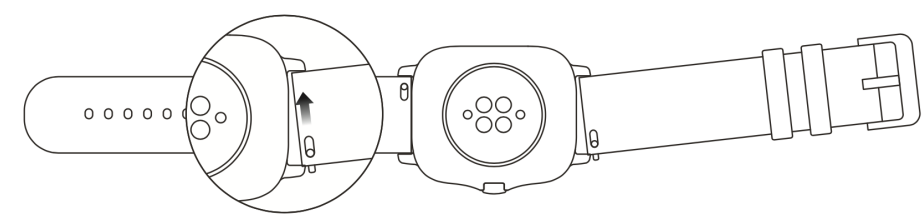
To attach or detach the watch strap, refer to the illustration below:
Note:
After the strap is attached, please pull the strap using appropriate force to ensure a secure attachment.
Avoid contact with liquid, as the leather strap is not waterproof. Switch to a fluororubber strap or a silicone strap where you cannot avoid such contact, for example, when swimming.
Pairing with a new phone:
- On your old phone, start the Zepp app and synchronize data with the watch.
- On your old phone, go to the information page of the watch, tap More at the bottom of the page, and unpair the old phone from the watch.
- Restore the factory settings of the watch, and restart the watch. After the watch is restarted, pair the watch with your new phone according to the initial pairing procedure.
Updating the system of your watch
Keep the watch connected with your phone, start the Zepp app, go to Profile > Amazfit GTS 2, and tap System update to view or update the system of your watch.
It is recommended that you tap Update Immediately when your watch receives a system update message.
Control center
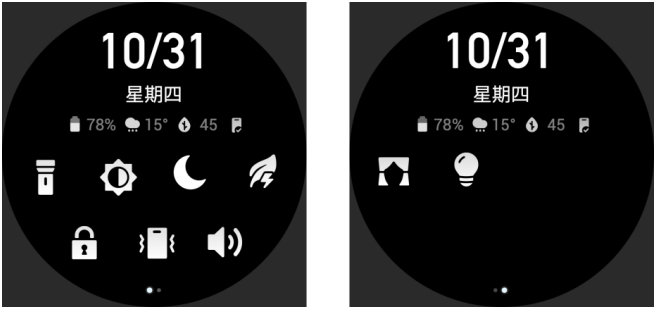
On the watch face page, swipe down to go to the control center for the following system functions: Flashlight, Brightness adjustment, DND, Battery saver mode, Screen locked, Find mobile, Volume setting, Theater mode, and Keep screen on.
Time System
Keep the watch connected to your phone. During data synchronization, the watch automatically follows the system time and time format of your phone, and displays the time in a 12 h or 24 h format.
Units
Keep the watch connected with your phone, start the Zepp app, and go to Profile > More > Settings. Here, you can set the unit of measurement for distance. During data synchronization, the watch automatically follows the settings in the app.
Common operations
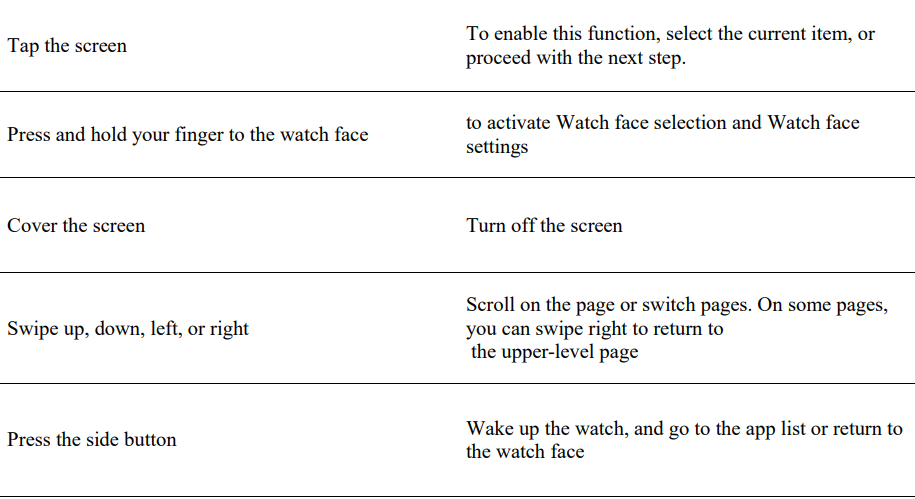
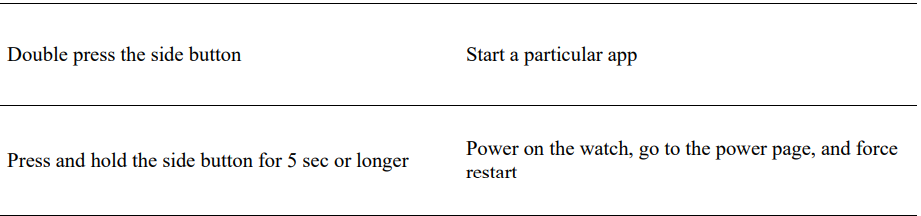
Workout Reminders & Settings
At the bottom of the workout preparation page, you can tap the "Settings" icon to set the current workout mode. The related parameters vary depending on the workout mode.
- Workout goal:
You can set goal reminders for the target distance, target time, and target consumption. - Workout reminder:
You can set reminders for distance, safe heart rate, heart rate zone, pace, and speed. - Auto pause:
The watch automatically detects the workout status. When it detects that the workout has stopped, the watch automatically stops recording information about the current workout. When it detects that the workout has started again, the watch continues to record. - Real-time graph:
You can set the watch to display a real-time graph of the heart rate, pace, speed, and pull speed rate during your workout. - Length of swimming lane:
You can set the length of the swimming lane during pool swimming to record the swimming distance.
Voice Function
Offline Voice
Offline voice control allows you to speak to perform most of the operations on the watch without connecting to a mobile phone.
Offline voice wake-up mode:
Go to Settings > User preferences > Offline voice control > Wake up mode
- Respond in 5 seconds after you turn your wrist.
Responds within 5 seconds after the screen lights up.
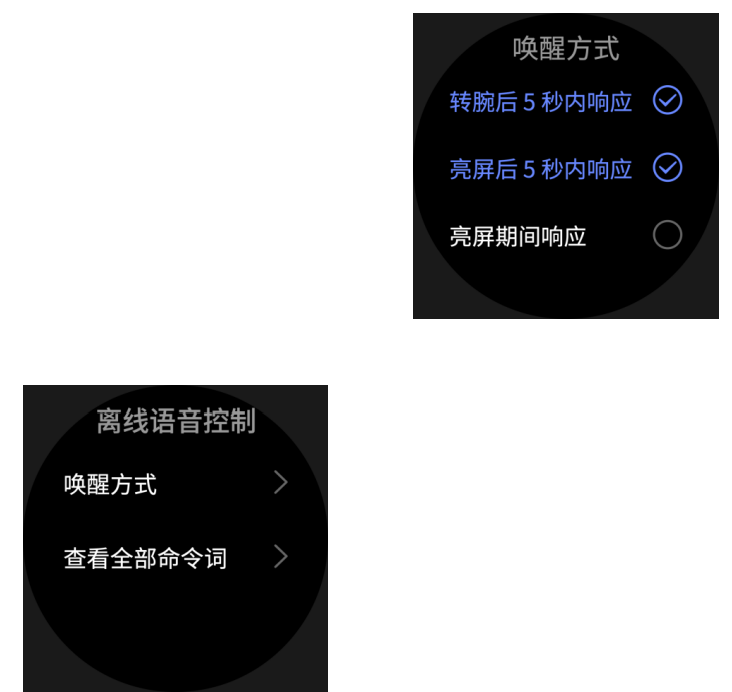
- Response during screen lighting.
Select "Respond in 5 seconds after you turn your wrist" and "Responds within 5 seconds after the screen lights up" to enable Offline voice. After turning your wrist or lighting the screen, the "Recognizing offline voice" icon appears. Then you can run offline voice commands to perform related operations.
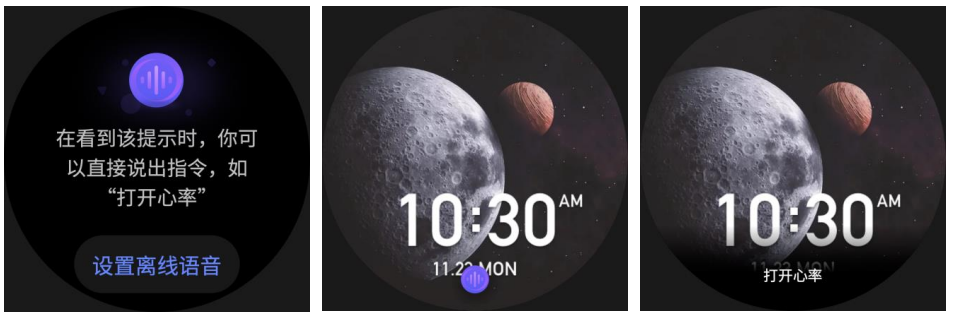
If you select "Response during screen lighting" to enable Offline voice, you can use offline voice command words directly without waiting to see the "Recognizing offline voice" icon.
Offline voice commands words:
Go to Settings > User preferences > Offline voice control > View all voice commands. Here, you can see all the offline voice command words the watch supports.
Multimedia Function
Music
Play local music:
The watch supports music playback through your Bluetooth headset or speaker, and also supports playing local music aloud.
- Add songs: Start the Zepp app and choose Profile > Amazfit GTS 2 > Music. On the Music page, select .mp3 or .wav music files to transfer from your phone to the watch. After completing the transfer, you can play music on the watch.
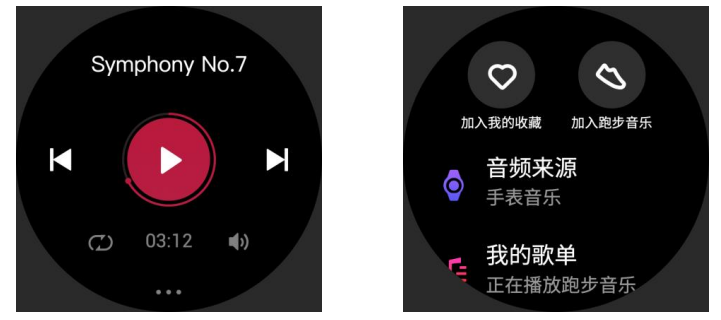
- The Music page displays the name and composer of a song. On the page, you can play the previous song, play the next song, pause, or continue to play a song, change the playback mode, and adjust the volume.
- The second Music page allows you to add songs to My Favorites, switch the music mode, view the playlist, connect to Bluetooth audio devices, and more.
Music remote controller:
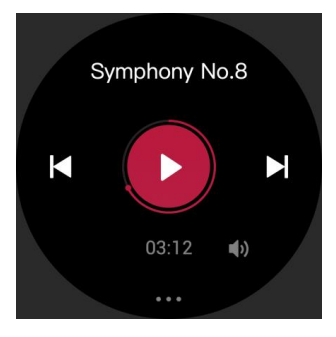
Keep the watch connected to your phone. When playing music on your phone, you can start or pause the music, switch to the previous or next song, and perform other operations on the music app of your watch.
Modify settings on an Android phone:
Keep the watch connected with your phone, start the Zepp app, and go to "Profile > Amazfit GTS 2 > App List Managing". On the page that appears, tap the "Access to read notification not enabled" message to go to the Notification Settings page, and grant notification permissions for the Zepp app. If this message is not displayed, the permission is already granted.
Note: To enable this function on an Android phone, you need to add the Zepp app to the whitelist or auto-run list in the phone background so that the app always runs in the background. If the Zepp app is killed by the phone's background process, the watch will be disconnected from your phone, and you cannot control music playback.
Troubleshooting: Common Issues and Solutions
Even the best smartwatches encounter occasional issues. Here’s how to resolve common problems with your Amazfit GTS 2 Smartwatch:
- Sync or Connection Problems: Ensure Bluetooth is enabled on your phone, restart both devices, and re-pair the watch if needed. Update the Zepp app and watch firmware regularly.
- GPS Signal Drops: GPS accuracy can fluctuate outdoors. Ensure the watch has a clear view of the sky and avoid dense urban areas for the best results.
- Heart Rate or SpO2 Inaccuracies: Wear the watch snugly on your wrist. For best results, remain still during spot checks. Note that sensors are not medical-grade and may vary from clinical devices.
- Battery Drains Quickly: Reduce screen brightness, disable always-on display, and limit GPS usage. Check for firmware updates that may improve efficiency.
- App Notifications Not Working: Check app permissions on your phone, ensure “Do Not Disturb” is off, and re-enable notifications in the Zepp app.
Preventive Measures: Regularly clean the watch and charging contacts, avoid exposing it to extreme temperatures, and keep the software up to date.
Warranty & Support: The Amazfit GTS 2 typically comes with a 12-month manufacturer’s warranty. For further assistance, contact Amazfit customer support via their official website or the Zepp app. Include your purchase details and a description of the issue for faster resolution.
Pros & Cons: Balanced Assessment of the Amazfit GTS 2
Strengths
- Comprehensive Health Tracking: Offers continuous heart rate, SpO2, sleep stages, and stress monitoring—features often found in more expensive watches.
- Sports and Activity Modes: 90+ sports modes and built-in GPS cater to athletes and casual users alike.
- Battery Life: Lasts up to a week on a single charge, reducing daily charging hassle.
- Design and Display: Sleek, lightweight build with a vibrant AMOLED screen.
- Smart Features: Alexa integration, music storage, and call handling add convenience.
- Value for Money: Packs premium features at a mid-range price, undercutting Fitbit and Garmin.
Weaknesses
- Sensor Accuracy: Heart rate and SpO2 readings are good for daily use,, but not as precise as medical devices.
- GPS Performance: GPS can be inconsistent, especially in urban environments.
- Limited App Ecosystem: Lacks popular third-party app support like Spotify or Strava.
- Stress Tracking: Manual stress scores lack context; all-day tracking is more useful but still basic.
- No Camera Control: Missing a feature found on some budget rivals.
Overall, the Amazfit GTS 2 Smartwatch delivers excellent value for users prioritizing health metrics and battery life over advanced smart features or ultra-precise sensors.
Customer Reviews: Real User Experiences
Users consistently praise the Amazfit GTS 2 Smartwatch for its attractive design, extensive health tracking, and impressive battery life. Many highlight the detailed sleep analysis and the convenience of having music storage and Alexa on their wrist. The watch’s affordability compared to the Fitbit and Apple Watch is a major plus, especially for budget-conscious buyers.
Common complaints include occasional GPS signal drops during runs, less accurate SpO2 readings compared to medical devices, and a limited selection of third-party apps. Some users note that while the PAI Health system is innovative, it lacks actionable insights. Despite these minor drawbacks, most customers recommend the GTS 2 for its feature set and value, often giving it 4 out of 5 stars.
If you want a stylish, capable fitness tracker with smart features at a reasonable price, the Amazfit GTS 2 Smartwatch is a strong choice—especially for those focused on health metrics and battery endurance.
Faqs
How do I set up my amazfit GTS 2 Smartwatch for the first time?
What should I do if my amazfit GTS 2 Smartwatch is not connecting to my smartphone?
Can I use the amazfit GTS 2 Smartwatch with both Android and iOS devices?
What are the key health features of the amazfit GTS 2 Smartwatch?
How do I optimize the battery life of my amazfit GTS 2 Smartwatch?
Can I listen to music directly from the amazfit GTS 2 Smartwatch?
How often should I clean and maintain my amazfit GTS 2 Smartwatch?
What are some common issues with the amazfit GTS 2 Smartwatch and how can I troubleshoot them?
More amazfit manuals
Leave a Comment