
Setup: Bose Headphones 700 UC User Manual
Content
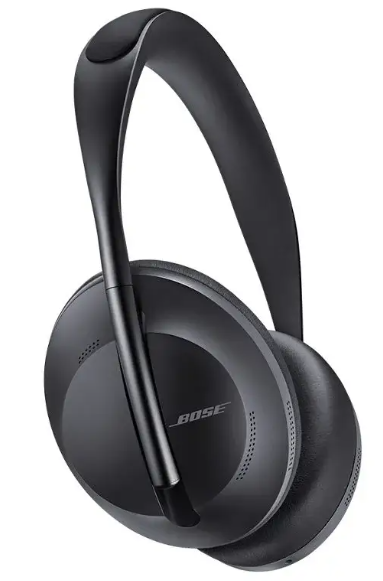
Bose Headphones 700 UC
Introduction to Bose Headphones 700 UC
The Bose Headphones 700 UC represents a premium solution for professionals seeking exceptional audio quality combined with advanced noise cancellation technology. Designed specifically for unified communications platforms, these wireless headphones deliver game-changing performance for remote workers, business professionals, and conference call enthusiasts. The Bose 700 UC features an innovative eight-microphone system that ensures crystal-clear voice transmission while actively suppressing background noise, making it an ideal choice for virtual meetings on Microsoft Teams, Google Meet, and Zoom.
Built with premium materials including plush protein leather and a secure steel headband, the Bose Headphones 700 UC combines luxury comfort with professional functionality. The headphones feature 11 customizable noise cancellation levels, allowing users to personalize their acoustic environment from complete silence to open and ambient modes. With up to 20 hours of battery life and reliable wireless connectivity via Bluetooth or the included USB Link module, these headphones provide all-day comfort and seamless integration into modern workplace environments.
The Bose Headphones 700 UC typically retails between $350 to $450 USD, positioning them as a premium investment for professionals prioritizing audio excellence and communication clarity. Target audiences include remote workers, business executives, customer service representatives, and audio professionals who demand superior sound quality alongside practical UC optimization. These headphones are widely available through Bose's official website, authorized retailers, and major electronics retailers worldwide.
Technical Specifications
Audio and Connectivity Features:
- Bluetooth Version: Bluetooth 5.0 for stable wireless connectivity
- Wireless Range: Up to 33 feet with a mobile device; up to 100 feet with the Bose USB Link module
- Connectivity Options: Bluetooth, USB dongle (Bose USB Link), 3.5mm cable
- Charging Method: USB-C to USB-A cable with 2.5-hour full charge time
- Quick Charge: 15 minutes provides 3.5 hours of playback
Microphone and Noise Cancellation Technology:
- Total Microphones: Eight adaptive microphones for superior audio processing
- Noise Cancellation Microphones: Four microphones dedicated to voice clarity and noise suppression
- Noise Cancellation Levels: 11 customizable levels for personalized acoustic control
- Active Noise Cancellation (ANC): Proprietary technology using external and internal monitoring
- Beamform Array: Isolates speech while suppressing surrounding audio
- Rejection Array: Secondary defense system tracking and blocking disruptive sounds
Battery and Physical Specifications:
- Battery Life: Up to 20 hours of full-featured audio playback
- Battery Type: Custom-designed lithium-ion rechargeable battery
- Headphones Weight: 0.25 kg (8.96 oz)
- Headphones Dimensions: 203 × 165 × 51 mm (8.0 × 6.5 × 2.0 inches)
- USB Module Weight: 1.98 g (0.07 oz)
- USB Module Dimensions: 23 × 15 × 7 mm (0.9 × 0.6 × 0.3 inches)
UC Platform Optimization:
- Microsoft Teams is certified and optimized
- Google Meet is certified and optimized
- Zoom compatibility with full feature support
- Pre-paired Bose USB Link Bluetooth module included
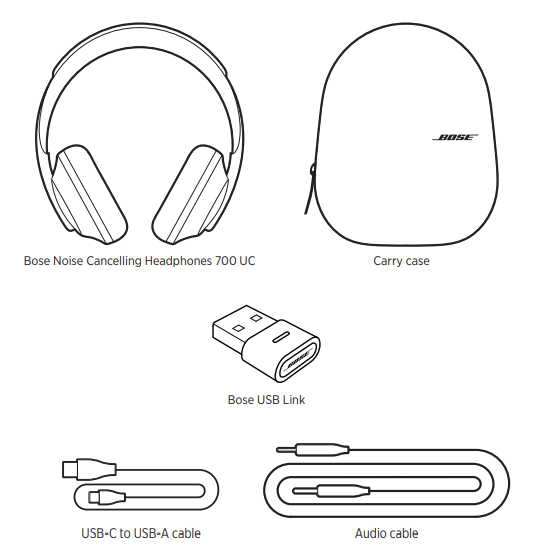
WHAT’S IN THE BOX
CONTENTS
Confirm that the following parts are included:
Important Safety Instructions
- Read these instructions.
- Keep these instructions.
- Heed all warnings.
- Follow all instructions.
- Do not use this apparatus near water.
- Clean only with a dry cloth.
- Only use attachments/accessories specified by the manufacturer.
- Refer all servicing to qualified personnel. Servicing is required when the apparatus has been damaged in any way, such as power-supply cord or plug is damaged, liquid has been spilled or objects have fallen into the apparatus, the apparatus has been exposed to rain or moisture, does not operate normally, or has been dropped.
DOWNLOAD THE BOSE MUSIC APP
On your mobile device, download the Bose Music app.
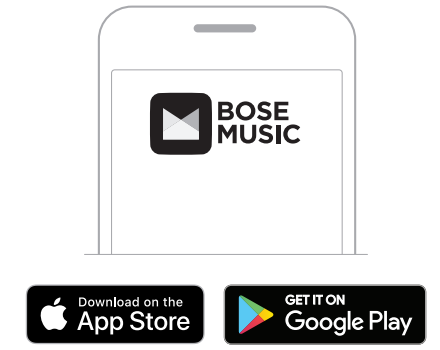
- Follow the app instructions.
USE THE MICROSOFT TEAMS BUTTON
The Microsoft Teams button is used to control various functions in the Microsoft Teams app on your computer. It’s located on the right earcup.
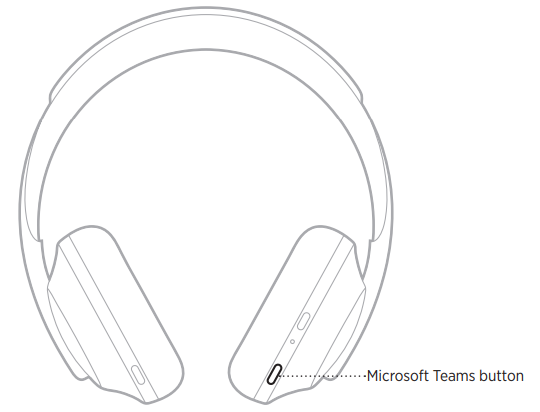
Before you begin, make sure your mobile device is connected to a Wi-Fi® or cellular data network, and use the Bose Music app to learn how to use the Microsoft Teams button.
VOICE ASSISTANT OPTIONS
You can program the headphones to quickly and easily access Google Assistant or Amazon Alexa, or voice control capabilities on your mobile device.
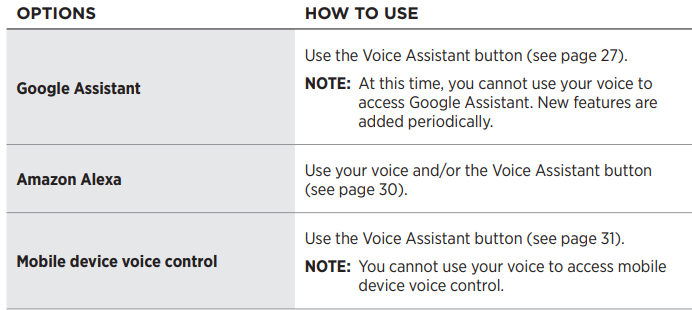
SET UP YOUR VOICE ASSISTANT
- Before you begin, make sure your mobile device is connected to a Wi-Fi® or cellular data network.
- To set up your Voice Assistant, use the Bose Music app. You can access this option from the Settings menu.
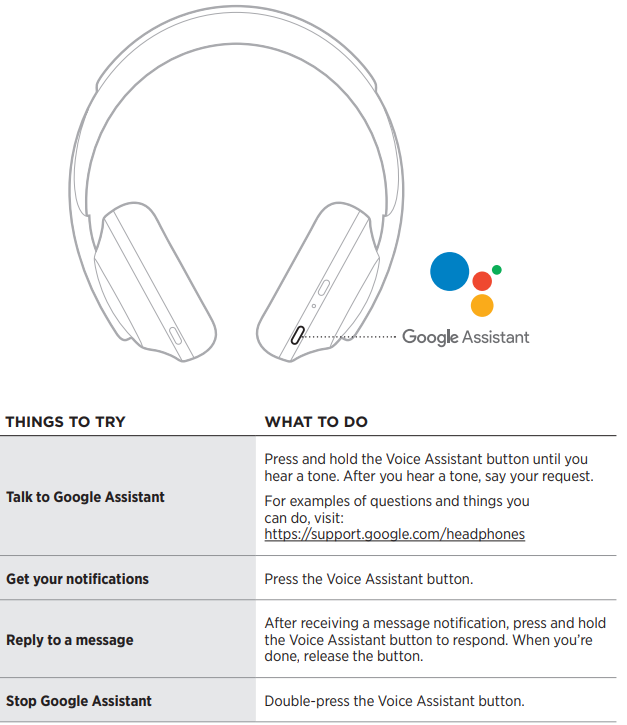
ACCESS GOOGLE ASSISTANT
Your headphones are optimized for Google Assistant, making your headphones the perfect companion for getting stuff done on your travels or commute. Continue your conversations while on the go and easily access the best of Google, from Google Play Music to Google Maps. You can quickly enjoy entertainment, stay connected to friends, get information, and manage your day—all without glancing at your phone. Listen to your favorite songs, have notifications and messages read to you, or set reminders and timers. Just press and hold the Voice Assistant button to start a conversation with Google Assistant.
For more information on what Google Assistant can do, visit: https://support.google.com/headphones
NOTE: Google Assistant isn’t available in certain languages and countries.
Use the Voice Assistant button
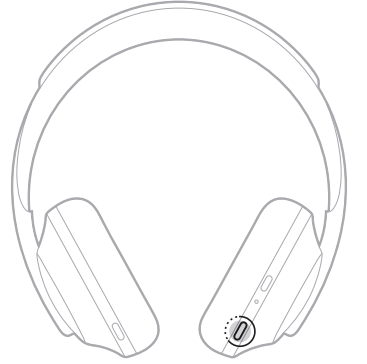
The Voice Assistant button is used to control Google Assistant. It’s located on the right arcup.
ACCESS AMAZON ALEXA
The headphones are Amazon Alexa-enabled. With Alexa, you can ask to play music, hear the news, check the weather, control smart home devices, and more. Using Alexa on your headphones is as simple as asking. Just ask or use the Voice Assistant button,, and Alexa responds instantly.
For more information about what Alexa can do, visit: https://www.amazon.com/usealexa
NOTE: Alexa isn’t available in certain languages and countries.
Custom access
During initialization, the app prompts you to choose your preferred way to access Alexa. If you choose Alexa for your Voice Assistant, you can customize it to be accessed using:
- The Voice Assistant button only.
- Your voice and the Voice Assistant button.
ACCESS MOBILE DEVICE VOICE CONTROL
You can set the headphones to access voice control on your mobile device. Once set, the headphone microphone acts as an extension of the microphone in your mobile device.
Press and hold the Voice Assistant button to access mobile device voice control. You hear a tone that indicates voice control is active.
Setup and Configuration Guide
- Initial Setup Steps:
Begin by unboxing your Bose Headphones 700 UC and verifying all components are included: the headphones, USB Link Bluetooth module, USB-C charging cable, 3.5mm audio cable, carrying case, and quick start guide. Fully charge the headphones using the USB-C cable before initial use. This typically requires up to 2.5 hours for a complete charge. The headphones feature a power button located on the right earcup; press and hold for three seconds to power on the device. - Bluetooth Pairing Process:
To pair with your mobile device or computer via standard Bluetooth, ensure the headphones are powered on and in pairing mode. Most devices will automatically detect the Bose Headphones 700 UC within 30 seconds. Select the headphones from your device's available Bluetooth list and confirm the pairing. For optimal connectivity with computers, use the included Bose USB Link module—simply insert it into any available USB port and the headphones will automatically connect with extended range up to 100 feet. - Configuration and Customization:
Download the Bose Music app on your smartphone or access Bose's web portal to customize your experience. Through the app, you can adjust the 11 noise cancellation levels to match your environment. Select "Virtual Silence" for focused work, or "Open and Ambient" to hear conversations while wearing the headphones. Configure voice control settings, adjust equalizer settings for optimal audio reproduction, and manage connectivity between multiple devices. The headphones support easy switching between paired devices through intuitive touch controls on the earcup. - Conversation Mode Activation:
Enable Conversation Mode through the Bose Music app to hear people and surroundings clearly without removing the headphones. This feature is particularly useful during in-person meetings or collaborative work sessions where you need to maintain audio awareness while keeping the headphones on.
BATTERY
CHARGE THE HEADPHONES
Connect the small end of the USB cable into the USB-C port on the right arcup.
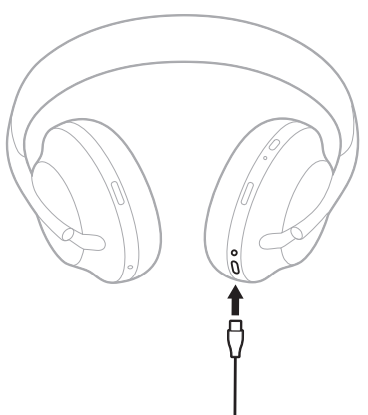
- Connect the other end to a USB-A wall charger or a computer that is powered on.
While charging, the battery light blinks white. When the battery is fully charged, the battery light glows solid white (see page 39).
NOTE: The headphones do not play audio or cancel noise while charging.
Charging time
Allow up to 2.5 hours to fully charge the headphones.
NOTES:
- A 15-minute charge powers the headphones for up to 3.5 hours.
- A full charge powers the headphones for up to 20 hours.
HEAR THE BATTERY LEVEL
Each time you power on the headphones, a voice prompt announces the battery level. When you’re using the headphones and the battery is low, you hear “Battery low, please charge now.”
To hear the battery level while using the headphones, tap and hold the touch surface until you hear a voice prompt.
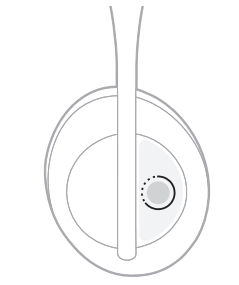
NOTE: By default, the tap and hold action on the headphones is set to announce the battery level. For more information about customizing this action, see page 23.
STATUS
BLUETOOTH LIGHT
The Bluetooth light is located on the right earcup and shows the connection status of a mobile device.
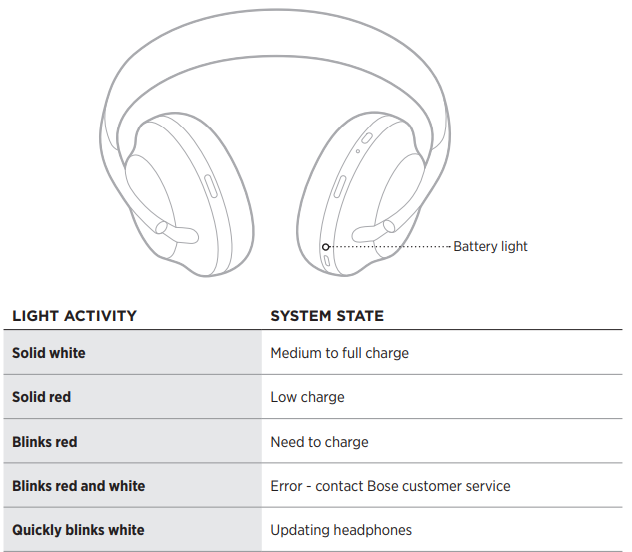
NOTES:
- While charging, the battery light blinks white. When the headphones are fully charged, the battery light glows solid white.
- If connected to an Apple device, the device displays the battery level near the upper right corner of the screen and in the notification center.
- You can also check the battery level of the headphones using the Bose Music app.
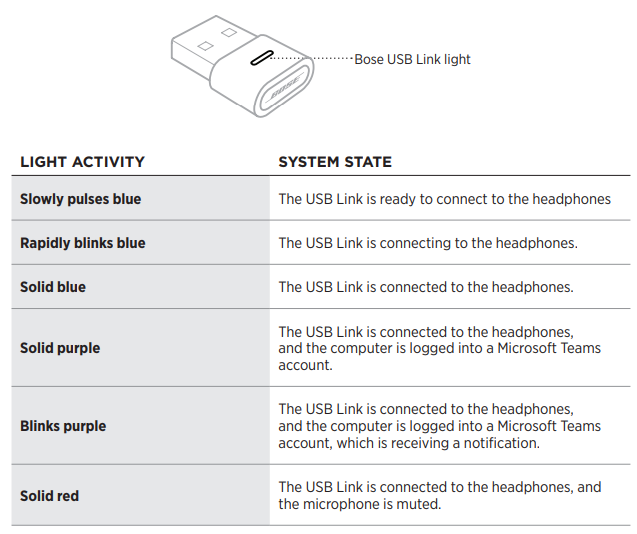
BOSE USB LINK LIGHT
The light on the Bose USB Link shows the connection status of the headphones and the status of Microsoft Teams.
WIRED CONNECTIONS
CONNECT THE AUDIO CABLE
Use the audio cable to connect a non-wireless device,, or if the headphone battery is depleted.
Insert the cable into the 2.5 mm jack on the right earcup.
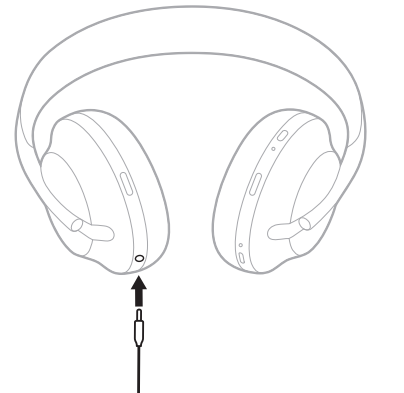
- Insert the other end of the cable into the 3.5 mm jack on your device.
CARE AND MAINTENANCE
STORE THE HEADPHONES
The earcups rotate for easy, convenient storage.
- Adjust the earcups so that the headband is at its smallest size (see page 15).
Rotate both earcups inward so they lie flat.
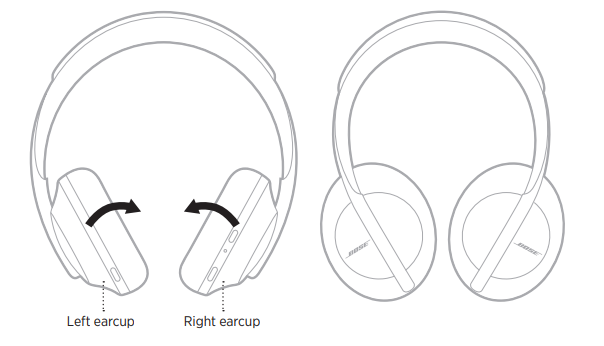
Place the headphones flat into the case.
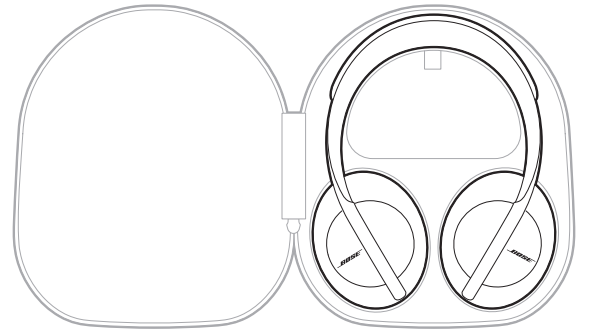
NOTE: Make sure to power off the headphones when not in use.
CLEAN THE HEADPHONES AND THE BOSE USB LINK
The headphones and Bose USB Link may require periodic cleaning.
- Wipe the outside surfaces with a soft, dry cloth.
- Do NOT allow moisture to get inside the earcups or the 2.5 mm jack of the earphones or inside the USB Link.
REPLACEMENT PARTS AND ACCESSORIES
Replacement parts and accessories can be ordered through Bose customer service. Visit: worldwide.Bose.com/Support/HP700UC
SERIAL NUMBER LOCATIONS
The serial number is located:
- On the carton outer label.
- In the Bose Music app, under Technical Info.
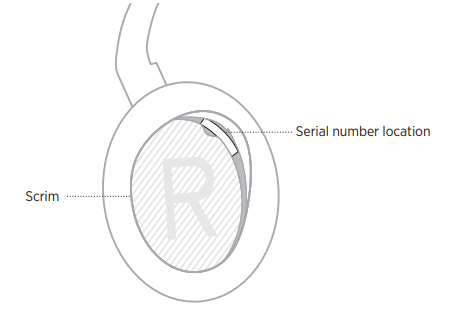
- In the right earcup, underneath the scrim (cloth insert).
View the serial number on the headphones (not recommended)
- On the right earcup, slightly pull the top of the right earcup cushion back.
- Push down the scrim at the top-right edge to reveal the label.
CAUTION: Be careful not to press down on or remove any other components inside the earcup, as this could damage the headphones.
Troubleshooting
TRY THESE SOLUTIONS FIRST
If you experience problems with the headphones or the Bose USB Link,, try these solutions first:
- Charge the battery (see page 36).
- Power on the headphones (see page 17).
- Check the status lights (see page 38).
- Make sure your mobile device supports Bluetooth connections (see page 41).
- Make sure the USB Link is securely connected to your computer (see page 17).
- Download the Bose Music app and run available software updates (see page 14).
- Move your headphones closer to the device or the USB Link and away from any interference or obstructions.
- Increase the volume on the headphones, mobile device, music, or meeting app.
- Make sure the meeting app and operating system on your computer are up to date.
- Connect another mobile device (see page 43).
- Restart your computer, or sign out of the meeting app and sign back in.
- Remove the USB Link from the USB port on your computer, and then reinsert it.
- Check for available USB Link firmware updates (see page 55).
OTHER SOLUTIONS
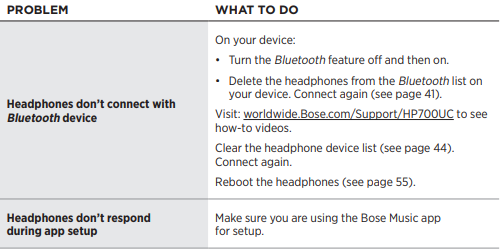
If you could not resolve your issue, see the table below to identify symptoms and solutions to common problems. If you are unable to resolve your issue, contact Bose customer service.
Visit: worldwide.Bose.com/contact
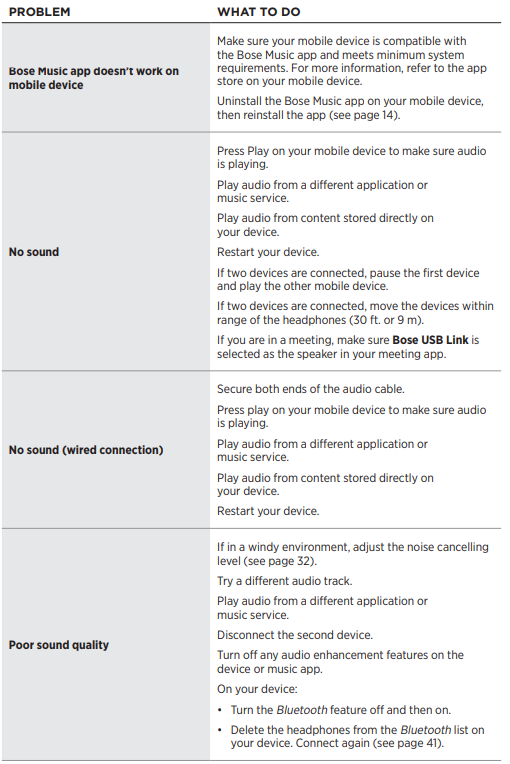
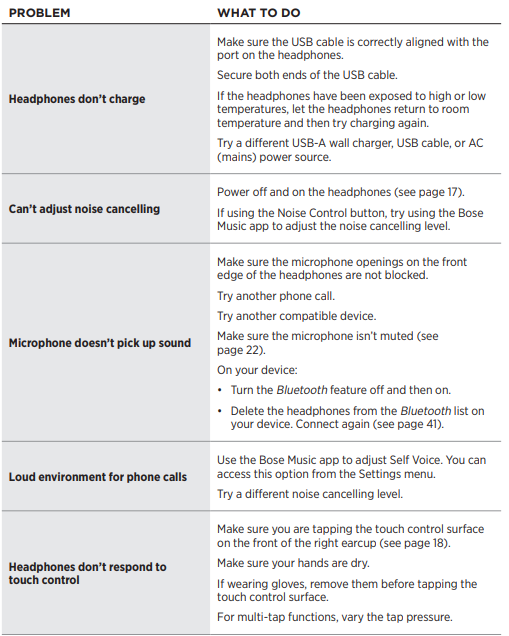
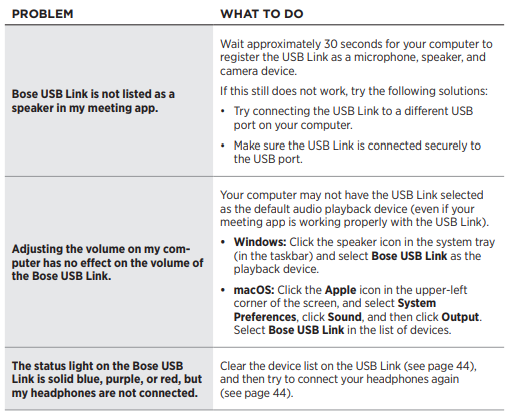
Common Issues
Connectivity Problems:
- Headphones won't connect to Bluetooth: Ensure Bluetooth is enabled on your device and the headphones are in pairing mode. Reset the headphones by holding the power button for 10 seconds until you hear a reset confirmation tone. Remove the device from your phone's Bluetooth settings and re-pair.
- USB Link Module Not Recognized: Verify the module is properly inserted into a USB port and try an alternative USB port. Update your computer's Bluetooth drivers to the latest version. Restart your computer and reconnect the module.
- Intermittent Connection Drops: Move closer to your Bluetooth source or remove physical obstacles. If using USB Link, ensure your computer's Bluetooth drivers are current. Check for interference from other wireless devices operating on the 2.4 GHz frequency.
Audio Quality Issues:
- Low Volume Levels: Increase volume using the earcup controls or your device settings. Check that noise cancellation is not set to maximum levels, which may affect perceived volume. Verify the equalizer settings in the Bose Music app are not reducing overall output.
- Poor Microphone Quality During Calls: Confirm all eight microphones are unobstructed and clean. Verify you're using the latest version of your UC platform (Teams, Meet, or Zoom). Adjust the microphone input level in your operating system settings or UC application settings.
- Excessive Background Noise in Calls: Increase the noise cancellation level through the Bose Music app. Reduce environmental noise sources where possible. Ensure the rejection array microphones are not blocked by hair or clothing.
Battery and Charging Issues:
- Battery Not Charging: Use the original USB-C to USB-A cable provided with the headphones. Try charging with a different USB power adapter. Inspect the USB-C port for debris and gently clean it if necessary.
- Rapid Battery Drain: Disable Bluetooth and USB connectivity when not in use. Lower the noise cancellation level for extended battery life. Reduce screen brightness on the Bose Music app if using it for extended periods.
Warranty and Support:
- Bose Headphones 700 UC include a standard one-year limited warranty covering manufacturing defects. For technical support, visit Bose's official website or contact their customer service team directly. Most issues can be resolved through the troubleshooting guides provided in the
- Bose Music app. If problems persist, Bose offers replacement or repair services within the warranty period.
LIMITED WARRANTY
- The headphones and Bose USB Link are covered by a limited warranty. Visit our website at global.Bose.com/warranty for details of the limited warranty.
- To register your product, visit global.Bose.com/register for instructions. Failure to register will not affect your limited warranty rights.
Advantages and Disadvantages
Key Advantages:
- Superior Microphone System: The eight-microphone adaptive array ensures exceptional voice clarity and background noise suppression, making callers hear you perfectly even in noisy environments.
- Customizable Noise Cancellation: Eleven distinct noise cancellation levels provide unprecedented control over your acoustic environment, from complete silence to open ambient modes.
- Premium Audio Quality: Dual speakers deliver rich, immersive sound with excellent bass reproduction, surpassing typical professional headsets in audio fidelity.
- Exceptional Battery Life: Twenty hours of continuous playback ensures all-day productivity without requiring midday charging.
- Extended Wireless Range: The USB Link module provides up to 100 feet of connectivity, offering flexibility for office and home environments.
- UC Platform Optimization: Native integration with Microsoft Teams, Google Meet, and Zoom provides seamless button controls and optimized settings.
Potential Disadvantages:
- Premium Pricing: At $350-$450, these headphones represent a significant investment compared to standard UC headsets.
- Learning Curve: The eleven noise cancellation levels and multiple connectivity options may require time to optimize for individual preferences.
- Size and Portability: While included with a carrying case, the headphones are bulkier than some lightweight alternatives, making them less ideal for frequent travelers.
- USB Link Dependency: Optimal computer connectivity requires the included USB Link module; standard Bluetooth range is limited to 33 feet.
User Reviews and Customer Feedback
- Professional users consistently praise the Bose Headphones 700 UC for transforming virtual meeting experiences. Remote workers highlight the exceptional microphone system as a game-changer, noting that colleagues frequently comment on the clarity of their voice during conference calls. The 11 noise cancellation levels receive particular acclaim, with users appreciating the ability to customize their acoustic environment based on daily circumstances,, from quiet focus sessions to open office environments.
- Audio quality emerges as a standout feature, with users noting the superior bass and stereo separation compared to competing professional headsets. The 20-hour battery life receives consistent praise for supporting full workday use without charging concerns. Comfort ratings are excellent, with premium materials and thoughtful design enabling eight-hour wearing sessions without fatigue.
- Common praise points include seamless integration with Microsoft Teams and Google Meet, intuitive touch controls, and the convenience of switching between computer and mobile devices. Some users note the premium price point as a consideration, though most agree the investment delivers exceptional value for professionals conducting frequent video conferences. The included USB Link module and carrying case add perceived value to the overall package.
- Minor feedback includes requests for additional color options and suggestions for enhanced mobile app features. Overall, customer satisfaction ratings average 4.5 out of 5 stars, with the Bose Headphones 700 UC recommended for professionals prioritizing call quality and audio excellence in unified communications environments.
Comparison with Similar Products
The Bose Headphones 700 UC occupies the premium segment of the UC headset market. Unlike standard Bluetooth headsets, the 700 UC combines professional-grade audio with advanced microphone technology specifically optimized for business communication. The eight-microphone system and eleven noise cancellation levels represent industry-leading specifications that competitors struggle to match. While some alternative headsets offer comparable battery life, few provide equivalent audio quality or microphone clarity. The native Teams and Meet optimization provides seamless integration that generic Bluetooth headsets cannot replicate, making the Bose 700 UC an exceptional choice for professionals seeking the ultimate unified communications headset experience.
Faqs
How do I set up bose Headphones 700 UC for use with my computer?
What should I do if my bose Headphones 700 UC are not connecting via Bluetooth?
Can bose Headphones 700 UC be used with popular UC platforms like Zoom and Microsoft Teams?
How can I adjust noise cancellation levels on my bose Headphones 700 UC?
What maintenance steps are recommended to keep bose Headphones 700 UC performing well?
How do I reset bose Headphones 700 UC if they are experiencing performance issues?
Are bose Headphones 700 UC compatible with mobile devices and tablets?
What are the key benefits of using bose Headphones 700 UC for remote work and online meetings?
More bose manuals
- Pairing: Bose QuietComfort 45 Headphones User Manual
- Setup: Bose QuietComfort 35 Wireless Headphones User Manual
- Setup & Pairing: Bose QuietComfort Ultra Headphones (2nd Gen) User Manual
- Pairing: Bose QuietComfort 35 Wireless Headphones II User Manual
- Pairing: Bose OE2 Audio Headphones User Manual
- Setup: Bose Noise-Masking Sleepbuds User Manual
Leave a Comment