
Setup: Bose QuietComfort 35 Wireless Headphones User Manual
Content
Bose QuietComfort 35 Wireless Headphones
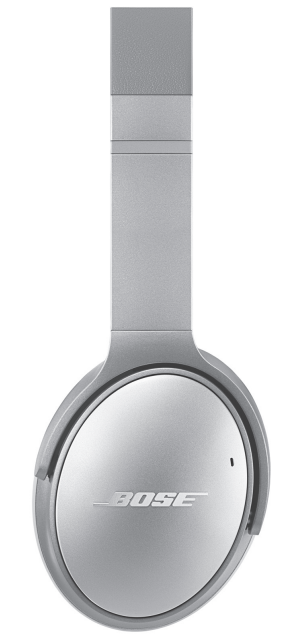
Introduction to Bose QuietComfort 35 Wireless Headphones
The Bose QuietComfort 35 Wireless Headphones represent a pinnacle of noise-cancelling audio technology, designed for professionals, travelers, and audio enthusiasts who demand superior sound quality and comfort. These premium over-ear headphones combine industry-leading active noise cancellation with wireless connectivity, making them an ideal choice for long-haul flights, office environments, and everyday listening.
The Bose QuietComfort 35 delivers an exceptional listening experience through its sophisticated dual-microphone system and volume-optimized EQ, ensuring clear, balanced audio performance at any volume level. With an impressive 20-hour battery life on wireless usage, these headphones provide extended listening sessions without frequent charging interruptions. The headphones feature a sleek, ergonomic design with soft Alcantara cushions and impact-resistant construction, making them perfect for both stationary and mobile use.
Target users include business professionals seeking clear call quality in noisy environments, frequent travelers requiring reliable noise isolation, remote workers needing comfortable all-day wear, and music enthusiasts who appreciate balanced audio reproduction. The Bose QuietComfort 35 Wireless Headphones are typically priced around $380 USD, positioning them in the premium consumer headphones segment. These headphones are widely available through Bose's official website, major electronics retailers, and authorized distributors globally.
Technical Specifications of Bose QuietComfort 35
Technical Information
- Input Rating: 5VDC 1A
- Battery Charge Time: 2.25 hours
Connectivity and Battery Performance:
- Wireless Battery Life: 20 hours (Bluetooth mode)
- Wired Battery Life: 40 hours (using auxiliary cable)
- Battery Type: Rechargeable lithium-ion
- Charging Port: Micro-USB
- Wireless Technology: Bluetooth with NFC pairing support
- Wireless Range: 10 meters (33 feet)
Physical Specifications:
- Weight: 235 grams (8.3 ounces)
- Design: Closed-back over-ear headphones
- Earcup Material: Memory foam with Alcantara cushions
- Available Colors: Black, Silver, Midnight Blue
- Cable Length: 1.2 meters (4 feet) with detachable connector
- Included Accessories: Hard carrying case, micro-USB charging cable, auxiliary cable
Audio Performance and Noise Cancellation:
- Noise Cancellation: Dual active and passive noise reduction technologies
- Microphone Configuration: Dual-microphone noise-rejecting system
- EQ Technology: Volume-optimized EQ for consistent audio quality
- Low-Frequency Extension: 10Hz
- Bass Consistency: Maximum deviation of 0.5dB across users
- Treble Isolation: Approximately 35dB in the treble range
- Simultaneous Device Pairing: Supports 2 devices
Setup and Configuration Guide for Bose QuietComfort 35
- Initial Setup and Power On:
Before using your Bose QuietComfort 35 Wireless Headphones for the first time, ensure the battery is fully charged using the provided micro-USB cable. Locate the power switch on the right earcup and toggle it to the "on" position. You will hear a voice prompt confirming the headphones are powered on. - Bluetooth Pairing Process:
To pair your headphones with a Bluetooth device, press and hold the power switch on the right earcup until you hear a voice prompt indicating pairing mode is active. On your smartphone, tablet, or computer, navigate to Bluetooth settings and search for available devices. Select "Bose QuietComfort 35" from the list of discovered devices. Voice prompts will guide you through each step of the pairing process for instant listening. Once paired, your headphones will automatically connect to this device when powered on. - NFC Pairing (Quick Connect):
For NFC-enabled devices, you can pair your headphones by simply holding your phone close to the headphones. This simplified pairing method works quickly and efficiently, eliminating the need to navigate through Bluetooth menus. - Action Button Configuration:
The Action button on the left earcup provides access to voice assistants (Amazon Alexa or Google Assistant) where available, or allows you to toggle between two noise cancellation levels for optimal performance in different environments. Customize this button's functionality through the Bose Connect app for enhanced control. - Adjusting Noise Cancellation Levels:
Press the Action button to cycle between different noise cancellation settings. The Bose QuietComfort 35 features sophisticated active noise reduction that places microphones both inside and outside the earcups, sensing ambient sound and producing opposing cancellation signals in real-time.
Unpacking
Carefully unpack the carton and confirm that the following parts are included:
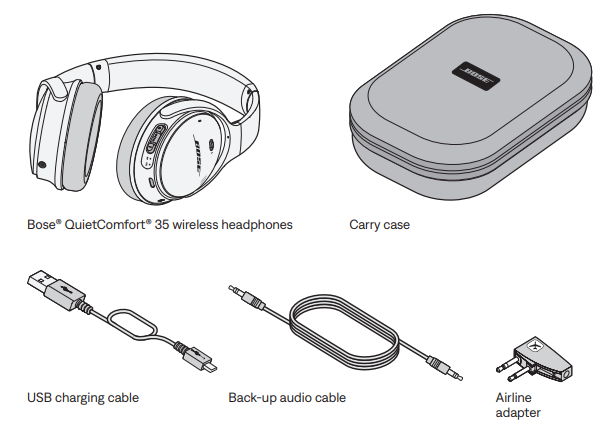
If any part of the headphones appears to be damaged, do not attempt to use them. Contact your authorized Bose dealer immediately or call Bose customer service. For contact information, refer to the quick start guide in the carton.
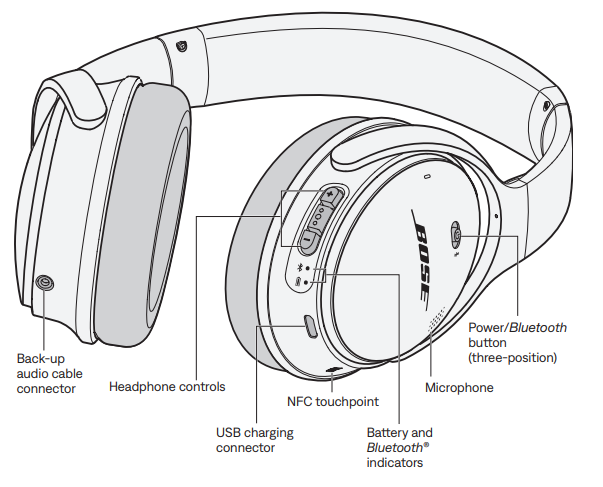
Headphone components
THE BOSE® CONNECT APP
Enhance your headphones with the Bose® Connect app.

Features
- Unlock the full potential of your headphones.
- Free app compatible with most Apple and Android™ systems.
- Easily connect and switch between multiple Bluetooth® devices with a single swipe.
- Keep your headphones up-to-date with the latest software.
- Customize headphone settings, like voice prompt language and hibernation mode.
CHARGING THE BATTERY
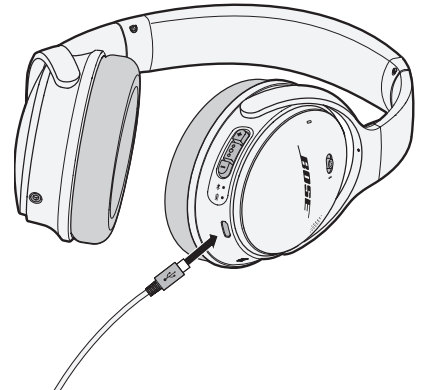
Connecting the USB cable
- Plug the small end of the USB cable into the micro-USB connector on the right earcup.
- Plug the other end into a USB wall charger or computer that is powered on.
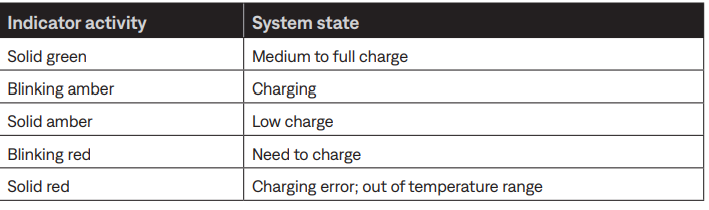
While charging, the battery indicator blinks amber.
When the battery is fully charged, the battery indicator glows green. A full charge powers the earphones for up to 20 hours when connected wirelessly and 40 hours when connected with a wire.
Checking the battery
- Each time you power on the headphones, the voice prompt announces the headphone battery charge level. To visually check the battery, the indicator is located on the right earcup.
- While the headphones are in use, the battery indicator blinks red when the battery needs charging. For more information, see “Headphone Status Indicators” on page 14.
- If you are connected to an Apple device, the device displays the headphone battery level near the upper right corner of the screen.
HEADPHONE STATUS INDICATORS
The battery and Bluetooth® indicators are located on the right earcup.
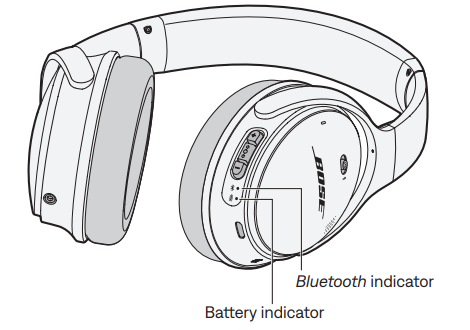
Bluetooth® indicator
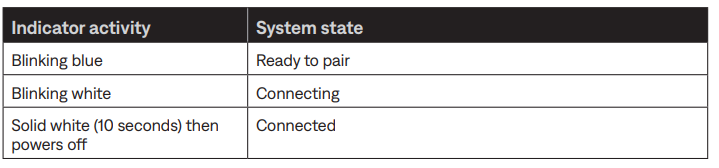
Bluetooth indicator
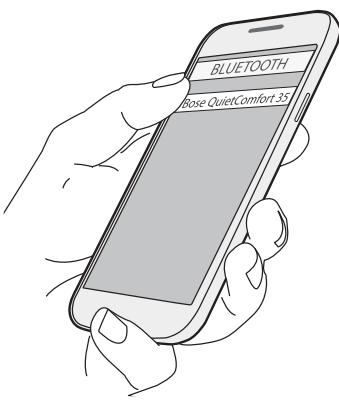
Pairing your Bluetooth® device
- Slide the Power/Bluetooth® button to the Bluetooth® symbol bt and hold until you hear “Ready to pair” or the Bluetooth indicator blinks blue.
- On your Bluetooth device, turn on the Bluetooth feature.
Tip: The Bluetooth menu is usually found in the Settings menu. - Select your Bose® QuietComfort® headphones from the device list.
Once paired, you hear “Connected to <device name>” or the Bluetooth indicator glows solid white.
Pairing your Bluetooth® device with NFC
- Power on the headphones.
- Unlock your device and turn on the Bluetooth® and NFC features. Refer to the owner’s guide for your device to learn more about these features.
- Tap the NFC touchpoint on your device to the NFC touchpoint on your headphones. Your device may prompt you to accept pairing.
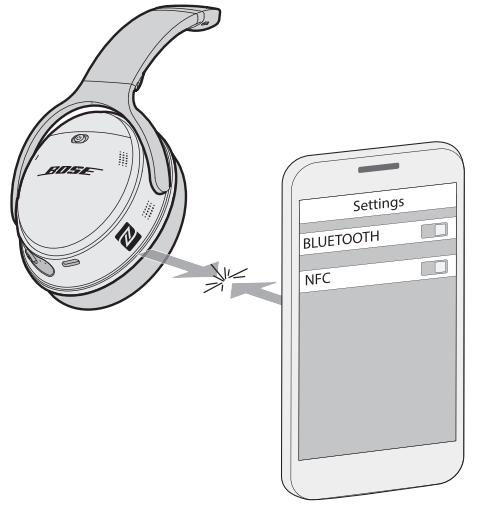
Once paired, you hear “Connected to <device name>” or the Bluetooth indicator glows solid white.
Disconnecting a Bluetooth® device
- Turn off the Bluetooth® feature on your mobile device.
- If your device supports pairing via NFC, tap the NFC touchpoint on your device to the NFC touchpoint on your headphones.
Note: When you disconnect your Bluetooth® device, noise cancelling remains enabled.
Reconnecting a Bluetooth® device
- When powered on, the headphones try to reconnect with the two most recently connected devices. Make sure the devices are within range and powered on.
- If your device supports Bluetooth® pairing via NFC, tap the NFC touchpoint on your device to the NFC touchpoint on your headphones.
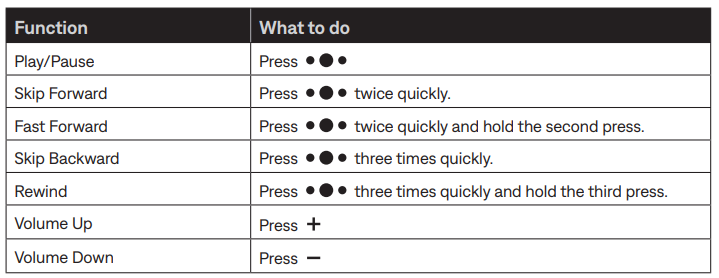
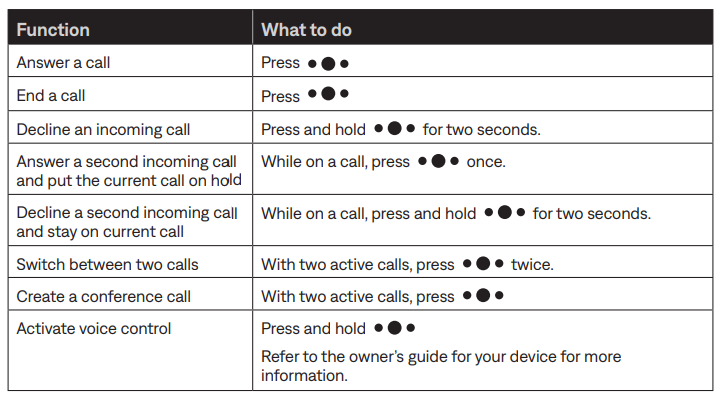
HEADPHONE CONTROLS
The headphone controls are located on the side of the right earcup.
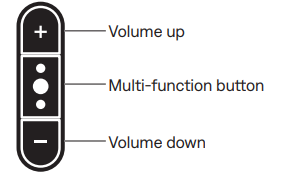
Media playback and volume functions
Call functions
CONNECTING HEADPHONES USING A CABLE
Using the backup audio cable
Use the supplied backup audio cable in the following situations:
- If the headphone battery is depleted.
- To connect a device that does not support Bluetooth® wireless technology.
- If you cannot use Bluetooth® wireless technology, for example,, on an airplane.
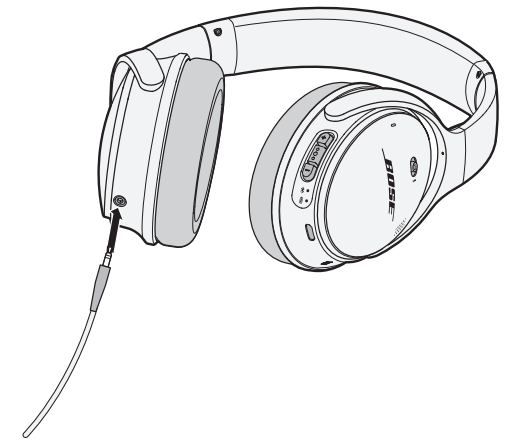
- Plug the audio cable into the connector on the left earcup.
- Plug the audio cable into the connector on your device.
CONNECTING BOSE PRODUCTS
Connecting to a Bose Home Speaker or Soundbar
With Bose SimpleSyncTM smart technology, you can connect the headphones to a Bose Soundbar or Bose Home Speaker for a personal listening experience.
Benefits
- Use independent volume controls on each product to lower or mute your Bose Soundbar while keeping the headphones as loud as you like.
- Hear your music clearly from the next room by connecting the headphones to your Bose Home Speaker.
Note: SimpleSyncTM smart technology has a Bluetooth® range of 30 ft (9 m). Walls and construction materials can affect reception.
Compatible products
You can connect the headphones to any member of the Bose Home Speaker family. Popular compatible products include:
- Bose Smart Soundbar 300
- Bose Soundbar 700
- Bose Soundbar 500
- Bose Home Speaker 500
- Bose Home Speaker 300
- Bose Portable Home Speaker
CARE AND MAINTENANCE
Storing your headphones
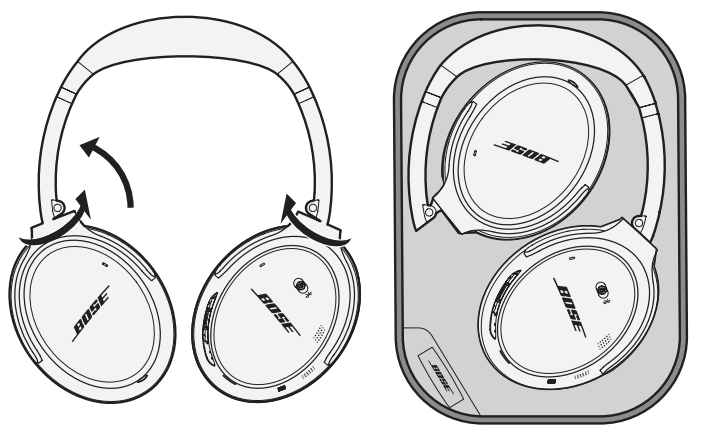
The earcups rotate for easy, convenient storage. Place the headphones flat into the case with the earcups surrounding the two soft dividers.
- Rotate both earcups inward so they lie flat.
- Fold the left earcup up towards the headband.
- Be sure to turn off the headphones when not in use.
- Before storing the headphones for more than a few months, be sure the battery is fully charged.
Cleaning your headphones
The headphones do not require scheduled cleaning. Should cleaning be necessary, simply wipe the outside surfaces with a soft, dry cloth. Do not allow moisture to get inside the earcups or the audio input connector. Do not use liquids or sprays.
Replacement parts and accessories can be purchased from your Bose® dealer, at global.Bose.com, or by placing an order over the phone.
Serial Number Location
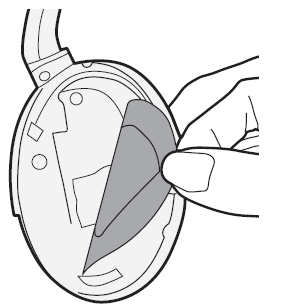
- The serial number is located beneath the right scrim in the back of the earcup. The scrim is the inner screen that covers and protects the components inside the earcup.
- To view the serial number, grab the scrim at the top edge and gently peel it away.
- Be careful not to press down on or remove any other components inside the earcup, as this could damage the headphones.
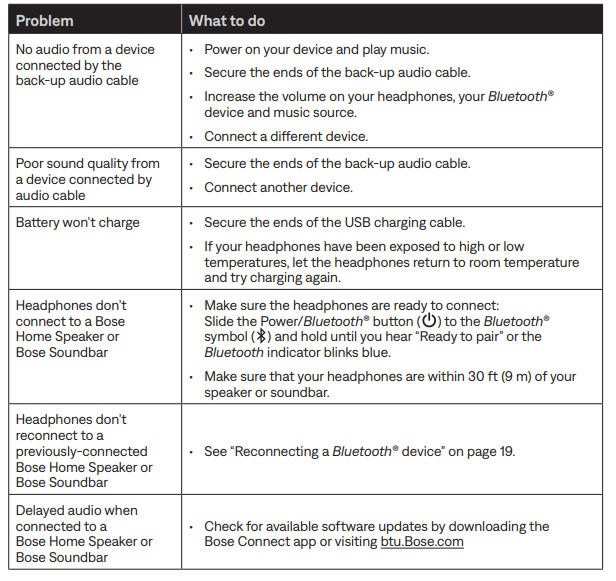
Troubleshooting Common Issues
- Connectivity Problems:
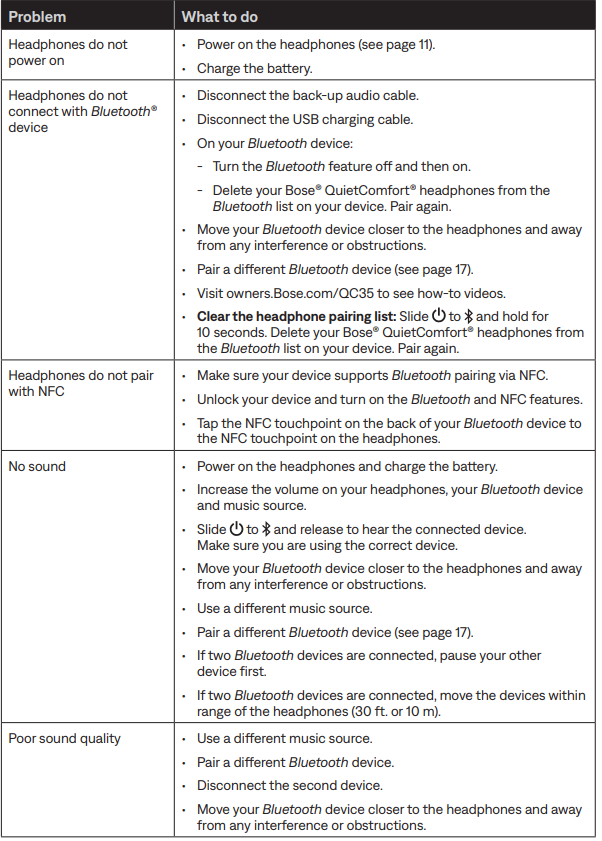
If your Bose QuietComfort 35 Wireless Headphones fail to connect to your device, first ensure Bluetooth is enabled on both the headphones and your listening device. Reset the pairing by holding the power switch for 10 seconds until you hear a reset confirmation. Clear the previously paired device from your phone's Bluetooth settings and repeat the pairing process. If problems persist, check for firmware updates using the Bose Connect app, as newer versions may resolve compatibility issues. - Battery Not Charging:
Verify that the micro-USB cable is properly connected to both the headphones and the power adapter. Try using a different USB cable or power adapter to rule out equipment failure. If the battery still doesn't charge, the non-replaceable lithium-ion battery may require professional servicing. - Reduced Noise Cancellation Performance:
Ensure the earcups are properly seated on your ears and the cushions create a good seal. Check that active noise cancellation is enabled through the Action button. The ANC system cannot be disabled, but you can adjust between noise cancellation levels. If you experience a suction effect that you find uncomfortable, this is a known characteristic of the active noise cancellation system. - Sound Quality Issues:
For optimal sound quality, try adjusting the volume to moderate levels. The volume-optimized EQ delivers superior performance across the entire volume spectrum.[1] When using the auxiliary cable connection, disable active noise cancellation if possible to experience improved soundstage and instrument separation. - Warranty and Support:
The Bose QuietComfort 35 Wireless Headphones come with standard manufacturer warranty coverage. Contact Bose customer support through their official website or visit authorized service centers for warranty claims and technical assistance. Firmware updates are available through the Bose Connect app, which can enhance performance and add new features.
Limited Warranty
- Your headphones are covered by a limited warranty. Visit our website at global.Bose.com/warranty for details of the limited warranty.
- To register your product, visit global.Bose.com/register for instructions. Failure to register will affect your limited warranty rights.
Advantages and Disadvantages
Advantages of Bose QuietComfort 35:
- Outstanding Noise Isolation: Advanced active and passive noise cancellation delivers exceptional isolation in virtually any environment
- Superior Comfort: Soft Alcantara cushions and memory foam earpads ensure comfortable all-day wear without fatigue
- Exceptional Battery Life: 20-hour wireless battery life and 40-hour wired capability reduce charging frequency
- Excellent Call Quality: Dual-microphone noise-rejecting system provides clear calls even in noisy environments
- Consistent Audio Performance: Volume-optimized EQ delivers balanced sound at any volume level
- Wireless Freedom: Bluetooth connectivity with NFC support offers flexible pairing options
- Firmware Upgradeable: Regular updates via the Bose Connect app add new features and improvements
- Sleek Design: Impact-resistant and corrosion-resistant construction ensures durability
Disadvantages of Bose QuietComfort 35:
- Cannot Disable ANC: Active noise cancellation cannot be completely turned off, only adjusted to different levels
- Suction Effect: Some users experience an uncomfortable suction sensation from the active noise cancellation system
- Non-Replaceable Battery: The lithium-ion battery cannot be user-replaced, requiring professional service after battery degradation
- Limited Codec Support: No aptX support for higher-quality Bluetooth audio streaming
- Sound Balance Limitations: The Bose sound signature, with emphasis on bass,, won't appeal to all listeners, particularly neutral sound preference enthusiasts..
- Premium Price Point: At approximately $380 USD, these headphones represent a significant investment
- Reduced Soundstage: Closed-back design produces a compressed soundstage, particularly when using Bluetooth
User Reviews and Customer Feedback
- The Bose QuietComfort 35 Wireless Headphones consistently receive high praise from users across multiple platforms, with particular emphasis on comfort and noise cancellation effectiveness. Professional travelers frequently cite these headphones as essential for long-haul flights, praising the 20-hour battery life and superior noise isolation that allows undisturbed sleep and work.
- Office workers appreciate the clear call quality delivered by the dual-microphone system, noting that colleagues can hear them clearly even during video conferences in open office environments. Remote workers consistently mention comfort as a standout feature, with many reporting the ability to wear these headphones for entire workdays without discomfort.
- Common user complaints focus on the inability to completely disable active noise cancellation and the occasional suction effect some users find distracting. However, these concerns are outweighed by praise for overall audio quality, build durability, and the reliable Bluetooth connectivity.
- Many users recommend the Bose QuietComfort 35 Wireless Headphones as the best choice for anyone prioritizing comfort and noise cancellation over neutral audio reproduction. The headphones are particularly recommended for frequent travelers, office professionals, and individuals working in noisy environments who value extended battery life and reliable wireless connectivity.
Faqs
How do I set up the bose QuietComfort 35 Wireless Headphones for the first time?
What should I do if my bose QuietComfort 35 Wireless Headphones won’t pair with my phone?
Can I use bose QuietComfort 35 Wireless Headphones with non-Bluetooth devices?
How do I adjust noise cancellation levels on bose QuietComfort 35 Wireless Headphones?
What is the battery life of bose QuietComfort 35 Wireless Headphones, and how do I maximize it?
How do I clean and maintain my bose QuietComfort 35 Wireless Headphones for long-term use?
Are bose QuietComfort 35 Wireless Headphones compatible with both Android and iOS devices?
What should I do if there is no audio output from my bose QuietComfort 35 Wireless Headphones?
More bose manuals
- Setup: Bose Headphones 700 UC User Manual
- Pairing: Bose QuietComfort 35 Wireless Headphones II User Manual
- Pairing: Bose QuietComfort 45 Headphones User Manual
- Setup: Bose Noise-Masking Sleepbuds User Manual
- Setup & Pairing: Bose QuietComfort Ultra Headphones (2nd Gen) User Manual
- Setup: Bose Ultra Open Earbuds User Manual
Leave a Comment