
Brother 893-Z05 Cutting Machine User Manual
Content
Brother 893-Z05 Cutting Machine Review and User Manual Guide
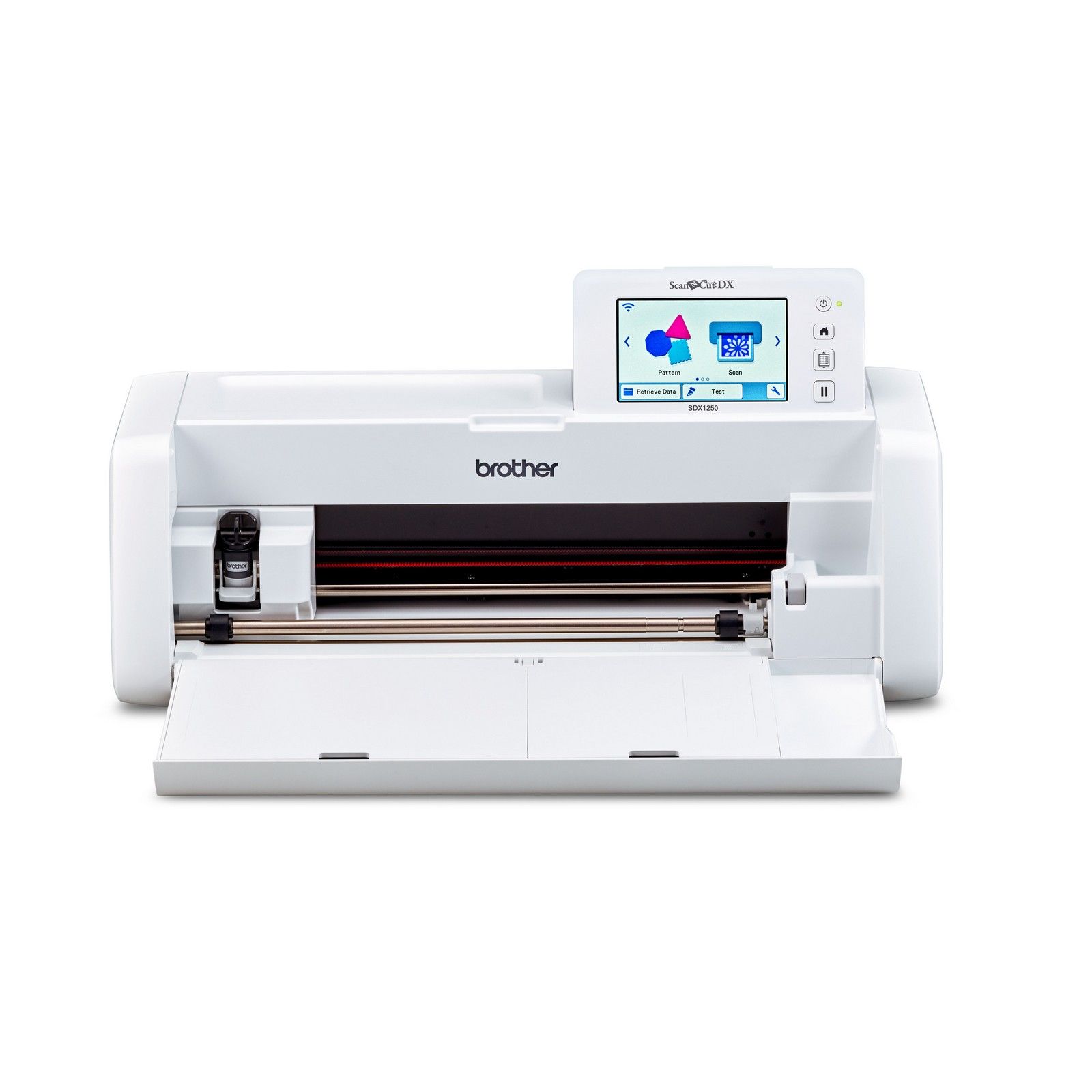
The Brother 893-Z05 Cutting Machine is a compact, desktop-style electronic cutting machine designed for hobbyists, crafters, and small creative studios that need precise cuts without relying on a computer for every project. Best known as part of Brother’s ScanNCut family, this model is built around convenience, versatility, and accuracy, making it a strong choice for paper crafts, vinyl decals, fabric appliqué, stickers, and home décor projects. It is especially appealing to users who want an all-in-one cutting solution with built-in scanning capability, which helps create custom designs directly from drawings, printed images, or hand-sketched artwork.
One of the biggest strengths of the Brother 893-Z05 Cutting Machine is its beginner-friendly workflow. Instead of requiring advanced software knowledge, it offers a straightforward on-device experience for scanning, editing, and cutting. This makes it suitable for both first-time users and experienced makers who want a faster setup for repeat projects. The machine also supports wireless functionality on compatible versions, giving users more flexibility when sending designs and managing tasks.
In terms of value, the Brother 893-Z05 Cutting Machine typically falls into the mid-range to upper-mid-range craft machine category, with estimated pricing often landing around $300 to $600 depending on bundle, retailer, and region. Availability can vary, but it is commonly found through craft retailers, online marketplaces, and Brother-authorized sellers. For users comparing electronic cutting machines, this model stands out for its balance of scanning, precision, and usability.
Brother 893-Z05 Cutting Machine Specifications and Key Features
The Brother 893-Z05 Cutting Machine is built for detailed craft work and everyday creative production. Below are the core specifications and capabilities users typically look for when comparing this model with other ScanNCut devices and competing craft cutters.
- Product code: 893-Z05/Z09
- Type: Electronic cutting machine with integrated scanning functions
- Approximate dimensions: 531 mm W x 215 mm D x 173 mm H
- Approximate weight: 6 kg
- Wireless LAN support: Available on compatible models
- Primary use cases: Paper cutting, vinyl cutting, fabric cutting, scrapbooking, decals, and DIY crafts
- Design input: Built-in scanning for importing artwork and creating cut files
- Portability: Compact enough for home craft rooms and small workspaces
Compared with many basic vinyl cutters, the Brother 893-Z05 Cutting Machine offers the advantage of scanning-based design creation, which reduces dependence on external software and separate scanners. In comparison with simpler entry-level cutters, it is more versatile for mixed-media crafting. Against premium desktop cutters, it may be less software-heavy, but it remains highly practical for users who prioritize convenience and reliable cut quality over advanced design ecosystems.
Pros and Cons of the Brother 893-Z05 Cutting Machine
Pros
- Built-in scanning makes it easier to turn sketches, printed graphics, and custom shapes into cut-ready designs.
- Compact size and moderate weight make it suitable for home studios and limited workspace.
- Useful for multiple materials, including paper, vinyl, and fabric for flexible project planning.
- Good value for crafters who want an all-in-one machine instead of buying separate tools.
- Wireless support on compatible versions improves workflow convenience for digital crafting.
Cons
- Higher upfront cost than basic cutting machines that only handle pre-made files.
- May feel less advanced than software-centric alternatives for users who need deep design editing.
- Some users may need time to learn scanning, mat setup, and material settings for best results.
- Availability and pricing can vary depending on region and included accessories.
- For purely vinyl-focused buyers, simpler cutter models may offer better value.
Overall, the Brother 893-Z05 Cutting Machine delivers strong value for crafters who want versatility, scanning convenience, and dependable performance in one machine. It is often more practical than entry-level alternatives, though users who only need a simple cutter may find lower-cost options more suitable.
Customer Reviews and User Feedback for Brother 893-Z05 Cutting Machine
User feedback for the Brother 893-Z05 Cutting Machine is generally positive, with many owners rating it around 4.3 out of 5 stars for convenience, precision, and creative flexibility. Crafters frequently praise the scanning feature, saying it helps them turn hand-drawn ideas into usable cut files without needing extra hardware. One common comment is that the machine feels “easy to use once set up,” especially for scrapbooking and personalized gifts.
Common complaints focus on learning time, accessory costs, and occasional setup complexity. Some buyers mention that the machine performs best after they spend time adjusting blade depth, mat adhesion, and material settings. A frequent recommendation is to pair the machine with official mats and blades for more consistent results. For buyers comparing electronic craft cutters, the Brother 893-Z05 Cutting Machine is often recommended for users who value versatility and scanning over ultra-basic budget pricing.
Should You Buy the Brother 893-Z05 Cutting Machine?
The Brother 893-Z05 Cutting Machine is a smart choice for hobby crafters, small business makers, and DIY users who want a reliable scan-and-cut workflow. If you need a machine that can handle custom paper art, vinyl decals, and fabric projects while keeping the process simple, this model is worth serious consideration. If your priority is the lowest possible price, a more basic cutter may be enough, but for long-term creative flexibility, this machine offers a stronger feature set.
Faqs
How do I set up brother 893-Z05 Cutting Machine for the first time?
Why is my brother 893-Z05 Cutting Machine not cutting through material evenly?
What materials are compatible with brother 893-Z05 Cutting Machine?
How can I fix brother 893-Z05 Cutting Machine when the blade is skipping or tearing edges?
Is brother 893-Z05 Cutting Machine compatible with common design software and file formats?
How do I optimize cut quality and speed on brother 893-Z05 Cutting Machine?
What maintenance does brother 893-Z05 Cutting Machine need to stay in good condition?
What should I do if brother 893-Z05 Cutting Machine stops feeding material correctly?
More brother manuals
- Brother HL-2130 Laser Printer User Manual
- Setup: Brother Embroidery & Sewing Machine 888-L01 Owner Manual
- Brother Home & Hobby LCD Screen PT-65 User Guide
- Brother Inkjet Printer MFC-J6945DW User Guide
- Brother IntelliFax Mono Laser 4750e Setup Guide
- Brother P-Touch PT-P300BT Electronic Labeling System User Guide
Leave a Comment