
Dell Thunderbolt Docking Station TB16 User Manual
Content
Dell Thunderbolt Docking Station TB16 Overview
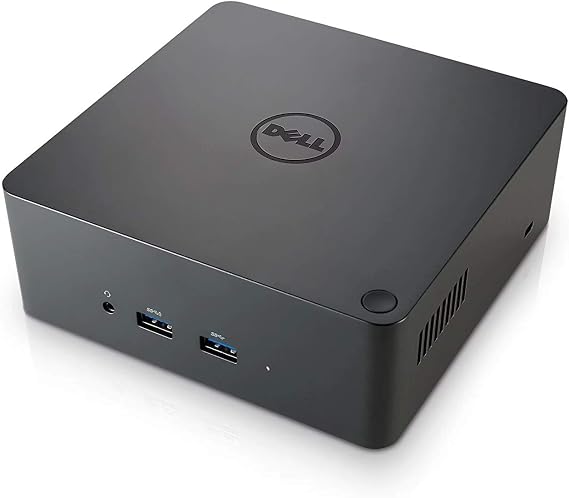
The Dell Thunderbolt Docking Station TB16 is a powerful one-cable docking solution built for professionals who need a cleaner, faster, and more productive desktop setup. Designed around Thunderbolt 3 connectivity, the TB16 lets compatible laptops connect to multiple displays, wired networking, audio devices, and a wide range of USB peripherals through a single cable. For users who work across spreadsheets, creative apps, virtual meetings, and multi-monitor workflows, this dock is still a practical choice because it combines expandability with strong charging support.
One of the biggest advantages of the Dell Thunderbolt Docking Station TB16 is its versatility. It supports up to three displays and includes HDMI, DisplayPort, Mini DisplayPort, and VGA output options, making it useful for modern and legacy monitor setups. The dock also provides Gigabit Ethernet, USB 2.0 and USB 3.0 ports, a Thunderbolt 3 port, and audio connections, which makes it ideal for office environments, home workstations, and IT-managed deployments. Depending on the model, it ships with either a 180W or 240W adapter, with strong power delivery for supported Dell laptops.
In terms of price, the TB16 originally launched as a premium accessory in the roughly $300 to $370 range, but refurbished and used units are now commonly available at much lower prices. Availability remains strong through third-party sellers, renewed listings, and enterprise resellers, making it an accessible docking station for buyers who want enterprise-grade features without paying flagship pricing. The Dell Thunderbolt Docking Station TB16 is especially well suited for business users, developers, remote workers, and anyone who needs reliable multi-display support and a clutter-free desk.
Specifications of Dell Thunderbolt Docking Station TB16
- Connection type: Thunderbolt 3 with a single-cable dock setup
- Video outputs: HDMI, DisplayPort, Mini DisplayPort, and VGA
- Display support: Up to 3 external displays
- Resolution capability: Up to 5120 x 2880 at 60 Hz on supported systems
- USB ports: 2 x USB 2.0 and 3 x USB 3.0, including one USB 3.0 port with PowerShare
- Additional port: 1 x Thunderbolt 3 port for daisy-chaining compatible devices
- Audio: Combo audio jack and rear speaker output
- Networking: Gigabit Ethernet for wired connectivity
- Power delivery: Available with 180W or 240W adapter options
- Dimensions: 145 x 145 x 52 mm
- Weight: About 720 g
- Typical use case: Business docking, multi-monitor productivity, and workstation expansion
Compared with smaller USB-C docks, the Dell Thunderbolt Docking Station TB16 offers more display flexibility and broader legacy port support. Against newer Thunderbolt 4 docks, it may not match the latest feature set, but it remains competitive for users who need strong connectivity and proven workstation compatibility. Its 40 Gbps-class Thunderbolt 3 architecture makes it suitable for high-bandwidth peripherals and demanding desktop workflows.
Pros and Cons of Dell Thunderbolt Docking Station TB16
Pros
- Excellent port selection for office and professional use, including HDMI, DP, Mini DP, VGA, USB, Ethernet, and audio
- Supports multiple monitors, making it a strong choice for productivity-focused users
- One-cable laptop docking reduces desk clutter and speeds up daily setup
- Available in 180W and 240W versions for different power needs
- Good value on the used and refurbished market compared with newer enterprise docks
- Useful for users who still rely on older displays or mixed-monitor environments
Cons
- Older design compared with newer USB-C and Thunderbolt 4 docking stations
- Compatibility can be more limited outside supported Dell systems
- Original retail pricing was high for many buyers
- Some users report fan noise and heat during heavy use
- Legacy ports are helpful, but the dock lacks the modern simplicity of newer minimal-port designs
Overall, the Dell Thunderbolt Docking Station TB16 offers solid value if you want enterprise-class connectivity at a lower secondhand price. Newer alternatives may provide better efficiency and broader universal compatibility, but the TB16 remains attractive for Dell laptop owners who need a dependable workstation hub.
Customer Reviews and User Feedback
Customer feedback for the Dell Thunderbolt Docking Station TB16 is mixed but generally favorable among users who value port variety and multi-monitor support. Many buyers rate it around 4 out of 5 stars for productivity and convenience, especially in office setups where a single cable dramatically simplifies daily workflow. Users often praise the dock for stable Ethernet performance, strong display connectivity, and the convenience of plugging in accessories all at once.
Common complaints include occasional fan noise, heat output, and compatibility concerns depending on the laptop model and operating system. Some users also mention that the dock feels dated compared with newer Thunderbolt solutions. One frequent testimonial theme is that it works especially well for Dell business notebooks and delivers a clean, efficient desk setup. The TB16 is a strong purchase recommendation for buyers who need an affordable refurbished docking station with broad connectivity, but it is best matched to users who can confirm device compatibility before buying.
Faqs
How do I set up the Dell Thunderbolt Docking Station TB16 for the first time?
Why is my Dell Thunderbolt Docking Station TB16 not being detected by my laptop?
What devices can I connect to the Dell Thunderbolt Docking Station TB16 at the same time?
Is the Dell Thunderbolt Docking Station TB16 compatible with all laptops?
Why are my monitors not showing up through the Dell Thunderbolt Docking Station TB16?
How can I fix USB ports not working on the Dell Thunderbolt Docking Station TB16?
What performance features make the Dell Thunderbolt Docking Station TB16 useful for workstations?
How should I maintain and care for the Dell Thunderbolt Docking Station TB16?
More dell manuals
Leave a Comment