
Dell S2421H Monitor User Manual
Content
Dell S2421H Monitor: Complete Product Manual and Buying Guide
Introduction
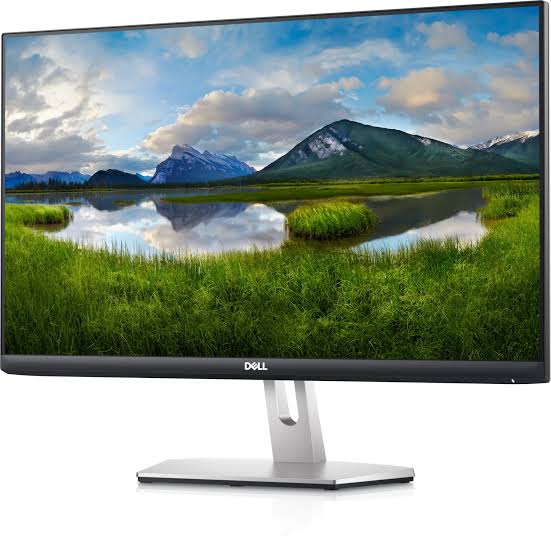
The Dell S2421H monitor is a compact 23.8-inch Full HD display designed for everyday productivity, home office work, casual entertainment, and light gaming. With an IPS panel, 1920 x 1080 resolution, 75Hz refresh rate, and wide 178-degree viewing angles, it delivers sharp visuals and consistent color from nearly any position. Its ultra-thin bezels and modern design make it a practical fit for dual-monitor setups, while the built-in dual speakers reduce desk clutter and simplify setup.
This monitor is especially appealing to students, remote workers, and users who want a reliable budget-friendly display for documents, web browsing, streaming, and video calls. AMD FreeSync support and a 4ms response time also make the Dell S2421H monitor suitable for casual gaming and smoother motion in fast-moving content. The integrated HDMI ports allow quick connectivity with laptops, desktops, gaming consoles, and media devices.
In 2026, the Dell S2421H monitor typically falls into the affordable mid-range category, with an estimated price range of about $120 to $180 depending on retailer, promotions, and stock availability. It remains widely available through major online electronics stores and office supply retailers, making it an accessible choice for buyers who want dependable performance without paying for premium features.
Specifications
- Display size: 23.8 inches visible area, commonly marketed as a 24-inch monitor
- Panel type: IPS with wide viewing angles and stable color performance
- Resolution: Full HD 1920 x 1080
- Aspect ratio: 16:9
- Refresh rate: 75Hz for smoother everyday scrolling and light gaming
- Response time: 4ms in extreme mode
- Brightness: 250 cd/m² typical
- Contrast ratio: 1000:1 native
- Color support: 16.7 million colors with good sRGB coverage for general use
- Viewing angles: 178° horizontal and vertical
- Connectivity: 2 x HDMI 1.4 ports
- Audio: Built-in dual speakers plus audio output jack
- Adaptive sync: AMD FreeSync support up to 75Hz
- Mounting: VESA-compatible 100 x 100 mm
- Stand adjustment: Tilt support for basic ergonomic positioning
Compared with similar budget IPS monitors, the Dell S2421H monitor stands out for its combination of dual HDMI ports, built-in speakers, and clean industrial design. It offers stronger everyday convenience than many entry-level models, while remaining competitive with other 24-inch Full HD monitors aimed at office and home users.
Detailed Description
The Dell S2421H monitor is built around simplicity, reliability, and practical daily performance. Its IPS display helps maintain consistent colors and readability whether the screen is viewed head-on or from an angle, which is useful for shared workspaces, side-by-side document review, and entertainment viewing. The ultra-thin bezels also create a more immersive experience and make the monitor suitable for multi-monitor setups.
In real-world use, this monitor works well for office tasks, online learning, spreadsheets, browsing, video streaming, and light creative work such as photo viewing or basic content editing. The integrated speakers are convenient for voice calls and casual media playback, while the HDMI inputs make switching between devices straightforward. Its LED backlight and compact footprint help it fit on small desks and shared workstations.
Build quality is in line with Dell’s S Series approach: practical, lightweight, and neat rather than premium or heavy-duty. The materials are mostly plastic, but the finish is clean and the stand provides stable support for everyday use. Users generally appreciate the sharp text clarity, simple setup, and balanced feature set, especially for the price.
Setup Guide
- Unbox the monitor carefully and place the stand base on a flat surface.
- Attach the stand to the display until it clicks securely into place.
- Connect the power cable to the monitor and plug it into a grounded outlet.
- Use an HDMI cable to connect the monitor to a laptop, desktop, console, or docking station.
- Power on the monitor and select the correct HDMI input from the on-screen menu if needed.
- Adjust tilt for comfortable viewing and reduce glare from nearby lights.
- In your computer’s display settings, confirm the native 1920 x 1080 resolution and set the refresh rate to 75Hz if supported.
For best results, place the monitor at eye level and keep it at arm’s length. If the image does not appear, check cable seating, input selection, and the connected device’s display output. If the audio is not working, verify the output device settings and ensure the monitor volume is not muted. Avoid placing the screen near heat sources or in direct sunlight, and do not apply pressure to the panel during installation.
Troubleshooting
- No picture: Confirm the power LED is on, reseat the HDMI cable, and select the correct input source.
- Flickering image: Try a different HDMI cable, lower the refresh rate to 60Hz, or update graphics drivers.
- Low sound from speakers: Check system volume, monitor volume settings, and the source device’s audio output.
- Blurred text: Make sure the monitor is running at native 1920 x 1080 resolution.
- Color looks washed out: Disable incorrect display presets and verify the input signal is set properly.
- Sleep or standby issues: Test another power outlet and confirm the computer is not entering sleep too aggressively.
Preventive care includes keeping ports clean, using high-quality HDMI cables, and updating graphics drivers periodically. The Dell S2421H monitor is covered by Dell warranty terms that vary by region and seller, so buyers should check their purchase paperwork for exact coverage. For support, use Dell’s official customer service channels, online product support pages, or the retailer where the monitor was purchased for warranty claims and replacement assistance.
Pros & Cons
Pros
- Excellent value for money for a 24-inch IPS monitor
- Sharp Full HD picture quality for everyday work and streaming
- 75Hz refresh rate adds smoother movement than standard 60Hz monitors
- Built-in speakers reduce the need for external audio hardware
- Dual HDMI ports make it easy to connect multiple devices
- Ultra-thin bezels are ideal for dual-monitor setups
Cons
- No height, swivel, or pivot adjustment
- Brightness is adequate but not ideal for very bright rooms
- Not designed for professional color-critical editing
- Limited gaming features compared with higher-refresh alternatives
- Plastic build is functional rather than premium
Overall, the Dell S2421H monitor delivers strong value for users who want a dependable, affordable display for work and entertainment. Compared with similarly priced alternatives, it offers better convenience than many basic office monitors, though users who need ergonomic adjustability or higher gaming performance may want a different model.
Customer Reviews
Average user sentiment for the Dell S2421H monitor is generally positive, with many buyers rating it around 4.3 out of 5 stars. Customers frequently praise the crisp image quality, easy setup, and compact design. One common comment is that it works especially well for home offices and student desks. Users also like the built-in speakers for everyday use, even though they are not meant for high-end audio.
Common complaints usually focus on the limited stand adjustment and modest brightness in well-lit rooms. Some users mention that the speakers are acceptable for calls and videos but not powerful enough for music or immersive entertainment. Overall, the Dell S2421H monitor is often recommended for budget-conscious buyers who want a practical IPS monitor with a clean design and reliable performance.
Faqs
How do I set up the dell S2421H Monitor for the first time?
Why is my dell S2421H Monitor showing no signal after I connect it?
Can the dell S2421H Monitor work with a laptop, desktop, or gaming console?
What should I do if the dell S2421H Monitor image looks blurry or stretched?
Does the dell S2421H Monitor support dual HDMI inputs and easy device switching?
How do I get better color and brightness settings on the dell S2421H Monitor?
Is the dell S2421H Monitor suitable for wall mounting or desk setups?
How should I clean and maintain the dell S2421H Monitor safely?
More dell manuals
Leave a Comment