
Dell UltraSharp U3419W Monitor User Manual
Content
Introduction
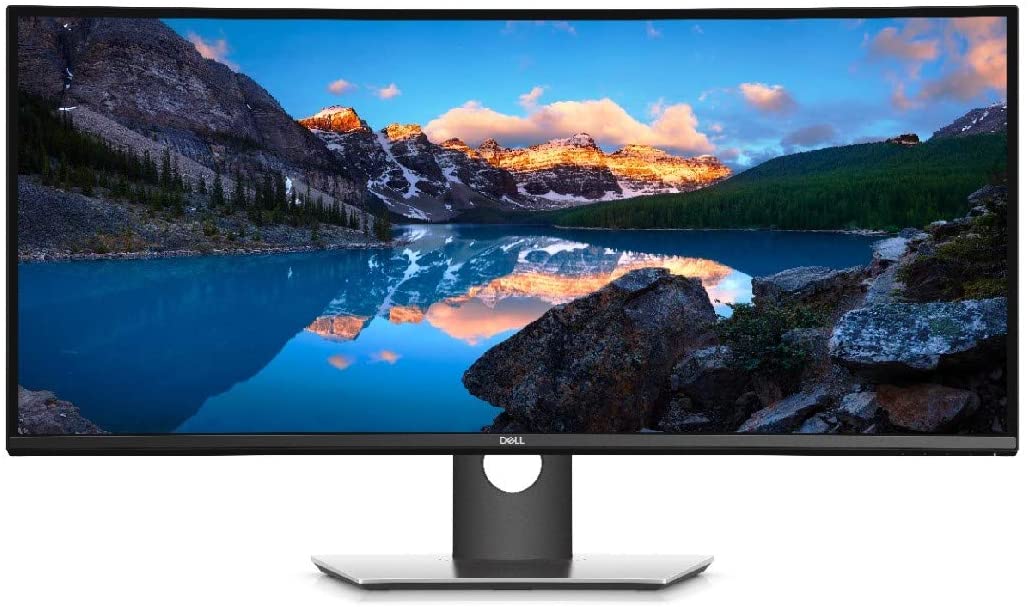
The Dell UltraSharp U3419W monitor is a premium 34-inch curved ultrawide display designed for professionals who need more screen space, sharper multitasking, and reliable color performance. With its 21:9 aspect ratio and 3440 x 1440 resolution, this monitor delivers a wide workspace that is ideal for video editing, financial analysis, coding, content creation, and productivity-heavy office setups. The 1900R curve helps create a more immersive viewing experience while reducing eye movement across the panel.
One of the biggest advantages of the Dell UltraSharp U3419W monitor is its USB-C connectivity with up to 90W power delivery, allowing compatible laptops to connect with a single cable for video, data, and charging. It also includes HDMI, DisplayPort, USB 3.0 hubs, and integrated speaker support, making it a flexible option for modern workstations. The IPS panel offers wide viewing angles and strong color consistency, which are essential for creative and collaborative work.
This model is best suited for professionals, remote workers, and users who want a high-end ultrawide monitor for multitasking. Typical pricing varies by retailer and condition, but it is generally found in the mid-to-premium range depending on availability. As a mature model, it may be easier to find through business resellers, refurbished marketplaces, and remaining retail stock than through mainstream consumer shelves.
Specifications
- Display size: 34.14-inch curved ultrawide IPS panel
- Resolution: 3440 x 1440 at 60 Hz
- Aspect ratio: 21:9 for expanded multitasking space
- Curvature: 1900R for improved immersion and comfort
- Brightness: 300 cd/m² typical
- Contrast ratio: 1000:1 typical
- Color support: 1.07 billion colors with 99% sRGB coverage
- Viewing angles: 178° horizontal and 178° vertical
- Response time: 5 ms fast mode, 8 ms normal mode
- Ports: 2 x HDMI 2.0, 1 x DisplayPort 1.2, USB-C with DisplayPort Alt Mode and up to 90W power delivery
- USB hub: Multiple USB 3.0 upstream and downstream ports
- Power usage: About 54W typical, up to 250W maximum
Compared with smaller 27-inch QHD monitors, the Dell UltraSharp U3419W monitor offers more horizontal workspace and a more cinematic format. Compared with gaming ultrawides, it focuses more on productivity, color accuracy, and connectivity than high refresh rates.
Detailed Description
The Dell UltraSharp U3419W monitor is built for users who need an efficient, wide-format display without sacrificing image quality. Its IPS panel produces consistent colors and stable viewing angles, which makes it suitable for team environments, design work, and everyday business tasks. The screen’s curved layout helps reduce distortion at the edges and supports a more natural line of sight across the ultrawide panel.
In real-world use, the monitor works especially well for split-screen workflows. Users can keep multiple windows side by side, compare spreadsheets, edit timelines, or run dashboards without constantly switching tabs. The USB-C port is a major convenience feature because it can connect a compatible laptop with one cable while also charging it. The built-in USB hub further expands connectivity for peripherals such as keyboards, storage devices, and webcams.
The build quality is typically what users expect from Dell UltraSharp products: professional, sturdy, and understated. The slim bezels and clean design make it a strong choice for dual-monitor setups or office desks where appearance matters. For many buyers, the biggest appeal of the Dell UltraSharp U3419W monitor is that it balances productivity features, a large immersive screen, and dependable everyday performance.
Setup Guide: How to Install and Configure the Dell UltraSharp U3419W Monitor
Start by placing the monitor on a stable surface and attaching the stand securely before connecting cables. If you are using a laptop with USB-C support, connect a USB-C cable first to enable video output, data transfer, and charging through a single connection. For desktop PCs, use DisplayPort or HDMI for video and connect USB upstream if you want the hub to function.
- Unbox the monitor carefully and verify that the stand, cables, and power adapter are included.
- Attach the stand and adjust the height, tilt, and swivel to your preferred viewing position.
- Connect the video cable through USB-C, DisplayPort, or HDMI depending on your device.
- Connect USB peripherals to the monitor’s hub if you want easier access to accessories.
- Use the on-screen display menu to adjust brightness, contrast, input source, and color settings.
- Enable the correct scaling settings in your operating system for the 3440 x 1440 resolution.
Make sure your laptop supports DisplayPort Alt Mode over USB-C if you want a one-cable setup. Avoid forcing connectors into ports, and keep ventilation areas clear to prevent heat buildup. If the image does not appear, confirm the input source and cable compatibility before changing hardware.
Troubleshooting
Common issues with the Dell UltraSharp U3419W monitor often involve input detection, scaling, or USB-C connectivity. If the screen remains blank, check that the monitor is on the correct input source and that the cable is fully seated. If a USB-C device is not charging or displaying video, confirm that the source device supports video over USB-C and that the cable is rated for data and display output.
- No signal: Recheck HDMI, DisplayPort, or USB-C input selection and try another cable.
- Flickering display: Lower the cable length, use a certified cable, or switch to DisplayPort.
- Text looks too small: Increase operating system scaling for ultrawide resolution.
- USB ports not working: Verify the upstream connection between the monitor and the computer.
- Audio not detected: Confirm the correct playback device is selected in system settings.
Preventive care includes using quality cables, avoiding excessive pressure on the panel, and keeping firmware and graphics drivers updated. If problems continue, Dell support resources and warranty service channels can help with diagnostics, replacement parts, and repair options. Contact options are typically available through Dell’s official support portal, product documentation, and regional service centers.
Pros & Cons
Pros
- Large 34-inch ultrawide workspace improves productivity and multitasking.
- USB-C with power delivery up to 90W simplifies laptop docking.
- IPS panel provides strong color consistency and wide viewing angles.
- 1900R curve offers a comfortable viewing experience for long sessions.
- Excellent for office work, creative tasks, and split-screen workflows.
- Professional design and solid build quality fit modern workspaces.
Cons
- 60 Hz refresh rate is less appealing for competitive gaming.
- Brightness and contrast are good for productivity but not class-leading for HDR-style media.
- Older model availability may be limited in some regions.
- Large size requires a spacious desk for optimal use.
For buyers comparing alternatives, this monitor is more focused on productivity than gaming. If higher refresh rates are essential, a gaming ultrawide may be better. If color accuracy and docking convenience matter most, the Dell UltraSharp U3419W monitor remains a strong value proposition for office and creator use.
Customer Reviews
Customer feedback for the Dell UltraSharp U3419W monitor is generally positive, especially from users who value workspace efficiency and USB-C convenience. Many reviewers rate it around 4 out of 5 stars for its sharp ultrawide layout, dependable image quality, and easy single-cable connectivity. A frequent praise point is how well it handles spreadsheets, editing tools, and side-by-side windows.
Common complaints usually involve the 60 Hz refresh rate, which is fine for work but not ideal for gaming, and the fact that some users want higher brightness or deeper contrast. A typical testimonial sounds like this: “Great for remote work and creative tasks; the USB-C dock feature saved me desk space.” Another common comment is: “The screen is wide and comfortable, but you need the right desk depth to enjoy it fully.”
Overall, this is a recommended purchase for professionals who want a reliable ultrawide monitor for productivity, especially if they need a clean laptop docking setup.
Faqs
How do I set up the dell UltraSharp U3419W Monitor for the first time?
Why is my dell UltraSharp U3419W Monitor not displaying a signal from my laptop?
Does the dell UltraSharp U3419W Monitor support USB-C charging for laptops?
What resolution and refresh rate should I use on the dell UltraSharp U3419W Monitor?
Can I use the dell UltraSharp U3419W Monitor with a MacBook or modern Windows laptop?
How do I use picture settings and brightness controls on the dell UltraSharp U3419W Monitor?
What should I do if the dell UltraSharp U3419W Monitor looks blurry or text appears stretched?
How should I clean and maintain the dell UltraSharp U3419W Monitor safely?
More dell manuals
Leave a Comment