
Dell UltraSharp 24 USB-C Hub Monitor U2421E User Manual
Content
Introduction: Dell UltraSharp 24 USB-C Hub Monitor U2421E Overview
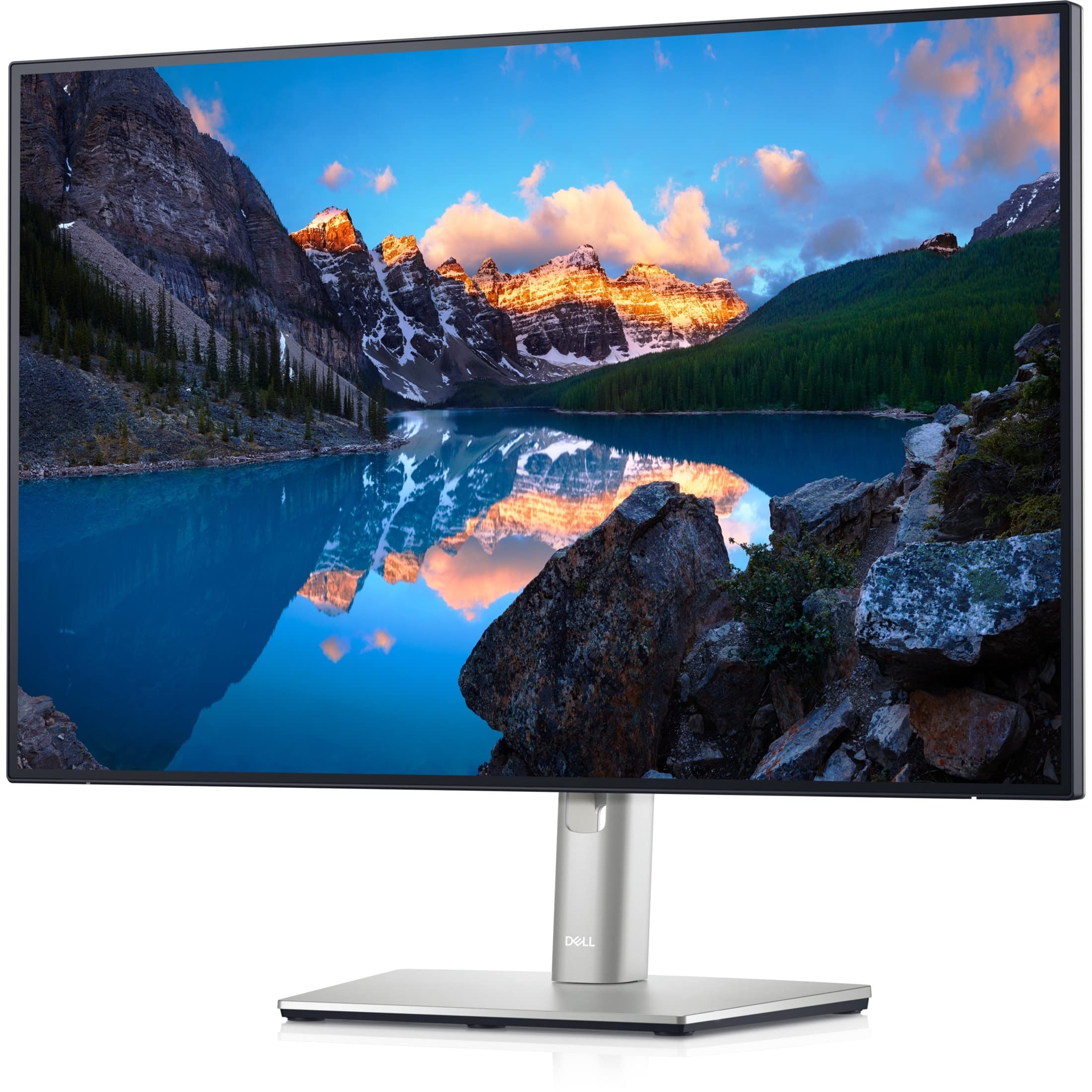
The Dell UltraSharp 24 USB-C Hub Monitor U2421E is a productivity-focused 24-inch business monitor designed for professionals who need sharp text, reliable connectivity, and a comfortable desktop setup. With its 16:10 WUXGA panel, this model gives users extra vertical screen space compared with standard 16:9 displays, making it especially useful for spreadsheets, coding, document editing, and multitasking. The IPS panel delivers wide viewing angles and consistent color, while the integrated USB-C hub reduces cable clutter by combining video, data, and power over a single connection.
One of the main selling points is USB-C power delivery up to 90W, which allows many laptops to charge directly from the monitor. It also includes USB downstream ports, DisplayPort connectivity, HDMI, and an RJ-45 Ethernet port, turning the screen into a compact docking station for modern workspaces. The Dell UltraSharp 24 USB-C Hub Monitor U2421E is aimed at office users, remote workers, creatives, and IT-managed environments that value practical connectivity and dependable build quality.
In 2026, the estimated price range for this monitor typically falls between $220 and $450 depending on condition, seller, and region, since it is widely available through business resellers, refurbished listings, and remaining retail stock. For buyers seeking a premium 24-inch USB-C office monitor with a strong feature set, it remains a practical and competitive choice.
Specifications: Dell U2421E Technical Details and Features
- Display size: 24.1 inches
- Panel type: IPS with anti-glare coating
- Native resolution: 1920 x 1200 WUXGA
- Aspect ratio: 16:10 for extra vertical workspace
- Refresh rate: 60Hz
- Response time: 8ms normal, 5ms fast mode
- Brightness: 350 cd/m² typical
- Contrast ratio: 1000:1 typical
- Color support: 16.7 million colors
- Color coverage: 99% sRGB and 99% Rec. 709
- Viewing angles: 178° horizontal and vertical
- Connectivity: USB-C with up to 90W power delivery, DisplayPort 1.4, HDMI 1.4, USB hub, RJ-45 Ethernet
- USB features: downstream USB ports for peripherals and charging
Compared with standard 24-inch 1080p monitors, the U2421E offers noticeably more workspace and better docking flexibility. Against cheaper office monitors, it stands out for its USB-C hub design, Ethernet support, and higher 1920 x 1200 resolution, making it a stronger choice for professional use.
Detailed Description: How the Dell UltraSharp 24 USB-C Hub Monitor U2421E Works
The Dell UltraSharp 24 USB-C Hub Monitor U2421E functions as both a display and a workstation hub. A compatible laptop can connect through USB-C for video output, data transfer, and charging at the same time, reducing the need for a separate dock. This makes desk setups cleaner and easier to manage, especially for users who move between home and office. The built-in Ethernet port is another useful addition for stable wired networking in business environments.
The IPS panel is designed for clarity and consistency, with accurate viewing from multiple angles and strong color coverage for document work, marketing content, light photo editing, and general productivity tasks. The monitor’s build quality reflects Dell’s UltraSharp line, with a professional finish, sturdy stand, and ergonomic adjustment options that support height, tilt, swivel, and pivot use in many configurations.
In real-world use, the 16:10 aspect ratio is one of its biggest advantages because it shows more content vertically, which helps reduce scrolling. For users who spend long hours in front of the screen, the anti-glare finish, balanced brightness, and eye-friendly office format make it comfortable for extended sessions.
Setup Guide: Installing and Connecting the Dell U2421E
- Unbox the monitor carefully and attach the stand base to the upright arm before placing it on a stable surface.
- Connect the power cable, then plug the monitor into a grounded outlet.
- Use the USB-C cable for the simplest setup if your laptop supports video output over USB-C.
- If needed, connect DisplayPort or HDMI instead of USB-C for compatible desktop systems or older laptops.
- Attach USB peripherals such as a keyboard, mouse, or flash drive to the monitor’s USB hub ports.
- Connect Ethernet to the RJ-45 port if you want a wired network connection through the monitor.
- Adjust the monitor’s height, tilt, swivel, and pivot until the screen is comfortable for your viewing position.
- Open your operating system’s display settings to confirm resolution is set to 1920 x 1200 at 60Hz.
For best results, use a high-quality USB-C cable and confirm that your device supports DisplayPort Alternate Mode. If the screen does not display correctly, test another input source, reconnect the cable, or restart the laptop. Avoid placing the monitor near heat sources or in areas with poor ventilation.
Troubleshooting: Common Dell U2421E Problems and Fixes
- No display signal: Check that the correct input source is selected and that the video cable is fully seated.
- USB-C charging not working: Confirm your laptop supports USB-C power delivery and that the cable supports power and video.
- Low resolution or blurry image: Set the display manually to 1920 x 1200 at 60Hz in system settings.
- USB hub not detected: Reconnect the upstream cable and try a different USB port on the computer.
- Ethernet not connecting: Verify the RJ-45 cable is working and reinstall network drivers if necessary.
- Flickering or intermittent image: Replace the video cable and avoid using damaged adapters or hubs.
Preventive maintenance includes keeping the ports clean, using certified cables, and updating your laptop’s graphics and USB drivers. Warranty coverage and support availability vary by seller and region, so buyers should check Dell support options, order records, or the service tag on the rear label when requesting help.
Pros & Cons: Dell UltraSharp 24 USB-C Hub Monitor U2421E Review
Pros
- Excellent 16:10 workspace for office productivity and multitasking
- USB-C hub with up to 90W charging simplifies desktop setups
- Built-in Ethernet port is ideal for business and remote work
- IPS panel provides wide viewing angles and reliable image consistency
- Strong ergonomics with height, tilt, swivel, and pivot support
- Good value for users who want monitor-and-dock functionality in one device
Cons
- 60Hz refresh rate is not ideal for gaming
- Resolution is sharp for productivity but less demanding than 4K alternatives
- Older HDMI 1.4 limits flexibility compared with newer premium monitors
- Best features depend on USB-C compatibility on the connected device
Overall value is strong for office buyers, especially when compared with standard 24-inch monitors that lack hub features. If the goal is productivity rather than entertainment, the Dell UltraSharp 24 USB-C Hub Monitor U2421E offers a well-balanced feature set.
Customer Reviews: What Users Say About the Dell U2421E
Typical customer feedback rates this monitor around 4.4 out of 5 stars, with users frequently praising the crisp 16:10 display, reliable USB-C docking, and clean single-cable setup. Many reviewers highlight how useful the extra vertical space is for spreadsheets, coding, and document work.
Common complaints usually focus on the 60Hz refresh rate, the lack of gaming-focused features, and the fact that the monitor is most impressive when paired with a USB-C laptop. A recurring testimonial theme is that it feels like a small docking station built into a monitor, which makes it especially attractive for hybrid workers.
For buyers who want a professional office display with practical connectivity and strong everyday usability, the Dell UltraSharp 24 USB-C Hub Monitor U2421E is an easy recommendation. Users looking for fast refresh rates or entertainment-first features should consider more gaming-oriented alternatives.
Faqs
How do I set up Dell UltraSharp 24 USB-C Hub Monitor U2421E for the first time?
Why is my Dell UltraSharp 24 USB-C Hub Monitor U2421E not displaying video over USB-C?
Can Dell UltraSharp 24 USB-C Hub Monitor U2421E charge a laptop while using it?
What devices are compatible with Dell UltraSharp 24 USB-C Hub Monitor U2421E?
How do I use the USB hub, Ethernet port, and front USB ports on Dell UltraSharp 24 USB-C Hub Monitor U2421E?
How can I fix low brightness or color issues on Dell UltraSharp 24 USB-C Hub Monitor U2421E?
Does Dell UltraSharp 24 USB-C Hub Monitor U2421E support daisy chaining with another monitor?
How should I clean and maintain Dell UltraSharp 24 USB-C Hub Monitor U2421E for long-term use?
More dell manuals
Leave a Comment