
Dell Chromebook 3400 User Manual
Content
Dell Chromebook 3400 Product Manual: Features, Setup, Troubleshooting, and Buying Guide
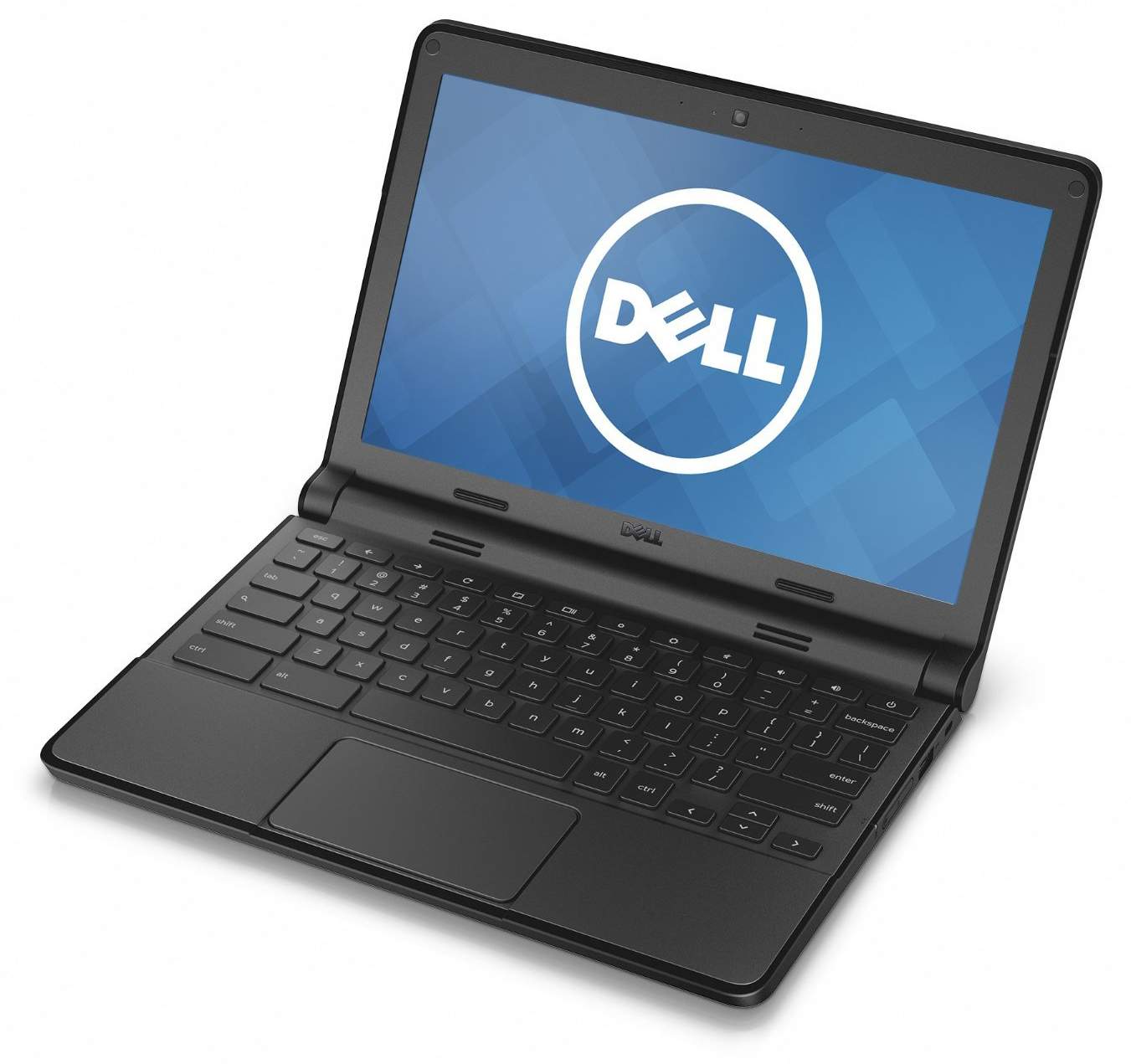
The Dell Chromebook 3400 is a practical education-focused laptop designed for students, teachers, and budget-conscious users who need reliable everyday performance in a simple, secure Chrome OS device. Built around a 14-inch HD display, Intel Celeron N4000 processor, and lightweight Chromebook platform, it handles web browsing, Google Workspace, video calls, online learning, and cloud-based productivity with ease. The Dell Chromebook 3400 is especially appealing for schools and families because it combines durable construction, long battery-friendly efficiency, and a straightforward user experience that reduces maintenance and setup complexity.
This model typically comes with 4GB or 8GB of LPDDR4 memory, 32GB or 64GB of eMMC storage, and a selection of useful ports, including USB-A, USB-C, microSD, and a headphone jack. Many configurations also include a 14-inch anti-glare display, making it suitable for classrooms, study sessions, and basic office work. Current market availability is best in refurbished, renewed, or remaining retail inventory, with price ranges often landing around budget Chromebook territory rather than premium laptop pricing. In practical terms, buyers can expect to find the Dell Chromebook 3400 from roughly low-to-mid budget levels depending on condition, RAM, and storage configuration. Its strongest selling points are simplicity, portability, Chrome OS security, and solid value for education and light home use. For anyone searching for a dependable entry-level Chromebook, the dell Chromebook 3400 remains a sensible option with broad appeal.
How to Use the Dell Chromebook 3400 for School, Work, and Everyday Tasks
Getting Started and Core Features
To begin using the Dell Chromebook 3400, sign in with a Google account, connect to Wi-Fi, and let Chrome OS sync your apps, bookmarks, and settings. Because Chrome OS is cloud-first, most tasks are handled through the browser or web apps, which keeps the system fast and easy to manage. The laptop’s 14-inch HD screen, dual USB-A and dual USB-C connectivity, microSD expansion, and anti-glare panel make it especially useful for classroom assignments, document editing, streaming, and light multitasking. The dell Chromebook 3400 is also a good fit for shared environments because updates install automatically and user data is protected through Chrome OS security features.
Troubleshooting the Dell Chromebook 3400
Common problems include slow startup, Wi-Fi dropouts, unresponsive apps, and battery charging issues. If the Chromebook freezes, press and hold the Refresh key and Power button to restart; if the problem persists, perform a full powerwash after backing up data. For error codes such as “Chrome OS is missing or damaged,” use recovery mode with a USB recovery image and reinstall the operating system. If you see a battery or charging warning, test another USB-C charger, inspect the cable, and clean the charging port carefully. To prevent issues, keep Chrome OS updated, avoid overloading storage, and restart the device periodically. Dell support and warranty coverage are available through the product’s Service Tag, and Dell provides hardware warranty assistance through its official support channels. If you need help, contact Dell Support by phone at 1-800-624-9896 for hardware warranty support in supported regions, or check your warranty status using the device’s Service Tag on Dell’s support site. The dell Chromebook 3400 is generally low-maintenance, but regular updates and careful charging habits help extend its life.
Pros and Cons of the Dell Chromebook 3400
What Makes It a Good Choice
- Affordable value: Offers strong budget-friendly performance for schools, families, and basic productivity.
- Education-ready design: Built for classroom use with a durable chassis and easy-to-manage Chrome OS environment.
- Useful port selection: USB-A, USB-C, microSD, and audio support make it flexible for accessories and file transfer.
- Simple maintenance: Automatic updates and cloud-based storage reduce IT support needs.
- Portable and practical: The 14-inch form factor is comfortable for typing, streaming, and note-taking.
Limitations to Consider
- Entry-level performance: The Intel Celeron N4000 is fine for browsing and documents, but not ideal for heavy multitasking.
- Basic display: The 1366 x 768 screen is adequate, though not as sharp as Full HD alternatives.
- Storage limits: 32GB eMMC models can fill up quickly if you rely on offline files or large downloads.
- Best for light workloads: Power users may prefer a more modern Chromebook with more RAM and faster storage.
Compared with other budget Chromebooks, the Dell Chromebook 3400 stands out for its durability and school-friendly design, but it is less impressive than newer models with higher-resolution displays and faster processors. For the price, it still delivers solid value for everyday Chrome OS use.
Customer Reviews of the Dell Chromebook 3400
Customer feedback on the Dell Chromebook 3400 is generally positive, with many users praising its dependable build, easy setup, and comfortable keyboard for schoolwork. Common ratings cluster around 4 out of 5 stars from budget-conscious buyers who value practicality over premium features. One typical review says, “Perfect for online classes and Google Docs, and the battery lasts through the school day.” Another says, “Good value for the price, but the screen could be brighter.”
Frequent complaints focus on the HD-only display, modest speed under heavier multitasking, and limited storage on lower-end configurations. Still, many customers recommend it for students, remote learning, and basic home use because it stays simple, secure, and affordable. If you want a reliable entry-level Chromebook rather than a performance laptop, the dell Chromebook 3400 is often seen as a smart purchase.
Faqs
How do I set up the Dell Chromebook 3400 for the first time?
What should I do if my Dell Chromebook 3400 won’t turn on or charge?
Why is my Dell Chromebook 3400 running slow, and how can I speed it up?
Can the Dell Chromebook 3400 run Windows or Android apps?
What accessories and peripherals are compatible with the Dell Chromebook 3400?
How much storage and RAM does the Dell Chromebook 3400 need for everyday school use?
How do I fix Wi-Fi or Bluetooth issues on the Dell Chromebook 3400?
How should I clean and maintain the Dell Chromebook 3400 to keep it in good condition?
More dell manuals
Leave a Comment