
Dell UltraSharp U3417W Monitor User Manual
Content
Dell UltraSharp U3417W Monitor: Complete Product Manual and Buying Guide
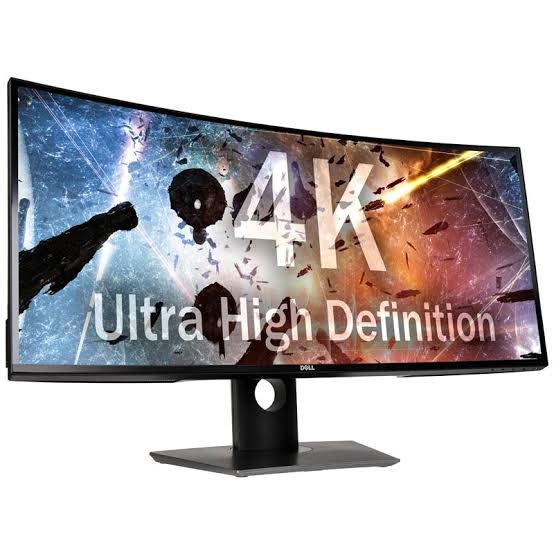
The Dell UltraSharp U3417W Monitor is a 34-inch curved ultrawide display built for users who want more screen space, better multitasking, and a premium office or creative workflow. With its 3440 x 1440 UltraWide QHD resolution, 21:9 aspect ratio, and 1900R curve, this monitor delivers an immersive viewing experience that is especially useful for productivity, content creation, finance, and media editing. The wide layout makes it easy to keep multiple windows open side by side, while the IPS panel helps maintain strong color consistency and wide viewing angles.
One of the biggest advantages of the Dell UltraSharp U3417W Monitor is its balance of image quality, ergonomics, and connectivity. It includes a built-in USB hub, multiple video inputs, and Dell’s typical premium stand adjustments for height, tilt, swivel, and pivot-style setup flexibility. This makes it a strong fit for professionals who spend long hours at a desk and need a comfortable, reliable display. It is also a practical choice for users who want a single-screen alternative to a dual-monitor setup.
At launch and in the secondary market, the U3417W typically falls in the mid-range to premium price tier, often depending on condition and seller. New old stock and refurbished units may vary widely, but a reasonable estimated price range is usually around $300 to $700 USD. Availability is mostly through resale, refurbished electronics sellers, and select marketplace listings since this is an older model. The Dell UltraSharp U3417W Monitor remains relevant for buyers seeking a dependable ultrawide monitor with strong productivity features.
Specifications of Dell UltraSharp U3417W Monitor
- Display size: 34.14 inches ultrawide curved panel
- Resolution: 3440 x 1440 pixels at 60 Hz
- Aspect ratio: 21:9
- Panel type: IPS LCD with wide 178°/178° viewing angles
- Curve radius: 1900R for a more natural wraparound view
- Pixel pitch: 0.233 mm x 0.233 mm
- Brightness: 300 cd/m² typical
- Contrast ratio: 1000:1 typical
- Response time: 8 ms typical, suitable for office and casual media use
- Color support: wide color reproduction with strong sRGB coverage
- Connectivity: DisplayPort, mini-DisplayPort, HDMI inputs, and USB 3.0 downstream ports
- USB hub: built-in multiport hub with charging support on select ports
- Audio: integrated speakers and headphone output
- Mounting: VESA-compatible for arm or wall mounting
- Comparison: more productivity-focused than many 34-inch gaming ultrawides, but less gaming-oriented than newer high-refresh alternatives
In performance terms, the Dell UltraSharp U3417W Monitor is designed for clarity, multitasking, and color consistency rather than fast-paced gaming. Compared with newer ultrawide models, it offers a classic productivity-first feature set, while competing displays may provide higher refresh rates, USB-C, or HDR support.
Detailed Description: How the Dell UltraSharp U3417W Monitor Works
The Dell UltraSharp U3417W Monitor uses an IPS panel shaped into a 21:9 curved format to expand the usable workspace across the screen. This helps reduce window switching and gives users room for spreadsheets, timelines, multiple browser tabs, video editing tools, or coding environments. The 3440 x 1440 resolution offers more detail than standard 1080p ultrawide displays, making text and interface elements appear sharper and easier to manage during extended work sessions.
The curved design supports a more immersive view by keeping screen edges within a comfortable angle of sight. For real-world use, that means less head movement when working on documents, editing images, or reviewing multiple data sources. The build quality follows Dell’s UltraSharp line standards, with a sturdy frame, premium finish, and an ergonomic stand that feels stable on a desk. Materials are practical and office-friendly, with a design that looks professional in both home and corporate setups.
Users often appreciate the monitor’s comfort during long sessions, especially when paired with an adjustable chair and proper desk height. The integrated USB hub adds convenience for peripherals such as keyboards, mice, flash drives, and webcams. Overall, the Dell UltraSharp U3417W Monitor is built for productivity-first users who want a clean desktop setup and dependable daily performance.
Setup Guide for Dell UltraSharp U3417W Monitor
- Unbox the monitor carefully and place the panel face down on a soft, clean surface to avoid scratches.
- Attach the stand base to the upright arm, then secure the assembled stand to the monitor until it clicks firmly into place.
- Position the monitor on a stable desk and adjust the height, tilt, and angle for comfortable viewing.
- Connect the video cable using DisplayPort, mini-DisplayPort, or HDMI depending on your computer’s output.
- Plug in the power cable and turn on the display using the rear control buttons or joystick-style controls, if present.
- Connect USB accessories to the built-in hub if you want easy access for a keyboard, mouse, or storage device.
- Open your computer’s display settings and select the native 3440 x 1440 resolution for the sharpest image.
For best results, use a graphics card or laptop that supports ultrawide output at 60 Hz. If the display appears stretched or cropped, verify the aspect ratio setting in your operating system. If no signal appears, confirm the input source is correct and that the cable is fully seated. Keep ventilation space around the monitor, avoid placing it near heat sources, and do not apply pressure to the curved panel.
Troubleshooting Dell UltraSharp U3417W Monitor Issues
- No image on screen: check the power LED, verify the input source, and test a different cable or port.
- Low resolution or blurry text: set the monitor to 3440 x 1440 at 60 Hz in system display settings.
- USB hub not working: reconnect the upstream USB cable from the monitor to the computer and restart the device.
- Screen flickering: try another DisplayPort or HDMI cable, update graphics drivers, and lower signal interference.
- Color or brightness issues: reset picture settings in the on-screen menu and confirm the correct picture mode.
- Audio not playing: check the monitor’s audio output settings and confirm the connected source sends sound properly.
If you encounter persistent issues, the first preventive step is to use high-quality certified cables and keep firmware, chipset, and graphics drivers updated. Older ultrawide monitors can also show compatibility problems with certain laptops or docking stations, so direct connection is often the most reliable method. Dell support, warranty service, and replacement part options may still be available depending on region and purchase condition. For help, users should check Dell’s official support channels, product documentation, or the seller’s return policy when buying refurbished units.
Pros and Cons of Dell UltraSharp U3417W Monitor
Pros
- Large 34-inch ultrawide screen improves multitasking and productivity.
- 3440 x 1440 resolution provides sharp text and detailed visuals.
- IPS panel offers wide viewing angles and consistent image quality.
- Curved 1900R design creates a comfortable immersive workspace.
- Built-in USB hub reduces cable clutter and adds convenience.
- Excellent for spreadsheets, editing, coding, and office workflows.
Cons
- 60 Hz refresh rate is less appealing for competitive gaming.
- Older design lacks modern features such as USB-C and HDR.
- Response time is adequate for work but not ideal for fast motion.
- Availability may be limited to refurbished or used listings.
- Competing ultrawide monitors may offer newer connectivity standards.
For value for money, the Dell UltraSharp U3417W Monitor can still be a smart buy if the price is right and the condition is good. It is best suited to professionals who prioritize workspace efficiency and display comfort over gaming-focused extras. Alternatives may be better for buyers who want higher refresh rates, USB-C docking, or newer panel technology.
Customer Reviews and User Feedback
Typical customer feedback for the Dell UltraSharp U3417W Monitor is strongly positive among productivity users, with many praising the spacious ultrawide layout and comfortable curved screen. A common rating pattern is around 4 out of 5 stars, especially from office professionals, analysts, and content creators who value screen real estate. Users frequently say the monitor makes multitasking easier and reduces the need for two separate displays.
Common praise includes the sharp resolution, premium build quality, and the convenience of the USB hub. Common complaints usually focus on the 60 Hz refresh rate, older feature set, and the lack of USB-C on a monitor in this class. Many buyers still recommend it if found at a reasonable price, particularly for work-from-home setups and office desks. For shoppers comparing ultrawides, this model is often recommended as a dependable, productivity-focused option rather than a gaming display.
In short, the Dell UltraSharp U3417W Monitor remains a respected ultrawide monitor for users who want reliable performance, a premium feel, and a wide workspace that supports everyday professional tasks.
Faqs
How do I set up the Dell UltraSharp U3417W Monitor for the first time?
What is the best resolution and refresh rate for the Dell UltraSharp U3417W Monitor?
Why is my Dell UltraSharp U3417W Monitor showing no signal even though it is powered on?
Can I use the Dell UltraSharp U3417W Monitor with a laptop or MacBook?
How do I connect multiple devices to the Dell UltraSharp U3417W Monitor?
How do I use the picture-by-picture or split-screen features on the Dell UltraSharp U3417W Monitor?
What should I do if the Dell UltraSharp U3417W Monitor looks blurry or text appears too small?
How should I clean and maintain the Dell UltraSharp U3417W Monitor safely?
More dell manuals
Leave a Comment