
Dell Chromebook 3100 User Manual
Content
Dell Chromebook 3100 Manual: Setup, Features, Troubleshooting, and Buying Guide
Introduction
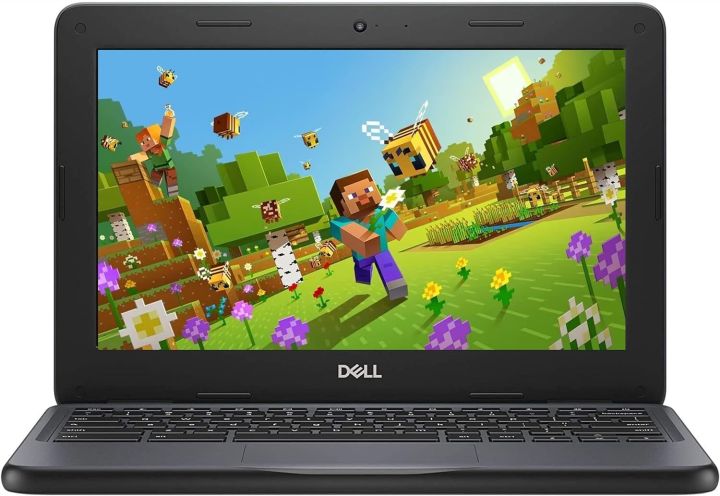
The Dell Chromebook 3100 is a durable, education-focused laptop designed for students, classrooms, and everyday web-based productivity. Built around Chrome OS, it delivers fast boot times, simple management, and access to Google Workspace, web apps, and Android apps. The compact 11.6-inch HD display, spill-resistant design on many configurations, and lightweight chassis make it a practical choice for younger users and anyone who needs a reliable secondary device. The Dell Chromebook 3100 is especially appealing for schools because it combines rugged construction with long battery life and easy admin controls.
Depending on the configuration, the Dell Chromebook 3100 typically includes Intel Celeron processors, 4GB to 8GB of LPDDR4 memory, and 16GB to 64GB of eMMC storage. Common variants include the standard clamshell and 2-in-1 model, with some versions offering touch support and Gorilla Glass NBT for added durability. Port selection is solid for a compact Chromebook, with USB Type-C, USB Type-A, a microSD card reader on some models, and a headset jack. The device is also relatively light, making it easy to carry between classes, meetings, or home use.
Estimated pricing varies by configuration and seller, but the Dell Chromebook 3100 is commonly found in the budget to mid-range category, often around $100 to $250 for new-old-stock, refurbished, or school surplus units. Availability is strongest through resellers, business IT vendors, and secondhand marketplaces, since many units were originally sold for education deployments. If you need an affordable Chromebook for browsing, video calls, online learning, and document work, the Dell Chromebook 3100 remains a dependable option.
Troubleshooting the Dell Chromebook 3100: Common Problems and Fixes
If your Dell Chromebook 3100 will not power on, start by checking the charger, USB-C cable, and wall outlet. If the battery is deeply discharged, leave it plugged in for at least 30 minutes before trying again. For startup issues, a hard reset often helps: hold Refresh and press Power, or disconnect power and reboot after a short wait. If you see Chrome OS error messages such as "Chrome OS is missing or damaged," use Chromebook Recovery Mode to reinstall the operating system from a recovery USB or SD card.
For Wi-Fi problems, forget the network and reconnect, restart the router, or update Chrome OS once connectivity is restored. If the screen freezes, becomes unresponsive, or shows slow performance, close unused tabs, remove unnecessary extensions, and clear browser cache. Error code ESM_002 or similar device management errors may appear on school-managed units; in that case, confirm enrollment status with the administrator. Preventive care is simple: keep Chrome OS updated, avoid heavy storage usage, clean the vents and keyboard regularly, and use the proper Dell power adapter.
Warranty and support options depend on where the device was purchased. Dell support can help with hardware diagnostics, replacement parts, and repair claims, while school-issued units are often handled through district IT teams. For help, use Dell’s official support portal, the Chromebook Help Center, or your organization’s IT desk if the device is managed.
Pros and Cons of the Dell Chromebook 3100
Pros
- Durable build: Designed for education use, with rugged construction that handles daily transport, classroom use, and light drops better than many consumer laptops.
- Compact and portable: The 11.6-inch form factor makes the Dell Chromebook 3100 easy to carry in backpacks and small bags.
- Simple Chrome OS experience: Fast startup, automatic updates, and easy account syncing make it beginner-friendly.
- Good value for money: Refurbished and used units are often inexpensive, making them attractive for budget buyers and schools.
- Useful port selection: USB-C and USB-A support improves compatibility with chargers, drives, and accessories.
Cons
- Low-resolution display: The 1366 x 768 panel is functional but not ideal for detailed media work.
- Limited storage: eMMC storage is modest, so local file-heavy workflows are not a strong fit.
- Basic performance: It is best suited for browsing, documents, and streaming rather than demanding multitasking.
- Alternatives may offer more power: Newer Chromebooks from Acer, Lenovo, or HP can provide better screens, faster chips, and longer software support windows.
Overall, the Dell Chromebook 3100 is a strong budget choice for students and light users who want reliability over premium specs.
Customer Reviews of the Dell Chromebook 3100
Typical user feedback for the Dell Chromebook 3100 is positive, especially among parents, teachers, and budget-conscious buyers. Many users praise the sturdy build, quick startup, and easy setup process. A common rating pattern is around 4 out of 5 stars, with buyers describing it as a practical school laptop that does the basics well. One recurring comment is that it is "great for Google Classroom and web browsing," while another frequent compliment is the battery life for everyday study sessions.
Common complaints center on the small storage capacity, basic screen quality, and limited speed when many tabs are open. Some users also note that the keyboard and display are serviceable rather than premium. Still, most reviews recommend the Dell Chromebook 3100 for students, casual users, and organizations looking for a low-cost Chromebook. If the priority is reliability, affordability, and simple day-to-day use, this model remains an easy recommendation.
Faqs
How do I set up dell Chromebook 3100 for the first time?
Why is my dell Chromebook 3100 running slowly and how can I improve performance?
What should I do if dell Chromebook 3100 will not turn on or boots to a blank screen?
Which accessories and devices are compatible with dell Chromebook 3100?
How much battery life does the dell Chromebook 3100 usually provide in real use?
How do I fix audio problems on dell Chromebook 3100 after login or restart?
Can dell Chromebook 3100 handle offline work and classroom use without constant internet access?
How should I clean and maintain dell Chromebook 3100 for long-term use?
More dell manuals
Leave a Comment