
Dell Wide LCD Monitor D1901Nc User Manual
Content
Introduction to the Dell Wide LCD Monitor D1901Nc
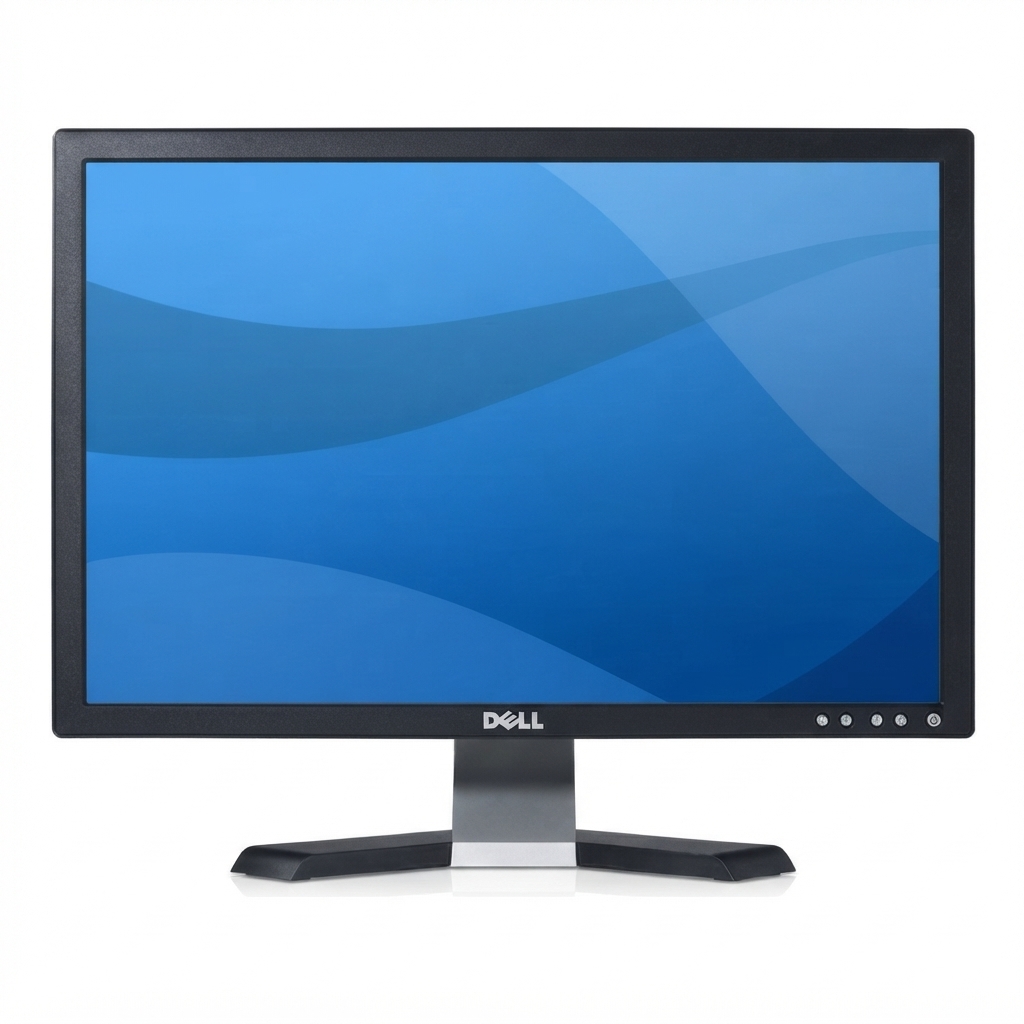
The dell Wide LCD Monitor D1901Nc is a compact 18.5-inch widescreen monitor designed for everyday productivity, home office use, and basic multimedia tasks. With a recommended native resolution of 1366 x 768 at 60Hz, it delivers a sharp and stable display for document editing, web browsing, point-of-sale setups, and light entertainment. Its compact chassis design makes it a practical choice for users who need a space-saving monitor without sacrificing screen clarity.
One of the main benefits of the dell Wide LCD Monitor D1901Nc is its straightforward setup. It uses a standard VGA connection, supports plug-and-play operation, and is built around a TFT color LCD panel for dependable performance. The monitor’s ergonomic design and low power consumption also make it appealing for users who want a simple, energy-efficient display for long daily use. Many buyers choose this model for secondary workstations, educational environments, and office systems where reliability matters more than premium features.
The dell Wide LCD Monitor D1901Nc is best suited for students, small businesses, reception desks, and users upgrading older desktop systems. Typical availability is strongest in refurbished and second-hand markets, while new stock is uncommon. Estimated pricing usually falls in the budget range, often around $20 to $80 depending on condition, seller, and included accessories. For users seeking an affordable wide LCD monitor with basic performance and Dell build quality, this model remains a practical option.
Troubleshooting the Dell Wide LCD Monitor D1901Nc
Common issues with the dell Wide LCD Monitor D1901Nc usually involve no display, distorted images, or unsupported resolution warnings. If the screen is blank, confirm the power cable is connected, the VGA cable is secure, and the computer is sending a video signal. If the monitor shows “No Signal” or similar on-screen text, reconnect the video cable, restart the computer, and check that the input source is set correctly. If the image appears fuzzy or stretched, reset the display to 1366 x 768 at 60Hz, which is the recommended resolution.
If you see an on-screen error such as “Input not supported,” the graphics settings are likely set to a resolution or refresh rate outside the monitor’s range. Reduce the resolution and refresh rate in the system display settings. Flickering, color distortion, or intermittent display problems often point to a loose VGA cable or a faulty graphics port. Preventive care includes keeping cables tightly connected, avoiding pressure on the screen, and cleaning the panel with a soft dry cloth.
If the problem continues, check the user manual, warranty status, and local Dell support options. For assistance, visit Dell support through the official Dell support website, use the product model or service tag, or contact the regional Dell customer service team by phone or chat. Warranty coverage and replacement options may vary by seller for refurbished units.
Pros and Cons of the Dell Wide LCD Monitor D1901Nc
Pros
- Compact 18.5-inch widescreen design that fits small desks and office counters.
- Native 1366 x 768 resolution is sufficient for everyday tasks like email, browsing, and document work.
- Simple VGA connectivity makes it easy to use with older desktops and legacy systems.
- Low power use and space-saving build improve value for basic setups.
- Good budget choice for a second monitor, POS terminal, or educational computer station.
Cons
- Lower resolution than modern Full HD monitors, which limits detail for design and multitasking.
- Older connection standard means no built-in HDMI or DisplayPort.
- Not ideal for gaming, video editing, or color-critical work.
- Availability is mainly limited to used or refurbished units.
- Compared with newer alternatives, the panel technology and feature set are basic.
In value-for-money terms, the dell Wide LCD Monitor D1901Nc is strongest when price and simplicity matter more than advanced features. Compared with newer 21.5-inch Full HD monitors, it is less capable, but it can still be a smart buy for legacy PCs and low-cost installations.
Customer Reviews for the Dell Wide LCD Monitor D1901Nc
User feedback for the dell Wide LCD Monitor D1901Nc is generally positive among buyers who need a dependable basic monitor. Many customers praise its compact size, clear text display, and easy setup. A common review theme is that it works well as an office screen or backup monitor. Typical ratings for similar used listings tend to fall around 4 out of 5 stars when the unit is in good condition.
Common complaints include the older VGA-only input, modest resolution, and limited suitability for modern media use. One buyer noted, “It was perfect for my old desktop and took just minutes to set up.” Another user said, “Great for spreadsheets and browsing, but not for high-definition video.” Purchase recommendations usually favor this model for budget buyers, refurbished-office setups, and anyone needing a reliable display for everyday tasks rather than premium visuals.
Faqs
How do I set up dell Wide LCD Monitor D1901Nc for the first time?
What should I do if my dell Wide LCD Monitor D1901Nc shows no signal?
What resolution is best for dell Wide LCD Monitor D1901Nc, and why does it matter?
Can dell Wide LCD Monitor D1901Nc work with modern laptops and desktops?
How do I fix blurry text or poor picture quality on dell Wide LCD Monitor D1901Nc?
Does dell Wide LCD Monitor D1901Nc support wall mounting or desk mounting options?
How should I clean and maintain dell Wide LCD Monitor D1901Nc safely?
Why does my dell Wide LCD Monitor D1901Nc look dim or have uneven brightness?
More dell manuals
Leave a Comment