
Dell U2419HS UltraSharp Monitor User Manual
Content
Dell U2419HS UltraSharp Monitor: Complete Product Manual and Buying Guide
Introduction
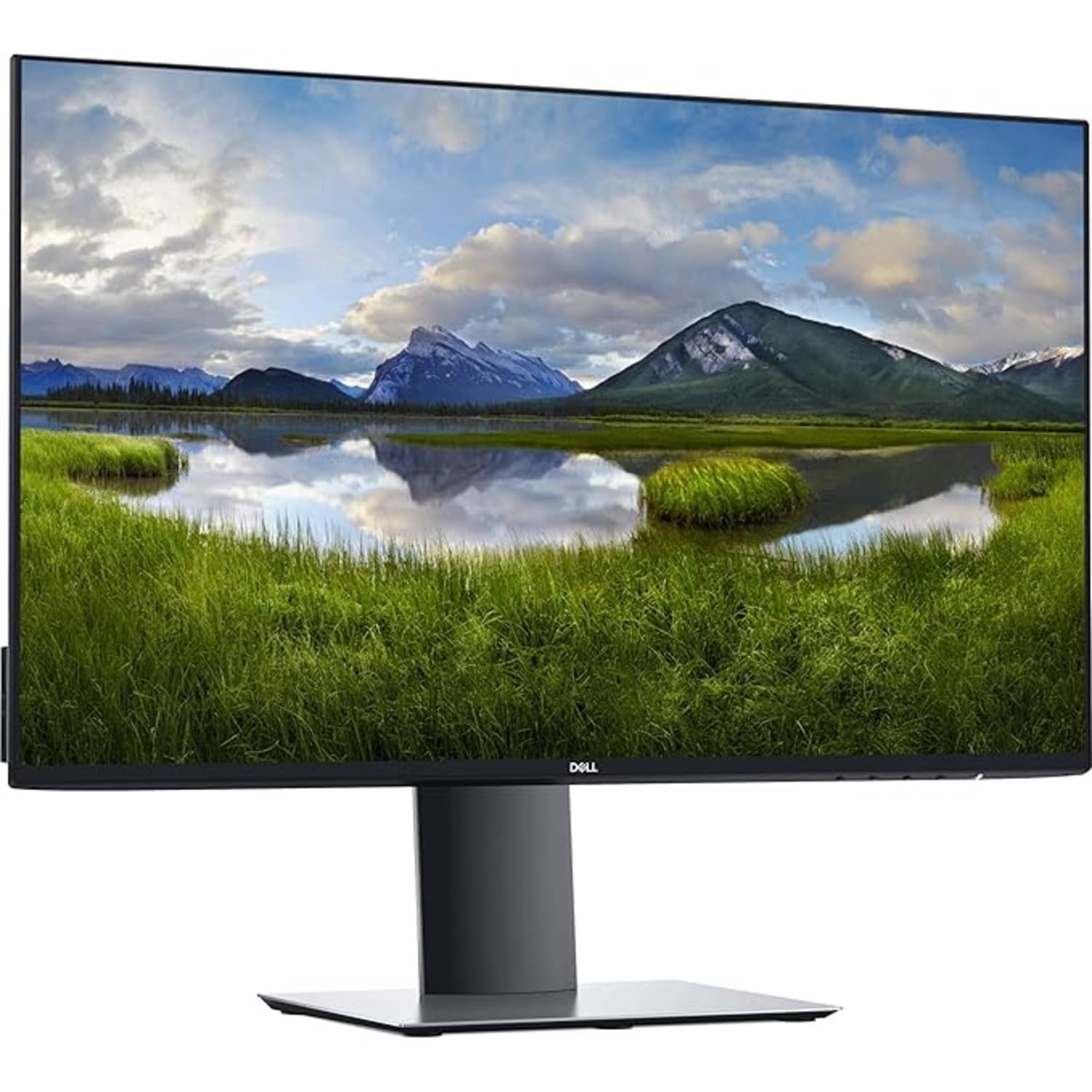
The Dell U2419HS UltraSharp Monitor is a 23.8-inch Full HD IPS display designed for users who want sharp image quality, dependable ergonomics, and a clean professional look. Built for office productivity, creative work, and everyday multitasking, this monitor stands out for its thin bezels, wide viewing angles, and highly adjustable stand. The Dell U2419HS UltraSharp Monitor is especially appealing to professionals who spend long hours in front of the screen and need comfortable positioning, accurate color, and flexible connectivity.
One of its biggest strengths is its balance of features. It offers a 1920 x 1080 resolution, IPS panel technology, 99% sRGB coverage, and factory-tuned color performance that makes it suitable for business use, content editing, and general desktop work. The monitor also includes DisplayPort, HDMI, USB 3.0 ports, and a compact design that works well in modern workspaces. Its slim borders make it a practical choice for multi-monitor setups and home office environments.
Typical pricing for the Dell U2419HS UltraSharp Monitor varies by region and condition, but it commonly appears in the budget-to-midrange professional monitor segment, often between approximately $150 and $300 depending on availability, refurbished stock, and local market conditions. It remains widely available through Dell support channels, resellers, and refurbished marketplace listings, making it a practical option for users seeking a reliable 24-inch business monitor.
Specifications
- Display size: 23.8-inch active area with 16:9 aspect ratio
- Panel type: IPS (In-Plane Switching) TFT LCD
- Native resolution: 1920 x 1080 Full HD at 60 Hz
- Color performance: 99% sRGB coverage with average Delta E under 2
- Viewing experience: Wide viewing angles for consistent color and contrast
- Connectivity: 1 x DisplayPort 1.4, 1 x DisplayPort out with MST, 1 x HDMI 1.4
- USB hub: 2 x USB 3.0 downstream ports and 2 x USB 3.0 downstream ports with charging support depending on configuration
- Backlight: LED backlit display for efficient operation
- Recommended use: Office work, general productivity, light photo editing, and multi-monitor setups
- Comparison note: Compared with many basic 24-inch monitors, the Dell U2419HS UltraSharp Monitor offers better color accuracy, thinner bezels, and a more ergonomic stand
Performance-wise, this monitor is tuned for everyday clarity rather than gaming speed. It focuses on stable image quality, professional presentation, and comfortable long-session use instead of high refresh rate output. That makes it a better fit than entry-level office screens for users who value display consistency and build quality.
Detailed Description
The Dell U2419HS UltraSharp Monitor is designed around productivity and visual comfort. Its IPS panel delivers broad viewing angles, so the image remains stable even when viewed from the side. This is especially useful in shared workspaces, meeting rooms, and dual-monitor desktop setups where several people may view the screen at once. The monitor’s thin bezel design gives it a modern appearance and helps reduce distractions while increasing usable screen space in multi-display configurations.
In real-world use, the display is well suited for spreadsheets, web-based workflows, documents, video conferencing, and light creative tasks. The color profile supports accurate everyday work, while the adjustable stand helps users align the screen height, tilt, and orientation for improved comfort. The build quality feels professional, with a durable chassis and practical materials chosen for long-term office use. The overall experience emphasizes reliability, not flashy extras, which is exactly what many business users need.
For users searching for a dependable Dell UltraSharp monitor, this model provides a strong mix of visual quality, ergonomic support, and convenient ports. It is a good choice for office professionals, students, and remote workers who want a clean desk setup with stable performance.
Setup Guide
- Unbox the monitor carefully and place all components on a flat, stable surface.
- Attach the stand to the base, then secure the monitor panel to the stand until it clicks into place.
- Position the monitor on your desk and adjust the height, tilt, and rotation for comfortable viewing.
- Connect the power cable to the monitor and plug it into a grounded outlet.
- Choose your video connection: DisplayPort for the most flexible desktop setup or HDMI for standard compatibility.
- If needed, connect USB peripherals to the monitor’s USB hub after linking the upstream USB connection to your computer.
- Power on the monitor and use the on-screen menu to select the correct input source.
- Adjust brightness, contrast, and color settings to match your workspace lighting and usage needs.
For best results, keep ventilation space around the rear panel and avoid blocking the cooling area. Do not force connectors into ports, and always shut down the system before moving cables. If the screen does not display an image, confirm that the selected input matches the connected cable and that the cable is fully seated. If your desktop supports it, DisplayPort is often the preferred option for a cleaner setup and better multi-monitor compatibility.
Safety precautions include using only the supplied or compatible power cable, avoiding liquid exposure, and lifting the monitor from the frame rather than the screen surface.
Troubleshooting
- No signal message: Check whether the correct input is selected and verify that the video cable is connected securely at both ends.
- Blank screen: Make sure the computer is powered on, the monitor is receiving power, and brightness is not set too low.
- Flickering image: Try another cable, lower the resolution to the native 1920 x 1080 setting, or test a different port.
- USB hub not working: Confirm that the upstream USB connection is attached from the monitor to the computer.
- Color looks uneven: Reset picture settings through the on-screen menu and disable extreme software color filters.
- Built-in diagnostic concerns: Dell provides integrated self-test and diagnostic tools to help isolate panel or hardware issues.
Preventive care helps avoid most display problems. Use quality cables, keep firmware and graphics drivers current, and avoid excessive heat or direct sunlight. If the monitor develops a hardware fault, Dell support and warranty coverage may help depending on the purchase region and service status. For assistance, users can contact Dell support through the official Dell customer service channels listed for their country or region.
Pros & Cons
Pros
- Excellent color accuracy for office and light creative work
- IPS panel provides wide viewing angles and consistent image quality
- Thin-bezel design looks modern and works well in dual-monitor setups
- Highly adjustable stand improves ergonomic comfort
- Useful USB hub and flexible display connectivity
- Strong value for users who want a professional 24-inch monitor
Cons
- 60 Hz refresh rate is not ideal for competitive gaming
- Full HD resolution is good for productivity but not as sharp as QHD panels
- Older model status may limit availability in some regions
- Not built for advanced HDR or high-end color grading workflows
Overall, the Dell U2419HS UltraSharp Monitor offers strong value for money if the goal is dependable productivity and color-accurate everyday use. Compared with cheaper 24-inch alternatives, it typically delivers better ergonomics and a more polished panel experience. Compared with newer premium monitors, however, it falls behind in resolution and refresh rate.
Customer Reviews
Users commonly rate the Dell U2419HS UltraSharp Monitor around 4.5 out of 5 stars for office use, ergonomics, and color quality. Many buyers praise the slim bezels, reliable stand adjustments, and clean visual output for spreadsheets, coding, and remote work. One recurring testimonial style is: “Perfect for my home office setup — sharp, comfortable, and easy to connect.”
Common complaints usually focus on the 1080p resolution at 24 inches, which some users feel is less sharp than higher-resolution alternatives. A few customers also mention that it is not the best choice for gaming or advanced media creation. Even so, many reviewers recommend it for professionals and students who want a trustworthy Dell monitor with a refined design and practical features.
Final Verdict
The Dell U2419HS UltraSharp Monitor is a well-rounded professional display that excels in productivity, comfort, and everyday image quality. For users who need a reliable 24-inch IPS monitor with strong ergonomics and practical connectivity, it remains a smart and SEO-worthy choice in the UltraSharp lineup.
Faqs
How do I set up the Dell U2419HS UltraSharp Monitor for the first time?
Why is my Dell U2419HS UltraSharp Monitor showing no signal after setup?
What resolution and refresh rate should I use on the Dell U2419HS UltraSharp Monitor?
Does the Dell U2419HS UltraSharp Monitor work with laptops, desktops, and docking stations?
How do I use Dell Display Manager with the Dell U2419HS UltraSharp Monitor?
What should I do if the Dell U2419HS UltraSharp Monitor flickers or looks unstable?
How do I get the best color and image quality from the Dell U2419HS UltraSharp Monitor?
What is the best way to clean and maintain the Dell U2419HS UltraSharp Monitor?
More dell manuals
Leave a Comment