
Dell USB Type-C Docking Station WD15 User Manual
Content
Dell USB Type-C Docking Station WD15 Manual: Setup, Features, and Buying Guide
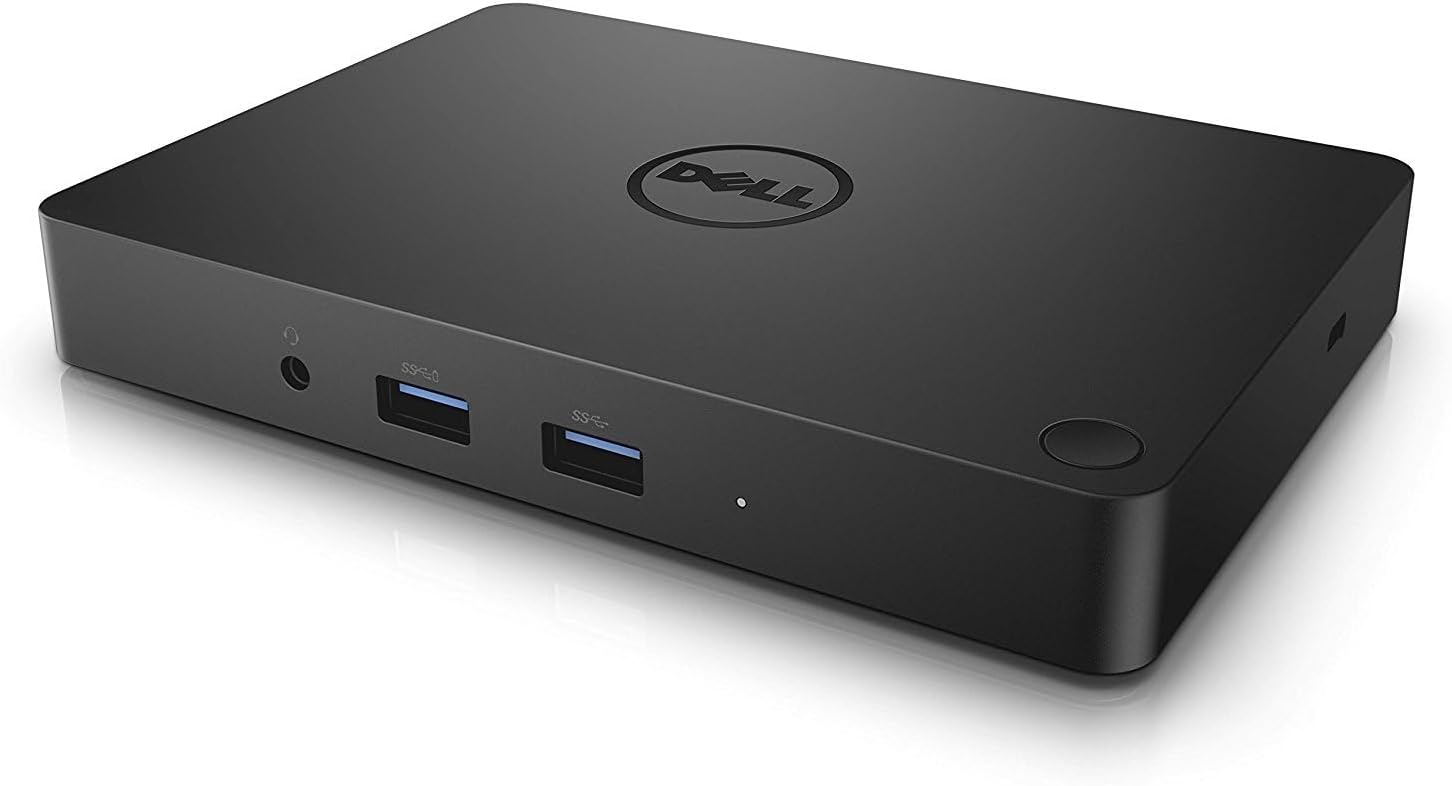
The dell USB Type-C Docking Station WD15 is a versatile USB-C dock designed to turn a compatible laptop into a full desktop workstation with a single cable. It combines video output, USB expansion, Ethernet, audio, and laptop charging in one compact unit, making it especially useful for professionals who need a clean, efficient desk setup. With support for up to one 4K display or dual Full HD displays, the WD15 remains a practical choice for office users, remote workers, and IT-managed environments that value reliable everyday docking over gaming-grade performance.
This Dell USB Type-C docking station is well known for its broad port selection, including HDMI, mini DisplayPort, VGA, Ethernet, multiple USB ports, and audio connections. That makes it a strong fit for users who need to connect older peripherals alongside modern monitors. The dock also supports power delivery, helping reduce charger clutter while keeping a laptop powered during work sessions. In real-world use, it is commonly chosen for business laptops such as Dell Latitude and XPS systems, though compatibility should always be checked before purchase.
Estimated pricing typically falls in the budget-to-midrange category for docking stations, with used or renewed units often available around the lower end of the market and new-stock listings generally higher depending on the power adapter bundle and seller availability. Because the model has been on the market for several years, availability can vary by retailer, marketplace, and region. For buyers comparing the WD15 against newer USB-C docking stations, it offers solid value if you need dependable display output, wired networking, and legacy port support without paying for advanced Thunderbolt features.
Pros and Cons of the Dell USB Type-C Docking Station WD15
Pros
- Wide port selection: HDMI, mini DisplayPort, VGA, Ethernet, USB-A ports, and audio jacks make it easy to connect multiple devices at once.
- Good everyday productivity support: Handles a single 4K monitor or dual Full HD displays, which is ideal for office work, browsing, spreadsheets, and video calls.
- Single-cable convenience: Reduces desk clutter by combining charging, data, and display output through one USB-C connection.
- Strong value for money: Often cheaper than newer premium docks, especially on the secondary market, while still covering core docking needs.
- Legacy compatibility: VGA and additional USB ports make it useful for meeting rooms, educational setups, and mixed hardware environments.
Cons
- Not Thunderbolt-based: It lacks the higher bandwidth of Thunderbolt docks, so it is not ideal for demanding multi-4K workflows.
- Limited display flexibility: Performance is best with one 4K display or dual 1080p-class monitors rather than heavier multi-monitor setups.
- Older design: Compared with newer USB-C docking stations, it may feel less future-proof and less feature-rich.
- Compatibility matters: Some laptops may charge or display differently depending on firmware, USB-C support, and power requirements.
For users who need a reliable business dock rather than a high-end workstation hub, the dell USB Type-C Docking Station WD15 delivers strong everyday value. If you want faster bandwidth, more modern video support, or broader future compatibility, newer Dell WD19-series or Thunderbolt docks may be better alternatives.
Customer Reviews of the Dell USB Type-C Docking Station WD15
Customer feedback for the dell USB Type-C Docking Station WD15 is generally positive, with many users praising its simple setup, broad compatibility, and dependable performance for office use. Common star ratings trend around 4 out of 5 stars, especially from buyers who use it for dual-monitor productivity and wired networking. One frequent comment is that the dock “just works” for everyday tasks, which is exactly what many buyers want from a workstation accessory.
Common praises include stable display output, convenient charging, and the ability to connect older peripherals without adapters. Frequent complaints focus on the dock’s age, occasional compatibility limitations with certain laptops, and weaker performance compared with newer USB-C or Thunderbolt options. Users who need heavy multitasking or advanced 4K multi-display support often recommend upgrading to a newer model.
Purchase recommendation: choose this dock if you want a cost-effective, business-focused docking station for standard productivity tasks. If your workflow depends on advanced displays, higher bandwidth accessories, or long-term platform flexibility, a newer alternative is the smarter buy.
Quick Specification Summary for the Dell USB Type-C Docking Station WD15
- Connection: USB Type-C host connection
- Video ports: HDMI, mini DisplayPort, VGA
- Data ports: Multiple USB-A ports for peripherals
- Networking: Gigabit Ethernet
- Audio: Headphone and microphone support
- Power delivery: Supports laptop charging through the dock
- Display support: Single 4K monitor or dual Full HD monitors, depending on setup
Who Should Buy the Dell USB Type-C Docking Station WD15?
The dell USB Type-C Docking Station WD15 is best for office professionals, hybrid workers, students, and IT teams that need a practical docking solution with dependable connectivity. It is especially useful for users who want to connect monitors, Ethernet, USB accessories, and audio devices through one compact hub. For simple desktop expansion and everyday work, it remains a sensible and affordable choice.
Faqs
How do I set up dell USB Type-C Docking Station WD15 for the first time with my laptop?
Why is my dell USB Type-C Docking Station WD15 not charging my laptop or connecting to displays?
What devices are compatible with dell USB Type-C Docking Station WD15?
How many monitors can dell USB Type-C Docking Station WD15 support at once?
Why does my dell USB Type-C Docking Station WD15 keep disconnecting intermittently?
How can I optimize performance when using dell USB Type-C Docking Station WD15 with dual displays and USB devices?
What should I do if the USB ports on dell USB Type-C Docking Station WD15 are not detecting my keyboard or mouse?
How should I clean and maintain dell USB Type-C Docking Station WD15 for long-term reliability?
More dell manuals
Leave a Comment