
Denon AVR-X2700H Integrated Network Av Reciever User Manual
Content
Denon AVR-X2700H Integrated Network AV Receiver Manual and Product Guide
Introduction
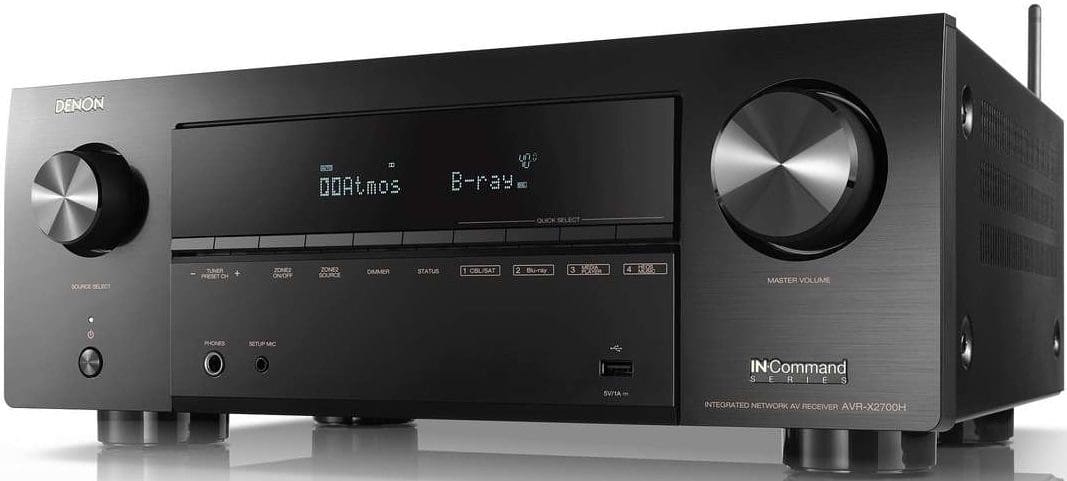
The Denon AVR-X2700H integrated network AV receiver is a versatile 7.2-channel home theater hub designed for movie lovers, gamers, and music fans who want modern connectivity without sacrificing sound quality. It supports immersive audio formats such as Dolby Atmos and DTS:X, plus network streaming features that make it easy to play music from smartphones, TVs, and online services. With 8K/60Hz and 4K/120Hz passthrough support, HDMI eARC, and advanced HDR compatibility, this receiver is built for current and next-generation entertainment setups.
One of its biggest strengths is balance: it offers strong home cinema performance, flexible speaker configuration, and smart features like HEOS multiroom audio, AirPlay 2, Bluetooth, and voice assistant support. The built-in Audyssey room correction helps optimize sound for different rooms, making it a practical choice for apartments, living rooms, and dedicated media spaces. It is especially appealing to users who want a single receiver for gaming consoles, streaming devices, Blu-ray players, and TVs.
The Denon AVR-X2700H integrated network AV receiver typically sits in the mid-range price category, with availability often found through major electronics retailers, online marketplaces, and home theater specialists. Depending on region and stock, expected pricing generally falls around the mid-hundreds of dollars or pounds, with refurbished and open-box options sometimes lower. For buyers searching for a feature-rich, future-ready AVR, the denon AVR-X2700H Integrated Network Av Reciever remains a strong contender.
Specifications: Denon AVR-X2700H Features, Power, and Connectivity
- 7.2-channel AV receiver with 7-channel amplification for surround sound and height speaker setups.
- Power output rated around 95 watts per channel into 8 ohms, with higher output available under 6-ohm conditions.
- Supports Dolby Atmos, DTS:X, Dolby Atmos Height Virtualization, and DTS Virtual:X.
- HDMI section includes 6 inputs and 2 outputs, including eARC for enhanced TV audio return.
- Compatible with 8K/60Hz and 4K/120Hz passthrough on select HDMI connections.
- HDR support includes HDR10, HDR10+, HLG, Dolby Vision, and Dynamic HDR for improved video quality.
- Built-in Wi‑Fi, Ethernet, Bluetooth, AirPlay 2, HEOS, Spotify, Tidal, and other streaming options.
- Includes Audyssey MultEQ XT room calibration for speaker and room optimization.
- Multiroom support with Zone 2 audio for flexible listening around the home.
- Dimensions and weight place it in a standard full-size AVR category, similar to other midrange Denon and Marantz models.
Compared with similar receivers in its class, the AVR-X2700H stands out for strong gaming features, broad format support, and Denon’s mature streaming ecosystem. It is often compared with step-up models that offer more power or more HDMI inputs, but it remains attractive for users who want premium features without moving into flagship pricing.
Setup Guide: How to Install and Configure the Denon AVR-X2700H
Place the receiver in a well-ventilated cabinet or open shelf with several inches of clearance on all sides. Connect your front, center, surround, and height speakers using the clearly labeled terminals, then connect the subwoofer to the Subwoofer Pre Out. For TV connection, use an HDMI cable from the receiver’s HDMI OUT eARC/ARC port to the TV’s ARC-compatible input.
Next, connect source devices such as a game console, streaming box, or Blu-ray player to the HDMI inputs. If you use a turntable, connect it to the phono input. Power on the receiver, follow the on-screen setup assistant, and choose your speaker layout, network connection, and input assignments. For wireless features, connect to Wi‑Fi through the setup menu or use Ethernet for the most stable network performance.
Run Audyssey calibration with the supplied microphone placed at ear height in your main seating position. This helps balance levels and improve room acoustics. If devices do not appear on the TV, confirm HDMI input assignment and enable CEC/eARC in the television menu. Avoid blocking ventilation, never place the unit near heat sources, and unplug it during electrical storms.
Troubleshooting the Denon AVR-X2700H: Common Problems and Fixes
- No sound: Check speaker wiring, mute status, input selection, and TV audio output settings. Confirm that the receiver is not set to Zone 2 instead of Main Zone.
- HDMI signal not detected: Try another HDMI cable, verify the source is on the correct input, and make sure the TV uses the receiver’s eARC/ARC port.
- 4K or 8K video not passing through: Use certified high-speed HDMI cables and enable enhanced HDMI mode on the source and TV if required.
- Network streaming problems: Restart the router, reconnect to Wi‑Fi, or switch to Ethernet for a more reliable connection.
- Audyssey calibration fails: Make sure the microphone is securely connected, the room is quiet, and all speakers are properly wired.
- Overheating or shutdown: Improve ventilation, lower listening volume, and remove any obstruction around the top panel.
If issues continue, reset the receiver through the system menu or consult the owner’s manual for model-specific error messages. Denon warranty coverage and customer support are available through authorized dealers and Denon regional support channels. Keep your purchase receipt, serial number, and firmware version ready when requesting help.
Pros and Cons of the Denon AVR-X2700H Integrated Network AV Receiver
Pros
- Strong home theater performance with Dolby Atmos and DTS:X support.
- Excellent HDMI feature set for gaming and modern TVs, including 8K and 4K/120Hz passthrough.
- Reliable streaming options with HEOS, AirPlay 2, Bluetooth, and popular music services.
- Audyssey room correction improves sound quality in real-world rooms.
- Good value for users wanting premium features without flagship pricing.
Cons
- Power is sufficient for most setups, but large rooms may benefit from a more powerful model.
- Some users may want more HDMI inputs or more advanced pre-out flexibility.
- Setup menus can feel dense for beginners during first-time configuration.
- Best results depend on proper calibration and speaker placement.
Against alternatives in the same class, the denon AVR-X2700H Integrated Network Av Reciever offers a compelling mix of future-proof video support, smart networking, and home theater flexibility. It is a particularly smart buy for gamers, streaming users, and movie fans who want a reliable all-in-one AVR.
Customer Reviews: Real-World Impressions and User Feedback
Average customer sentiment often lands around 4 to 4.5 stars out of 5, with praise centered on easy streaming, strong dialogue clarity, and impressive surround effects. Many owners describe the receiver as a “great upgrade for movies and gaming,” especially when paired with a compatible TV and a 5.1.2 speaker layout.
Common complaints usually mention the learning curve of the setup menu, occasional HDMI handshake issues with certain televisions, and the desire for more raw amplifier power. Users also appreciate the phono input and multiroom features, which make the unit appealing to vinyl listeners and whole-home audio fans.
For buyers seeking a well-rounded network receiver, most reviews recommend the denon AVR-X2700H Integrated Network Av Reciever as a strong purchase for medium-sized rooms, mixed media use, and modern HDMI-based systems.
Faqs
How do I set up denon AVR-X2700H Integrated Network Av Reciever for the first time with my TV and speakers?
What should I check if denon AVR-X2700H Integrated Network Av Reciever has no sound from my TV through ARC or eARC?
Can denon AVR-X2700H Integrated Network Av Reciever handle 8K, 4K/120Hz, and next-gen gaming consoles?
How do I connect wireless streaming services to denon AVR-X2700H Integrated Network Av Reciever?
Why does denon AVR-X2700H Integrated Network Av Reciever keep cutting out or dropping audio on HDMI sources?
What speaker setup works best with denon AVR-X2700H Integrated Network Av Reciever for movies and Dolby Atmos?
How do I improve sound quality and room correction on denon AVR-X2700H Integrated Network Av Reciever?
How often should I maintain denon AVR-X2700H Integrated Network Av Reciever, and what care prevents problems?
More denon manuals
- Denon AH-GC30 Wireless Noise Cancelling Headphone User Manual
- Denon AVR-S510BT Surround Recevier User Manual
- Denon AVR-X7200WA Network Av Receiver User Manual
- Denon AVR-S970H Integrated Network AV Receiver User Manual
- Denon AM-FM Stereo Receiver DRA-295 User Manual
- Denon AVR-588 AV Surround Receiver User Manual
Leave a Comment