
Setup: Epson Sure-Color Series Printer P900 User Manual
Content
Introduction: Epson SureColor P900 Review and Product Manual
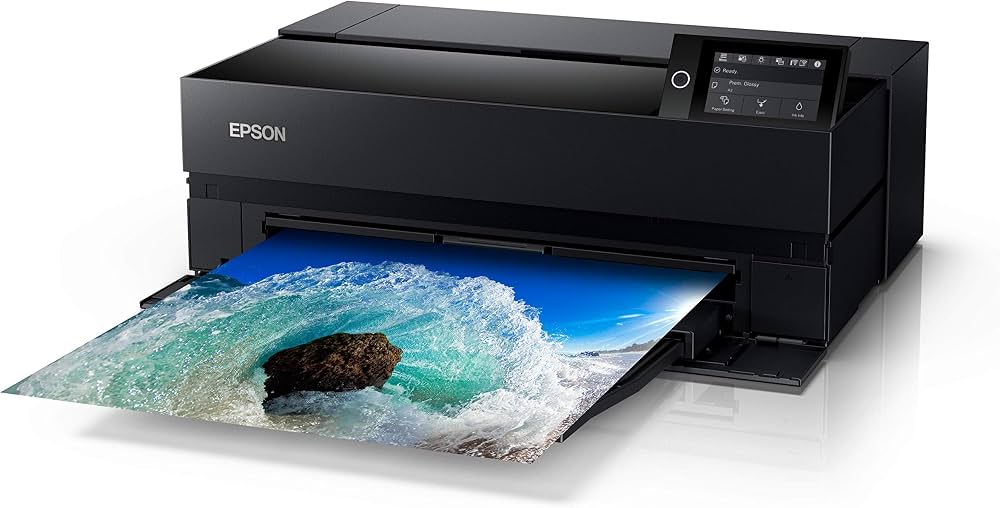
The Epson SureColor P900 is a professional-grade 17-inch photo printer designed for photographers, artists, graphic designers, and serious printmakers who need gallery-quality output at home or in a studio. As a premium large-format inkjet, the epson Sure-Color Series Printer P900 combines exceptional color accuracy, deep blacks, and smooth tonal gradations with flexible media handling, making it ideal for fine art prints, portfolios, exhibition work, and premium proofing. Its 10-color UltraChrome PRO10 pigment ink system, dedicated photo black and matte black channels, and high-resolution output help produce vivid, long-lasting prints with impressive detail.
One of its biggest selling points is versatility. The printer supports cut-sheet media up to 17 x 22 inches and panoramic roll printing up to 17 x 129 inches, so users can create everything from small photographic enlargements to oversized display pieces. A 4.3-inch color touchscreen, USB 3.0, Ethernet, Wi-Fi, Wi-Fi Direct, and mobile printing support make it easy to integrate into modern workflows. The epson Sure-Color Series Printer P900 is built for creators who value both image quality and convenience.
Estimated pricing typically falls around the premium prosumer range, with an MSRP near $1,349, though street prices may vary by retailer, region, and availability. It is widely available through Epson and major photo equipment sellers, making it accessible for users seeking a dependable studio printer with professional output and advanced connectivity.
Specifications: Epson SureColor P900 Technical Details
- Printer type: Single-function color inkjet photo printer
- Maximum print size: 17 x 22 inches for cut-sheet media; supports roll media up to 17 x 129 inches
- Print resolution: Up to 5760 x 1440 dpi for high-detail photo reproduction
- Ink system: 10-color Epson UltraChrome PRO10 pigment inks with dedicated photo black and matte black channels
- Display: 4.3-inch color touchscreen for setup, maintenance, and media management
- Connectivity: USB 3.0, 100Base-T Ethernet, dual-band Wi-Fi, Wi-Fi Direct, AirPrint, and mobile app support
- Paper handling: Main tray capacity of about 120 sheets, with support for fine art and specialty photo papers
- Physical size: Approximately 24.2 x 14.5 x 7.8 inches in storage and 24.2 x 35.6 x 20.5 inches when printing
- Weight: About 35.3 lb
- Performance: Photo prints can produce in roughly 90 seconds to 2.5 minutes depending on size and settings
Compared with similar 17-inch photo printers, the epson Sure-Color Series Printer P900 stands out for its advanced pigment ink set, compact footprint for its class, and strong wireless connectivity. It competes closely with other pro photo printers in color fidelity and print longevity, while offering a more modern touchscreen and improved workflow features for desktop users.
Troubleshooting: Common Epson SureColor P900 Problems and Fixes
- Print quality is streaky or banded: Run a nozzle check, clean the print head, and confirm the correct media type is selected.
- Paper feed errors: Reload paper, fan sheets before loading, and ensure the paper width guides are snug but not tight.
- Wi-Fi connection issues: Restart the printer and router, then reconnect using 2.4 GHz or 5 GHz wireless settings.
- Ink cartridge recognition problems: Reseat the cartridge and verify that only genuine Epson cartridges are being used.
- Black ink not switching properly: Check the selected paper profile and allow the printer to manage the photo black or matte black channel automatically.
- Error messages on the display: Refer to the on-screen prompt, power cycle the unit if needed, and consult the user guide for the code-specific fix.
To prevent recurring issues, keep the printer on a stable surface, use quality paper matched to the chosen print profile, and run periodic maintenance cycles. The printer is backed by Epson warranty support, and assistance is available through Epson’s official support channels. In the U.S. and Canada, Epson Connection support can be reached at the company’s published phone support numbers and support website. Always keep the serial number handy when requesting help.
Pros and Cons of the Epson SureColor P900
Pros
- Excellent image quality with smooth gradients and rich tonal depth
- 10-color pigment ink system delivers professional-looking color and black-and-white prints
- Dedicated photo black and matte black channels reduce workflow interruptions
- Supports both cut-sheet and roll media for flexible creative work
- Compact for a 17-inch printer, making it suitable for studios and serious home users
- Strong connectivity options, including Ethernet, Wi-Fi, Wi-Fi Direct, and USB 3.0
Cons
- Higher purchase price than entry-level photo printers
- Single-function design means no scanning or copying
- Large-format photo ink cartridges can make running costs relatively high
- Best suited for photo and fine art work, not everyday office printing
For users comparing alternatives, the epson Sure-Color Series Printer P900 offers strong value if print quality matters more than speed or multi-function features. It is especially appealing to photographers who need archival pigment output and larger print sizes.
Customer Reviews: What Buyers Say About the Epson SureColor P900
Customer feedback for the Epson SureColor P900 is generally very positive, with many buyers rating it around 4.5 out of 5 stars for print quality, color accuracy, and overall build. Reviewers frequently praise the printer’s ability to produce gallery-worthy photographs, smooth black-and-white prints, and consistent results on premium paper. One common testimonial theme is that the printer “delivers studio-level output in a compact form factor.”
Common complaints usually involve ink cost, setup complexity for first-time users, and the size of the printer when fully extended for printing. A few users also note that the machine is best appreciated by those who print often enough to justify its operating costs. For buyers who want a high-end desktop photo printer with professional results, the epson Sure-Color Series Printer P900 is widely recommended. It is especially strong for photographers, fine art creators, and serious print enthusiasts who value quality over convenience.
Faqs
How do I set up epson Sure-Color Series Printer P900 for the first time?
Why is my epson Sure-Color Series Printer P900 not connecting to Wi-Fi?
What paper types work best with epson Sure-Color Series Printer P900 for photo printing?
How do I fix banding or missing lines on epson Sure-Color Series Printer P900 prints?
Can epson Sure-Color Series Printer P900 print borderless photos and fine-art images?
Which devices and software are compatible with epson Sure-Color Series Printer P900?
How often should I clean and maintain epson Sure-Color Series Printer P900?
What should I do if epson Sure-Color Series Printer P900 prints look dull or colors are inaccurate?
More epson manuals
- Epson EcoTank Printer L3210 User Manual
- How to Use: Epson ELPMB75 Ultra-Short-Throw Projector Wall Mount System User Manual
- Epson CO-W01 Projector User Manual
- How to Use: Epson EX11000 Projector User Manual
- Epson ELPMB64 Short-Throw Projector Wall Mount User Manual
- How to Use: Epson VS260 / EB-FH06 / EB-W06 / EB-X06 / EB-E01 / EB-X500 Multimedia Projector User Manual
Leave a Comment