
Epson EcoTank Printer L3210 User Manual
Content
Introduction to the Epson EcoTank Printer L3210
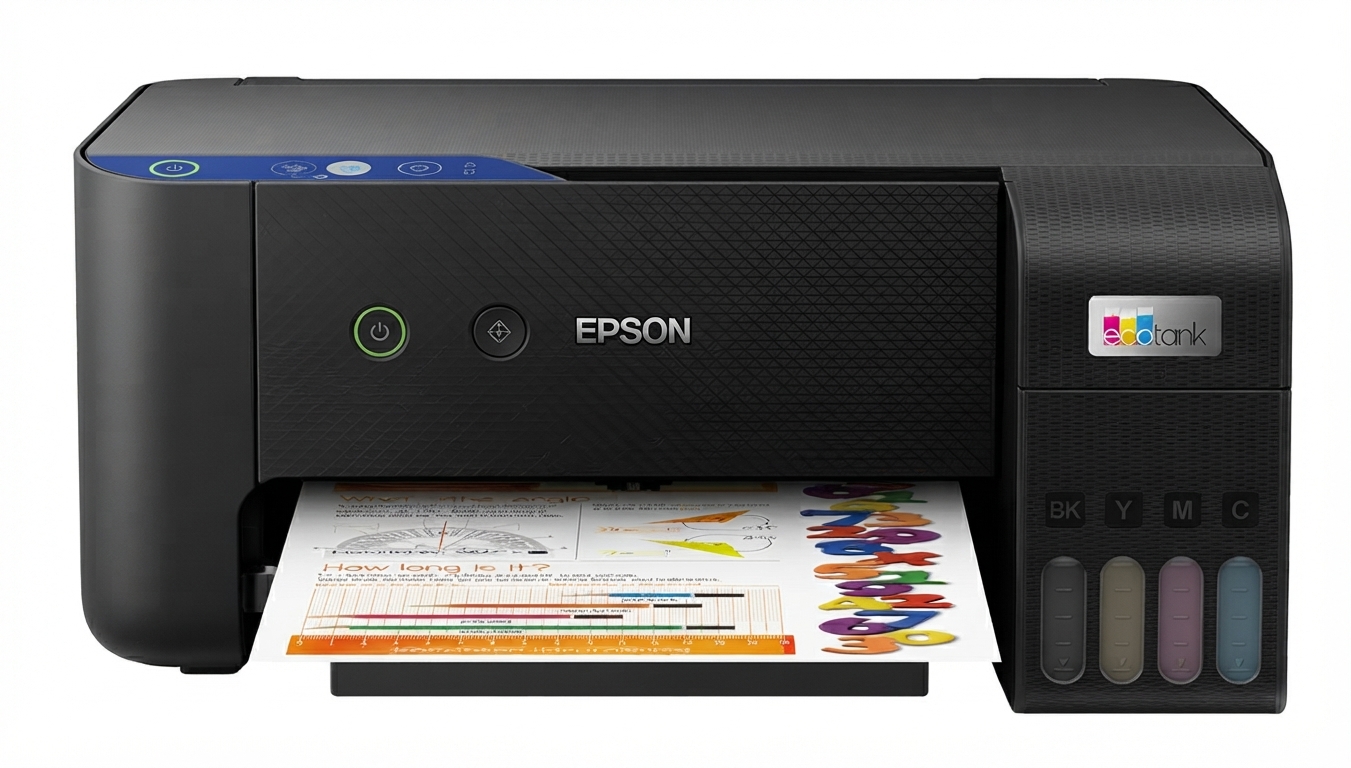
The Epson EcoTank Printer L3210 is a compact all-in-one ink tank printer designed for home users, students, and small offices that need low-cost, high-volume printing. It combines print, scan, and copy functions in a space-saving body, making it a practical choice for everyday document handling, school projects, and basic color printing. The refillable EcoTank system is the main selling point, helping reduce running costs compared with traditional cartridge printers while delivering consistent page yields and easy ink refilling.
The epson EcoTank Printer L3210 is especially appealing for users who print frequently and want to avoid expensive cartridge replacements. It supports black-and-white and color printing, includes a flatbed scanner, and uses a wired USB 2.0 connection for simple plug-and-play use. Typical output quality is suitable for documents, forms, school assignments, and occasional photos. The printer is also valued for its compact footprint, modest power use, and straightforward setup. The usual price range is around ₹11,649 to ₹16,349 in India, depending on seller, stock, and promotions, and availability is generally good across major online and retail channels. For buyers looking for an affordable multifunction ink tank printer, the epson EcoTank Printer L3210 remains a strong value-oriented option.
Troubleshooting Common Epson EcoTank L3210 Problems
Common issues with the Epson EcoTank Printer L3210 usually involve paper jams, blurred prints, ink flow problems, scanner recognition errors, or the printer not responding over USB. If print quality drops, run a nozzle check and perform head cleaning through the printer utility. For paper jams, switch off the printer, remove the paper gently, and reload a fresh stack aligned to the tray guides. If the printer is not detected, reconnect the USB cable, try another port, and reinstall the printer driver.
Typical Epson-style error alerts may include paper jam warnings, low-ink notifications, or general service errors that require restarting the machine and checking ink levels, paper feed, and internal obstructions. Preventive care helps avoid downtime: use genuine or compatible high-quality ink, keep the printer dust-free, avoid overfilling paper, and print a test page weekly to prevent clogged nozzles. The printer usually includes a 1-year warranty or up to 30,000 pages, whichever comes first, with support handled through Epson service channels and authorized dealers. For assistance, contact Epson support through the official regional customer care number or the retailer’s service desk where the unit was purchased.
Pros and Cons of the Epson EcoTank Printer L3210
Pros
- Low running cost with refillable ink tanks, making it cost-effective for frequent printing.
- Print, scan, and copy functions in one compact unit, ideal for home and student use.
- Good print resolution of up to 5760 x 1440 dpi for sharp documents and decent graphics.
- Strong value for money compared with cartridge-based multifunction printers.
- Simple USB connectivity and easy maintenance for users who want a straightforward setup.
Cons
- No Wi-Fi or wireless printing, so mobile printing is limited without a direct connection.
- Not designed for heavy office workloads or advanced features like duplex printing.
- Print speed is modest compared with faster business printers.
- Basic feature set may feel limited versus alternatives with wireless, ADF, or duplex support.
Overall, the epson EcoTank Printer L3210 is a smart buy for budget-conscious users who prioritize economy over premium features. Compared with many entry-level alternatives, it offers better long-term savings, but buyers needing wireless printing or faster duplex workflows may prefer a newer model.
Customer Reviews and User Feedback for Epson EcoTank L3210
Customer feedback for the epson EcoTank Printer L3210 is generally positive, with many users rating it around 4 out of 5 stars for affordability and low ink cost. Buyers frequently praise the printer for easy refilling, clean document output, and dependable everyday performance. A common testimonial theme is that it is “excellent for school and office work” and “saves a lot on ink.”
Frequent complaints focus on the lack of Wi-Fi, average print speed, and occasional ink priming or nozzle cleaning needs after periods of inactivity. Some users also mention that setup is easier on Windows than on mixed-device environments. For most home and small-office buyers, the printer is widely recommended as a practical value choice, especially if wireless printing is not required. If the goal is a reliable, low-cost multifunction printer, the epson EcoTank Printer L3210 is a solid purchase recommendation.
Faqs
How do I set up the Epson EcoTank Printer L3210 for the first time?
Why is my Epson EcoTank Printer L3210 not printing even though it is turned on?
What paper sizes and media types work best with the Epson EcoTank Printer L3210?
How can I fix streaks or faded prints on the Epson EcoTank Printer L3210?
Is the Epson EcoTank Printer L3210 compatible with Windows and Mac computers?
How do I clean and maintain the Epson EcoTank Printer L3210 to keep it running well?
What should I do if the Epson EcoTank Printer L3210 shows an ink tank or paper error?
How can I get better print speed and quality from the Epson EcoTank Printer L3210?
More epson manuals
- Epson CO-W01 Projector User Manual
- Setup: Epson Sure-Color Series Printer P900 User Manual
- Epson ELPMB64 Short-Throw Projector Wall Mount User Manual
- How to Use: Epson ELPMB75 Ultra-Short-Throw Projector Wall Mount System User Manual
- Epson ELPMB53 Ultra-Short Throw Projector User Manual
- How to Use: Epson EX11000 Projector User Manual
Leave a Comment