
How to Use: Fitbit Alta Fitness Tracker User Manual
Content
Fitbit Alta Fitness Tracker
Introduction
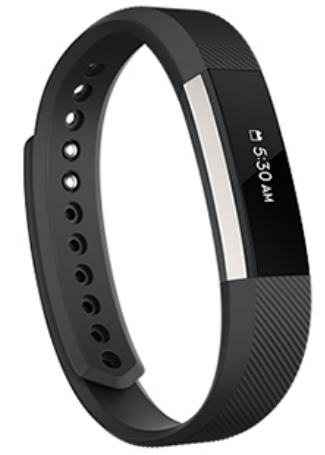
The Fitbit Alta Fitness Tracker is a sleek, versatile wearable designed to help individuals monitor and improve their daily activity levels and overall health. Combining classic style with advanced fitness technology, the Alta offers a clear OLED touchscreen display and smart features that cater to both casual users and fitness enthusiasts alike. Its compact design makes it an ideal accessory for everyday wear, seamlessly blending fitness tracking with lifestyle convenience.
Key benefits include step counting, calorie tracking, distance measurement, and active minutes monitoring, all automatically recorded with Fitbit’s SmartTrack technology. The tracker also provides customizable reminders to move, encouraging users to break up sedentary periods by hitting a target of 250 steps every hour. Additionally, it delivers smartphone notifications for calls, texts, and calendar alerts, helping users stay connected without constantly checking their phones.
Targeted at fitness beginners, busy professionals, and health-conscious individuals, the Fitbit Alta supports a range of activities, from walking and running to general daily movement. Its splash-proof design and long battery life—up to 7 days per charge—ensure reliability for everyday use. The Fitbit Alta is compatible with both iOS and Android devices, providing a comprehensive fitness overview via the Fitbit app.
Currently, the Fitbit Alta ranges approximately between $70 to $130, depending on retailer and band options, widely available through online marketplaces and electronics stores. Its balance of functionality, style, and affordability makes it an appealing choice for users seeking a straightforward yet effective fitness tracker.
Get started
What's in the box
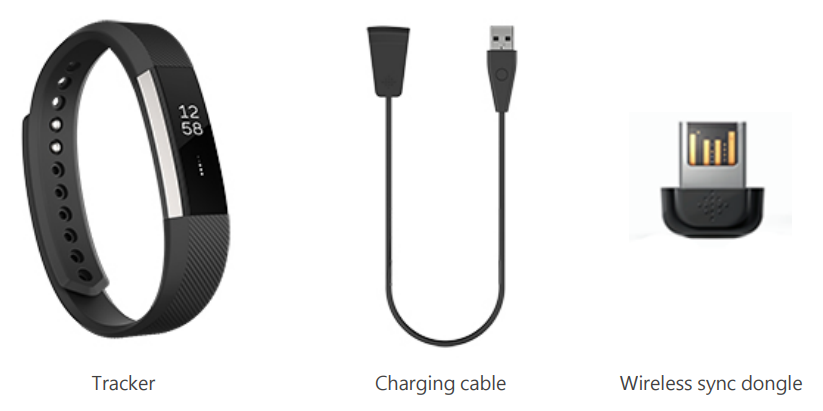
The detachable bands on Alta come in a variety of colors and materials, sold separately.
Charge your tracker
A fully-charged Alta has a battery life of up to 5 days. Battery life and charge cycles vary with use and other factors; actual results will vary.
To charge Alta:
- Plug the charging cable into the USB port on your computer, or a UL-certified USB wall charger, or another low-energy charging device.
- Clip the other end of the charger into the port on the back of Alta. The pins of the charging cable must be lined up with the charging port on Alta and securely locked into place. You'll know the connection is secure when the tracker vibrates and you see a battery icon on the screen.
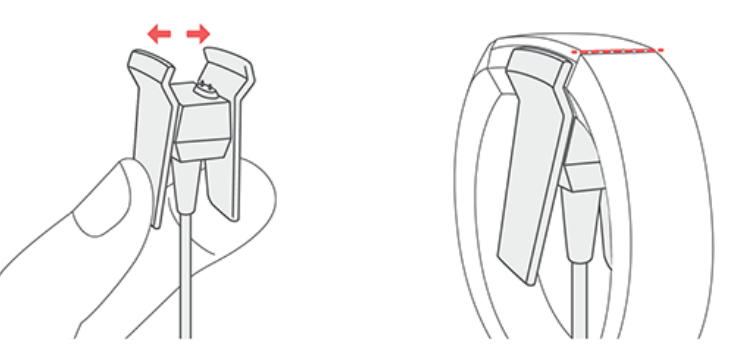
Charging fully takes up to 2 hours. While the tracker charges, tap it to check the battery level. A fully charged tracker shows a solid battery icon.
Set up with your phone.
Set up Alta with the Fitbit app for iPhones and iPads or Android phones. The Fitbit app is compatible with most popular phones and tablets. For more information, see Fitbit. Devices.
To get started:
- Download the Fitbit app:
- Apple App Store for iPhones
- Google Play Store for Android phones
- Install the app, and open it.
- If you already have a Fitbit account, log in to your account > tap the Today tab > your profile picture > Set Up a Device.
- If you don't have a Fitbit account, tap Join Fitbit to be guided through a series of questions to create a Fitbit account.
- Continue to follow the on-screen instructions to connect Alta to your account.
When you're done with setup, read through the guide to learn more about your new tracker and then explore the Fitbit app.
For more information, see help. fitbit
See your data in the Fitbit app.p
Open the Fitbit app on your phone to view your activity and sleep data, log food and water, participate in challenges, and more.
Wear Alta
Place Alta around your wrist. If you purchased another band, see the instructions in "Change the band" on page 10.
Put on your band
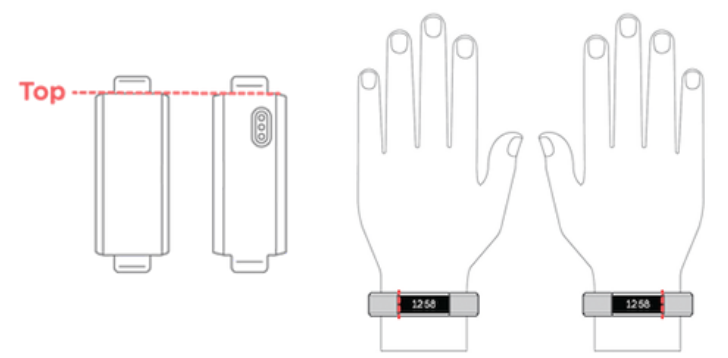
- Put on the band so the top of the tracker is on the outside or top of your wrist.
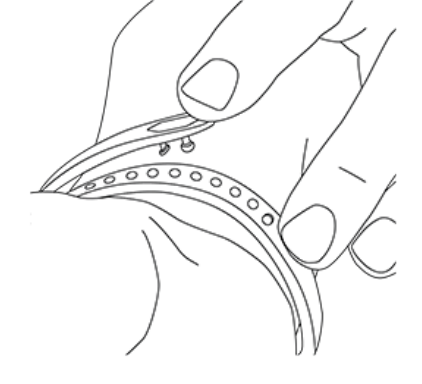
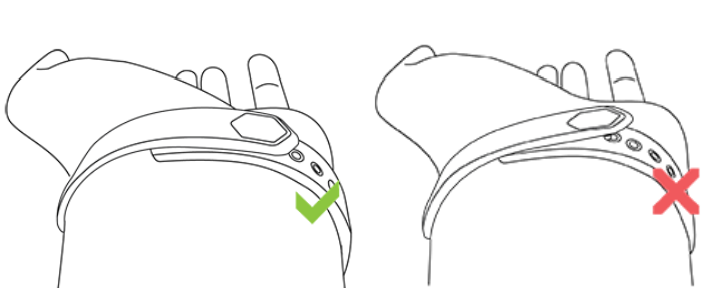
- Align both ends of the band so they are directly overlapping each other with the clasp over the two holes that best fit your wrist.
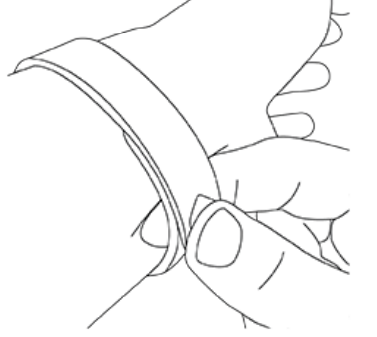
- Squeeze both the clasp and the band between your thumb and forefinger until you hear a click. You’ll know your Alta band is securely fastened if both ends of the band are fully inserted.
NOTE: If you’re having trouble, try securing the band off your wrist to get a feel for how it securely clasps and then try again on your wrist.
Wrist choice and handedness
For greater accuracy, you must specify which wrist you wear Alta on, and which hand you consider dominant. Your dominant hand is the one you use for writing and eating. To start, Wrist Placement is set to Left, and Handedness is set to Right. Change either setting in the Fitbit app:
From the Today tab  in the Fitbit app, tap your profile picture > Alta tile > Wrist
Placement or Handedness.
Change the band
The wristband has two separate bands (top and bottom) that you can swap with accessory bands sold separately.
Remove a band
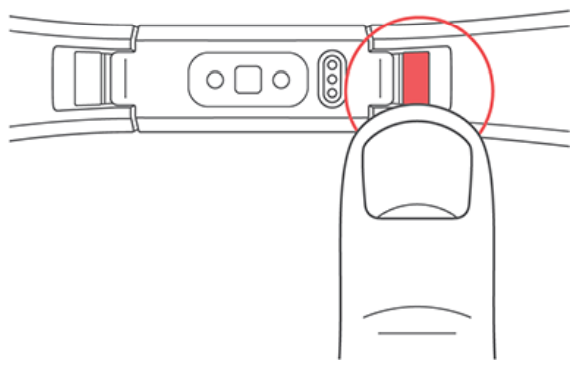
- Turn over Alta and find the band latches.
- To release the latch, press down on the flat button on the band.
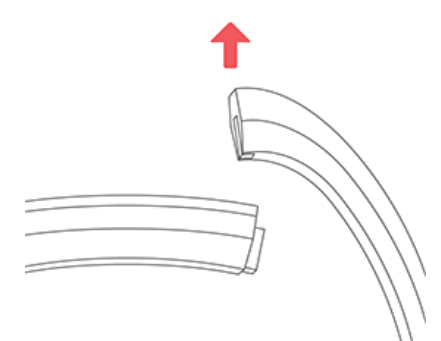
- Slide the band up from the tracker to release it.
- Repeat on the other side.
- If you’re having trouble removing the band or if it feels stuck, gently move the band back and forth to release it.
Attach a new band
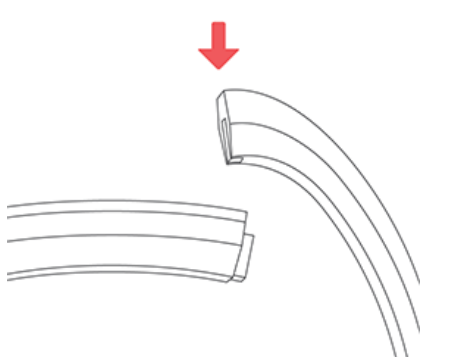
Before you attach a new wristband, first identify the top and bottom bands. The top band has a clasp on it and should be attached to the side closest to the charging port. The bottom band has notches in it.
To attach a new band, slide it down on the end of the tracker until you feel it snap into place.
Troubleshooting
If you experience any of the following issues, restart your tracker:
- Won't sync
- Won't track steps or other data
- Won't respond to taps
To restart your tracker:
- Plug the charging cable into the USB port on your computer or a UL-certified USB wall charger.
- Clip the other end of the charging cable to the port on the back of the tracker. The pins on the charging cable must lock securely with the port. You’ll know the connection is secure when the tracker vibrates and you see a battery icon on your tracker’s display. The battery icon disappears after three seconds.
- Press the button on your charging cable 3 times within 8 seconds, briefly pausing between presses. The button is on the end of the charging cable that is plugged into the computer. When you see the Fitbit logo and the tracker vibrates, this means the tracker has restarted.
After your tracker restarts, you can unplug it from the charging cable and put it back on.
General Info and Specifications
Sensors
Fitbit Alta contains the following sensors and motors:
- A MEMS 3-axis accelerometer, which tracks motion patterns
- A vibration motor
Materials
The band that comes with Alta is made of a flexible, durable elastomer material similar to that used in many sports watches. It does not contain latex. Accessory bands are available in genuine leather and stainless steel.
The clasp and housing on Alta are made of surgical-grade stainless steel. While all stainless steel contains traces of nickel and can cause an allergic reaction in someone with nickel sensitivity, the amount of nickel in all Fitbit products meets the European Union's stringent Nickel Directive.
Wireless technology
Alta contains a Bluetooth 4.0 radio transceiver.
Haptic feedback
Alta contains a vibration motor for alarms, goals, notifications, and reminders.
Battery
Alta contains a rechargeable lithium-polymer battery.
Memory
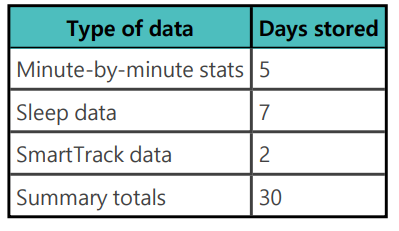
Refer to the following table for information on how long Alta stores stats and data in between the times when it syncs. Stored data consists of steps, distance, calories burned, active minutes, sleep, and stationary vs. active hours.
Display
Alta has an OLED tap display.
Band size
Band sizes are shown below. Note that accessory wristbands sold separately may vary slightly.

Environmental conditions
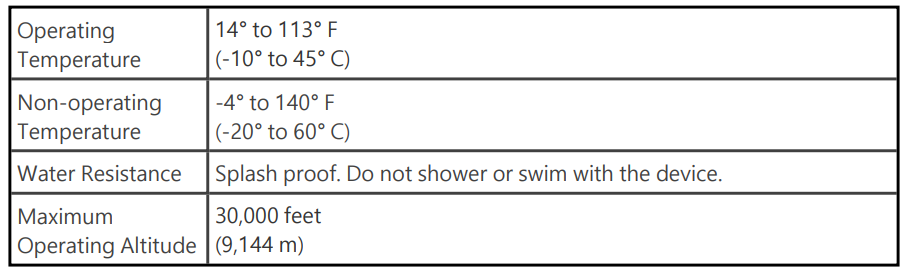
Return policy and warranty
Find warranty information and theFitbitt return policy at fitbit/legal/returns-and-warranty.
Pros & Cons of the Fitbit Alta Fitness Tracker
- Pros:
- Accurate Step and Activity Tracking: Fitbit’s SmartTrack feature automatically detects exercises and logs continuous movement of 15 minutes or more, providing reliable activity data.
- Long Battery Life: Up to 7 days on a single charge reduces frequent recharging interruptions.
- Stylish, Lightweight Design: Slim profile with customizable clock faces and interchangeable bands suits both casual and formal wear.
- Smartphone Notifications: Supports call, text, and calendar alerts via vibration, enhancing user convenience.
- Compatibility: Works with iOS (version 4+) and Android (4.4+) devices, widening its user base.
- Cons:
- No Built-in GPS: Relies on phone GPS for distance tracking, limiting standalone outdoor workout accuracy.
- Limited Workout Types: Exercise tracking focuses mainly on walking, running, and hiking ;i lacks variety for cycling or strength training.
- Splash Proof, Not Waterproof: Not suitable for swimming or heavy water exposure.
- No Music Control or Advanced Features: Basic fitness tracking without extras found in higher-end Fitbit models.
- Screen Navigation: Requires multiple taps to cycle through stats; no swipe gestures may feel less intuitive.
- Value for Money: The Fitbit Alta offers strong core fitness tracking features at a competitive price point, making it a solid option for users who want essential activity monitoring without premium costs.
- Comparison: Compared to alternatives like the Fitbit Charge series or Garmin Vivosmart, Alta is more style-focused but with fewer advanced features, making it better suited for casual users rather than serious athletes.
Customer Reviews of the Fitbit Alta Fitness Tracker
Users commonly praise the Fitbit Alta for its accurate step counting and easy-to-read display, with many appreciating its unobtrusive, stylish design suitable for all-day wear. The long battery life and timely Reminders to Move feature have received positive feedback for helping maintain consistent activity levels.
Some frequent complaints involve the lack of GPS and limited activity tracking options, with users desiring better support for cycling and indoor workouts. Others mentthat ion the screen navigation requiring multiple taps can be cumbersome. A few reports note that the splash-proof rating means care must be taken during water exposure, such as showers.
Overall, the Fitbit Alta holds an average rating of around 4 out of 5 stars across major retail platforms. Many reviewers recommend it for those seeking a simple, reliable fitness tracker with smart notification features, especially at its accessible price. However, fitness enthusiasts looking for advanced metrics or multi-sport support may prefer higher-tier models.
Faqs
How do I set up my fitbit Alta Fitness Tracker for the first time?
What should I do if my fitbit Alta Fitness Tracker is not syncing with my phone?
Why is my fitbit Alta Fitness Tracker not automatically recognizing my exercise sessions?
Can I use the fitbit Alta Fitness Tracker with both Android and iOS devices?
How can I fix common screen or responsiveness problems on my fitbit Alta Fitness Tracker?
What are the best ways to optimize battery life on the fitbit Alta Fitness Tracker?
How do I properly care for and maintain my fitbit Alta Fitness Tracker to ensure longevity?
What can I do if my fitbit Alta Fitness Tracker’s silent alarm or vibration alerts stop working?
More fitbit manuals
- How to Use: Fitbit Wireless Activity Wristband User Manual
- How to Use: Fitbit Ace 3 Fitness Tracker User Guide
- Fitbit Alta Fitness Tracker FB406 User Manual
- How to Use: Fitbit Ace 2 Fitness Tracker User Guide
- How to Use: Fitbit Ace Fitness Tracker User Guide
- Usage: Fitbit Alta HR Fitness Tracker User Manual
Leave a Comment