
Garmin nuviCam Automotive Navigation System User Manual
Content
Garmin nüviCam Automotive Navigation System: Full Product Manual and Buyer Guide
Introduction
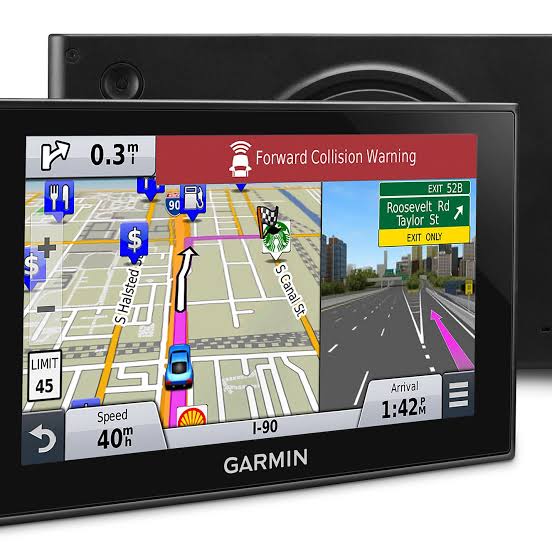
The Garmin nüviCam Automotive Navigation System is a premium all-in-one driving companion that combines turn-by-turn GPS navigation with a built-in dash cam, driver alerts, and smart routing features. Designed for drivers who want more than a standard car GPS, the nüviCam adds front-facing video recording, lane guidance, collision warnings, and visual destination assistance in a single 6-inch touchscreen unit. It is especially useful for commuters, road-trippers, rideshare drivers, and safety-conscious motorists who want navigation and incident recording in one device.
One of its standout benefits is the integrated camera, which can record your drive in full HD while the navigation display handles maps, traffic, and route guidance. Features such as lane departure warnings, forward collision alerts, and Garmin Real Vision-style destination cues help improve driver awareness in real time. The system also supports Bluetooth connectivity, voice guidance, traffic-aware routing, and microSD recording expansion, making it a practical choice for daily use and long-distance travel.
Although the Garmin nüviCam Automotive Navigation System is discontinued in many markets, it is still found through select retailers, refurbished listings, and secondary marketplaces. Typical pricing varies widely depending on condition and included accessories, with used units often appearing in the mid-range electronics category. For buyers looking for a GPS navigator with integrated dash cam functionality, it remains an appealing and feature-rich option.
Specifications
The Garmin nüviCam Automotive Navigation System combines navigation and video recording in a compact dashboard-mounted device. Below are the key technical specifications and capabilities.
- Display: 6.0-inch capacitive touchscreen with 800 x 480 resolution
- Camera: Built-in front-facing dash cam with full HD 1080p recording
- Storage: Supports microSD or microSDHC cards up to 64GB, class 4 or higher
- Connectivity: Bluetooth, USB, and smartphone integration support
- Mounting: Suction and dashboard-style mounting options
- Navigation: Turn-by-turn guidance, lane assist, and traffic-compatible routing
- Driver alerts: Forward collision warnings and lane departure warnings
- Map coverage: North America variants available, with lifetime map support on many editions
- Battery life: Short internal battery designed mainly for vehicle use
- Audio: Voice prompts and stereo audio output
Compared with a basic standalone car GPS, the Garmin nüviCam Automotive Navigation System offers more safety-focused features and built-in recording. Compared with a separate dash cam plus navigator setup, it reduces clutter and simplifies installation, though modern alternatives may offer higher-resolution screens, wider-angle cameras, and newer software ecosystems.
Setup Guide
Setting up the Garmin nüviCam Automotive Navigation System is straightforward and usually takes only a few minutes. Begin by placing the unit securely on the windshield or dashboard mount where the road is visible but the display does not block your view. Connect the power cable to the vehicle’s accessory outlet and wait for the device to boot.
Next, follow the on-screen prompts to choose language, region, and map preferences. Insert a compatible microSD card if you want to save dash cam footage. If your model supports Bluetooth, pair it with your smartphone from the settings menu to enable hands-free calling and traffic-related features. Adjust volume, brightness, recording quality, and driver alert sensitivity based on your driving environment.
For best results, update maps and system software before regular use. If the device does not power on, check the cable connection, vehicle outlet, and memory card seating. For safety, always configure destinations and settings before driving, and never handle the unit while the vehicle is moving.
Troubleshooting
Most issues with the Garmin nüviCam Automotive Navigation System are related to power, GPS reception, storage, or recording. If the screen stays blank, verify that the power cable is firmly attached and test the vehicle outlet with another accessory. If GPS signal acquisition is slow, move the device to a clear windshield area and allow a few minutes for satellite lock.
If dash cam recording fails, check whether the microSD card is inserted correctly, formatted properly, and rated at class 4 or higher. If footage appears corrupted, replace the card with a high-quality one and reformat it in the device. For error behavior such as freezing or repeated restarts, perform a reset through the settings menu or power-cycle the unit.
Preventive care includes keeping the lens clean, updating firmware regularly, and avoiding extreme heat exposure. Warranty and support options depend on seller and region, especially for discontinued units. For help, contact Garmin support through its official customer service channels or consult the product manual included with the device.
Pros & Cons
Pros
- Combines GPS navigation and dash cam recording in one device
- Useful driver assistance features such as lane departure and collision warnings
- 6-inch touchscreen provides clear route visibility and easy menu control
- Voice guidance and traffic support improve everyday usability
- Strong value for drivers who want fewer devices on the windshield
Cons
- Older hardware compared with newer Garmin navigator models
- Lower screen resolution than many modern GPS and dash cam hybrids
- Limited internal battery life makes it best for car use only
- Availability can be inconsistent because the model is discontinued
- Some competitors offer wider camera angles or higher-end video features
For buyers comparing a used Garmin nüviCam Automotive Navigation System with newer alternatives, the main tradeoff is feature integration versus modern hardware quality. It remains a solid choice for practical navigation and recording, but shoppers seeking the latest screen, mapping, and camera technology may prefer newer hybrid units.
Customer Reviews
Users often rate the Garmin nüviCam Automotive Navigation System around 4 out of 5 stars for convenience, route accuracy, and safety features. Many praise the “all-in-one” design, saying it reduces dashboard clutter and makes daily driving simpler. Drivers also like the clear voice directions and the added confidence of recording the road ahead.
Common complaints include the older display resolution, limited battery life, and the challenge of finding replacement units or accessories. Some buyers also mention that the camera and navigation hardware feel dated compared with newer products. Overall, customers recommend it most strongly for drivers who want dependable navigation with built-in dash cam protection rather than cutting-edge multimedia features.
Frequently Asked Questions
What is the Garmin nüviCam Automotive Navigation System used for?
It is used for GPS navigation, dash cam recording, driver alerts, and hands-free vehicle guidance.
Does it record in full HD?
Yes, the built-in dash cam supports full HD 1080p recording.
Is it still worth buying?
It can be worthwhile for drivers who want a combined navigator and dash cam, especially if they find a well-maintained unit at a reasonable price.
What memory card does it need?
It requires a microSD or microSDHC card up to 64GB with a class 4 or higher speed rating.
Faqs
How do I set up the Garmin nüviCam Automotive Navigation System for the first time?
Why is my Garmin nüviCam Automotive Navigation System not powering on or freezing at startup?
How does the built-in dash cam work on the Garmin nüviCam Automotive Navigation System?
What do Forward Collision Warning and Lane Departure Warning do on the Garmin nüviCam Automotive Navigation System?
Can I connect my smartphone to the Garmin nüviCam Automotive Navigation System for traffic and hands-free calling?
What memory card and storage setup does the Garmin nüviCam Automotive Navigation System require for dash cam recording?
How can I improve GPS accuracy and route performance on the Garmin nüviCam Automotive Navigation System?
How should I clean and maintain the Garmin nüviCam Automotive Navigation System for long-term use?
More garmin manuals
Leave a Comment