
Hp 381882-003 Docking Station User Manual
Content
HP 381882-003 Docking Station Overview
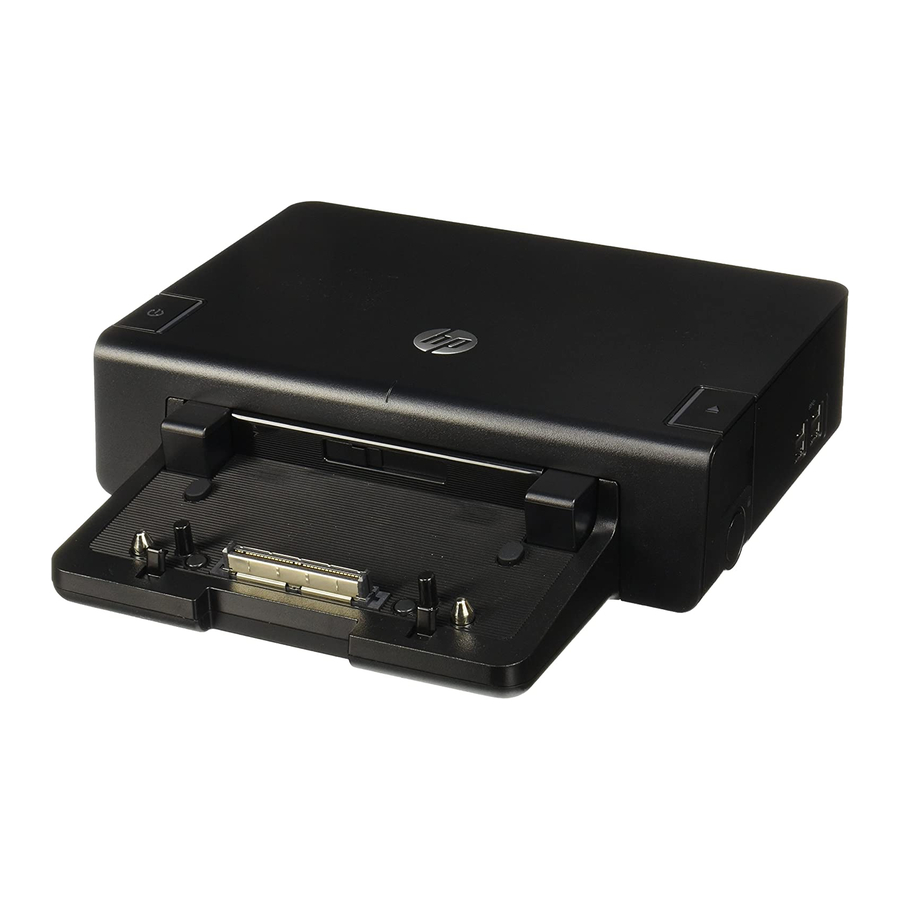
The hp 381882-003 Docking Station is a legacy HP expansion dock designed to turn a compatible business laptop into a fuller desktop workstation. It focuses on port replication, easier cable management, and faster daily workflow by letting users connect monitors, USB peripherals, Ethernet, audio devices, and power through a single docking connection. For office teams, remote workers, and IT departments, this kind of dock is especially useful when a laptop is moved between a desk and meetings throughout the day.
One of the biggest benefits of the hp 381882-003 Docking Station is its simplicity. Instead of reconnecting multiple cables each time, users can place the laptop on the dock and instantly access external displays and accessories. This makes it a strong choice for productivity setups, dual-monitor workspaces, and enterprise environments that rely on standardized hardware. It is also valued for its space-saving design, which keeps desks organized and reduces wear on laptop ports.
This dock is best suited for users with compatible HP business notebooks who need a reliable legacy docking solution rather than a modern USB-C or Thunderbolt dock. As a used or refurbished product, the estimated price range is typically around $20 to $70, depending on condition, included power adapter, and seller. Availability is usually found through resale marketplaces, refurbished electronics stores, and surplus office equipment sellers rather than current retail channels.
How to Use hp 381882-003 Docking Station with a Compatible Laptop
To use the hp 381882-003 Docking Station, align the notebook with the docking connector and seat it firmly until it locks into place. Once connected, the system should recognize attached displays, network access, and USB devices without needing to plug in each accessory individually. If the laptop requires external power through the dock, make sure the correct HP adapter is connected before docking.
For the best results, install the latest chipset, graphics, and docking-related drivers supported by the laptop model. This helps prevent display detection problems and ensures smoother hot-docking behavior. If you frequently use dual monitors, confirm that the laptop and dock combination supports the desired resolution and refresh rate.
Troubleshooting hp 381882-003 Docking Station Problems
Common issues include no display output, USB devices not responding, charging failures, and the laptop not detecting the dock. If the monitor stays blank, reseat the laptop, check that the display cable is secure, and power-cycle the dock by unplugging it for 30 seconds. If USB peripherals fail, test the device directly on the laptop to rule out a peripheral issue. A common dock-related error is a loose connection rather than a true hardware fault.
If the system shows an undetected docking accessory or similar hardware warning, reinstall the laptop’s docking, chipset, and graphics drivers, then restart the computer. For intermittent power or charging problems, confirm that the AC adapter matches the dock’s required wattage and that the power cable is undamaged. Preventive maintenance includes keeping the docking connector clean, avoiding rough placement of the notebook, and updating BIOS and drivers regularly.
Warranty coverage for used units depends on the seller, original purchase status, and any remaining HP support terms. For help, contact HP Support through the official support portal or speak with the seller if the unit was purchased refurbished or second-hand.
Pros and Cons of the hp 381882-003 Docking Station
Pros
- Simple one-step docking for desks that need quick connect and disconnect convenience.
- Good port replication for classic office setups with monitors, keyboard, mouse, Ethernet, and audio.
- Helps reduce cable clutter and keeps workstations more organized.
- Often available at a low used price, making it a budget-friendly legacy docking solution.
- Solid option for organizations that still use compatible HP business laptops.
Cons
- Limited to older HP notebook compatibility, so it is not ideal for newer USB-C laptops.
- May lack modern features such as USB-C power delivery, Thunderbolt, or advanced display bandwidth.
- Used units can vary in condition, and missing power adapters may add extra cost.
- For users buying new hardware, a newer universal dock may offer better long-term value.
Overall, the hp 381882-003 Docking Station offers strong value for owners of compatible legacy HP systems. It is less versatile than modern universal docks, but for the right laptop it remains a practical and cost-effective workstation upgrade.
Customer Reviews and User Feedback
User feedback for the hp 381882-003 Docking Station is generally positive among buyers who need a dependable legacy dock. Typical ratings fall around 4 out of 5 stars for compatibility, simplicity, and desk organization. Many users praise the easy docking process and the convenience of connecting multiple peripherals at once.
Common compliments include stable desktop use, cleaner cable management, and reliable performance once the correct drivers are installed. Common complaints focus on age-related wear, missing power adapters, and compatibility limits with newer laptops. One user noted, “Perfect for my older HP notebook and dual-monitor office setup,” while another said, “Works well, but only after I confirmed the right adapter and drivers.”
This dock is a good purchase for anyone replacing a lost docking unit or building a low-cost office station around an older HP business laptop. Buyers with newer devices should compare it with a modern USB-C docking station before deciding.
Frequently Asked Questions About hp 381882-003 Docking Station
What is the hp 381882-003 Docking Station used for?
It is used to connect a compatible HP laptop to external monitors, USB devices, Ethernet, and power through one docking connection.
Is the hp 381882-003 Docking Station still worth buying?
Yes, if you own a compatible legacy HP notebook and want an affordable desktop-style setup. For newer laptops, a modern USB-C dock is usually a better choice.
Why is my dock not working?
Most problems come from loose seating, missing drivers, incompatible laptops, or an incorrect power adapter. Reconnecting the dock and updating drivers solves many cases.
Faqs
How do I set up hp 381882-003 Docking Station for the first time?
What laptops are compatible with hp 381882-003 Docking Station?
Why is my hp 381882-003 Docking Station not detecting my external monitor?
How can I fix charging issues with hp 381882-003 Docking Station?
What ports and features does hp 381882-003 Docking Station usually provide?
How do I get the best performance from hp 381882-003 Docking Station with dual monitors?
What should I do if hp 381882-003 Docking Station keeps disconnecting?
How do I clean and maintain hp 381882-003 Docking Station safely?
More hp manuals
Leave a Comment