
Hp Fortis-14 G11 Chromebook User Manual
Content
hp Fortis-14 G11 Chromebook: Product Overview and Buying Guide
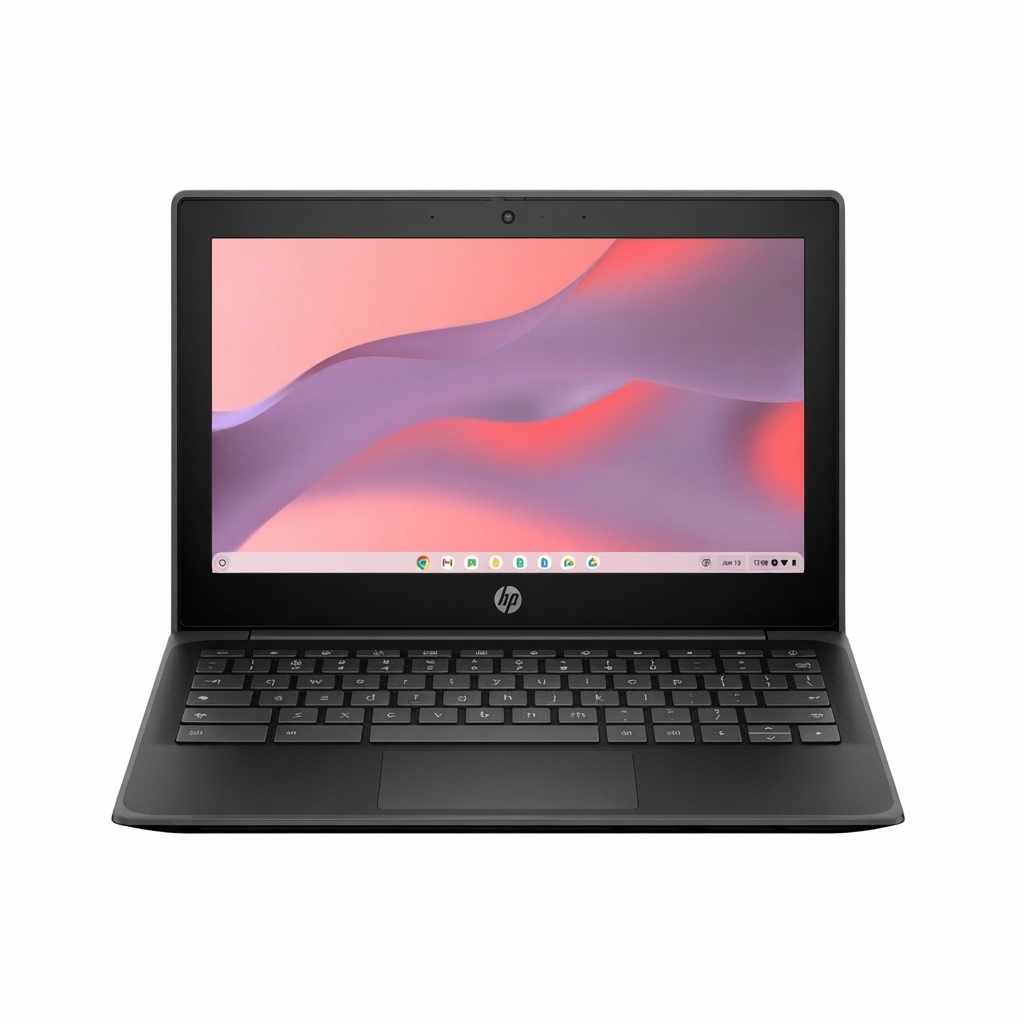
The hp Fortis-14 G11 Chromebook is a business- and education-focused ChromeOS laptop built for dependable everyday use, simple management, and long battery life. It typically comes with Intel N-series processors such as the N100 or N200, 8 GB LPDDR5 memory in many configurations, and storage options that range from 32 GB eMMC to 128 GB UFS depending on the model. The 14-inch display is available in HD or Full HD variants, with some versions offering touch support, anti-glare coating, and up to 300 nits of brightness for easier use in classrooms and office environments.
One of the biggest strengths of the hp Fortis-14 G11 Chromebook is its focus on durability and portability. It is designed for students, remote workers, and organizations that need a straightforward Chromebook for web apps, video calls, document editing, and cloud-based workflows. The included USB-C, USB-A, HDMI, Wi-Fi 6, and optional touch display make it flexible for modern productivity. Battery life can reach around 10 hours in certain configurations, while fast charging support helps reduce downtime.
Estimated pricing usually starts around the low-to-mid $300 range for entry models and can rise to roughly $400 or more for upgraded memory, storage, or touchscreen variants. Availability is generally strongest through HP business channels, major online retailers, and commercial resellers. For buyers looking for a reliable, lightweight Chromebook with strong manageability and practical everyday performance, the hp Fortis-14 G11 Chromebook is a solid value-oriented option.
Troubleshooting hp Fortis-14 G11 Chromebook Common Problems
If the hp Fortis-14 G11 Chromebook will not power on, connect the charger for at least 30 minutes and try a hard reset by holding Refresh and Power together. If the battery drains unusually fast, lower screen brightness, close unused tabs, and check whether Android apps or video conferencing tools are consuming excess power. Slow performance is often caused by too many browser tabs, low storage space, or outdated ChromeOS updates.
Common Chromebook error codes usually point to network or system issues. Error code 0x0000001 or similar startup failures may indicate a firmware or recovery problem, while network errors such as DNS or connection failures often clear after restarting the router or reconnecting Wi-Fi. If a login screen loops repeatedly, remove and re-add the Google account, then confirm device date and time are correct. For display flicker or touch issues on touchscreen versions, update ChromeOS and disconnect external accessories before testing again.
Preventive care helps avoid most problems. Keep ChromeOS updated, store files in cloud storage, avoid overloading the device with unnecessary extensions, and use a protective sleeve for transport. HP support typically offers warranty service for covered hardware defects, and business buyers may also have managed support plans. For help, use HP support through the official support website, the HP Support Assistant app, or regional customer care by phone or live chat.
Pros and Cons of the hp Fortis-14 G11 Chromebook
Pros
- Durable design suited for schools, shared workspaces, and daily travel.
- ChromeOS delivers fast boot times, automatic updates, and simple management.
- Intel N-series processors handle browsing, Google Workspace, and video meetings well.
- Practical port selection with USB-C, USB-A, and HDMI on many models.
- Good battery life and fast charging support make it useful for all-day use.
- Strong value for organizations that need a low-maintenance Chromebook fleet.
Cons
- Entry models with 32 GB or 64 GB storage can feel limited for offline files.
- HD displays on some versions are less sharp than Full HD alternatives.
- Performance is fine for web-based tasks but not ideal for demanding apps or heavy multitasking.
- Compared with premium Chromebooks, the design is more functional than stylish.
Overall, the hp Fortis-14 G11 Chromebook offers better business durability and manageability than many consumer Chromebooks, while remaining affordable. It is a stronger fit than ultra-budget models, but shoppers who want a brighter display or more local storage may prefer a higher-spec Chromebook.
Customer Reviews: What Buyers Say About the hp Fortis-14 G11 Chromebook
Typical customer feedback is positive, with many users praising the fast startup, light weight, and dependable performance for schoolwork and web browsing. Common ratings often fall around 4 out of 5 stars for buyers who value practicality over premium features. One frequent comment is that the keyboard feels comfortable for long typing sessions, while another popular note is that ChromeOS keeps the system easy to use.
Complaints usually focus on the lower-resolution display in base configurations, modest storage capacity, and the fact that it is not designed for heavy creative work. A common testimonial theme is: “Great for classes, Google Docs, and video calls, but not the laptop for large offline projects.” Buyers who recommend it most often are those looking for a dependable Chromebook for students, office staff, or fleet deployment.
Frequently Asked Questions About the hp Fortis-14 G11 Chromebook
Is the hp Fortis-14 G11 Chromebook good for school?
Yes. It is well suited for online classes, assignments, research, and collaboration tools.
Can it run Android apps?
Most ChromeOS models support Android apps through the Google Play Store, depending on admin settings and configuration.
Is it worth the price?
Yes for users who want durability, battery life, and easy management at a reasonable cost. It is less ideal for users who need large local storage or premium display quality.
Faqs
How do I set up hp Fortis-14 G11 Chromebook for the first time?
Why is my hp Fortis-14 G11 Chromebook running slowly and how can I improve performance?
Can hp Fortis-14 G11 Chromebook run Windows apps or only ChromeOS apps?
What should I do if hp Fortis-14 G11 Chromebook will not connect to Wi-Fi?
How do I extend battery life on hp Fortis-14 G11 Chromebook during a full school day?
What accessories are compatible with hp Fortis-14 G11 Chromebook for remote learning or work?
How do I keep hp Fortis-14 G11 Chromebook secure for student or family use?
How should I clean and maintain hp Fortis-14 G11 Chromebook to avoid damage?
Tags
More hp manuals
Leave a Comment