
Hp LCD Monitors 2011x User Manual
Content
HP LCD Monitors 2011x Overview
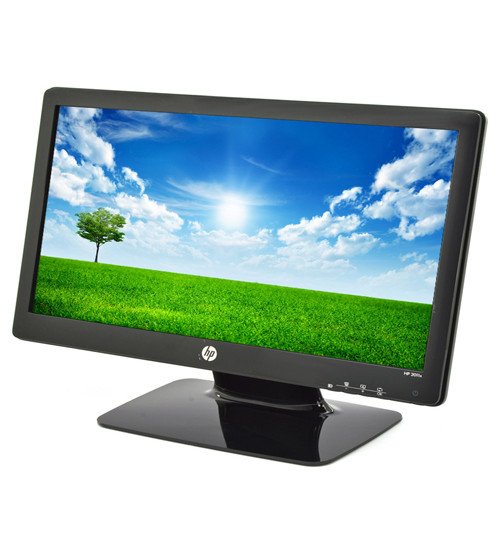
The HP LCD Monitors 2011x is a 20-inch widescreen LED-backlit display designed for everyday computing, office productivity, and general home use. It delivers a 1600 x 900 HD+ resolution, a 16:9 aspect ratio, and a fast 5 ms response time, making it a practical choice for users who want a compact monitor with sharp text, solid color performance, and smooth motion handling. With VGA and DVI-D connectivity, the 2011x works well with both older desktops and more modern systems that still support digital video output.
This model is especially appealing for business users, students, and budget-conscious buyers looking for a reliable second monitor or a simple main display for web browsing, documents, streaming, and light media work. Its matte anti-glare panel helps reduce reflections in bright rooms, while the 170-degree horizontal and 160-degree vertical viewing angles make it easier to share the screen in a workstation setup. The monitor’s compact footprint also makes it suitable for small desks and multi-monitor layouts.
At launch, the HP 2011x typically sat in the affordable midrange segment, and current availability is mostly through refurbished, used, or clearance listings. Estimated pricing usually falls around $50 to $100 depending on condition, seller, and included accessories. For users searching for a dependable legacy LCD monitor with basic ergonomic adjustability and decent everyday performance, hp LCD Monitors 2011x remains a sensible option.
Specifications for HP 2011x 20-Inch LED Monitor
- Display size: 20 inches diagonal
- Resolution: 1600 x 900 HD+ at 60 Hz
- Panel type: TN LED-backlit LCD
- Aspect ratio: 16:9 widescreen
- Brightness: 250 cd/m²
- Contrast ratio: 1000:1 native, up to 3,000,000:1 dynamic
- Response time: 5 ms gray-to-gray
- Viewing angles: 170° horizontal, 160° vertical
- Surface finish: Matte anti-glare
- Connectivity: VGA and DVI-D with HDCP support
- Power use: about 27 W during operation, 0.5 W standby
- Weight: approximately 3.2 kg
Compared with similar budget monitors of its era, the hp LCD Monitors 2011x stands out for its combination of HD+ resolution, low power consumption, and dual input support. It is not meant for color-critical design work, but it performs well for office tasks, home productivity, and basic multimedia use. If you are comparing it with 19-inch or 18.5-inch 1366 x 768 displays, the 2011x offers noticeably more desktop space and cleaner text rendering.
How to Set Up HP LCD Monitors 2011x
Setting up the monitor is straightforward and usually takes only a few minutes. Place the display on a stable desk, attach the stand if it is not pre-installed, and connect the video cable to your computer using either VGA or DVI-D. If your PC supports digital output, DVI-D is the better choice because it provides a cleaner image than analog VGA.
After connecting the video source, plug in the power cable and turn on the monitor. Use the on-screen display buttons to select the correct input source, then adjust brightness, contrast, and image position as needed. For the best result, set your computer resolution to 1600 x 900 at 60 Hz. If the image appears blurry, confirm that the cable is fully seated and that the monitor is using the correct input setting.
Safety tips are important during installation. Do not block ventilation openings, avoid placing the screen near heat sources, and use only the supplied or compatible power adapter and cables. If the display fails to power on, test another wall outlet and verify that the power indicator is lit before troubleshooting further. For multi-monitor setups, use matching resolution settings across screens to reduce scaling issues and improve workflow consistency.
Troubleshooting HP 2011x Monitor Problems
Common issues with the hp LCD Monitors 2011x usually involve no signal, blurry text, or incorrect screen sizing. If the monitor shows a black screen or “No Signal” message, check that the VGA or DVI cable is firmly connected and that the correct input is selected from the menu. If the display works on one cable but not the other, the problem may be with the cable or the computer’s output port.
For image quality issues, set the native resolution to 1600 x 900 and make sure scaling is handled by the graphics driver rather than the monitor. If the screen flickers, replace the cable and test another computer to rule out a graphics card issue. There are no widely used numeric error codes for this model; most faults are indicated by power light behavior, no-signal messages, or on-screen warnings.
Preventive care helps extend the life of the monitor. Keep dust away from ports, avoid pressing on the panel, and shut the display down properly when not in use. Since this is an older model, support is often limited to seller warranties, refurbished-product guarantees, or HP documentation archives. For help, contact the retailer where the monitor was purchased or use HP’s customer support channels for legacy product documentation and compatibility guidance.
Pros and Cons of HP LCD Monitors 2011x
Pros
- Compact 20-inch size fits small desks and secondary-monitor setups
- 1600 x 900 resolution provides more workspace than 720p and lower-end HD panels
- VGA and DVI-D inputs make it compatible with older and newer PCs
- Matte finish reduces glare in offices and bright rooms
- Low power consumption is good for everyday use
- Affordable value, especially on the used and refurbished market
Cons
- TN panel color quality is basic compared with IPS alternatives
- No built-in speakers, USB hub, or advanced ergonomic features
- Resolution is modest by modern standards
- Best suited for productivity rather than creative work or gaming
- Availability is mostly limited to secondhand listings
In terms of value for money, hp LCD Monitors 2011x is strongest as a low-cost office monitor or backup display. If you need better color accuracy, wider viewing angles, or higher resolution, an IPS-based alternative will deliver a more modern experience.
Customer Reviews Summary for HP 2011x Monitor
User feedback for hp LCD Monitors 2011x is generally positive, with many buyers giving it around 4 out of 5 stars for reliability and practicality. Reviewers often praise its compact footprint, easy setup, and solid everyday performance for email, spreadsheets, and web browsing. A common testimonial theme is that it “just works” and is especially useful as a secondary screen.
Frequent complaints focus on the older TN panel, limited resolution compared with newer monitors, and the fact that most units are now sold used or refurbished. Buyers also mention that the monitor is not ideal for high-end gaming or design work. For shoppers who want a simple, inexpensive display for work or home office use, the hp LCD Monitors 2011x remains a reasonable purchase if the unit is tested and includes the correct power and video cables.
Faqs
How do I set up hp LCD Monitors 2011x for the first time?
What should I do if my hp LCD Monitors 2011x is blank but the power light is on?
Which resolution is best for hp LCD Monitors 2011x to avoid blurry text?
Can hp LCD Monitors 2011x work with laptops, desktop PCs, and older systems?
Why does the image on hp LCD Monitors 2011x look washed out or too dark?
How do I use the QuickView modes on hp LCD Monitors 2011x effectively?
What is the best way to clean and maintain hp LCD Monitors 2011x?
How can I improve gaming and video performance on hp LCD Monitors 2011x?
Tags
More hp manuals
Leave a Comment