
Hp Pavilion Gaming 15 Laptop PC User Manual
Content
HP Pavilion Gaming 15 Laptop PC: Complete Product Manual and Buyer Guide
Introduction
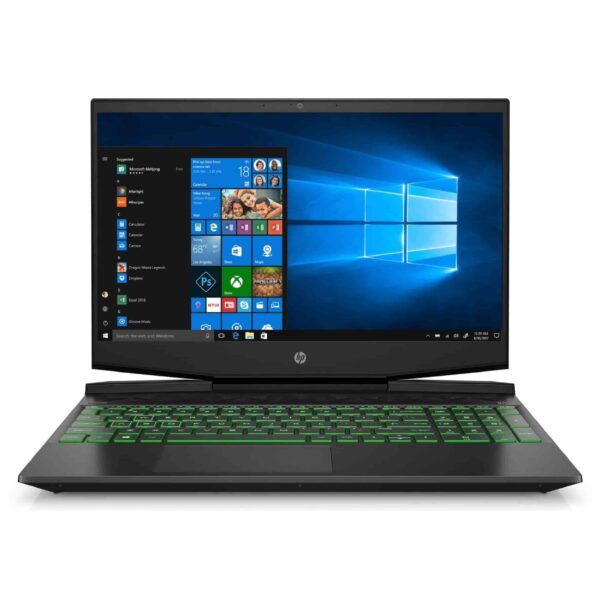
The HP Pavilion Gaming 15 Laptop PC is a well-rounded entry-level gaming laptop designed for users who want solid everyday performance without paying premium gaming prices. Built for casual gamers, students, creators, and professionals who need a capable machine for multitasking, streaming, and light-to-moderate gaming, it delivers a practical balance of speed, graphics power, and portability. Depending on configuration, the HP Pavilion Gaming 15 Laptop PC typically includes a 15.6-inch Full HD display, Intel Core or AMD Ryzen processors, NVIDIA GeForce GTX or RTX graphics, fast SSD storage, and modern wireless connectivity.
Its main appeal lies in its value. The laptop offers enough horsepower for popular games, photo editing, office productivity, and multimedia work while maintaining a more affordable price than many mainstream gaming notebooks. The design is understated compared with flashy RGB-heavy alternatives, which makes it suitable for both work and play. Users also benefit from upgrade-friendly configurations on many models, including memory and storage expansion options.
For buyers searching for a budget-friendly gaming notebook, the HP Pavilion Gaming 15 Laptop PC remains a strong choice. Estimated pricing varies by configuration and market, but many models have historically fallen in the mid-range gaming category, often around the $700 to $1,200 range depending on CPU, GPU, RAM, and storage. Availability may be limited to existing stock, refurbished units, or marketplace sellers, since newer HP gaming lines have largely replaced it.
Specifications
- Display: 15.6-inch Full HD 1920 x 1080 IPS panel, commonly 60 Hz on older variants and up to 144 Hz on some later models.
- Processor options: Intel Core i5/i7 H-series or AMD Ryzen 5/Ryzen 7 H-series processors, depending on model year.
- Graphics: NVIDIA GeForce GTX 1050, GTX 1650, GTX 1660 Ti Max-Q, or RTX 3050 on selected configurations.
- Memory: 8 GB to 16 GB DDR4 RAM, with many models supporting upgrades.
- Storage: 256 GB to 512 GB NVMe SSD, sometimes paired with a 1 TB hard drive on earlier versions.
- Connectivity: Wi-Fi 5 or Wi-Fi 6, Bluetooth 5.0 or later, HDMI, USB Type-A, USB Type-C, Ethernet on select units, and SD card reader on some models.
- Battery life: Typically enough for mixed productivity use, with gaming significantly reducing runtime.
- Performance: Capable of smooth 1080p gameplay in esports titles and respectable frame rates in many mainstream games at medium settings.
Compared with similar budget gaming laptops such as the Lenovo IdeaPad Gaming series or Acer Nitro models, the HP Pavilion Gaming 15 Laptop PC is often praised for its cleaner design and quieter operation, while some rivals may offer brighter displays or slightly better thermals.
Detailed Description
The HP Pavilion Gaming 15 Laptop PC is designed to function as an all-purpose portable computer with gaming features built in. It uses a traditional clamshell design with a 15.6-inch display, a full keyboard layout, and gaming-oriented cooling to support higher sustained performance. Internally, the system combines a high-performance mobile processor with dedicated graphics, which allows it to handle games, streaming, content creation, and everyday multitasking more effectively than standard consumer laptops.
In real-world use, this laptop is well suited for titles such as Fortnite, Valorant, League of Legends, Rocket League, and similar competitive games. It can also handle productivity tasks like document editing, spreadsheets, video calls, web browsing, and light video editing. Many models feature an anti-glare display, which improves comfort during long sessions, while the keyboard and trackpad provide dependable daily usability.
Build quality is generally solid for the class, with a mostly plastic chassis that helps keep weight and cost down. The design is understated, making it appropriate for school, office, and home use. Users often appreciate the upgrade flexibility and balanced performance, though the display brightness and battery life are not class-leading. Overall, the HP Pavilion Gaming 15 Laptop PC offers a practical gaming laptop experience for buyers who want strong value rather than premium luxury features.
Setup Guide
Setting up the HP Pavilion Gaming 15 Laptop PC is straightforward and usually takes only a few minutes. Start by placing the laptop on a flat, ventilated surface and connecting the included power adapter before the first boot. Press the power button, then follow the on-screen Windows setup prompts to choose your region, language, keyboard layout, and network connection. If the system supports Wi-Fi 6, connect to a compatible router for the best wireless performance.
After the initial setup, sign in with or create a Microsoft account, then check for Windows updates and HP driver updates. Install the latest graphics drivers from NVIDIA or AMD, depending on your configuration, to improve gaming performance and stability. Configure power settings in Windows to balance battery life and performance based on your use case. For gaming, select a high-performance power profile when plugged in.
For connectivity, pair Bluetooth accessories such as a gaming mouse, headset, or controller through Windows Bluetooth settings. If the laptop includes HDMI or USB-C video output, you can connect an external monitor for a larger workspace or improved gaming setup. Avoid blocking the cooling vents, and do not use the device on soft surfaces like beds or cushions during heavy gaming sessions. If the laptop fails to start, verify the charger connection, perform a hard reset, and ensure the battery has enough charge before further troubleshooting.
Troubleshooting
Common issues with the HP Pavilion Gaming 15 Laptop PC usually involve startup problems, driver conflicts, overheating, or performance slowdowns. If the laptop runs slowly, check Task Manager for background applications using excessive CPU or memory, then uninstall unnecessary software and free up storage space. Updating BIOS, chipset, and graphics drivers often resolves instability and game crashes.
If the display remains black, confirm that brightness is not turned down, reconnect any external monitor, and test with a full power reset. If you see Windows error messages after updates, use System Restore or Windows Recovery options to roll back recent changes. Overheating can often be reduced by cleaning vents, using a cooling pad, and avoiding blocked airflow.
For battery or charging problems, inspect the power adapter and charging port for damage. If the battery drains too quickly, reduce screen brightness, disable unused background apps, and choose balanced power settings. HP support typically offers warranty service, online diagnostic tools, and driver downloads through its support portal. If the system is still under warranty, contact HP customer support or an authorized service provider for repair assistance.
Pros & Cons
Pros
- Strong value for money in the entry-level gaming laptop category.
- Capable 1080p performance for esports and mainstream games.
- Clean, professional design that works for school and office use.
- Upgrade-friendly RAM and storage on many configurations.
- Good balance of everyday productivity and gaming performance.
Cons
- Display brightness and color accuracy may be modest on some versions.
- Battery life drops quickly during gaming or heavy workloads.
- Plastic build feels less premium than higher-end gaming laptops.
- Cooling can become noticeable under sustained load.
- Older models may lag behind newer budget gaming alternatives in efficiency.
Compared with alternatives like the Acer Nitro 5 or Lenovo IdeaPad Gaming series, the HP Pavilion Gaming 15 Laptop PC often wins on design simplicity and balanced day-to-day use, while rivals may offer newer components or better thermal headroom. For buyers prioritizing price and versatility, it remains a sensible purchase.
Customer Reviews
Overall customer feedback for the HP Pavilion Gaming 15 Laptop PC is generally positive, with many users giving it around 4 out of 5 stars for value and performance. Buyers often praise its fast startup times, smooth gaming in popular titles, and understated design. One common testimonial theme is that it feels like a good “first gaming laptop” because it handles both work and entertainment without being overly expensive.
Frequent complaints include average battery life, a display that may feel dim in bright rooms, and fan noise under load. Some users also mention that base configurations with limited RAM or smaller SSDs benefit from upgrades. Despite these concerns, many customers recommend it for students, casual gamers, and budget-conscious buyers who want dependable 1080p performance. If a good deal is available on a well-equipped configuration, it is often considered worth buying.
Faqs
How do I set up hp Pavilion Gaming 15 Laptop PC for the first time?
What should I do if my hp Pavilion Gaming 15 Laptop PC is running slowly in games?
How do I fix hp Pavilion Gaming 15 Laptop PC overheating during long gaming sessions?
Which accessories are compatible with hp Pavilion Gaming 15 Laptop PC for better gaming and streaming?
Can I upgrade RAM or storage on hp Pavilion Gaming 15 Laptop PC?
Why is my hp Pavilion Gaming 15 Laptop PC battery draining so fast, and how can I improve battery life?
How do I connect an external monitor to hp Pavilion Gaming 15 Laptop PC?
What maintenance should I do regularly on hp Pavilion Gaming 15 Laptop PC to keep it performing well?
More hp manuals
Leave a Comment