
Hp DesignJet Z6 & Z9+ Series Printer User Manual
Content
hp DesignJet Z6 & Z9+ Series Printer Manual
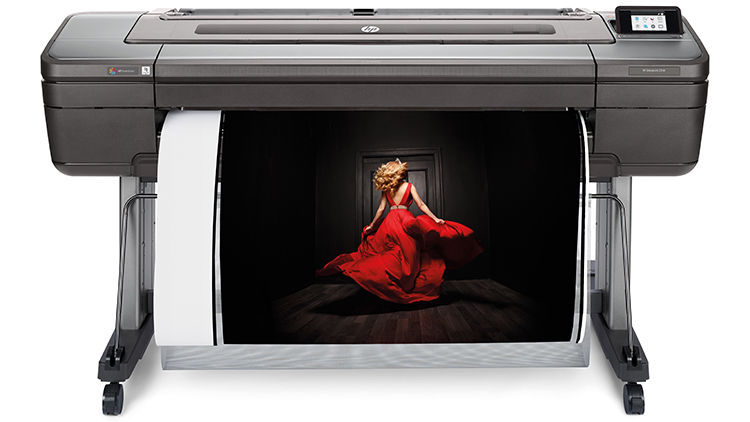
Introduction: Professional Large-Format Printing for Color-Critical Work
The hp DesignJet Z6 & Z9+ Series Printer is built for professionals who need gallery-quality prints, accurate color output, and dependable large-format performance. Designed for photographers, graphic designers, print service providers, architects, and reprographics teams, this series delivers sharp detail, smooth gradients, and vivid results on everything from photo paper to technical media. The Z6 model focuses on high-precision output with a 6-ink system, while the Z9+ expands the color range with a 9-ink system and optional gloss enhancer for richer tonal transitions and improved surface consistency.
One of the biggest advantages of the hp DesignJet Z6 & Z9+ Series Printer is its ability to combine professional print quality with efficient workflow features such as dual-roll handling, automated color calibration, and high-speed processing. These printers are especially valuable in environments where color accuracy and repeatability matter, including fine art studios, photography labs, corporate design departments, and CAD/GIS production teams. The built-in large-format capabilities also make them suitable for posters, presentation graphics, concept proofs, and premium photo prints.
Estimated pricing typically starts in the mid-to-high professional range, often around $5,000 to $10,000+ depending on model size, configuration, and regional availability. The 24-inch versions are generally more accessible, while 44-inch and dual-roll configurations cost more. Availability is strongest through HP, authorized resellers, and business print suppliers. For organizations seeking a premium production printer, the hp DesignJet Z6 & Z9+ Series Printer remains a strong option for color confidence, versatility, and long-term reliability.
Specifications: hp DesignJet Z6 & Z9+ Series Printer Technical Details
- Print technology: HP Thermal Inkjet
- Ink system: Z6 uses 6 inks; Z9+ uses 9 pigmented inks with optional Gloss Enhancer
- Maximum resolution: Up to 2400 x 1200 optimized dpi
- Print speeds: Up to 866 ft²/hr on plain media for Z6; up to 769 ft²/hr on plain media for Z9+
- Glossy media performance: Approximately 104 ft²/hr for Z6 and 48 ft²/hr for Z9+ in best mode
- Media widths: 24-inch and 44-inch configurations depending on model
- Media handling: Automatic roll feed, cut sheet feeder, dual-roll options on selected models
- Connectivity: Gigabit Ethernet, USB, and network printing support
- Storage: 500 GB hard drive
- File support: Adobe PostScript 3, PDF, TIFF, JPEG, HP-GL/2, and HP-RTL
- Comparison: The Z6 is ideal for users prioritizing speed and precision, while the Z9+ is better for color-critical photo and fine art work with wider tonal depth
Compared with many competing large-format printers, the hp DesignJet Z6 & Z9+ Series Printer stands out for its combination of print resolution, workflow automation, and professional color management. The Z9+ is especially competitive for premium output, while the Z6 offers a strong balance of speed and image fidelity.
Detailed Description: How the HP DesignJet Z6 and Z9+ Work
The hp DesignJet Z6 & Z9+ Series Printer is engineered to produce accurate, high-impact output with minimal manual intervention. It uses pigment-based ink technology to lay down precise droplets across the media surface, generating detailed images with smooth transitions and deep blacks. The Z6’s 6-ink setup is designed for excellent color performance, while the Z9+’s expanded 9-ink system improves gamut and enhances subtle color gradation. On supported models, the optional gloss enhancer helps reduce bronzing and improve uniformity on glossy media.
In practical use, the printer supports a wide range of professional workflows. Photographers can output exhibition prints, designers can create posters and presentation boards, and technical teams can generate high-resolution drawings or maps. The dual-roll and cut-sheet options also make it easier to switch between media types and manage production volume. Build quality is solid and business-oriented, with a large touchscreen interface, durable chassis, and components designed for frequent use in office or studio environments.
Users generally appreciate the clean output quality, reliable color consistency, and efficient file handling. The printer feels like a production tool rather than a desktop accessory, making it suitable for demanding environments where speed, quality, and reliability all matter.
Setup Guide: Installing the hp DesignJet Z6 & Z9+ Series Printer
- Unpack the printer carefully and place it on a stable, level surface with enough clearance for rolls, sheets, and rear access.
- Remove all shipping materials and verify that the power cord, printheads, starter inks, and documentation are included.
- Install the stand or base if required, then connect the printer to a dedicated power outlet.
- Insert the ink cartridges and follow the on-screen prompts to initialize the ink system and printheads.
- Load the preferred media type, making sure the roll or sheet is aligned correctly with the guides.
- Connect the printer to the network using Ethernet for the most stable workflow, or configure USB if used in a single-workstation setup.
- Run the setup wizard on the touchscreen and confirm language, paper defaults, color settings, and network parameters.
- Print a test page and perform calibration before starting production jobs.
For best results, keep the printer in a dust-free room with moderate humidity and stable temperature. Avoid touching printheads or ink contacts, and never move the printer while media or cartridges are installed. If the printer fails to detect the network, restart both the router and printer, then check cable integrity and IP settings.
Troubleshooting: Common hp DesignJet Z6 & Z9+ Problems and Fixes
- Blank or streaked prints: Run printhead cleaning, check ink levels, and verify that the correct media profile is selected.
- Paper jam: Remove the media gently, clear all scraps, and reload using the correct alignment guides.
- Network not detected: Confirm Ethernet connection, reboot the printer, and check firewall or IP configuration settings.
- Color mismatch: Recalibrate the printer, replace depleted inks, and use the recommended ICC profile for the media.
- Slow job processing: Reduce complex file size, update firmware, and make sure the printer storage is not full.
- Error codes: Follow the on-screen message, restart the device, and consult the printer’s support guide for code-specific instructions.
Preventive care matters. Keep firmware updated, clean the paper path regularly, and use approved media to reduce failures. Warranty terms vary by region and seller, but HP business support and authorized service partners typically provide replacement parts, repair assistance, and remote troubleshooting. For help, use HP’s official support channels, authorized resellers, or enterprise service contracts.
Pros & Cons: hp DesignJet Z6 & Z9+ Series Printer Review
Pros
- Excellent print quality with professional-grade color reproduction
- Flexible 24-inch and 44-inch configurations for different production needs
- Strong workflow support with PostScript, PDF, and large-file compatibility
- High-resolution output suitable for photography, art, and presentation graphics
- Reliable for frequent business use and medium-volume production
Cons
- Higher purchase price than entry-level large-format printers
- Large footprint requires dedicated space
- Ink and media costs can be significant for heavy production use
- Advanced features may be more than casual users need
For value for money, the hp DesignJet Z6 & Z9+ Series Printer makes the most sense for professionals who need dependable image quality and color accuracy. Compared with lower-cost alternatives, it offers better tonal control and stronger print workflow tools, though budget buyers may prefer a simpler wide-format printer with fewer color-management features.
Customer Reviews: What Buyers Say About the hp DesignJet Z6 & Z9+ Series Printer
Customer feedback is generally positive, with many users praising the print clarity, rich color output, and consistent results on glossy and matte media. The Z9+ often earns especially strong praise from photographers and fine art users for its smooth gradients and premium finish. Typical star ratings fall around 4.4 to 4.8 out of 5 for professional buyers who value output quality over low operating cost.
Common complaints include the high price of ink, the size of the printer, and the need for careful maintenance. Users also mention that setup is easiest for teams familiar with networked office equipment. A frequent recommendation is to choose the Z6 for fast professional graphics and the Z9+ for color-critical photo work. For buyers who need a dependable production printer with excellent output, the hp DesignJet Z6 & Z9+ Series Printer is widely considered a strong purchase.
Faqs
How do I set up hp DesignJet Z6 & Z9+ Series Printer for the first time?
What should I do if hp DesignJet Z6 & Z9+ Series Printer is not feeding paper correctly?
What makes hp DesignJet Z6 & Z9+ Series Printer different from standard large-format printers?
Can hp DesignJet Z6 & Z9+ Series Printer work with Adobe PDF and PostScript print jobs?
How do I improve color accuracy on hp DesignJet Z6 & Z9+ Series Printer?
What are the best maintenance steps for hp DesignJet Z6 & Z9+ Series Printer?
Why are my hp DesignJet Z6 & Z9+ Series Printer prints banding or showing missing lines?
What network and system requirements should I check before installing hp DesignJet Z6 & Z9+ Series Printer?
More hp manuals
Leave a Comment