
Pair & Setup: Huawei FreeBuds 3 Setup Guide
Content
Huawei FreeBuds 3
Introduction
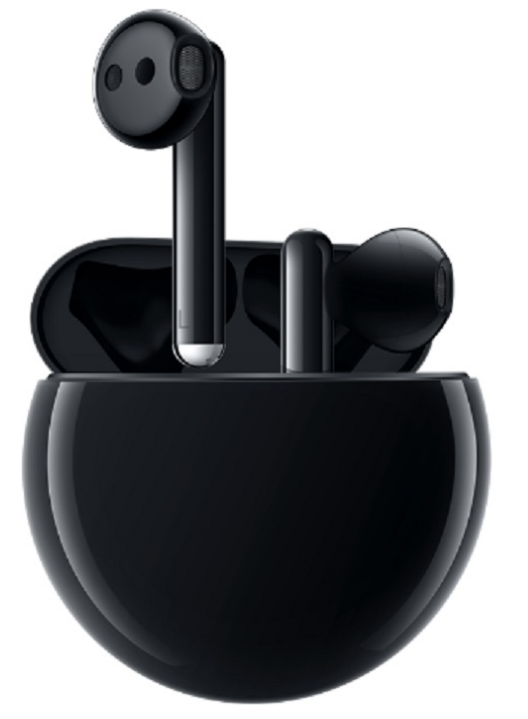
The Huawei FreeBuds 3 are a revolutionary pair of true wireless earbuds that stand out with their seamless connection, high-quality audio, and active noise cancellation (ANC). Designed with comfort in mind, these earbuds offer a unique open-fit design, making them ideal for users who prefer not to have earbuds inserted deeply into their ears. The FreeBuds 3 are perfect for music lovers and those who value clear call quality, especially Android users. They are priced competitively, often around €179/£170, making them a great value compared to other premium options like AirPods and Sony's WF-1000XM3
Targeted towards individuals seeking a hassle-free listening experience, the Huawei FreeBuds 3 are suitable for both casual and professional use. Their integration with Huawei's AI Life app allows for customizable ANC settings, enhancing the overall user experience. Availability is widespread, making them easily accessible for purchase both online and in-store.
Features
Power-on
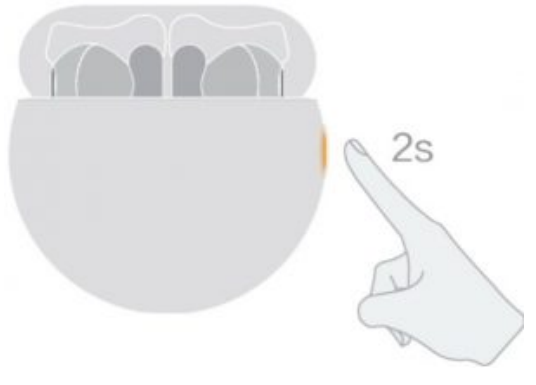
Open the charging case and press and hold the Function button for 2 seconds to power on the charging case.
Pairing
Preparations:
Ensure that the earphones are inside the charging case. Open the charging case and place your phone within 50 cm of the earphones. Bluetooth pairing: Press and hold the Function button for 2 seconds until the inner indicator light flashes white.

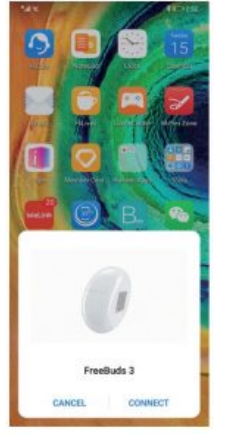
Proximity pairing: When your phone screen is on, a pairing prompt will be automatically displayed when your phone is close to the earphones. Touch CONNECT to complete the one-step pairing.
A prompt will be displayed if the pairing is successful.
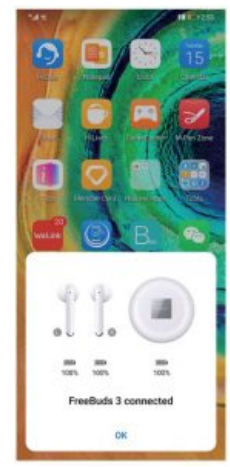
NOTE : This feature is only supported on EMUI 10.0 or later.4
Audio Control
- During music playback, double-tap the upper part of the right earbud handle to skip to the next song.
- NOTE : You can set double-tap functions in the Huawei AI Life app. For details, see section 2.4 Setting Double-tap Function.
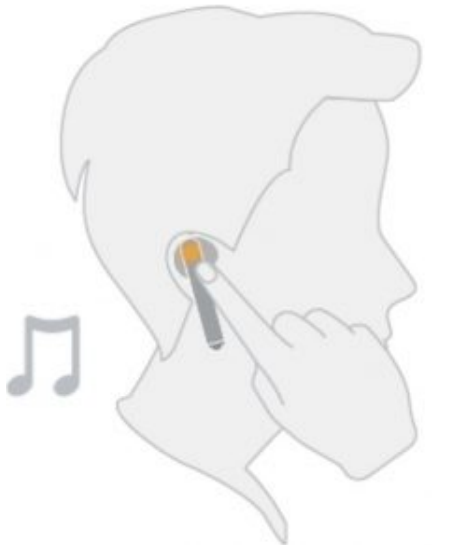
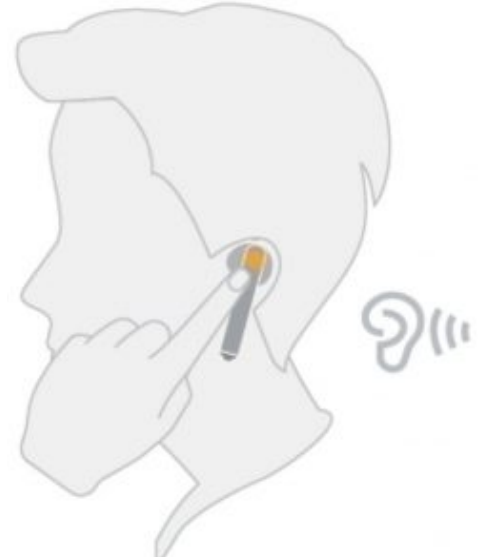
- Double-tap the upper part of the left earbud handle to enable or disable ANC mode.
- NOTE : Use the Huawei AI Life app to adjust the ANC level as needed. For details, see section 2.3 ANC Settings.
Installing the Huawei AI Life App
Use the browser on your phone to scan the QR code or use Huawei AppGallery to download and install Huawei AI Life. Pair with FreeBuds 3 and add it to the device list. You can then use the app to adjust the ANC level, set double-tap functions, and perform firmware updates when a new version is available.

Adding FreeBuds 3 to the Device List
Preparations:
- Download and install the Huawei AI Life app. For details, see section 2.1 Installing the Huawei AI Life App. Pair the FreeBuds 3 with your phone, or ensure that your FreeBuds 3 are in Pairing mode (to do this, press and hold the Function button for 2 seconds).
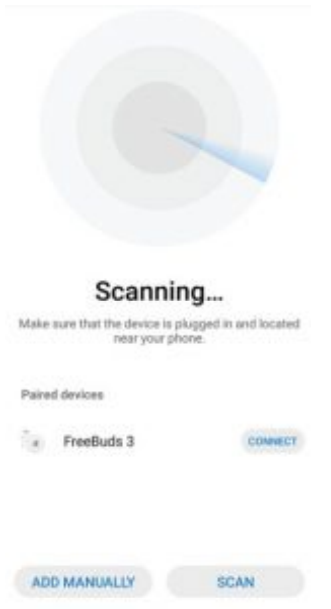
Your phone is already connected to a Wi-Fi network. - Step 1 : Open the Huawei AI Life app, touch the + icon in the upper right corner, and touch Add device. The app will automatically scan all devices in the Wi-Fi network.
- Step 2 : In the list of scanned devices, find the earphones’ device name and touch CONNECT on the right side to add this device.
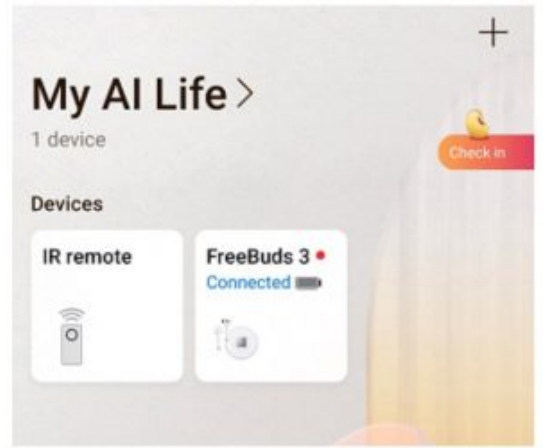
Go to the home screen of the AI Life app, touch Home to view the added devices, and use the app to adjust settings for the devices.
Specifications of Huawei FreeBuds 3
Here are the key specifications and features of the Huawei FreeBuds 3:
- Processor: Kirin A1 audio processor
- Driver Size: 14.2mm dynamic driver
- Microphone: Bone voice sensor
- Battery: 30mAh per earbud, 410mAh charging case with up to 20 hours total battery life
- Connectivity: Bluetooth 5.1 with pop-up and pair functionality
- Noise Cancellation: Active noise cancellation up to 15dB
- Design: Open-fit design with Dolphin Bionic Design
- Water Resistance: IPX4 splash resistance
- Weight: 4.5g per earbud, 48g with case
- Charging: USB-C with 6W fast charging and 2W Qi wireless charging
Compared to similar products, the Huawei FreeBuds 3 offer superior comfort and sound quality at a competitive price point
Troubleshooting Huawei FreeBuds 3
Here are some common issues and solutions for the Huawei FreeBuds 3:
- Connection Issues: Ensure Bluetooth is enabled on your device and try resetting the earbuds by placing them in the case and closing the lid.
- Noise Cancellation Not Working: Check if ANC is enabled in the AI Life app and ensure the earbuds are properly seated in your ears.
- Preventive Measures: Regularly clean the earbuds and charging case to prevent dust buildup.
- Warranty and Support: Contact Huawei's customer support for repair or replacement options within the warranty period.
For more detailed support, visit Huawei's official website or contact their customer service team.
Pros and Cons of Huawei FreeBuds 3
Pros
- Comfortable Fit: Open-fit design ensures comfort for extended use.
- High-Quality Audio: Offers clear sound with effective noise cancellation.
- Value for Money: Competitive pricing compared to similar products.
- Seamless Connectivity: Fast pairing with Bluetooth 5.1.
Cons
- No In-Ear Detection: Lacks automatic play/pause functionality when removed from the ear.
- ANC Limitations: Noise cancellation may not be as effective as in-ear models.
- Design Preferences: Open design may not be ideal for all users.
Customer Reviews of Huawei FreeBuds 3
Users praise the Huawei FreeBuds 3 for their comfort, sound quality, and competitive pricing. Common complaints include the lack of in-ear detection and the effectiveness of ANC in noisy environments. Many users rate the FreeBuds 3 highly, often giving them a 4.5 out of 5-star rating, citing their value for money and ease of use.
For those seeking a budget-friendly option with strong features, the Huawei FreeBuds 3 are a solid choice. However, users who prefer in-ear designs may want to consider alternatives.
Faqs
How do I set up Huawei FreeBuds 3 for the first time?
What should I do if my Huawei FreeBuds 3 is not connecting properly?
Can I use Huawei FreeBuds 3 with non-Huawei devices?
How often should I clean my Huawei FreeBuds 3?
What are the key features that make Huawei FreeBuds 3 different?
How do I optimize the battery life of my Huawei FreeBuds 3?
Can I use Huawei FreeBuds 3 with a Windows PC?
How do I customize the double-tap functions on my Huawei FreeBuds 3?
More huawei manuals
Leave a Comment