
Setup & Pairing: Jlab Epic Talk USB Microphone User Manual
Content
Meet the JLab Epic Talk USB Microphone
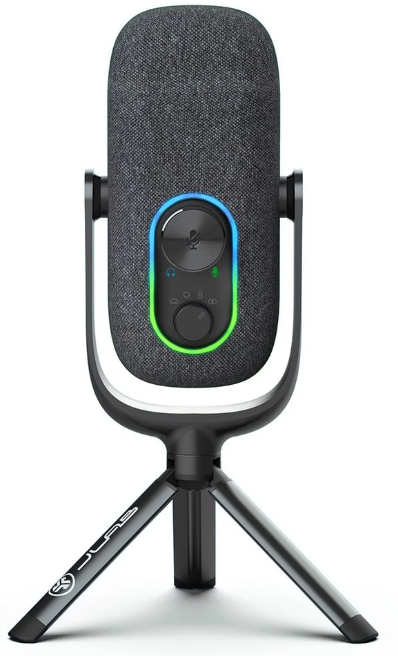
Introduction
The JLab Epic Talk USB Microphone is a versatile, professional-grade audio solution designed for content creators, podcasters, gamers, musicians, and anyone seeking studio-quality sound without the complexity of traditional setups. Engineered for plug-and-play simplicity, the Epic Talk features three high-sensitivity condenser capsules, supporting multiple directional patterns—cardioid, omnidirectional, stereo, and bidirectional—making it ideal for a wide range of recording scenarios, from solo voiceovers to multi-person interviews and immersive ASMR sessions.
Key benefits include crystal-clear 192kHz/24-bit resolution, zero-latency monitoring, robust gain and volume controls, and a quick-mute function for hassle-free operation. The microphone’s compact, sturdy design and included desktop stand ensure stability and portability, while the USB-C connectivity offers broad compatibility with both Windows and macOS systems.
Targeted at beginners and intermediate users who demand professional features at an accessible price point (typically around $149), the JLab Epic Talk USB Microphone delivers exceptional value, rivaling more expensive studio mics in both performance and flexibility . It’s widely available through major electronics retailers and online stores, making it easy to purchase for users across North America and beyond.
JLab Epic Talk USB Microphone: Detailed Technical Specifications
- Type: Condenser, USB digital output
- Capsules: 3 x 16mm condenser capsules
- Directional Patterns: Cardioid, Omnidirectional, Stereo, Bidirectional
- Frequency Response: 20Hz – 20kHz
- Max SPL: 120 dB
- Sample Rate: 192 kHz
- Bit Depth: 24-bit
- Signal-to-Noise Ratio: 95 dB
- Audio Sensitivity: -37 dB ± 3 dB
- Connectivity: USB-C (USB-A adapter included)
- Cable Length: 5 ft (1.5 m)
- Compatibility: Windows 7/8/10, macOS 10.10 or higher
- Weight: 266.5 g (microphone body), 501.4 g (with stand)
- Dimensions: 170 x 55 x 65 mm (6.69 x 2.17 x 2.56 in)
- Included Accessories: Desktop stand, pop filter, USB-C to USB-A cable, swivel mount adapters (5/8" and 1/4")
- Warranty: 2 years
Compared to similar USB microphones in its class, the JLab Epic Talk stands out with its triple-capsule design, multiple polar patterns, and high-resolution audio capture—features often found in more expensive models. Its ease of use and comprehensive accessory package make it a strong contender for users seeking flexibility and value in a single device.
ASSEMBLY
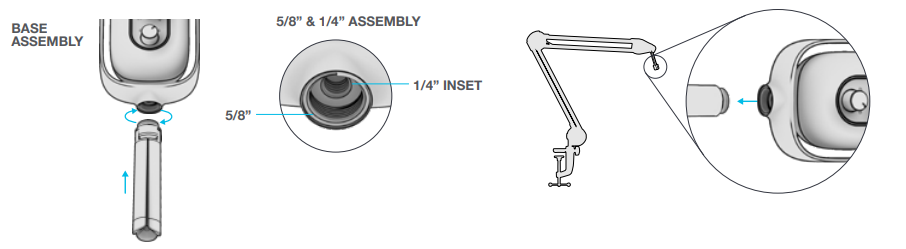
SETUP
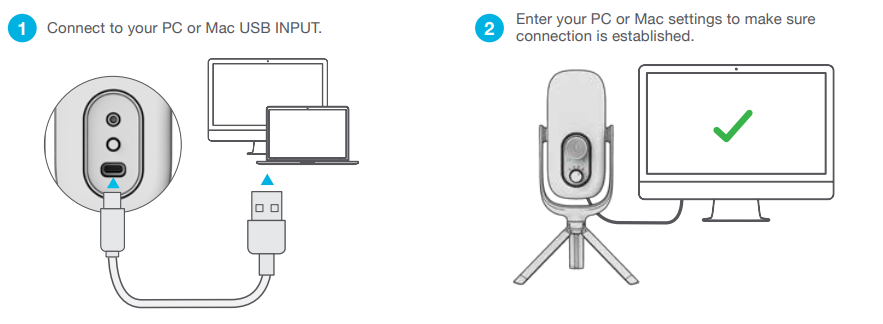
SETUP EPIC TALK WITH PC (WINDOWS 7, 8, or 10)
- From the Start menu, select the Control Panel.
- From the Control Panel, select the Sound icon.
- Select the Recording tab and select “JLab Epic Talk”.
- Select the Playback tab and select “JLab Epic Talk”.
SETUP EPIC TALK WITH MAC (macOS 10.10 or HIGHER)
- Open System Preferences and select the Sound icon.
- Select the Input tab and select “JLab Epic Talk”.
- Select the Output tab and select “JLab Epic Talk”.
- From this screen, set the Output volume to the desired level.
CONTROLS
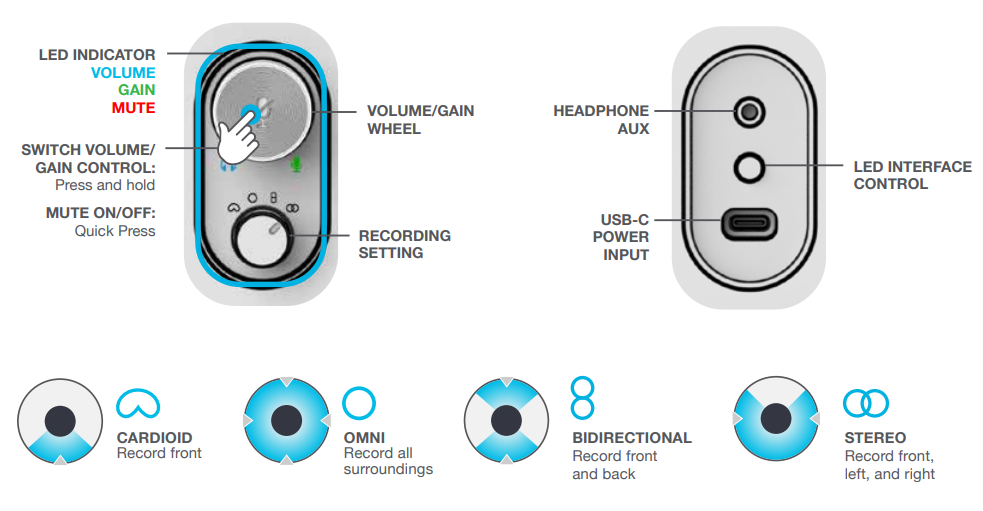
IN USE
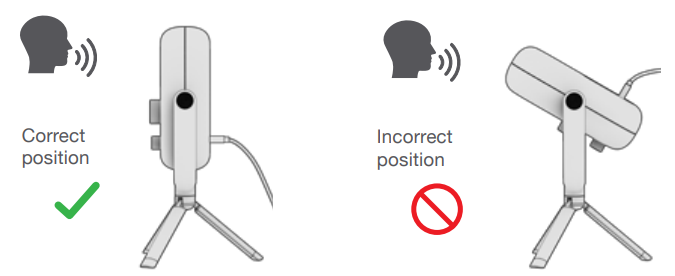
TIPS / TROUBLESHOOTING
- The Epic Talk works with almost any recording software installed on macOS, Windows, or Linux. Review in your software’s settings and adjust accordingly.
- No additional drivers/software are needed for the Epic Talk. Simply plug in and set up in device settings.
- Epic Talk will not work through most tablets or mobile phones due to their power limitations. The output power source needs to produce 5V5v or greater to operate.
- Epic Talk will not work through a power bank/battery pack. It will only work with a USB-A input with an operating system.
- If you are connecting through a USB hub or 3rd party adapter, make sure the product has the correct power output support and connection support.
- Using external speakers for playback can cause microphone reverberation and echo. It is recommended to use headphones/earbuds for recording and playback if this occurs.
JLab Epic Talk USB Microphone: Pros & Cons
Pros
- Affordable Professional Quality: Offers high-end features such as 192kHz/24-bit resolution and multiple polar patterns at a competitive price point.
- Versatile Recording Modes: Switch between cardioid, omnidirectional, stereo, and bidirectional patterns to suit any recording environment.
- Easy Setup: Plug-and-play USB connectivity with no drivers required for most systems.
- Robust Controls: On-mic volume, gain, and quick-mute buttons for convenient adjustments during sessions.
- Portable and Durable: Compact, well-built design with a sturdy desktop stand included.
- Great Value: Delivers performance comparable to more expensive microphones, making it ideal for budget-conscious creators.
Cons
- Plastic Construction: While durable, the body is primarily plastic, which may feel less premium compared to metal-bodied competitors.
- No XLR Output: USB-only connectivity limits advanced setups that require analog/XLR connections.
- Basic Accessories: The included pop filter and stand are functional but not premium-grade.
- Limited Customization: Advanced users may miss some software-controlled features found in higher-end models.
For the price, the JLab Epic Talk USB Microphone offers impressive versatility and sound quality, though users needing pro-grade build materials or XLR connectivity may want to consider more expensive alternatives.
JLab Epic Talk USB Microphone: Customer Reviews and Feedback
User feedback for the JLab Epic Talk USB Microphone is overwhelmingly positive, especially regarding its value and ease of use. Many reviewers highlight the microphone’s clear, detailed audio quality and the convenience of multiple polar patterns for different recording situations. Beginners appreciate the plug-and-play setup, while podcasters and streamers note the quick-mute and monitoring features as practical for live sessions.
Common praises include the microphone’s affordability, portability, and the included accessory package. Some users mention the plastic build feels less premium, but most agree it doesn’t detract from the overall performance. A few users have noted minor issues with the stand’s stability, but these are exceptions rather than the rule.
Star ratings consistently average between 4 and 4.5 out of 5, with testimonials emphasizing the JLab Epic Talk as a “great entry-level studio mic” and “perfect for podcasting on a budget.” Purchase recommendations are strong for creators seeking a flexible, user-friendly USB microphone without a steep learning curve or price tag.
Faqs
How do I set up the jlab Epic Talk USB Microphone for the first time on Windows or Mac?
What should I do if the jlab Epic Talk USB Microphone is not recognized by my computer?
How can I switch between the different polar patterns on the jlab Epic Talk USB Microphone?
Is the jlab Epic Talk USB Microphone compatible with popular recording software and devices?
How can I optimize the audio quality of my jlab Epic Talk USB Microphone during recordings?
What maintenance tips should I follow to keep the jlab Epic Talk USB Microphone in good condition?
How do I use the headphone monitoring feature on the jlab Epic Talk USB Microphone?
Why is the LED light on my jlab Epic Talk USB Microphone changing colors, and how can I customize it?
More jlab manuals
- Setup & Pairing: Jlab Go Sport+ Earbuds User Manual
- Pairing & Setup: Jlab Jbuds Talk USB Microphone User Manual
- Setup & Pairing: Jlab Go Tones+ Earbuds User Manual
- Setup & Pairing: Jlab Jbuds Pods Earbuds User Manual
- Setup & Pairing: Jlab Go Pop+ Earbuds User Manual
- Setup: Jlab Epic Open Sport Earbuds User Manual
Leave a Comment