
Pairing & Setup: Jlab Jbuds Talk USB Microphone User Manual
Content
JLab JBuds Talk USB Microphone
Introduction
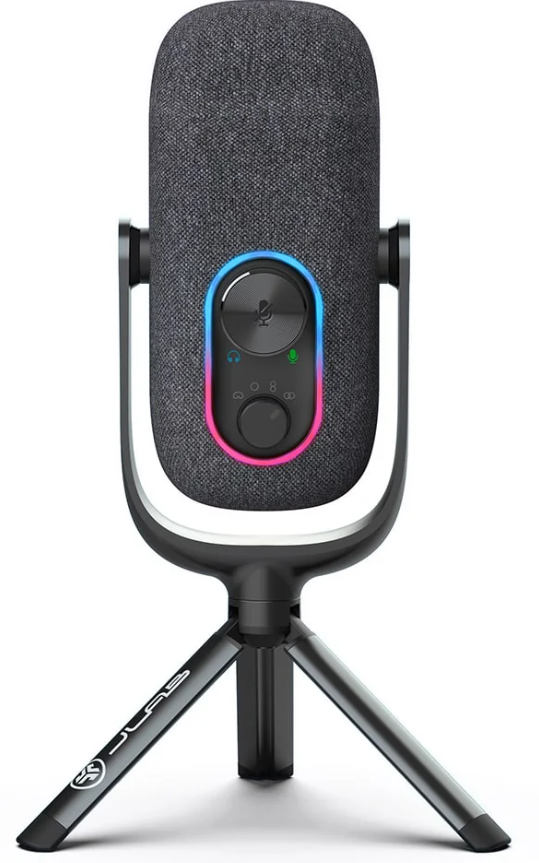
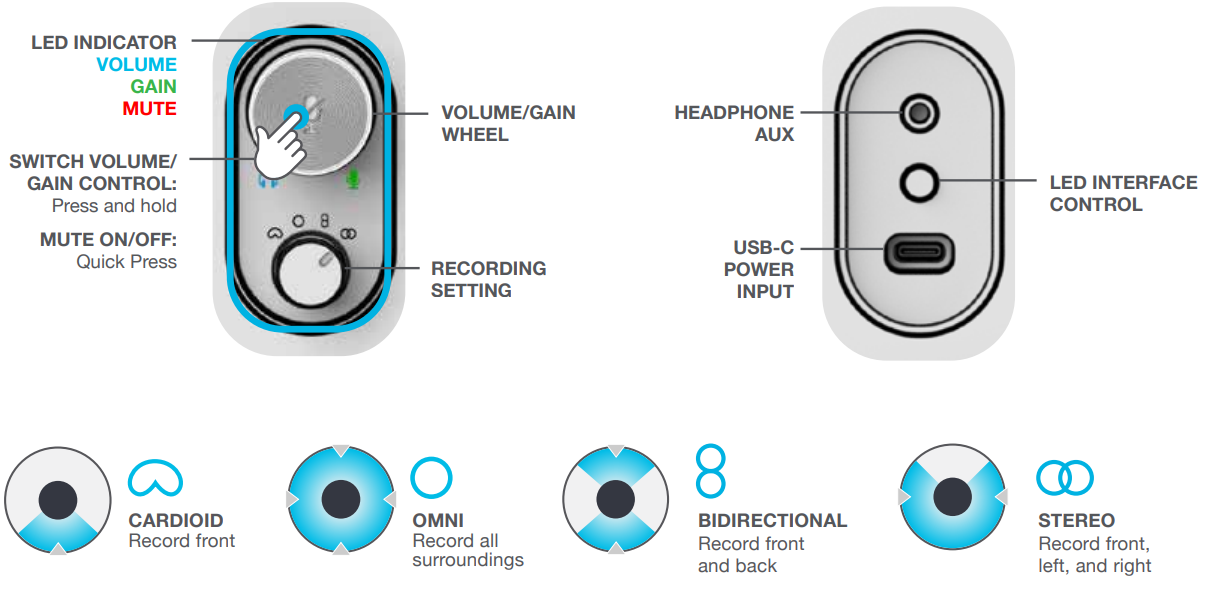
The JLab JBuds Talk USB Microphone is a versatile and portable audio solution designed to meet the needs of various users, including podcasters, YouTubers, gamers, and voiceover artists. This compact microphone delivers high-quality audio with a resolution of 96kHz/24-bit, making it ideal for calls, podcasts, gaming, ASMR, and voiceovers. It features four directional pattern modes: Cardioid, Stereo, Bidirectional, and Omnidirectional, allowing users to capture sound from different angles with precision. The JBuds Talk is lightweight and easy to set up via a USB connection, eliminating the need for an external power source. It is available in multiple colors and typically priced around $99.99, making it an affordable option for both beginners and professionals.
ASSEMBLY
SETUP
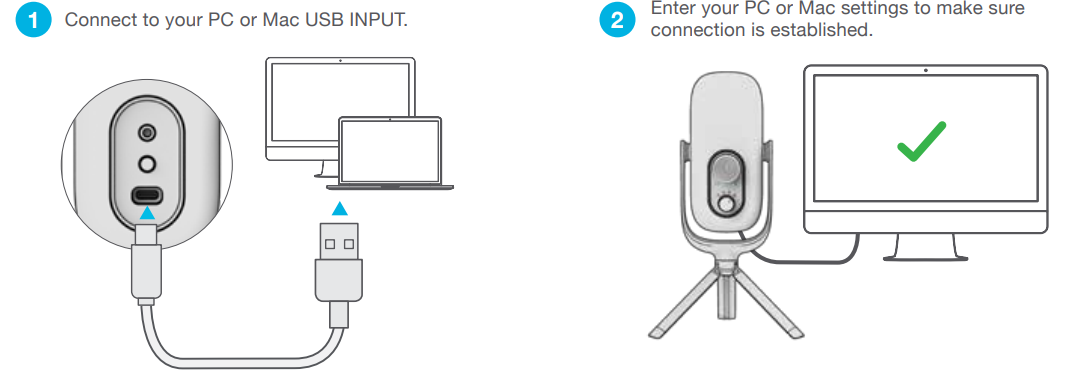
SETUP JBUDS TALK WITH PC (WINDOWS 7, 8, or 10)
- From the Start menu, select the Control Panel.
- From the Control Panel, select the Sound icon.
- Select the Recording tab and select “JLab JBuds Talk”.
- Select the Playback tab and select “JLab JBuds Talk”.
SETUP JBUDS TALK WITH MAC (macOS 10.10 or HIGHER)
- Open System Preferences and select the Sound icon.
- Select the Input tab and select “JLab JBuds Talk”.
- Select the Output tab and select “JLab JBuds Talk”.
- From this screen, set the Output volume to the desired level.
CONTROLS
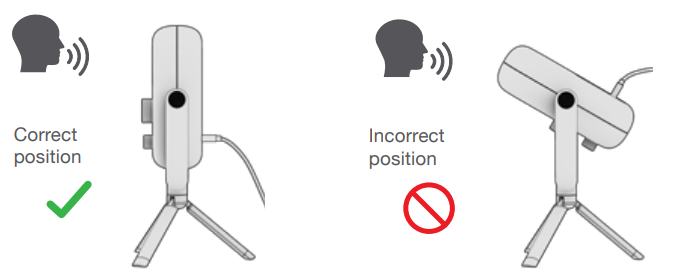
IN USE
Technical Specifications
Below are the key technical specifications of the JLab JBuds Talk USB Microphone:
- Transducer Type: Condenser, Pressure Gradient with USB digital output
- Polar Patterns: Cardioid, Stereo, Bidirectional, and Omnidirectional
- Frequency Response: 20Hz - 20kHz
- Max SPL: 118DB
- Sample Rate: 96kHz
- Bit Depth: 24-bit
- Condenser Capsules: 2 (1 x 14mm, 1 x 9mm)
- Weight (Microphone Body): Approximately 130g
- Dimensions: 127 x 55 x 55mm (without tripod)
- Cable Length: 5-foot USB to USB-C cable
- Latency: Zero latency
Compared to similar USB microphones, the JBuds Talk offers a competitive set of features at an attractive price point, making it a popular choice for those seeking high-quality audio without breaking the bank.
TIPS / TROUBLESHOOTING
- The JBuds Talk works with almost any recording software installed on macOS, Windows, or Linux. Review in your software’s settings and adjust accordingly.
- No additional drivers/software are needed for the JBuds Talk. Simply plug in and setup in device settings.
- JBuds Talk will not work through most tablets or mobile phones due to their power limitations. The output power source needs to produce 5V or greater to operate.
- JBuds Talk will not work through a power bank/battery pack. It will only work with a USB-A input with an operating system.
- If you are connecting through a USB hub or 3rd party adapter, make sure the product has the correct power output support and connection support.
- Using external speakers for playback can cause microphone reverberation and echo. It is recommended to use headphones/earbuds for recording and playback if this occurs.
Pros & Cons
Pros:
- Portability: Lightweight and compact, making it easy to transport.
- Easy Setup: Plug-and-play via USB, no external power required.
- Customizable Directional Patterns: Offers four modes for different recording needs.
- High-Quality Audio: 96kHz/24-bit resolution ensures clear and detailed sound.
- Intuitive Controls: Volume, gain, and quick-mute buttons for easy sound management.
Cons:
- Not Ideal for Music Recording: Best suited for speech rather than musical instruments.
- Off-Axis Sound: May not effectively reject background noise in certain environments.
- Build Quality: Some users might find the build materials less premium compared to higher-end models.
Overall, the JBuds Talk provides excellent value for money, especially considering its versatility and performance.
Customer Reviews
Users generally praise the JLab JBuds Talk for its ease of use, sound quality, and affordability. Common complaints include issues with off-axis sound rejection and the microphone's build quality. However, for most users, the benefits of portability and high-quality audio outweigh these drawbacks. Many reviewers rate the product highly, often giving it between 4 to 5 stars.
For those seeking a reliable USB microphone for podcasting, voiceovers, or gaming, the JBuds Talk is a solid choice. While it may not be perfect for music recording, its strengths in speech capture make it a popular option among content creators.
Faqs
How do I set up the jlab Jbuds Talk USB Microphone on Windows or Mac for the first time?
What can I do if the jlab Jbuds Talk USB Microphone is not detected by my computer?
How do I use and switch between the different polar patterns on the jlab Jbuds Talk USB Microphone?
Can I monitor my voice directly through the jlab Jbuds Talk USB Microphone while recording?
Is the jlab Jbuds Talk USB Microphone compatible with Linux or recording software without extra drivers?
How do I optimize the sound quality and reduce background noise using the jlab Jbuds Talk USB Microphone?
What maintenance steps should I follow to keep my jlab Jbuds Talk USB Microphone in good condition?
What do the different LED light colors on the jlab Jbuds Talk USB Microphone indicate during use?
More jlab manuals
- Setup & Pairing: Jlab Epic Talk USB Microphone User Manual
- Setup & Pairing: Jlab Jbuds Pods Earbuds User Manual
- Setup & Pairing: Jlab Go Sport+ Earbuds User Manual
- Setup: Jlab Epic Open Sport Earbuds User Manual
- Setup & Pairing: Jlab Go Tones+ Earbuds User Manual
- Setup: Jlab Go Air Tones Earbuds User Manual
Leave a Comment