
Installation: Logitech HD Pro Webcam C920 User Manual
Content
Logitech HD Pro Webcam C920 Product Manual and Review
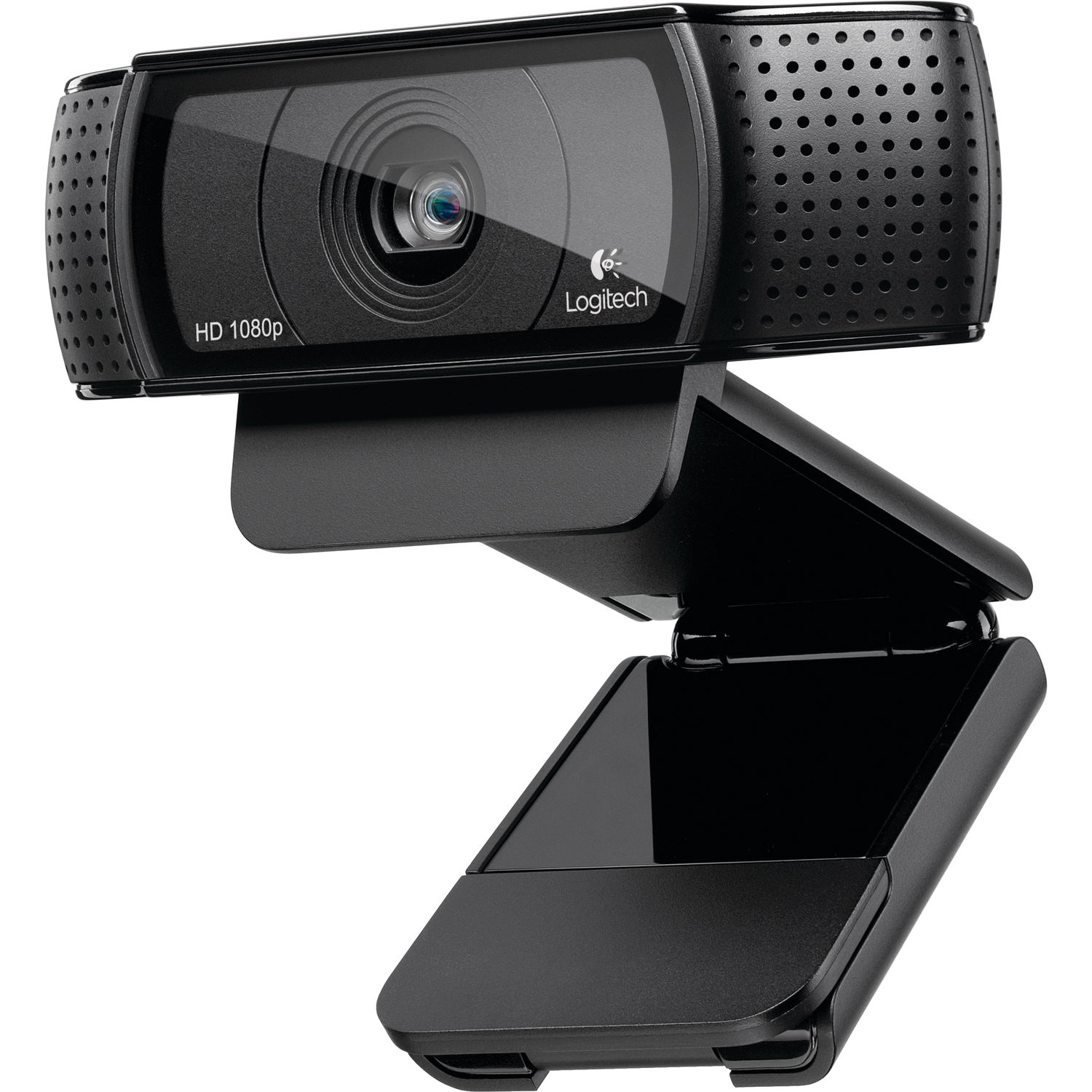
Introduction: Logitech HD Pro Webcam C920 Overview
The Logitech HD Pro Webcam C920 is one of the most popular Full HD webcams for video calls, online classes, content creation, and live streaming. Known for its sharp 1080p video at 30 fps, glass lens, autofocus, and stereo microphones, it delivers reliable performance for users who want a simple plug-and-play webcam with strong image quality. The wide 78-degree field of view makes it a practical choice for solo use, dual-person framing, or showing a desk setup during demonstrations.
This webcam is designed for professionals, students, remote workers, streamers, and anyone upgrading from a basic built-in laptop camera. It works especially well for Zoom, Microsoft Teams, Google Meet, Skype, and casual streaming setups where clear video matters more than advanced creator-grade features. Built-in RightLight 2 automatic light correction helps improve visibility in dim rooms, while the dual stereo microphones add convenience for everyday communication.
As of 2026, the Logitech HD Pro Webcam C920 is generally available through major retailers and online marketplaces, with prices often ranging from about $40 to $80 depending on condition, seller, and promotions. That makes it a strong value pick for anyone searching for a dependable 1080p webcam without paying premium flagship prices. For buyers wanting a proven, widely supported webcam, the Logitech HD Pro Webcam C920 remains a smart and accessible option.
Pros & Cons: Is the Logitech HD Pro Webcam C920 Worth It?
Pros
- Sharp 1080p video at 30 fps provides clear image quality for meetings, recordings, and streaming.
- Autofocus and a glass lens help maintain crisp visuals without manual adjustment.
- RightLight 2 improves performance in typical indoor lighting, especially on home office desks.
- Dual stereo microphones deliver better sound separation than most built-in laptop mics.
- Tripod mounting support adds flexibility for better framing and more professional setups.
- Good value for money compared with newer webcams that cost significantly more.
Cons
- Video is capped at 30 fps, so it is not ideal for high-frame-rate streaming.
- No built-in privacy cover, which may matter for users who want physical lens protection.
- Audio quality is usable but not as strong as a dedicated USB microphone.
- Older design lacks modern extras found in newer alternatives like enhanced AI framing or higher resolutions.
- Compared with newer models such as the C920S or premium 4K webcams, it offers fewer convenience features.
For most everyday users, the C920 offers a strong balance of price, video quality, and reliability. If you want the same core performance with added privacy protection, a newer variant may be worth considering.
Specifications: Logitech C920 Full HD Webcam Technical Details
- Maximum video resolution: 1080p at 30 fps
- Supported resolutions: 1080p, 720p, 480p, and 360p
- Sensor: 3 MP camera sensor with software-enhanced image capture
- Lens: Full HD glass lens
- Focus type: Autofocus
- Field of view: 78 degrees diagonal
- Microphones: Built-in stereo microphones
- Low-light enhancement: RightLight 2 automatic light correction
- Connection type: USB 2.0
- Mounting: Clip mount and tripod support
- Cable length: 1.5 m / 5 ft
- Weight: 162 g
- Dimensions: 94 mm x 43.3 mm x 71 mm
- Privacy shutter: Not included
Compared with many budget webcams, the Logitech HD Pro Webcam C920 stands out for its glass lens, autofocus, and dependable 1080p output. Against newer premium models, it lacks 4K resolution and advanced framing features, but it still performs strongly for standard video calling and home office use.
Detailed Description: How the Logitech HD Pro Webcam C920 Works
The Logitech HD Pro Webcam C920 connects through USB and works as a plug-and-play webcam for most modern computers and video conferencing platforms. Once connected, it automatically handles focus and exposure, making it easy for users who do not want to adjust camera settings manually. The glass lens captures cleaner detail than many plastic-lens alternatives, while RightLight 2 helps balance brightness when the room is too dark or unevenly lit.
The 78-degree field of view is wide enough for face-centered calls and small group use, yet not so wide that it distorts the image too heavily. This makes the camera suitable for business calls, online teaching, interviews, webinars, and casual streaming. The stereo microphones add everyday convenience, especially for users who need an all-in-one solution without extra audio gear.
Build quality feels solid, with a compact frame and sturdy clip that fits most monitors and laptops. The tripod mount adds flexibility for creators who want a more stable angle. In real-world use, the webcam is best for users who value consistent clarity, straightforward setup, and dependable performance over flashy extras.
Customer Reviews: What Users Say About the C920 Webcam
Average user sentiment for the Logitech HD Pro Webcam C920 is typically strong, with many buyers rating it around 4.5 out of 5 stars for reliability, video clarity, and long-term value. Common praise includes sharp image quality, easy setup, and dependable autofocus for meetings and online classes. Users often describe it as a “great buy for the price” and a “big upgrade from a laptop camera.”
Common complaints include average microphone quality, the lack of a privacy shutter, and the 30 fps limit. Some users also mention that newer webcams offer better low-light performance or more advanced features. Even so, many customers still recommend it for remote work, streaming basics, and everyday communication because it delivers consistent results without complicated software.
If you want a trusted Full HD webcam that balances performance and affordability, the Logitech HD Pro Webcam C920 remains a practical purchase. It is especially appealing for buyers who want a proven webcam with broad compatibility and strong image quality at a reasonable price.
Faqs
How do I set up the Logitech HD Pro Webcam C920 for the first time on Windows or Mac?
Why is my Logitech HD Pro Webcam C920 not showing up in Zoom, Teams, or OBS?
What video quality and field of view does the Logitech HD Pro Webcam C920 offer?
How do I improve the picture quality of my Logitech HD Pro Webcam C920 in low light?
Is the Logitech HD Pro Webcam C920 compatible with Windows, Mac, Chrome OS, and Android devices?
How do I fix blurry or out-of-focus video on the Logitech HD Pro Webcam C920?
Can I use the Logitech HD Pro Webcam C920 for streaming and YouTube recording without extra gear?
How should I clean and maintain the Logitech HD Pro Webcam C920 for long-term use?
More logitech manuals
Leave a Comment