
Netgear 4-Stream AX1800 WiFi 6 Router RAX10 User Manual
Content
Netgear 4-Stream AX1800 WiFi 6 Router RAX10: Overview and Key Benefits
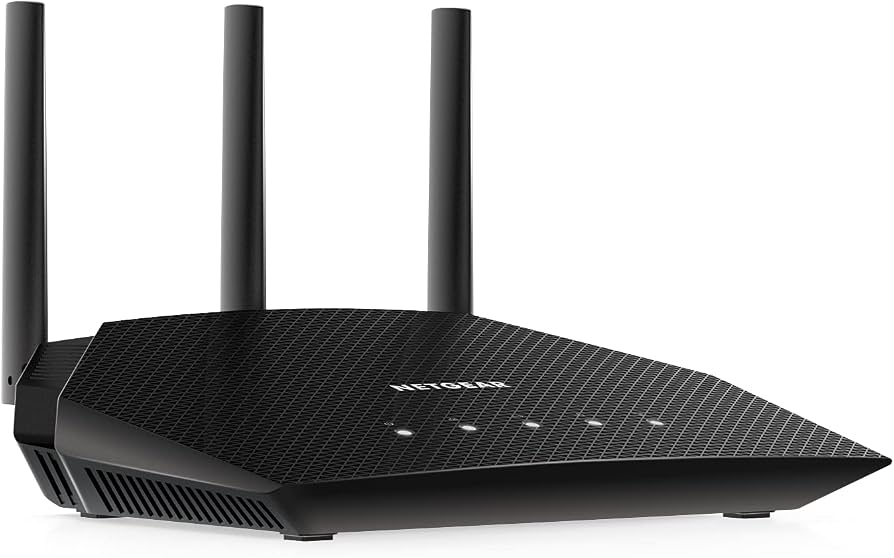
The Netgear 4-Stream AX1800 WiFi 6 Router RAX10 is a compact dual-band router built for households that want faster wireless performance, improved efficiency, and reliable coverage without moving to a premium mesh system. Designed around WiFi 6 (802.11ax), it delivers up to 1.8Gbps combined wireless speed, with 600Mbps on 2.4GHz and 1200Mbps on 5GHz, making it a strong fit for 4K streaming, online classes, video calls, smart home devices, and everyday browsing. Its four-stream design helps multiple devices stay connected with better responsiveness, especially in busy homes where several phones, laptops, and smart TVs are active at the same time.
The Netgear 4-Stream AX1800 WiFi 6 Router RAX10 is a practical choice for users who want a simple upgrade from older WiFi 5 routers. It includes five Gigabit Ethernet ports, offering one WAN port and four LAN ports for wired gaming consoles, desktops, and streaming devices. Because it is backward compatible with older WiFi standards, it works well in mixed-device environments. The router does not include USB ports or mesh expansion features, so it is best suited to users who want straightforward, high-value wireless performance rather than advanced storage sharing or whole-home mesh networking.
Estimated pricing typically falls in the budget-to-midrange category, often around the lower $100 range depending on retailer and promotions. Availability is generally broad through major electronics stores and online marketplaces, making it easy to find for home upgrades, apartment setups, and small-office use.
Technical Specifications and WiFi 6 Performance
- Wireless standard: WiFi 6 (802.11ax) dual-band router
- Total speed class: AX1800, up to 1800Mbps combined throughput
- 2.4GHz band: Up to 600Mbps
- 5GHz band: Up to 1200Mbps
- Ethernet ports: Five Gigabit Ethernet ports, including 1 WAN and 4 LAN
- USB support: None
- Dimensions: Approximately 235.51 x 184.29 x 57.06mm
- Weight: About 500g
- Compatibility: Backward compatible with 802.11a/b/g/n/ac devices
- Band design: Simultaneous dual band 2.4GHz and 5GHz
In performance terms, the RAX10 is positioned as an entry-level to midrange WiFi 6 router, ideal for users upgrading from AC routers rather than those seeking high-end gaming or multi-gig networking. Compared with more advanced models such as the RAX30 or mesh systems, it offers fewer premium features but delivers a solid balance of speed, stability, and value.
Detailed Product Description
The Netgear 4-Stream AX1800 WiFi 6 Router RAX10 uses WiFi 6 technology to improve network efficiency, reduce congestion, and support more devices at once. In everyday use, this means smoother video streaming, lower latency for online meetings, and steadier connections for smart home devices. Its 4-stream architecture helps distribute bandwidth more effectively than older 2-stream routers, especially when several people are online simultaneously.
The router’s design is compact and functional, with a clean black enclosure that fits easily on a desk, shelf, or media cabinet. Build quality is sturdy for a consumer router, and the external antenna design is integrated for a streamlined look. The absence of USB ports and mesh support keeps the product simple, which many users appreciate for reliable plug-and-play home networking.
Real-world applications include apartment internet setups, family homes with multiple wireless devices, and small home offices that need dependable Gigabit Ethernet connections. Users often value the RAX10 for its straightforward performance, quick wireless access, and easy administration through Netgear’s app-based setup and web interface.
Setup Guide for Netgear RAX10 WiFi 6 Router
Setting up the Netgear 4-Stream AX1800 WiFi 6 Router RAX10 is designed to be simple for first-time users and experienced home network owners alike. Start by placing the router in a central, elevated location away from thick walls, microwaves, and large metal objects. Connect the router to your modem using the WAN port, then power it on and wait for the status lights to stabilize.
- Download the Nighthawk app or open the router setup page in a browser.
- Follow the on-screen instructions to detect the router and connect to the network.
- Create a new WiFi name and password or keep the default settings if preferred.
- Choose your preferred security mode, ideally WPA2 or WPA3 if supported by your devices.
- Connect devices using the new WiFi credentials or via Ethernet for faster wired performance.
Troubleshooting during setup often involves restarting the modem, checking cable connections, or confirming that the internet service is active. Keep the router in a dry, well-ventilated area and avoid covering ventilation openings. Do not place the unit near water, excessive heat, or direct sunlight.
Troubleshooting Common Problems and Support Options
Common issues with the RAX10 usually involve connection drops, slow speeds, login problems, or devices failing to detect the WiFi network. If the internet light is off or amber, power cycle the modem and router, then verify that the Ethernet cable is securely connected to the WAN port. If speeds are lower than expected, test both WiFi bands and try moving closer to the router to rule out interference.
- Router not broadcasting WiFi: Reboot the router and confirm wireless is enabled in the settings.
- Device cannot connect: Forget the network on the device and reconnect using the correct password.
- Slow performance: Move the router to a more open location and reduce interference from nearby electronics.
- Setup failure: Reset the router and repeat the setup process from the beginning.
- Firmware issues: Check for updates through the app or web interface.
The router includes manufacturer support resources, documentation, and warranty coverage through Netgear. For help, use the official support portal, the Nighthawk app, or Netgear customer support channels listed on the product packaging and regional support pages. Preventive maintenance includes regular firmware updates, periodic restarts, and keeping connected devices organized across the 2.4GHz and 5GHz bands.
Pros and Cons of the Netgear 4-Stream AX1800 WiFi 6 Router RAX10
Pros
- WiFi 6 support: Better efficiency and responsiveness than older WiFi 5 routers.
- Affordable value: Strong feature set for the price compared with many AX1800 competitors.
- Gigabit wired ports: Excellent for consoles, PCs, and smart TVs.
- Simple setup: Easy for beginners using app-based installation.
- Good for everyday households: Handles streaming, browsing, and video calls with ease.
Cons
- No USB ports: Cannot be used for printer or storage sharing.
- No mesh support: Not ideal for very large homes needing expandable coverage.
- Entry-level WiFi 6 class: Less powerful than higher-tier NETGEAR routers like the RAX30.
- Limited advanced features: Best for users who want simplicity over customization.
For value for money, the Netgear 4-Stream AX1800 WiFi 6 Router RAX10 stands out as a dependable upgrade for users who do not need premium extras. It compares well against other AX1800 routers in the same category, especially when wired connectivity and ease of use matter more than advanced networking features.
Customer Reviews and User Feedback
User feedback for the Netgear 4-Stream AX1800 WiFi 6 Router RAX10 is generally positive, with many buyers giving it around 4 out of 5 stars. Common praise includes easy setup, reliable everyday performance, and stronger speed stability than older routers. Many owners highlight its usefulness for streaming and multiple-device households.
Frequent complaints focus on the lack of USB ports, the absence of mesh expansion, and coverage that may be insufficient for very large homes. Some users also note that the router is best suited to standard home internet plans rather than ultra-high-speed fiber connections requiring more advanced hardware.
- Typical praise: “Easy to install and noticeably faster than my old router.”
- Typical praise: “Works well for streaming and several smart home devices.”
- Typical complaint: “I wish it had USB storage sharing.”
- Typical complaint: “Coverage is good, but not enough for a large multi-floor house.”
For buyers seeking a straightforward WiFi 6 router with solid performance and a fair price, this model is a practical recommendation. It is especially appealing for apartments, small homes, and users upgrading from an older dual-band router.
Faqs
How do I set up the netgear 4-Stream AX1800 WiFi 6 Router RAX10 for the first time?
Why is my netgear 4-Stream AX1800 WiFi 6 Router RAX10 not giving me internet after setup?
What devices are compatible with the netgear 4-Stream AX1800 WiFi 6 Router RAX10?
How can I improve WiFi speed and coverage on the netgear 4-Stream AX1800 WiFi 6 Router RAX10?
Does the netgear 4-Stream AX1800 WiFi 6 Router RAX10 support parental controls and guest WiFi?
How many Ethernet ports does the netgear 4-Stream AX1800 WiFi 6 Router RAX10 have, and which one is for the modem?
What should I do if the netgear 4-Stream AX1800 WiFi 6 Router RAX10 keeps dropping connection?
How often should I maintain the netgear 4-Stream AX1800 WiFi 6 Router RAX10 for reliable performance?
More netgear manuals
- Netgear Nighthawk Mesh WiFi 6 System MK73 User Manual
- Netgear Nighthawk X6S AC3000 Tri-Band WiFi Extender User Manual
- Netgear WAC564 Insight Instant Mesh Multi-Mode Access Point User Manual
- Netgear Orbi RBR750 Tri-Band Mesh WiFi 6 System User Manual
- Netgear Nighthawk Mesh WiFi 6 System MK62 User Manual
- Netgear Nighthawk AX6AX2700 WiFI Cable Modem CAX30 User Manual
Leave a Comment