
Usage: Rewire Security Rx-3 Body Worn Camera Docking Station User Manual
Content
Rewire Security Rx-3 Body Worn Camera Docking Station
Introduction
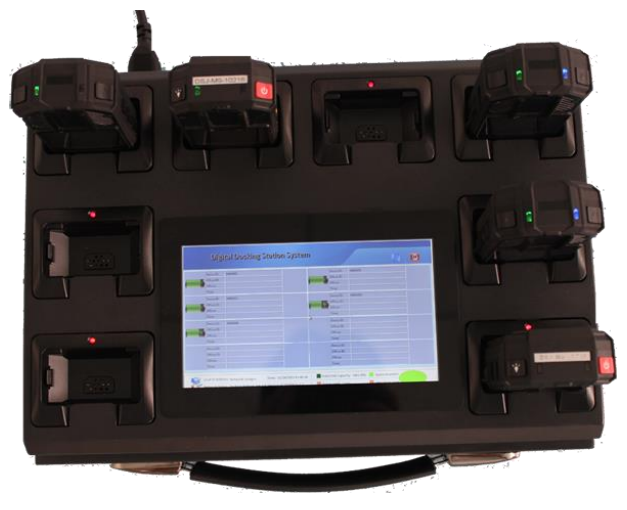
The rewire security Rx-3 Body Worn Camera Docking Station is an advanced charging and data management hub designed specifically for seamless integration with Rx-3 body-worn cameras. Engineered for law enforcement, security personnel, and first responders, this docking station streamlines device storage, secure charging, and automatic data upload, enabling efficient evidence management and operational readiness.
Key benefits include rapid multi-device charging, robust data encryption during transfer, and a compact, durable design suitable for desktop or wall mounting. Unique selling points consist of intuitive docking bays that secure cameras with magnetic alignment, network connectivity for direct data uploads, and compatibility with centralized management software, making it ideal for organizations needing reliable body camera workflows.
Typical users are police departments, security firms, and emergency service teams that require fast turnaround times for camera readiness and secure data handling. The Rx-3 Docking Station supports enhanced accountability and chain-of-custody compliance in field operations.
Estimated pricing for this professional-grade docking station ranges from $450 to $650, depending on distributor and configuration options. Availability is generally through authorized security technology vendors and specialized body camera resellers.
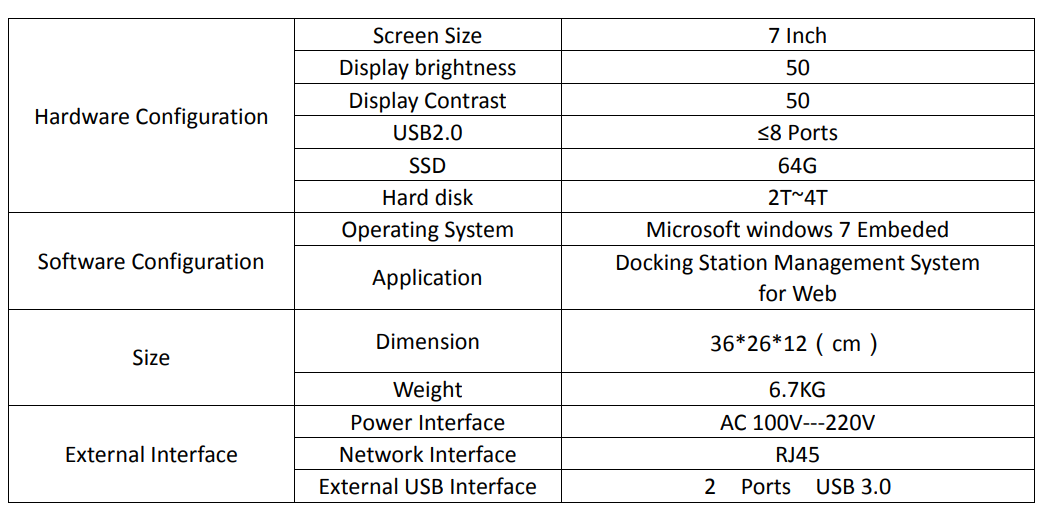
Technical Specifications of the rewire security Rx-3 Body Worn Camera Docking Station
Product Appearance
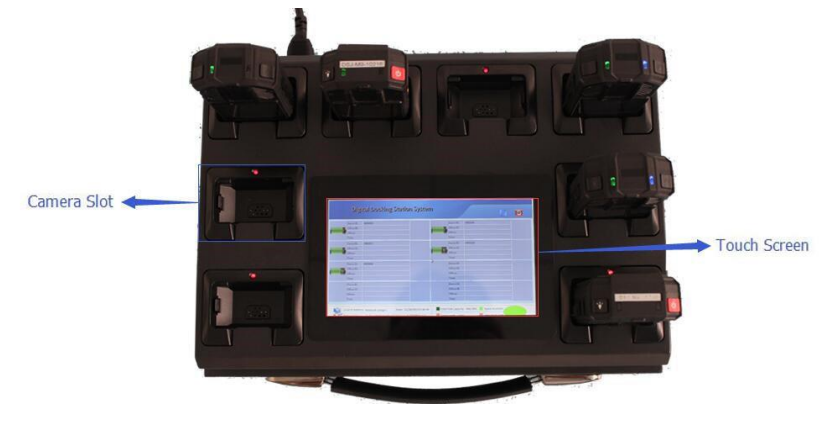
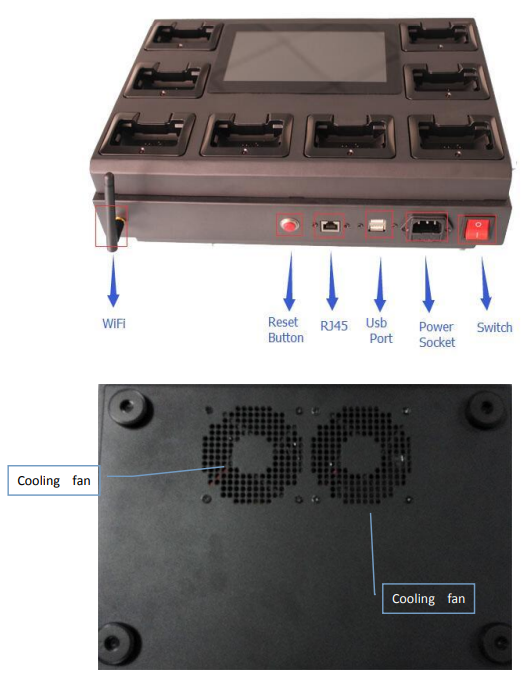
- Keep the touch screen away from water. The touch screen may malfunction in humid conditions or exposure to water. Please make sure the docking station is placed on a flat surface, enabling the fans ttointake cool air.
Package Contents
The RX-3 Pro Docking Station package contents:
- Docking Station
- Power cable
- RJ45 network cable
- Hard disk lock ke
- Factory inspection report
- Use only licensed accessories. Use of unauthorized parts, accessories o, or cameras with the docking station may cause malfunction and is not covered by the warranty.
Installation of the Docking Station
This device can only be used with the supplied power cable.
Installation steps:
- Open the Docking Station package.
- Insert the supplied power cable in the power socket.
Turn the Docking station ON.
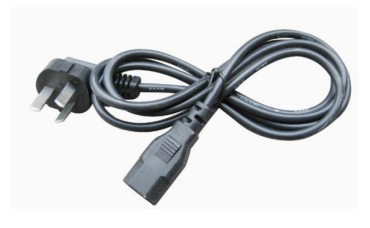
- Required power supply : AC 100V --- 220V.

Turn on the docking station power switch, and check if the main power indicator lights up normally.
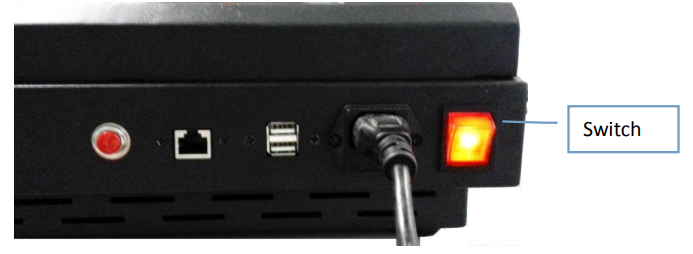
If the main switch indicator is not properly lit, check if the power cable is inserted properly.
Switching the device on or off
When you start the device, press the power switch to turn on the docking station.
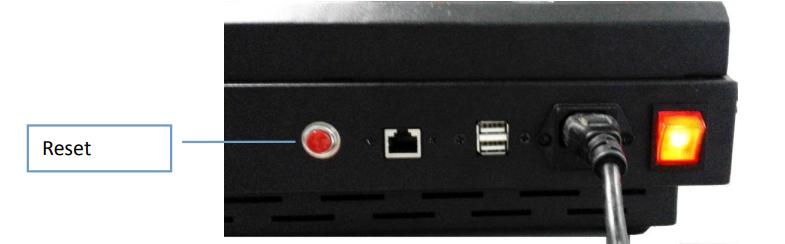
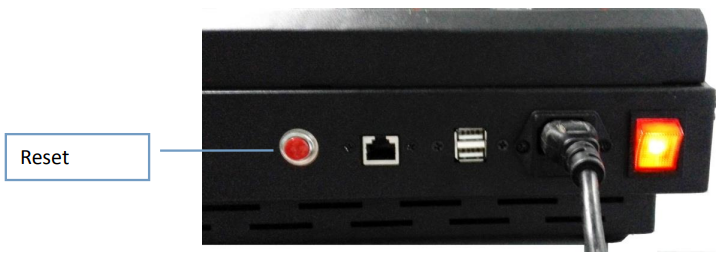
To reset the device, press the "Reset" button。
If you want to switch off the docking station from software, click on the lower left corner of the screen with your finger and navigate to the Control Panel and click "Power Off".
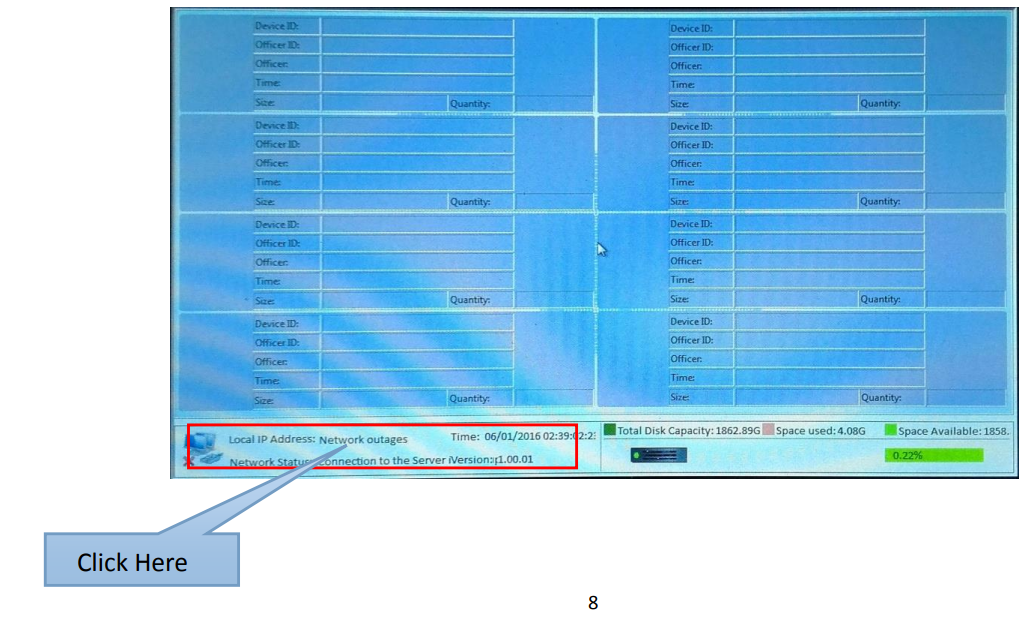
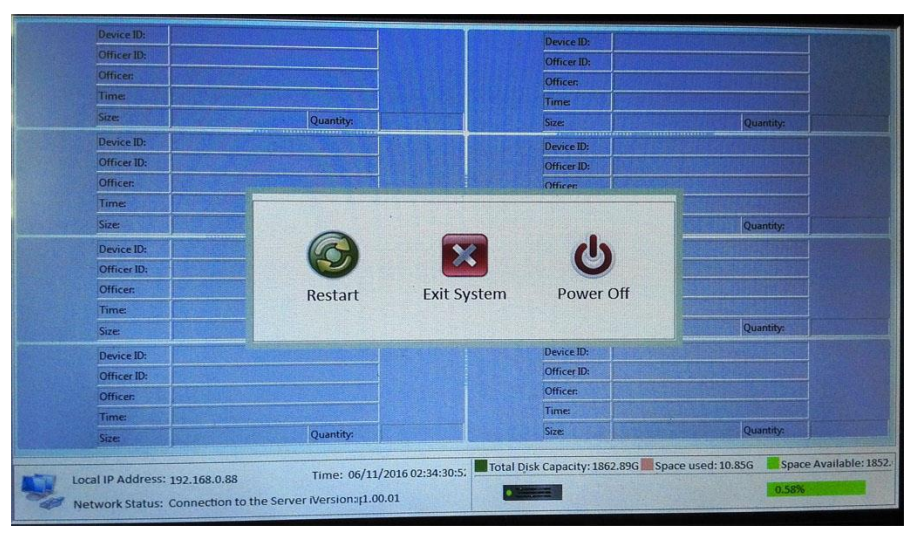
Control Buttons on the Screen:
- Restart: Restart the docking station system.
- Exit System: Exit the docking station system and enter the desktop of the operating system. Power Off: Switch the docking station OFF.
Features
- Compact design with integrated hardware.
- Embedded operating system and Web management system.
- Large-capacity hard disk storage space to store data.
- Supports Microsoft Azure cloud for saving and storing the video files.
Performance
- Boot operating system: <=30 s
- Storage: 64G SSD for the system, >=2T hard disk for storing video files.
- Support camera: Supports 8 body cameras to sync and recharge at the same time. Screen Resolution:1024 x 600
- Data transmission speed:>300M/min.
Software Features
- Product Compatibility : Rewire Security RX-3 Body Worn Camera.
- Video files can be automatically uploaded: After inserting the RX-3 body camera in the docking station, all files saved in the body camera TIF card will be automatically uploaded to the docking station, ion and uploaded files are automatically associated with the corresponding information officers.
- Automatic time synchronization: After inserting the RX-3 body camera in the docking statthe time Time of the body camera will be automatically synchronized with the time of the docking station.
- Auto clear camera TIF card: After all files in the body camera are uploaded to the docking station, the docking system will clear the storage of the RX-3 Body-worn camera.
- Fast charging: After inserting the RX-3 body camera in the docking station, the docking station will automatically start recharging the body camera.
- Search Files: Authorized users can search files using the docking station based on the type of media (date, time, video, audio, photos, log, HD, SD) to quickly locate video files.
- Playback files : Authorized users can playback files using the web interface.
- Protect files: Protected files can’t be removed by an unauthorized user.
- Lock files: Locked files can’t be played back, downloaded,d or removed by an unauthorized user.
- Protected file transfer: If thefiles transfer process is interrupted (USB disconnect, etc.,), the upload process will continue without damaging the video files.
- Download files: You can download the files from the docking station using the web system, and save the downloaded file to any storage of your choice.
- Automatic management docking station disk space: The docking station can automatically delete the expired fito make room for the next upload operation.
- Cloud storage: The docking station is embedded with the Microsoft Azure cloud services. You can upload the important files to the Microsoft Azure cloud. However, the user needs to open a Microsoft Cloud Services account.
- Remote manage docking station: You can manage the docking station remotely using a web system.
Basic Features
Using the touch screen
Only use the touch screen by pressing your finger!
- Do not allow the touch screen to come into contact with other electronic devices. Electrostatic discharges can cause the touch screen to malfunction.
- Do not allow the touch screen to come into contact with water. The touch screen may malfunction in humid conditions or when exposed to water.
- To avoid damage to the touch screen, do not use any sharp objects on the touch screen. Avoid pressing your finger heavily on the screen.
Setup Guide for the rewire security Rx-3 Body Worn Camera Docking Station
- Position the Dock: Choose a stable desktop or wall location with easy access to power and network ports. Use included brackets and screws for secure mounting if wall-mounted.
- Connect Power: Plug the AC adapter into a suitable power outlet and connect it to the docking station’s power port.
- Network Setup: Connect an Ethernet cable from the dock’s Ethernet port to your network router, switch, or PoE injector to enable data uploads and remote management.
- Dock Cameras: Place the Rx-3 cameras into the magnetic docking bay,s ensuring they align properly for charging and data transfer.
- Configure Software: Use the rewire security management software to register and configure each docked camera for automatic data upload and firmware updates.
- Troubleshooting Tips: If a camera fails to charge or upload data, verify cable connections, network settings, and power supply. Restart the dock if necessary.
- Safety Precautions: Avoid exposure to moisture, excessive heat, or physical shocks. Use only manufacturer-approved power adapters to prevent damage.
Troubleshooting the rewire security Rx-3 Body Worn Camera Docking Station
Touch Screen
If the touch screen is not responding properly, try the following:
- Remove any protective covers from the touch screen. Protective covers may prevent the device identification or lead to incorrect input; we do not recommend the use of touch-screen devices with the protective film.
- Make sure to click the touchscreen when your fingers are clean and dry.
- Restart the device to clear any temporary software bugs.
- Make sure the LCD driver is operating normally.
- If the touch screen is scratched or damaged, please contact Rewire Security.
Network
- If you can’t connect the docking station, please check the RJ45 network line if it’s inserted properly. 2、Enter the Windows desktop, and open the LAN card properties, and check if the IP Address is available.
System
If the operating system of the docking station can’t boot, and if the screen shows this message:
It means the operating system boot files are damaged. Please contact Rewire Security.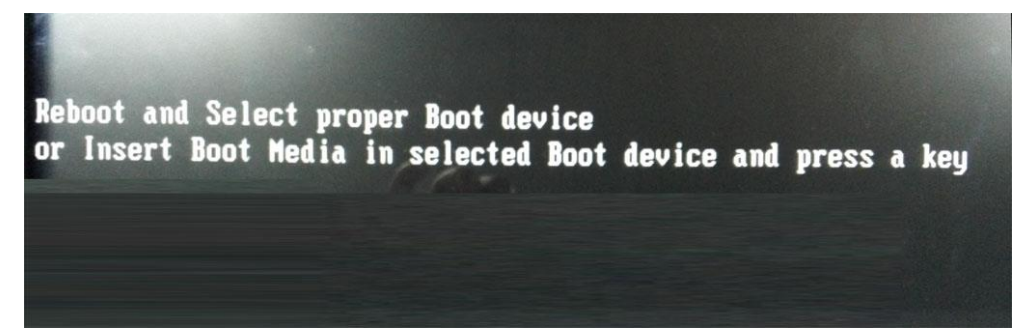
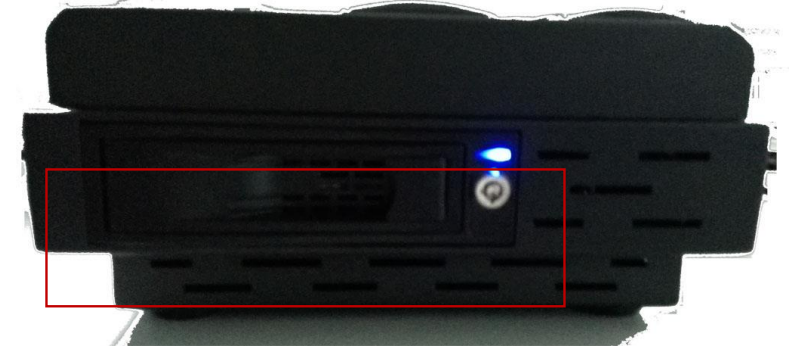
Storage: The docking station comes with a hard disk, and it can store files from the body camera. If the hard disk is full, you can erase the files inside or change the disk by opening the lock beside the docking station using the supplied key, and get out the hard disk, and insert a new hard disk.
- If you wish to erase the files inside the disk, enter the Windows computer management, then select the docking station storage disk from the menu and click on format hard disk.
Pros & Cons of the rewire security Rx-3 Body Worn Camera Docking Station
- Pros:
- Fast multi-device charging reduces downtime
- Encrypted data transfer enhances security compliance
- Compact design with flexible mounting options
- Easy-to-use magnetic docks for quick camera placement
- Integrated network connectivity for automated uploads
- Cons:
- Compatibility limited to Rx-3 models only
- Relatively higher price point compared to generic docks
- No built-in battery backup for power outages
- Requires network infrastructure for full functionality
- Value for Money: The docking station justifies its mid-range price by combining rapid charging and secure data management features tailored for professional body camera users, outperforming many basic charging docks lacking data integration.
Customer Reviews of the rewire security Rx-3 Body Worn Camera Docking Station
Users praise the rewire security Rx-3 Body Worn Camera Docking Station for its reliable charging speed and secure data upload capabilities, often highlighting its user-friendly magnetic docks and sturdy build quality. Typical star ratings hover around 4.5 out of 5, reflecting strong satisfaction with operational efficiency improvements.
Common complaints include the limited compatibility to only Rx-3 cameras and occasional network setup challenges, especially in complex IT environments. However, customers note responsive technical support and clear documentation that mitigate these issues.
Many recommend this docking station for agencies seeking a dedicated, secure solution that integrates charging and data management, especially where evidence integrity and rapid access to footage are critical.
Faqs
How do I set up the rewire security Rx-3 Body Worn Camera Docking Station for initial use?
What should I do if the rewire security Rx-3 Body Worn Camera Docking Station power indicator does not light up?
Can the rewire security Rx-3 Body Worn Camera Docking Station automatically upload videos while charging the camera?
Is the rewire security Rx-3 Body Worn Camera Docking Station compatible with third-party body worn cameras?
How can I troubleshoot file search or data transfer issues on the rewire security Rx-3 Body Worn Camera Docking Station?
What network requirements are needed for the rewire security Rx-3 Body Worn Camera Docking Station to operate effectively?
How often should the rewire security Rx-3 Body Worn Camera Docking Station be maintained to ensure optimal performance?
What are the key features of the rewire security Rx-3 Body Worn Camera Docking Station that enhance security operations?
More rewire security manuals
- Setup: Rewire Security RX-3 Lite Body Worn Camera User Manual
- Setup: Rewire Security RX-2S V2.0 Body Worn Camera User Manual
- Setup: Rewire Security RX-2S Body Worn Camera Instruction Guide
- Setup: Rewire Security RX-2S V4 Body Worn Camera User Manual
- Setup: Rewire Security RX-3 Pro Body Worn Camera User Manual
- Usage: Rewire Security RX-3LITE v2 Body Worn Camera User Manual
Leave a Comment