
Version 12.0 ROKU TV User Manual
Content
Roku Version 12.0 ROKU TV: Complete Product Manual and Buying Guide
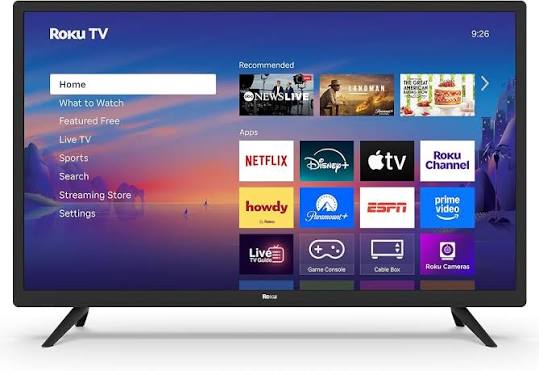
Roku Version 12.0 ROKU TV is a smart TV platform built for fast, simple streaming, giving users an easy way to watch live TV, movies, sports, and free content in one interface. Designed for households that want a straightforward setup and an uncluttered experience, Roku TV combines the Roku operating system with TV hardware from supported manufacturers, making it a popular choice for first-time smart TV buyers, cord-cutters, and families looking for an affordable entertainment center. Roku OS 12.0 adds improved discovery, better live TV navigation, and enhanced app experience, helping users find content faster and resume viewing more easily.
One of the biggest advantages of Roku Version 12.0 ROKU TV is its balance of simplicity and flexibility. The system supports streaming apps, voice control on compatible remotes, mobile app features, headphone listening, and access to the Roku Channel and live TV options. It is commonly available in budget, mid-range, and premium television models, with price ranges typically starting around entry-level smart TV pricing and rising based on screen size, panel type, and 4K or HDR support. For shoppers comparing smart TV ecosystems, Roku TV stands out for its easy navigation, broad app support, and quick setup process, making it an appealing alternative to more complex smart TV platforms.
Specifications for Roku Version 12.0 ROKU TV
- Operating system: Roku OS 12.0, designed for streaming-first TV navigation and content discovery.
- Supported resolutions: Commonly available in Full HD and 4K UHD models, depending on the TV brand and series.
- Picture support: Many models include HDR10, Dolby Vision, or HLG support, varying by hardware configuration.
- Processor and memory: Hardware depends on the television manufacturer; many 4K Roku TV models use dual-core or quad-core chipsets with 1 GB to 2 GB of memory.
- Connectivity: Wi-Fi, Ethernet on selected models, HDMI ports, USB, and wireless streaming support.
- Audio features: Built-in TV speakers, optical output on selected models, headphone support through compatible remotes or the mobile app.
- Smart features: Voice search, mobile app remote, private listening, live TV guide, and app-based streaming.
- Performance: Roku OS 12.0 focuses on faster discovery, smoother navigation, and improved app resumption.
- Comparison: Compared with Android TV and Fire TV, Roku TV is generally simpler to use and easier to set up, though it may offer fewer advanced customization options.
Detailed Description of Roku Version 12.0 ROKU TV
Roku Version 12.0 ROKU TV works by combining the Roku operating system with television hardware from partner brands, giving users a unified interface for streaming, live channels, and inputs. The home screen organizes apps, recommendations, and shortcuts so viewers can move from cable boxes, game consoles, antenna input, and streaming services without confusion. Roku OS 12.0 improves the viewing experience with better content discovery and smoother access to recently watched entertainment, which is especially useful for households that switch between live sports, on-demand shows, and free streaming channels.
In real-world use, the platform suits everyday viewing in living rooms, bedrooms, dorms, and secondary family rooms. It is also practical for users who want one device that can handle streaming, antenna TV, and voice search without needing a separate media box. Build quality depends on the TV manufacturer, but most Roku TVs use standard consumer-grade materials such as lightweight plastic bezels and LED backlit panels. The overall user experience is widely appreciated for its clean layout, fast learning curve, and reliable streaming performance. Roku Version 12.0 ROKU TV is especially attractive for buyers who prioritize convenience over advanced customization.
Setup Guide for Roku Version 12.0 ROKU TV
- Place the TV on a stable stand or mount it securely on the wall following the manufacturer’s instructions.
- Connect the power cable, HDMI devices, antenna, or Ethernet cable before turning the TV on.
- Insert batteries into the remote and pair it if prompted on screen.
- Select your language, region, and network connection during the first-time setup process.
- Choose Wi-Fi or wired Ethernet, then enter your password carefully to avoid connection errors.
- Sign in to your Roku account or create one to activate streaming features and install apps.
- Run the software update if the TV prompts for the latest Roku OS version.
- Customize your home screen, reorder apps, and set preferences for voice control, privacy, and display options.
For troubleshooting during setup, restart the TV and router if Wi-Fi fails, and verify that the network password is correct. If pairing does not work, replace the remote batteries and move closer to the TV. Safety precautions include keeping vents unobstructed, avoiding moisture, and unplugging the TV before cleaning or moving it. Never place the unit near heat sources or unstable furniture.
Troubleshooting Roku Version 12.0 ROKU TV
- Problem: No Wi-Fi connection. Fix: Restart the TV and router, re-enter the password, and confirm the correct network name is selected.
- Problem: Error code 009. Fix: The TV sees the router but cannot reach the internet. Check the internet service, then reboot the modem and router.
- Problem: Error code 014 or 014.50. Fix: Usually caused by the wrong password, weak signal, or band mismatch. Move closer to the router and reconnect.
- Problem: Update failure codes such as 001, 002, or 003. Fix: Restart the TV, verify network stability, and try the software update again later.
- Problem: Blank screen or no signal. Fix: Check HDMI input selection, power cycle the connected device, and inspect the cable.
- Problem: Remote not responding. Fix: Replace batteries, re-pair the remote, or use the mobile app as a backup.
Preventive maintenance includes keeping the TV updated, using a stable internet connection, and avoiding frequent power interruptions. Warranty coverage and support options vary by TV brand and retailer, but most Roku TV models include manufacturer support and access to Roku help resources. For assistance, contact the TV manufacturer’s customer care line, the retailer where the product was purchased, or Roku support through the official help center.
Pros and Cons of Roku Version 12.0 ROKU TV
Pros
- Simple, easy-to-learn interface that works well for all skill levels.
- Fast streaming-focused navigation with strong app discovery.
- Excellent value for money on budget and mid-range TVs.
- Access to live TV, free channels, streaming apps, and antenna input in one place.
- Private listening, voice search, and mobile app features improve everyday convenience.
Cons
- Feature depth is more limited than some advanced smart TV ecosystems.
- Build quality and picture performance vary widely by manufacturer.
- Some premium features depend on the specific TV model rather than Roku OS alone.
- Users who prefer deep customization may find the interface too streamlined.
- Compared with higher-end alternatives, entry models may have modest audio and brightness performance.
For shoppers prioritizing ease of use, Roku Version 12.0 ROKU TV delivers strong value and reliable everyday performance. Compared with Android TV and Fire TV, it is often the more approachable choice, though advanced users may prefer platforms with more customization and integrated ecosystem features.
Customer Reviews of Roku Version 12.0 ROKU TV
Customer feedback is generally positive, with many users giving Roku TV around 4.5 out of 5 stars for ease of use, fast setup, and intuitive navigation. A common praise is that the interface feels uncluttered and makes it easy to find movies, shows, and live channels without endless menus. One satisfied buyer described it as “the simplest smart TV I’ve ever used, and perfect for streaming every day.”
Frequent complaints focus on model-specific differences, such as average built-in speakers on lower-priced sets or occasional Wi-Fi hiccups during setup. Another common comment is, “The software is great, but the audio could be better without a soundbar.” Despite these issues, many customers recommend it for families, seniors, and anyone who wants a straightforward streaming TV. For the best experience, buyers often suggest choosing a higher-quality panel and pairing the TV with a sound system if premium audio matters.
Faqs
How do I set up roku Version 12.0 ROKU TV for the first time?
Why is roku Version 12.0 ROKU TV stuck on the logo screen or restarting repeatedly?
What features does roku Version 12.0 ROKU TV include after activation?
Can I use roku Version 12.0 ROKU TV with a cable box, game console, or sound system?
How do I improve streaming performance on roku Version 12.0 ROKU TV?
What should I do if roku Version 12.0 ROKU TV will not connect to Wi-Fi?
How do I use Live TV Pause on roku Version 12.0 ROKU TV?
How often should I maintain or update roku Version 12.0 ROKU TV?
More roku manuals
Leave a Comment