
Setup & Usage: Amazfit Smart Scale User Manual
Content
Amazfit Smart Scale
Introduction
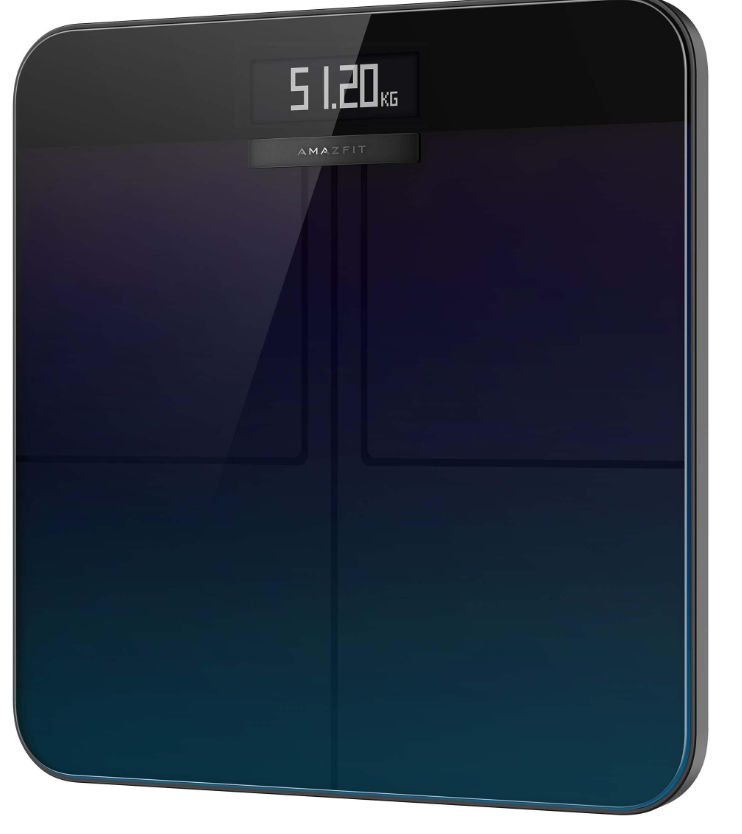
The Amazfit Smart Scale is a cutting-edge digital scale designed to provide comprehensive body health analysis beyond simple weight measurement. Equipped with advanced Bioelectrical Impedance Analysis (BIA) technology and a high-precision G-shaped sensor, it delivers accurate and detailed insights into 16 key body metrics such as body fat percentage, muscle mass, water content, basal metabolism, and more. This smart scale is ideal for fitness enthusiasts, health-conscious individuals, families, and anyone seeking to track their physical condition closely and make informed lifestyle choices.
Its sleek, compact design (320 x 320 x 25 mm) features a durable tempered glass surface with an anti-slip finish, making it safe and stylish for any home environment. The scale supports dual connectivity modes — Wi-Fi and Bluetooth — allowing seamless synchronization of data with the Zepp app on Android and iOS devices. Through the app, users can access detailed health reports, track progress, and even monitor calorie expenditure across 18 different sports, making it a powerful tool for personalized fitness planning.
Available at an estimated price range of $40 to $60, the Amazfit Smart Scale offers exceptional value compared to other smart scales on the market. It supports multiple user profiles, enabling up to 12 family members to track their health individually, with a guest mode for occasional users. Its versatility, accuracy, and affordability make it an excellent choice for those looking to integrate smart health technology into their daily routine with ease and reliability.
Specifications and Key Features of the Amazfit Smart Scale
- Dimensions: 320 mm x 320 mm x 25 mm, compact and space-saving design
- Weight Capacity: 11 lbs (5 kg) to 397 lbs (180 kg), suitable for most users
- Sensors: High-precision G-shaped sensor sensitive to 50g changes; 4 electrodes for BIA measurements
- Body Health Metrics Measured (16 total): Weight, Body Fat Rate, Muscle Mass, Body Water Percentage, Bone Mass, Protein Percentage, Basal Metabolism, Visceral Fat Grade, Subcutaneous Fat, Skeletal Muscle, Muscle Mass Change, Physical Age, Body Score, Body Mass Index (BMI), Ideal Body Weight, Body Type
- Connectivity: Dual-mode 2.4 GHz Wi-Fi (802.11 b/g/n) and Bluetooth 5.0 for fast data syncing with the Zepp app
- Display: Clear LED screen showing weight and sequential body composition data
- Power Source: Operates on 4 x 1.5V AAA batteries
- Material: Tempered glass top with ABS plastic base for durability and safety
- User Profiles: Supports 10 accounts for up to 12 users, plus guest mode
- Additional Features: Sport mode for exercise-specific data; calorie expenditure calculation for 18 sports
- Compatibility: Android 5.0+ and iOS 10.0+ devices with the Zepp app
Compared to other smart scales in its price range, the Amazfit Smart Scale stands out with its broad metric coverage, multi-user support, and dual connectivity, offering a more versatile and user-friendly experience.
Pairing the Amazfit Smart Scale with your phone
Installing the Zepp app
Search for "Zepp" in the app store, and then download and install the Zepp app (hereinafter referred to as the app).
Note:
- For a better experience, upgrade the app to the latest version as prompted.
- The operating system of your mobile phone must be Android 5.0 or iOS 10.0, or higher.
Pairing the Amazfit Smart Scale with youAmazfitAmazfit
Launch the app, register an account, log in to the account, and select Profile > My devices > Add > Body Composition Scale to pair the Amazfit Smart Scale with your phone. After pairing, configure the user information so that you can view your weight records and body composition information.
Note:
1. User information is used for body composition analysis. You need to enter the correct information to ensure correct analysis results.
Configuring a Wi-Fi network for the scale
After initial pairing, configure a Wi-Fi network for the scale as prompted by the app. After successful configuration, the scale can automatically update firmware at night, and the app can receive body data from the scale at any time without being connected to the scale in real-time.
Note:
- The scale can only connect to a 2.4 GHz Wi-Fi network, but not to a 5 GHz Wi-Fi network.
- If the dual-band Wi-Fi function is enabled on your router, the scale may be connected to the 5G Wi-Fi network, and will be unable to establish a Wi-Fi connection. Therefore, ensure that the dual-band Wi-Fi function is disabled on your router.\
- If you have changed the Wi-Fi password, name, or network provider, you must launch the app, select Profile > My devices > Amazfit Smart Scale, and configure Wi-Fi again.
Customizing the scale
Changing the display sequence
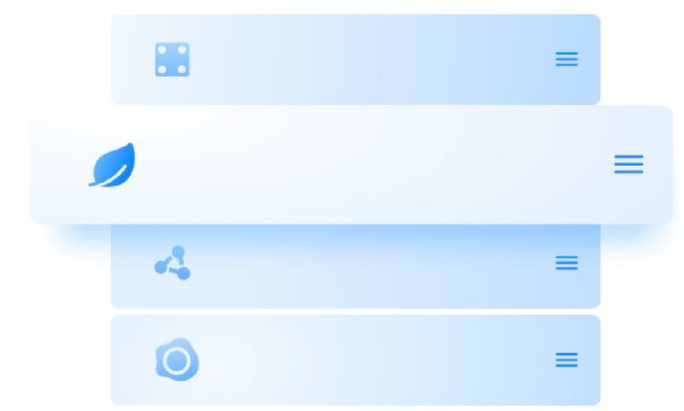
The Amazfit Smart Scale allows users to customize the screen display. In addition to the weight and weight trend, you can set whether to display other data and the display sequence of that data. For example, if you want to display the heart rate data first, perform the following steps:
- Step on the scale gently to light up the screen. Place your phone close to the scale, launch the app, and ensure that the app has been connected to the scale.
- Choose Profile > My devices > Amazfit Smart Scale > Display settings.
- Select the items that you want to display, adjust the display sequence, and tap Save.
Note:
The Amazfit Smart Scale can display up to eight types of body composition data.
Changing the weight unit
The Amazfit Smart Scale provides four weight units: kg, lbs, and Stone. To change the weight unit on the Amazfit Smart Scale, perform the following steps:
- Step on the scale gently to light up the screen. Place your phone close to the scale, launch the app, and ensure that the app has been connected to the scale.
- Choose Profile > My devices > Amazfit Smart Scale > Unit of weight
- Select a desired unit to save.
Changing the weight unit
The Amazfit Smart Scale provides four weight units: kg, lbs, and Stone. To change the weight unit on the Amazfit Smart Scale, perform the following steps:
- Step on the scale gently to light up the screen. Place your phone close to the scale, launch the app, and ensure that the app has been connected to the scale.
- Choose Profile > My devices > Amazfit Smart Scale > Unit weight.
- Select a desired unit to save.
Merging frequent weighing records
The Amazfit Smart Scale allows users to merge frequent weighing records. When this function is enabled, if the same person is weighed multiple times within 30 seconds, only the last record will be kept. To enable this function, perform the following steps:
- Step on the scale gently to light up the screen. Place your phone close to the scale, launch the app, and ensure that the app has been connected to the scale.
- Select Profile > My devices > Amazfit Smart Scale.
- Toggle on the "Merge duplicate records" switch.
Disabling the body composition measurement
You can choose to disable the body composition measurement (16 items of body data, such as fat and muscle). After the measurement is disabled, the scale turns off the microcurrent for fat measurement and only performs weight measurement. If a pregnant woman needs to use the scale, disable the body composition measurement, and then step on the scale for weighing. To disable the body composition measurement, perform the following steps:
- Step on the scale gently to light up the screen. Place your phone close to the scale, launch the app, and ensure that the app has been connected to the scale.
- Select Profile > My devices > Amazfit Smart Scale.
- Toggle off the "Body composition measurement" switch.
After the body composition measurement is disabled, the following icon is displayed, indicating that only weight is being measured.

Using Amazfit Smart Scale
General mode and athlete mode
Amazfit Smart Scale provides two body composition analysis modes: general mode and athlete mode. The athlete mode is suitable for professional or high-level athletes because they need specific body composition analysis methods to analyze data. For a person with relatively low body fat, for example, a marathon runner or a bodybuilder, select athlete mode to improve the accuracy of body composition analysis. For other users, body data analyzed in general mode is more accurate. To configure the body composition analysis mode, perform the following steps:
- Step on the scale gently to light up the screen. Place your phone close to the scale, launch the app, and ensure that the app has been connected to the scale.
- Select Profile > My devices > Amazfit Smart Scale.
- Go to the Member management page, select the desired member, and change the settings.
Recording weight and body composition
Using the Amazfit Smart Scale, you can record your weight and learn the trends in your weight. If you have enabled the body composition measurement, the following 16 items of body composition data can also be analyzed: weight, weight trend, body fat ratio, muscle mass, water percentage, bone mass, heart rate, protein percentage, basal metabolic rate, visceral fat grade, subcutaneous fat, skeletal muscle, muscle change, body age, body score, BMI, ideal weight, and body type. Body composition analysis allows you to better understand your health condition.
To obtain more accurate and representative weight data, pay attention to the following:
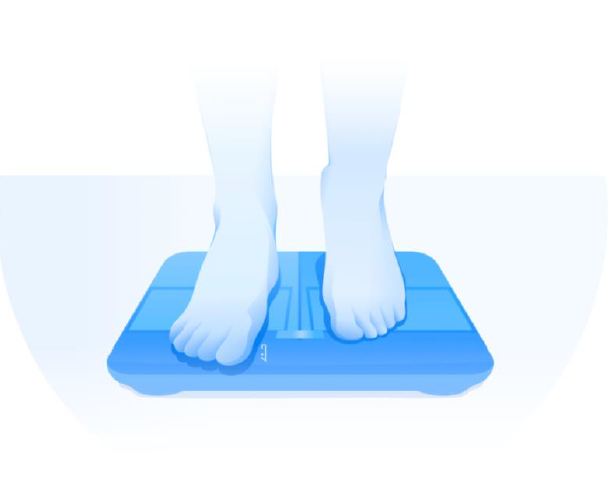
- Use the Amazfit Smart Scale barefoot, and keep your feet dry. If you are wearing shoes or socks, body data other than weight cannot be analyzed.
- Place the scale on a hard and level surface when using it. Using the scale on a carpet or soft surface will affect data accuracy. When standing on the scale, keep your weight evenly distributed on your feet, and ensure that the skin of your feet is in good contact with the four electrode pads of the scale.
- Your weight and body data will exhibit certain natural changes at different times of the day. To view a stable trend, weigh yourself at the same time every day in the same state.
- After replacing the scale's batteries or upgrading the scale, the screen will display the startup animation. At this time, to ensure accurate calibration of the scale, do not move the scale or step on the scale for measurement.
Viewing data
After you finish weighing and the Amazfit Smart Scale synchronizes the data to the app, you can view your weight data on the app home page, or tap the icon in the upper right corner of the app home page to view your body composition data. The trend of your body data is displayed visually. You can also manually output or delete the weight data.
Adding family members
The Amazfit Smart Scale can be bound to 10 accounts, and up to 12 family members (including the primary account) can be added under each account. This helps everyone in your household to keep track of their health.
When the Amazfit Smart Scale is used by multiple users, it automatically matches you with a user whose weight is closest to your weight. If the name displayed on the scale is not your name, lift your foot and step on the scale again to select your name, and then map your measurement results to the correct user name.
Anonymous
If you are matched with an anonymous profile photo, it indicates that your weight deviates a lot from the user weight records stored on the Amazfit Smart Scale, and therefore,, the scale cannot automatically find a matched name. If this happens, lift your foot and step on the scale again to select your name, and then map your measurement results to the correct user name.
If you have not registered an account, select the anonymous profile photo, . As anonymous information is not stored on the Amazfit Smart Scale, your body composition data will not be displayed on the Amazfit Smart Scale. After the data is synchronized to the app, the data can be re-allocated to a registered user.
Baby weighing
If you want to record the weights of babies, you can use the Baby weighing mode for measurement. The steps are as follows:
- Go to the Weight tab on the app home page, and tap Weigh infant at the bottom.
- Complete the measurement as prompted by the app.
Allocating the measurement data
If you select anonymous on the scale to measure your weight, or your weight is incorrectly mapped to anonymous, you can claim and re-allocate the data that does not match the user in the app. The steps are as follows:
Unpairing
After unpairing, the Amazfit Smart Scale is deleted from your account, and the app can no longer obtain your body data from the scale. Data that is not synchronized to the app before unpairing will be lost. To unpair the Amazfit Smart Scale from your phone, perform the following steps:
- Step on the scale gently to light up the screen. Place your phone close to the scale, launch the app, and ensure that the app has been connected to the scale.
- Select Profile > My devices > Amazfit Smart Scale.
- Tap Unpair, and complete other operations as prompted by the app.
Factory reset
Restoring factory settings will clear all user data from the scale, including the Wi-Fi network. Data that is not synchronized to the app before the factory reset will be lost, but those already synchronized to the app will not be affected. To restore factory settings, perform the following steps:
- Step on the scale gently to light up the screen. Place your phone close to the scale, launch the app, and ensure that the app has been connected to the scale.
- Select Profile > My devices > Amazfit Smart Scale.
- Tap Factory Reset, and complete the factory reset as prompted by the app.
Limits
The maximum weight supported by the scale is 180 kg. If the measurement value exceeds 180 kg, the following screen is displayed:

Cleaning and maintenance
Cleaning the Amazfit Smart Scale
To clean the scale, wipe its surface with a damp cloth and mild detergent. Do not use any organic solvents or other chemicals. Do not put the scale directly into water or wash it using a shower head.
Replacing batteries
The Amazfit Smart Scale is powered by four batteries, and no power cord connection is needed. If the following icon is displayed on the scale, the battery is almost exhausted. When this happens, remove the batteries promptly to prevent the scale from being corroded by battery leakage.

Note: After replacing the batteries, keep the face of the scale upward. Start weighing only after the startup animation is displayed and the scale is properly calibrated.
Precautions
- People implanted with pacemakers or other medical equipment are prohibited from using the Amazfit Smart Scale.
- It is recommended that women who are pregnant not use the Amazfit Smart Scale. If women who are pregnant need to use the Amazfit Smart Scale, disable the body composition measurement before weighing.
- To prevent slipping, do not place the scale on a damp floor, and do not use it when your feet or the surface of the scale are wet.
- During weighing, always stand in the center of the scale and keep your weight evenly distributed on your feet to prevent it from accidentally flipping over.
- When your soles are too dry, data such as body fat cannot be measured.
- Do not take measurements when you are unwell (fever, diarrhea, drunk, etc.) or have extreme dehydration, and do not measure after taking a sauna, hot spring,, or strenuous exercise.
- For people with metal devices in their bodies, hard soles and thicker skins, and those who are taking medicines that can cause changes in body moisture, or in other special situations, the body measurement data may be biased.
Troubleshooting Common Issues with the Amazfit Smart Scale
- Issue: The Scale does not power on.
Solution: Check battery installation or replace batteries with fresh AAA cells; ensure proper polarity. - Issue: Inaccurate or fluctuating weight readings.
Solution: Place the scale on a hard, flat surface; avoid rugs or uneven floors; ensure bare feet contact all electrodes firmly. - Issue: Data not syncing to the Zepp app.
Solution: Confirm Wi-Fi or Bluetooth connection; restart the scale and the smartphone; update the Zepp app to the latest version. - Error Codes: No specific error codes displayed; general measurement errors may indicate poor electrode contact or device movement during measurement.
- Preventive Measures: Avoid moving or bumping the scale during measurement; keep electrodes clean and dry; ensure firmware updates via the app when available.
The Amazfit Smart Scale comes with a standard warranty covering manufacturing defects; for detailed support, users can contact Amazfit customer service through their official website or the Zepp app support section.
Pros & Cons of the Amazfit Smart Scale: An Honest Evaluation
Pros
- Comprehensive Health Metrics: Tracks 16 body composition parameters,, giving a holistic view of health.
- Dual Connectivity: Both Wi-Fi and Bluetooth ensure reliable, fast syncing with mobile devices.
- Multi-User Support: Supports up to 12 users across 10 accounts with automatic user recognition.
- Compact and Durable: Tempered glass surface with anti-slip finish blends well in any home environment.
- Value for Money: Offers advanced features at a competitive price below many premium smart scales.
Cons
- Battery Powered: Requires frequent AAA battery replacements,, unlike rechargeable alternatives.
- Accuracy Limitations: Body composition data intended for reference, not medical diagnosis.
- App Dependency: Full functionality requires installation and use of the Zepp app.
- Weight Limit: Up to 397 lbs may exclude some users with higher weight needs.
Compared to other models in this category, the Amazfit Smart Scale strikes a good balance between affordability, precision, and feature set, but may not satisfy users requiring clinical-grade measurements or rechargeable power sources.
Customer Reviews and Feedback on the Amazfit Smart Scale
Users generally praise the Amazfit Smart Scale for its ease of use, detailed health insights, and reliable connectivity with the Zepp app. The ability to track multiple users and automatic recognition is frequently highlighted as a beneficial feature for families.
Common compliments include the scale’s sleek design, the accuracy of weight measurement, and helpful health improvement suggestions based on body metrics. Many reviewers appreciate the sport mode and calorie tracking features integrated via the app.
Frequent complaints involve the need to frequently replace AAA batteries and occasional syncing delays. Some users note that body composition data should be viewed as approximate rather than exact measurements, aligning with the product’s intended use.
Typical star ratings cluster around 4 to 4.5 stars out of 5, and purchasers recommend the Amazfit Smart Scale as a cost-effective smart health gadget compatible with a wide range of smartphones.
Faqs
How do I set up the Amazfit Smart Scale for the first time?
Why is my Amazfit Smart Scale not connecting to Wi-Fi and how can I fix it?
What body metrics does the Amazfit Smart Scale measure and how accurate are they?
Can the Amazfit Smart Scale be used with multiple users and how does it manage data?
How do I change the weight unit displayed on the Amazfit Smart Scale?
What should I do if the Amazfit Smart Scale shows inconsistent or inaccurate measurements?
How often should I maintain and clean my Amazfit Smart Scale?
Is the Amazfit Smart Scale compatible with fitness apps or devices other than the Zepp app?
More amazfit manuals
- Setup & Usage: Amazfit T-REX 3 Pro Smart Watch User Manual
- Usage & Setup: Amazfit T-Rex Pro Watch User Manual
- Setup & Pairing: Amazfit Balance 2 Fitness Watch User Manual
- Setup & Usage: Amazfit Stratos 3 SmartWatch User Manual
- Setup & Usage: Amazfit GTR 2 A1952 User Manual
- Usage & Pairing: Amazfit Active A2211 Smart Watch User Manual
Leave a Comment