
How to Pair: Aukey Radius Wireless Speaker User Manual
Content
Aukey Radius Wireless Speaker
Introduction
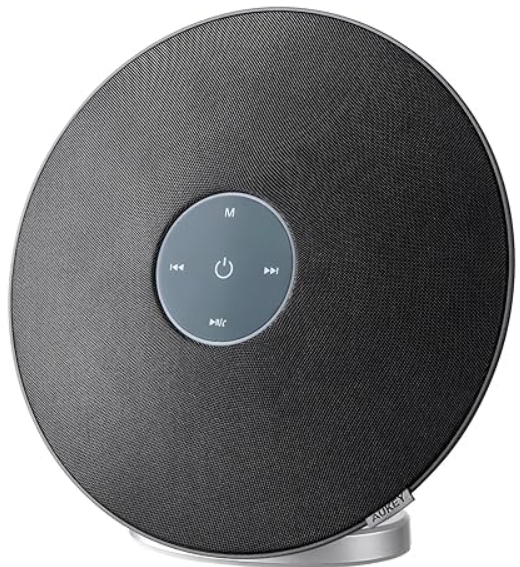
The aukey Radius Wireless Speaker is a versatile Bluetooth speaker designed to deliver high-quality sound with enhanced bass and user-friendly controls. Equipped with dual 10-watt active drivers, it provides robust audio performance suitable for both indoor and outdoor environments. This speaker features convenient touch controls that allow seamless interaction with iPhones, Samsung phones, computers, and other Bluetooth-enabled devices, making it an ideal choice for music lovers seeking clarity and power in a compact unit.
Its sleek design and boosted bass capabilities make the Aukey Radius speaker a perfect companion for home use, office setups, or small gatherings, appealing to a broad audience ranging from casual listeners to audiophiles who value portability without compromising sound quality. The device supports a stable Bluetooth connection, ensuring wireless streaming with minimal dropouts within typical ranges.
Priced competitively between approximately $30 to $50 depending on the retailer, the Aukey Radius Wireless Speaker offers excellent value for money given its premium audio output and ease of use. It is widely available on major e-commerce platforms and select electronics stores, making it accessible to consumers globally. Whether for daily music streaming, podcasts, or enhancing multimedia experiences, this speaker balances performance and convenience effectively.
Package Contents
- Radius Wireless Speaker
- Micro-USB Cable
- 3.5mm Audio Cable
- User Manual
- Warranty Card
Specifications
- Model: SK-M36
- Technology: BT 4.1, A2DP, AVRCP, HSP, HFP
- Audio Output Power: 10W
- Frequency Response: 180Hz - 20kHz
- Signal-to-Noise Ratio: >70dB
- Microphone Sensitivity: 42dB ±3dB
- Input: DC 5V
- Charging Time: 4 hours
- Play Time: 10 hours (at 50% volume)
- Talk Time: 8 hours
- Battery Type: Li-ion (2200mAh 7.4V)
- Operating Range: Up to 10m / 33ft
- Operating Temperature: -10°C - 50°C / 14°F - 122°F
- Dimensions: 218 × 212 × 83mm / 8.58” × 8.34” × 3.27”
- Weight: 750g / 26.45oz
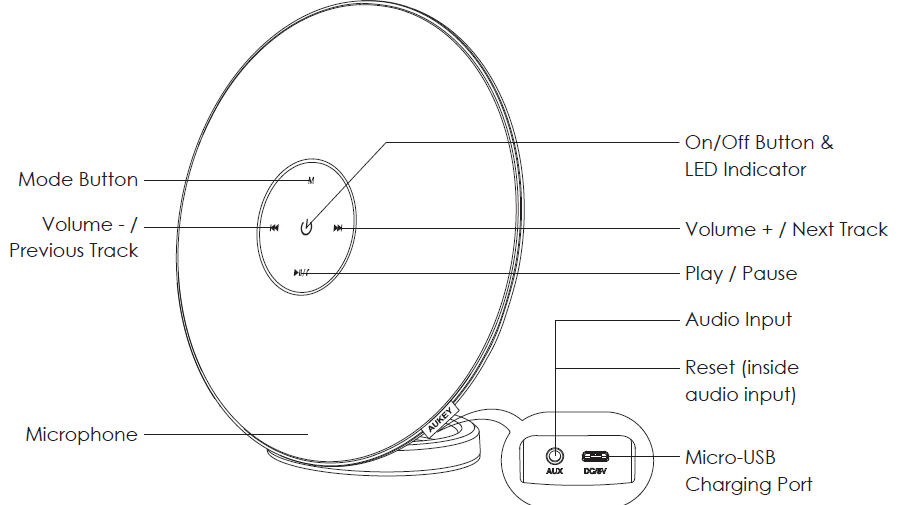
Product Diagram
Charging
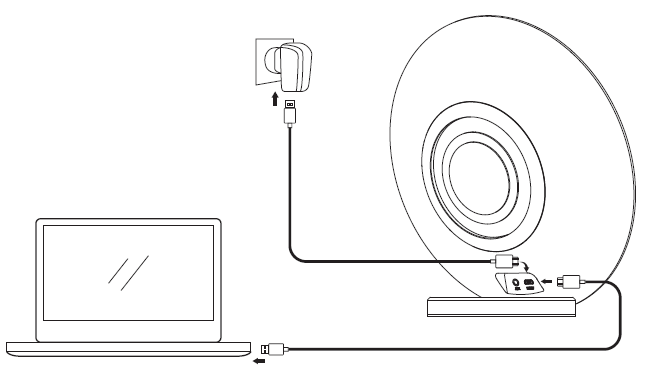
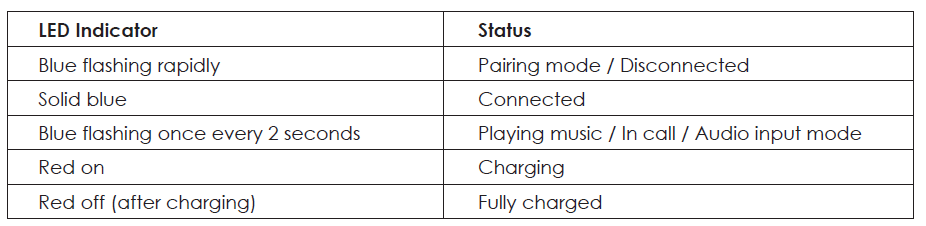
Please fully charge this speaker before first use. Connect it to a USB charger or charging port with the included micro-USB cable to charge. When the red LED indicator turns off, your speaker is fully charged and ready for use. Charging takes around 4 hours.
Powering On / Off
- To power on/off, press and hold the on/off button for 2 seconds, and the LED indicator will turn blue / turn off
Pairing
- When you turn on the speaker, it will automatically enter pairing mode and the LED indicator will start to flash blue rapidly
- Activate the pairing function on your phone or other compatible device and select “AUKEY SK-M36”
- If a code or pin is required for pairing, enter “0000”
- When successfully paired, you will hear a tone and the LED indicator will stay on
Playing Audio via Audio Input Connection
Connect the SK-M36 to your PC, laptop, or other device with audio output port using the included 3.5mm audio cable. Press the on/off button to turn on, and the LED indicator will flash blue once every 2 seconds.
Notes
- The speaker will disconnect from your phone or other paired devices when an audio cable is plugged into the audio input jack.
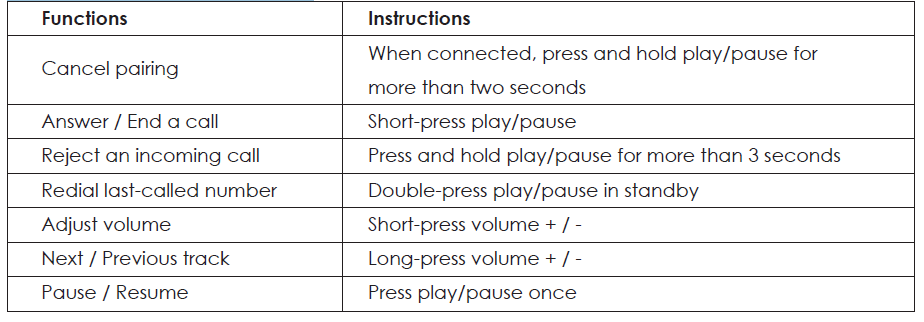
- Short-press the mode button to switch back to BT mode When playing audio using the audio input jack, short-press the volume + / - to adjust the volume and short press play/pause to pause or resume. Next / previous track control on the speaker is disabled in audio input mode
- For some computers, you may need to access the audio control panel to manually set the speaker as the default audio device
Controls & LED Indicator
Product Care & Use
- Keep away from liquids, extreme heat, and strong magnetic fields
- Do not use this speaker at high volume for extended periods, as this may cause permanent hearing damage or loss
Warranty & Customer Support
For questions, support, or warranty claims, contact us at the address below that corresponds with your region. Please include your Amazon order number and product model number.
- Amazon US orders: support.us@aukey.com
- Amazon EU orders: support.eu@aukey.com
- Amazon CA orders: support.ca@aukey.com
- Amazon JP orders: support.jp@aukey.com
Troubleshooting the Aukey Radius Wireless Speaker
Users may occasionally encounter common issues with the aukey Radius Wireless Speaker, such as Bluetooth pairing difficulties, low volume output, or charging problems. To resolve Bluetooth connectivity issues, ensure the speaker is in pairing mode and within 33 feet of the source device, and that no other devices interfere. For audio problems like distorted sound or low volume, check the speaker’s volume controls and the connected device’s audio settings.
If the speaker fails to charge properly, verify that the charging cable and power source are functioning, and use the included USB cable to guarantee compatibility. In case of error codes or unresponsive touch controls, a reset by powering off and on after a few seconds often resolves the problem.
Preventive measures include keeping the speaker dry and free from dust, avoiding exposure to extreme temperatures, and charging it regularly to maintain battery health. The Aukey Radius Wireless Speaker comes with a 2-year limited warranty covering manufacturing defects. For further support, customers can contact Aukey’s official customer service through their website or authorized retailer channels.
Pros & Cons of the Aukey Radius Wireless Speaker
- Pros:
- Strong audio output with enhanced bass thanks to dual 10W drivers.
- Intuitive touch control interface for easy playback and volume adjustment.
- Wide compatibility with devices including iPhones, Samsung phones, and computers via Bluetooth.
- Competitive price offering excellent value compared to similar wireless speakers.
- Compact and stylish design suitable for various settings.
- Cons:
- Limited Bluetooth range (up to 33 feet) may restrict use in larger open spaces.
- Battery life, while decent, may be shorter under continuous high-volume use compared to premium models.
- Touch controls can be sensitive and occasionally unresponsive in humid conditions.
- Does not feature waterproofing, limiting outdoor use in adverse weather.
Compared to alternatives like the Aukey SK-M12 or SoundTank models, the Radius prioritizes home audio quality with boosted bass and touch controls rather than rugged outdoor features, making it best suited for users looking for immersive sound indoors or on-the-go in dry environments.
Customer Reviews of the Aukey Radius Wireless Speaker
Customers generally praise the aukey Radius Wireless Speaker for its clear, powerful sound and ease of use, rating it between 4 to 4.5 stars on average. Positive feedback highlights the quality bass performance and seamless Bluetooth connectivity as standout features. Users appreciate the stylish design and practical touch controls that enhance the user experience.
Common complaints relate to battery longevity under loud volumes and occasional touch sensitivity issues. Some users mention the speaker’s Bluetooth range as suitable primarily for small to medium rooms. Despite these minor drawbacks, many reviewers recommend the speaker for its price category, especially for home or casual use. It is often suggested as a strong budget-friendly option for those seeking reliable wireless audio without complex setups.
Faqs
How do I set up my aukey Radius Wireless Speaker and connect it to my phone or computer?
What should I do if my aukey Radius Wireless Speaker won’t connect to my device via Bluetooth?
Can I use the aukey Radius Wireless Speaker with older devices that don’t have Bluetooth?
How do I optimize the sound quality and bass performance on my aukey Radius Wireless Speaker?
What maintenance steps should I follow to keep my aukey Radius Wireless Speaker in top condition?
How do I control playback and adjust volume on the aukey Radius Wireless Speaker?
Is the aukey Radius Wireless Speaker compatible with voice assistants like Siri or Google Assistant?
What should I do if my aukey Radius Wireless Speaker has reduced battery life or won’t hold a charge?
More aukey manuals
- Setup: Aukey 7W LED Desk Lamp User Manual
- How to Charge: Aukey 26500mAh Universal Power Bank User Manual
- How to Pair: Aukey EP-C10 Bluetooth Earbuds User Manual
- Setup: Aukey Ultrasonic Aroma Diffuser User Manual
- Setup: Aukey Dashboard Camera DR-02 User Manual
- Pairing & Usage: Aukey Neckband Magnetic Wireless Earbuds User Manual
Leave a Comment