
Setup & Pairing: Dangbei Atom Smart Projector User Manual
Content
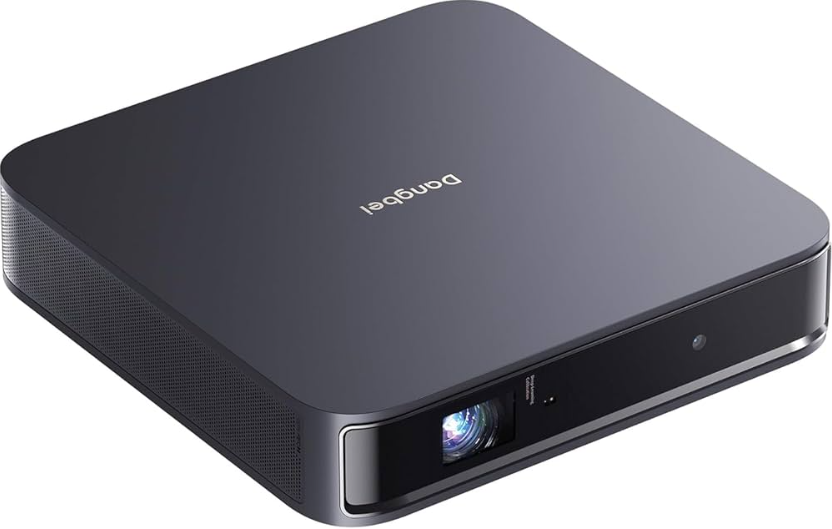
Dangbei Atom Smart Projector
Introduction
The Dangbei Atom Smart Projector is a cutting-edge portable laser projector that brings cinema-quality visuals to any space. Designed for home entertainment, travel, and casual business use, this compact device delivers stunning 1080p Full HD resolution with vibrant colors and sharp detail. Its advanced ALPD laser technology ensures 1,200 ISO lumens of brightness, making it ideal for both dim and moderately lit environments. The projector features Google TV built in, giving users instant access to thousands of streaming apps, including Netflix, YouTube, Prime Video, Disney+, and Hulu, all from a single, intuitive interface.
Perfect for movie nights, gaming, presentations, or outdoor viewing, the Dangbei Atom Smart Projector stands out with smart features like auto focus, auto keystone correction, intelligent screen fit, and obstacle avoidance. Its sleek, lightweight design (just 2.82 lbs) makes it easy to carry and set up anywhere. With a price range around $899, the Dangbei Atom is a premium choice for those seeking a portable, high-performance projector with smart functionality. Available now through major electronics retailers and online stores, this projector is a top pick for tech-savvy users and entertainment enthusiasts.
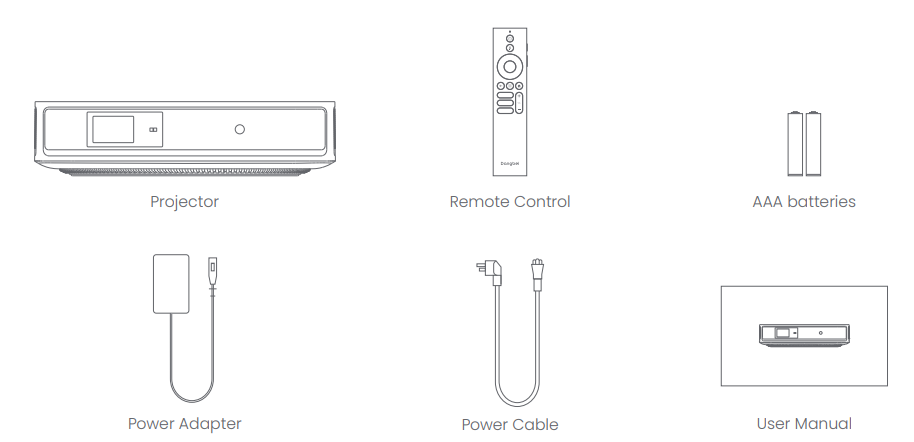
Packing List
Before using this product, please check that all items are included in the box.
Dangbei Atom Smart Projector Specifications
- Model: Dangbei Atom
- Display Technology: DLP (0.33" DMD)
- Resolution: 1920 x 1080 (Full HD)
- Brightness: 1,200 ISO Lumens
- Light Source: ALPD Laser (30,000-hour lifespan)
- Contrast Ratio: Not listed
- Aspect Ratio: 16:9
- Image Size: 40" – 180" (recommended 60" – 100")
- Throw Ratio: 1.2:1
- Zoom: Digital zoom (100% – 50%)
- Auto Focus: Yes (dToF + Camera)
- Auto Keystone: Yes (±30°)
- Intelligent Screen Fit: Yes
- Obstacle Avoidance: Yes
- Audio: Dual 5W speakers, Dolby Digital/Dolby Audio
- Connectivity: HDMI (ARC), USB 2.0, Bluetooth, Wi-Fi
- Operating System: Google TV
- RAM/Storage: 2GB DDR3 / 32GB eMMC
- Dimensions: 7.68 x 7.68 x 1.87 inches
- Weight: 2.82 lbs (1.27 kg)
- Warranty: 1–2 years (varies by retailer)
The Dangbei Atom Smart Projector outperforms many portable projectors in its class with its laser brightness, smart features, and streaming integration, making it a strong competitor to models like the Anker Nebula Capsule and XGIMI Halo.
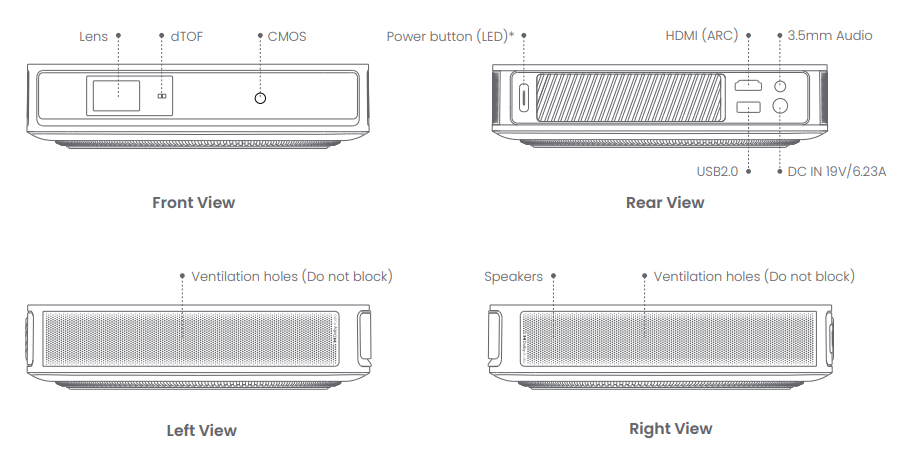
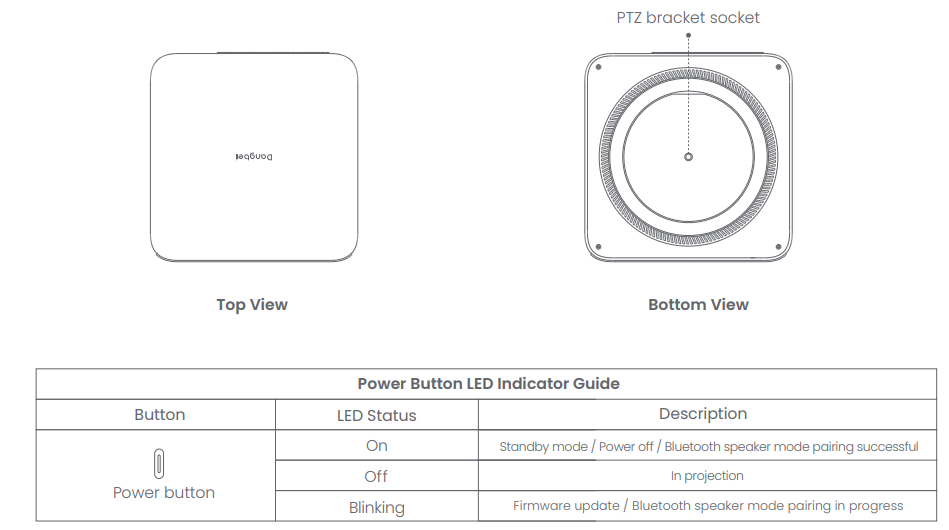
Projector Overview
Overview and interface description.
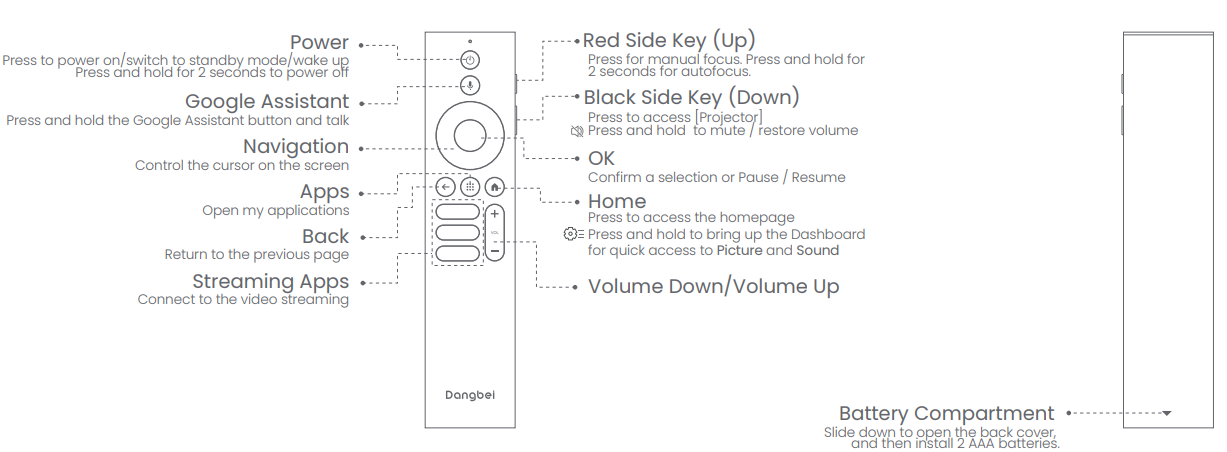
Remote Control Overview
- Open the battery compartment cover of the remote control.
- Install 2 AAA batteries.
- Put back the battery compartment cover.
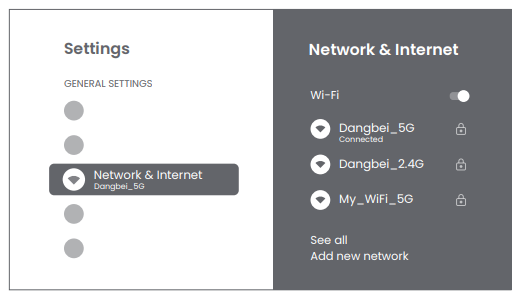
Network Settings
- Go to [Settings], select [Network & Internet], and turn on Wi-Fi.
- Choose your network and enter the correct password.
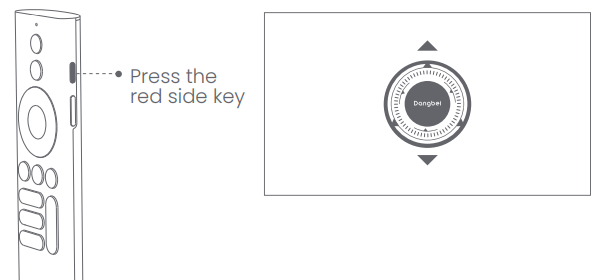
Focus Settings
- Method 1: Press the red side key (up) for manual focus.
Press and hold for 2 seconds for autofocus. - Method 2: Go to [Projector], select [Focus], and choose either manual focus or autofocus.
Autofocus
Select [Auto Focus] to trigger the autofocus function.
The image will automatically become clear.
Manual focus
Select [Manual Focus] and use the navigation keys (up/down) on the remote control to adjust the focus distance and make the image clear.
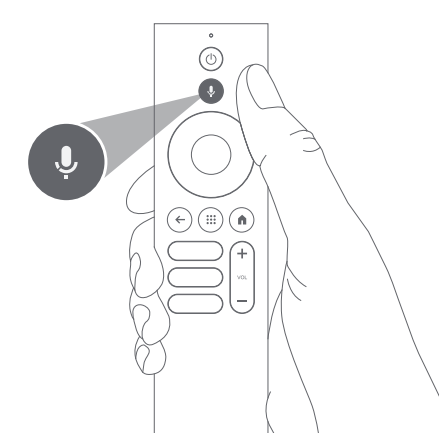
Google Assistant
- Your TV is more helpful than ever. Use your voice to find movies, stream apps, play music, and control the TV.
- Ask Google Assistant to find a specific title, search by genre, or get personalized recommendations.. Get answers on screen, control smart home devices, and more.
- Press the Google Assistant button on the remote to get started.
Important Precautions
- Do not look directly at the projection beam with your eyes, because the strong beam may harm your eyes. RG2 IEC 60825-1:2014
- Do not block or cover the heat dissipation holes of the device to avoid affecting the heat dissipation of the internal parts and damaging the device.
- Keep away from humidity, exposure, high temperature, low pressure, and magnetic environments.
- Do not place the device in areas susceptible to excessive dust and dirt.
- Place the device in a flat and stable station, and do not place the device on a surface that is prone to vibration.
- Do not allow children to handle the device without supervision.
- Do not place heavy or sharp objects on the device.
- Avoid extreme vibrations, because these may damage the internal components.
- Please use the correct type of battery for the remote control.
- Only use attachments/accessories specified or provided by the manufacturer (such as the exclusive power adapter, bracket, etc.).
- Do not disassemble the device. The device should only be repaired by staff authorized by the manufacturer.
- Place and use the device in a 5-35°C environment.
- The metal casing is coated with insulating paint.
- The plug is considered as a disconnected device of the adapter.
- The adapter should be installed near the equipment, and should be easily accessible.
- Protect the power cord from being walked on or pinched, particularly at the plugs, convenience receptacles, and the point where this exits from the device.
- Unplug this device if there are lightning storms or when unused for a long period of time.
- Where the power plug or an appliance coupler is used to disconnect the device, the disconnected device would remain readily operable.
- Never touch the power cable or power connector with wet hands.
- Risk of explosion if the battery is replaced with an incorrect type. Dispose of used batteries according to local regulations.
Troubleshooting Common Issues
- No audio output
- Check if you have double-clicked the black side key on the remote control to put the projector in mute mode.
- Check if the projector interface "HDMI ARC" or Bluetooth is connected to an external audio device.
- No image output
- Press the power button located on the rear of the projector. The power button indicator light will turn off if the projector enters projection mode successfully.
- Ensure that the power adaptor has a power output.
- No network
- Enter settings, and check the network connection status in the network option.
- Ensure that the network cable is correctly inserted into the projector interface "LAN".
- Ensure that the router is correctly configured.
- Blurry Image
- Adjust the focus or keystone.
- The projector and screen/wall must be positioned at an effective distance.
- The projector lens is not clean.
- Non-rectangular Image
- Place the projector perpendicular to the screen/the eystone correction function is not used.
- Use the keystone correction function to adjust the display.
- Automatic keystone correction failed
- Ensure that the Camera/TOF on the front panel is not blocked or dirty.
- The best automatic keystone correction distance is 2.0-4.0m, horizontal ±30°.
- Autofocus failure
- Ensure that the Camera/TOF on the front panel is not blocked or dirty.
- The best autofocus distance is 2.0-4.0m, horizontal ±20°.
- Smart Eye Protection failed
- Ensure that the Camera/TOF on the front panel is not blocked or dirty
- The optimal sensing range is located around the center of the image. Being too close to the edges may result in the eye protection feature not triggering.
- Intelligent Screen Fit failure
- Ensure that the projector is correctly positioned, so that the projected image extends beyond the edges of the screen.
- Ensure that the projection screen has a colored border/frame on all four sides, so that the projector can recognize the frame.
- Ensure that the red box pattern is within the screen frame, and is not blocked.
- The Remote Control is unresponsive..
- Ensure that the remote control is successfully paired via Bluetooth. If the pairing is successful, the LED light will flash once when you press any button. When you press and hold any button, the LED light will remain solid.
- If the pairing is unsuccessful, the LED light will flash three times when you press any button. When you press and hold any button, the LED light will flash three times and then remain solid.
- Check if the power indicator is still on without pressing any buttons. If it is, check the status of the remote control buttons to ensure they are not being pressed.
- Ensure that there are no interferences or obstructions between the projector and the remote control.
- Check the battery and installation polarity.
- Connect the Bluetooth devices.
- Enter settings, open the [Remotes&Accessories] to pair more Bluetooth devices.
- Others
- Please feel free to contact us at support@dangbei.com
Pros and Cons of the Dangbei Atom Smart Projector
Pros
- Excellent 1080p laser image quality
- Google TV built-in with Netflix, YouTube, Disney+, and more
- Auto focus, keystone, and obstacle avoidance for easy setup
- Dual 5W Dolby Audio speakers
- Compact, portable design
- Long-lasting laser light source
Cons
- No built-in rechargeable battery
- Limited to one HDMI and one USB port
- Auto keystone may require manual fine-tuning
- Not ideal for very bright rooms
- Higher price than basic LED projectors
The Dangbei Atom Smart Projector offers excellent value for those seeking a premium portable projector with smart features and streaming integration.
Customer Reviews and Feedback
Users consistently rate the Dangbei Atom Smart Projector 4.5–5 stars, praising its sharp image quality, ease of setup, and built-in streaming apps. Many highlight the auto focus and keystone features as game-changers for quick, hassle-free projection. Common complaints include the lack of a battery and the occasional need for manual keystone adjustment. Customers recommend it for home theater, travel, and casual business use. Most reviewers find it worth the investment for its performance and convenience.
Faqs
How do I set up the dangbei Atom Smart Projector for the first time?
Why is my dangbei Atom Smart Projector not auto-focusing correctly?
Can I use the dangbei Atom Smart Projector with gaming consoles?
Does the dangbei Atom Smart Projector support Bluetooth speakers?
How do I troubleshoot image distortion on the dangbei Atom Smart Projector?
What streaming apps are available on the dangbei Atom Smart Projector?
How do I clean and maintain the dangbei Atom Smart Projector?
Can I use the dangbei Atom Smart Projector outdoors?
More dangbei manuals
Leave a Comment