
Setup & Pairing: Dangbei Freedo Portable Projector User Manual
Content
Dangbei Freedo Portable Projector
Introduction
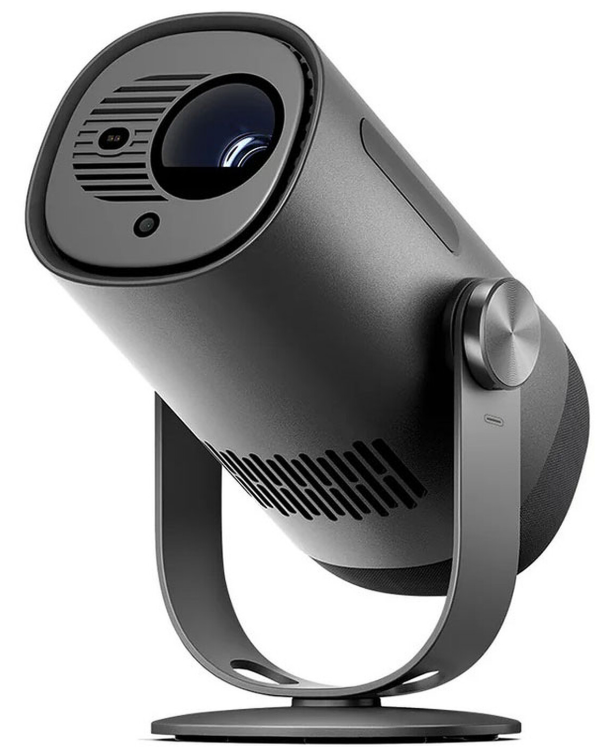
The Dangbei Freedo Portable Projector is a revolutionary device designed for entertainment on the go. Combining Full HD 1080p resolution, Google TV integration, and a unique 165° gimbal stand, this projector offers ultimate viewing flexibility for both indoor and outdoor use. Whether you're hosting a movie night in the backyard, presenting at a meeting, or simply enjoying your favorite shows on a larger screen, the Dangbei Freedo delivers stunning visuals and immersive audio.
With a compact design that fits in the palm of your hand, the Freedo is perfect for travelers, students, and anyone seeking a portable entertainment solution. Its built-in battery provides up to 2.5 hours of video playback in Eco Mode, and it supports fast charging via USB-C, making it ideal for extended use. The projector also doubles as a Bluetooth speaker, offering Dolby Audio compatibility for rich sound even when not projecting.
Available for around $549, the Dangbei Freedo Portable Projector is currently shipping and backed by a 1-year warranty. Its combination of portability, performance, and smart features makes it a top choice for anyone looking to elevate their viewing experience.
Specifications of the Dangbei Freedo Portable Projector
- Display Technology: DLP
- Resolution: 1920x1080 (Full HD)
- Brightness: 450 ISO lumens
- Color Gamut: Over 90% DCI-P3, 124% Rec 709
- Light Source: LED (30,000-hour lifespan)
- Throw Ratio: 1.2:1
- Image Size: 40" to 180" (recommended 60" to 100")
- Auto Focus: Yes
- Auto Keystone Correction: Yes, ±30°
- Connectivity: HDMI ARC, USB 2.0 (Type-A), USB-C (DC-IN)
- Audio: 6W mono speaker, Dolby Audio, Bluetooth speaker mode
- Battery Life: 2.5 hours video playback (Eco Mode), 6 hours music playback
- Dimensions: 9.4" x 5.2" x 4.3"
- Weight: 3.1 lbs
- Warranty: 1 year
The Dangbei Freedo stands out with its Google TV integration, licensed Netflix app, and InstanPro AI Image Setup for quick and easy projection. Compared to similar portable projectors, it offers superior color accuracy, a more flexible stand, and longer battery life.
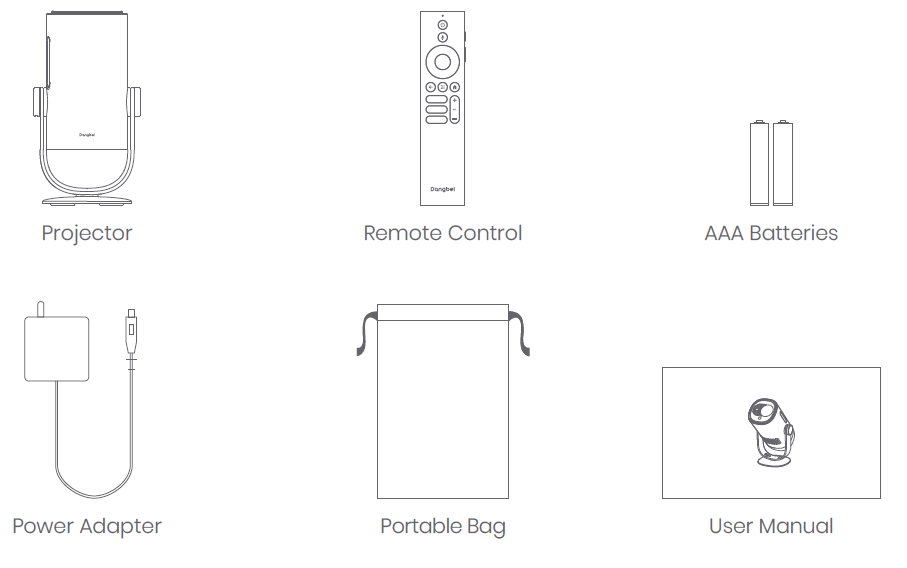
Packing List
Before using this product, please check that all items are included in the box.
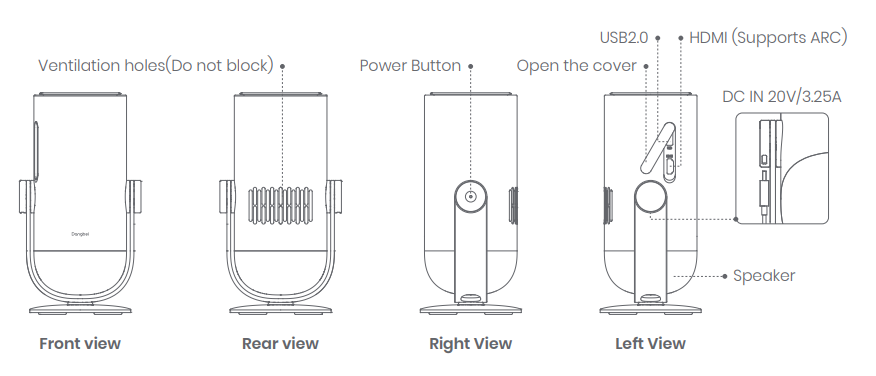
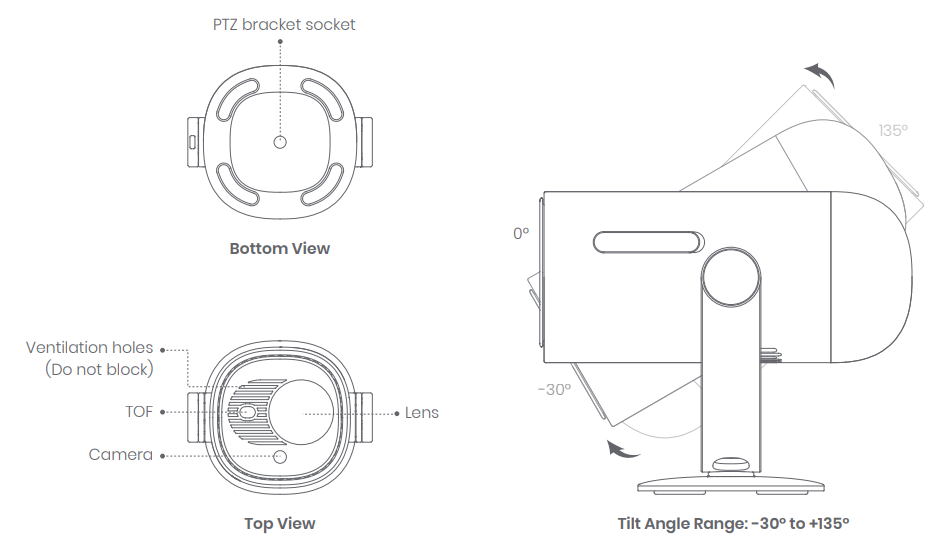
Projector Overview
Overview and interface description.
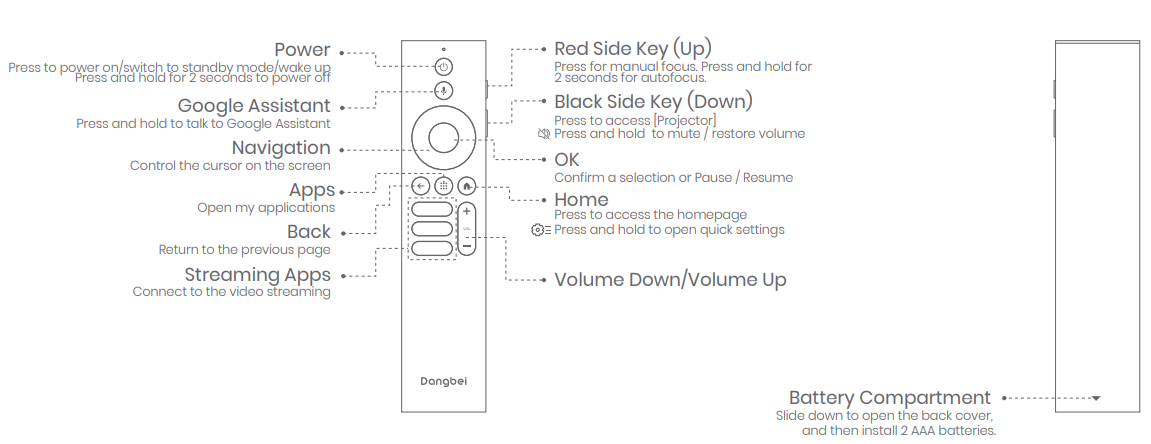
Remote Control Overview
- Open the battery compartment cover of the remote control.
- Install 2 AAA batteries
- Put back the battery compartment cover.
Getting Started
Placement
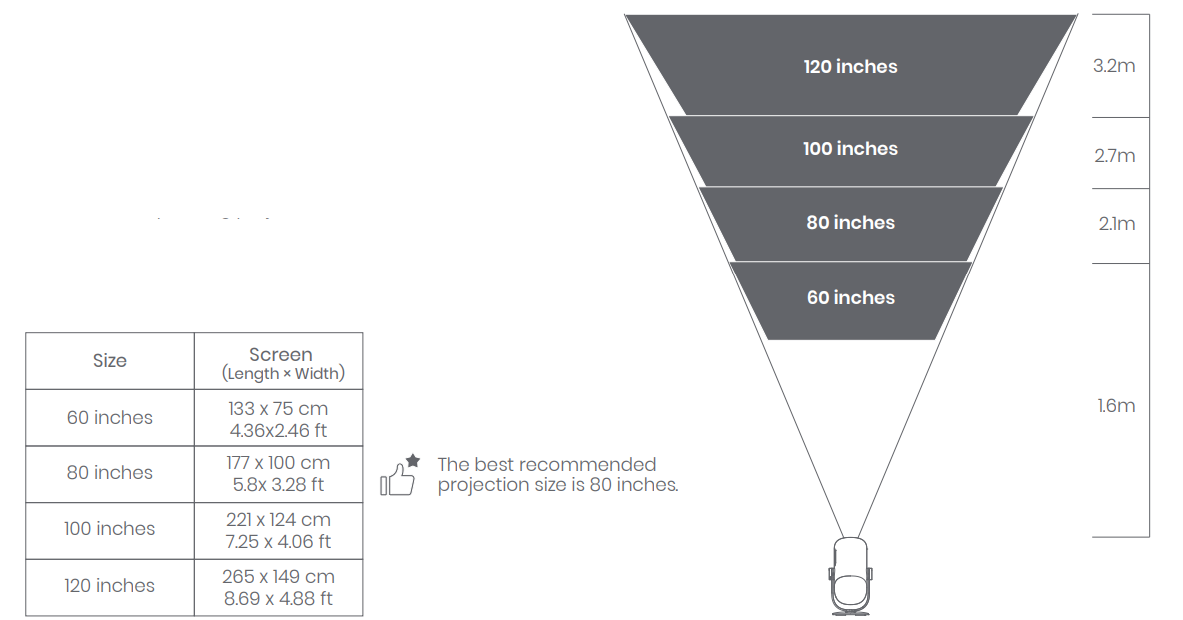
Position the projector on a stable, flat surface in front of the projection surface. A flat and white projection surface is recommended. Please follow the instructions below to determine the distance between the projector and the projection surface.
And the corresponding projection size:
Power on
(For first-time use, please fully charge your projector using the provided adapter.)
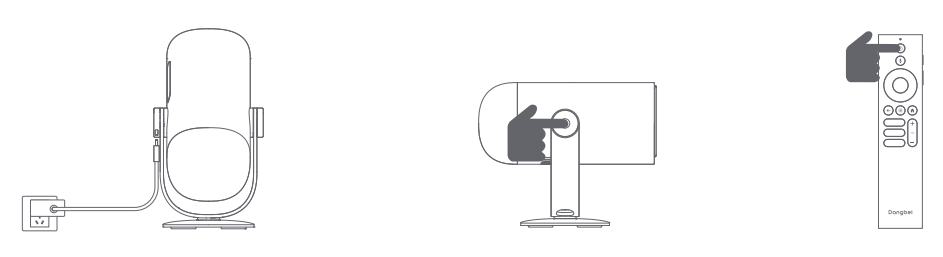
When Using the Adapter
- Connect the projector to the adapter and plug it into a power outlet.
- Press the power button on the projector or the remote control to turn it on.
- Before pairing the remote control, the projector can only be turned on using the power button on the projector.
In Battery Mode (Unplugged)
- Press and hold the power button on the projector for 2 seconds to turn it on.
- The power button on the remote control cannot be used to turn on the projector in battery mode.
Standby Mode / Power off
When Using the Adapter
- Press the power button on the projector or the remote control to enter standby mode.
- Press and hold the power button on the projector or the remote control for 2 seconds to turn it off.
In Battery Mode (Unplugged)
- Press the power button on the projector or the remote control to turn it off.
- Standby mode is not supported in battery mode.
Remote Control Pairing
- Turn on the projector and wait for the Bluetooth pairing prompt on the screen.
- Bring the remote control within 10 cm / 0.33 ft of the projector.
- Simultaneously press and hold the keys.
- Release the keys after the indicator light starts flashing.
- Wait until you hear two "beep" sounds, indicating a successful pairing.
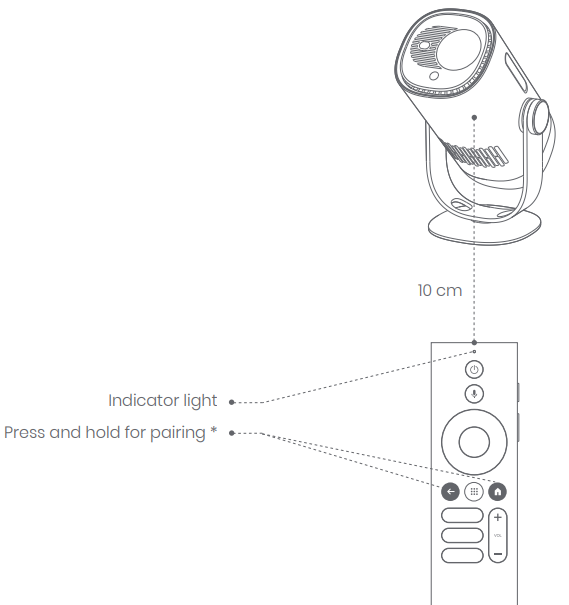
- If the pairing is unsuccessful, repeat the above steps until the remote control indicator light stops flashing.
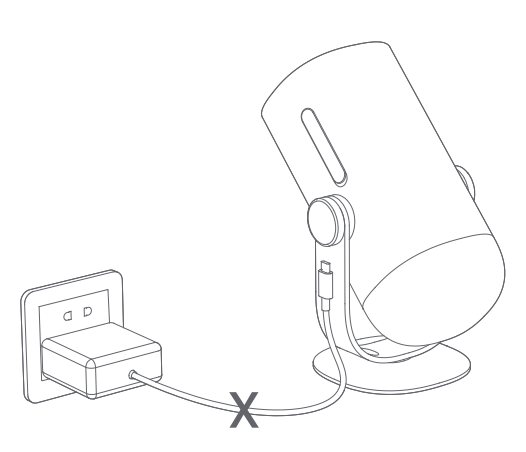
Battery Mode
- Unplug the power adapter.
- The projector will be powered by the built-in battery. The brightness will automatically switch to ECO mode to extend battery life.
- You can switch to other brightness modes, but this may affect battery life.
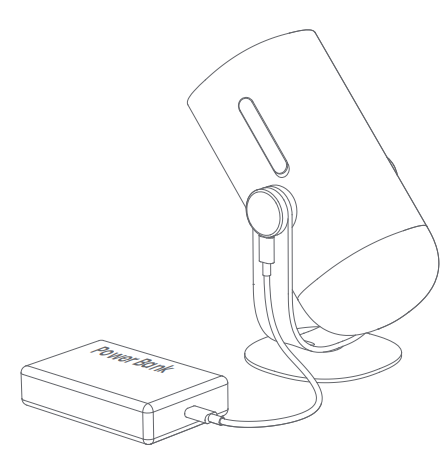
Charging with a Power Bank
- Unplug the power adapter.
- Use a USB-C power cable to connect the projector to a power bank.
- Ensure the power bank supports PD3.0 65W, and the USB-C power cable supports PD 65W and E-mark.
Troubleshooting the Dangbei Freedo Portable Projector.
No audio output
- Check if you have double-clicked the black side key on the remote control to put the projector in mute mode.
- Check if the projector interface "HDMI 1 (eARC)" or Bluetooth is connected to an external audio device.
No image output
- Press the power button located on the rear of the projector. The power button indicator light will turn off if the projector enters projection mode successfully.
- Ensure that the power adaptor has power output.
No network
- Enter settings, and check the network connection status in the network option.
- Ensure that the network cable is correctly inserted into the projector interface "LAN".
- Ensure that the router is correctly configured.
Blurry Image
- Adjust the focus or keystone.
- The projector and screen/wall must be positioned at an effective distance.
- The projector lens is not clean.
Non-rectangular Image
- Place the projector perpendicular to the screen/wall if the keystone correction function is not used.
- Use the keystone correction function to adjust the display.
Automatic keystone correction failed
- Ensure that the Camera/TOF on the front panel is not blocked or dirty.
- The best automatic keystone correction distance is 2.0-4.0m, horizontal ±30°.
Autofocus failure
- Ensure that the Camera/TOF on the front panel is not blocked or dirty.
- The best autofocus distance is 2.0–3.5m, horizontal ±20°.
Smart Eye Protection failed
- Ensure that the Camera/TOF on the front panel is not blocked or dirty
- The optimal sensing range is located around the center of the image. Being too close to the edges may result in the eye protection feature not triggering.
Intelligent Screen Fit failure
- Ensure that the projector is correctly positioned, so that the projected image extends beyond the edges of the screen.
- Ensure that the projection screen has a colored border/frame on all four sides, so that the projector can recognize the frame.
- Ensure that the red box pattern is within the screen frame, and is not blocked.
The Remote Control is unresponsive
- Ensure that the remote control is successfully paired via Bluetooth. If the pairing is successful, the LED light will flash once when you press any button. When you press and hold any button, the LED light will remain solid.
- If the pairing is unsuccessful, the LED light will flash three times when you press any button. When you press and hold any button, the LED light will flash three times and then remain solid.
- Check if the power indicator is still on without pressing any buttons. If it is, check the status of the remote control buttons to ensure they are not being pressed.
- Ensure that there are no interferences or obstructions between the projector and the remote control.
- Check the battery and installation polarity.
How to connect other devices via Bluetooth
- Go to Settings, and select [Remotes & Accessories] to pair with other Bluetooth devices.
Pros and Cons of the Dangbei Freedo Portable Projector
Pros
- Compact and portable design
- Full HD 1080p resolution with vibrant colors
- Google TV and licensed Netflix app
- Long battery life and fast charging
- Dolby Audio and Bluetooth speaker mode
- Flexible 165° gimbal stand
Cons
- Limited to 450 ISO lumens, may not be bright enough for very large rooms
- No lens shift or optional lenses
- Only one USB port
The Dangbei Freedo offers excellent value for money, especially for those who prioritize portability and smart features. While it may not match the brightness of larger home projectors, its unique combination of features makes it a standout choice in the portable projector market.
Customer Reviews of the Dangbei Freedo Portable Projector
Users consistently praise the Dangbei Freedo Portable Projector for its ease of use, vibrant colors, and flexible stand. Many highlight the built-in Google TV and Netflix app as major advantages. The projector has received an average rating of 4.5 stars, with customers appreciating its portability and battery life. Common complaints include the limited brightness for large rooms and the single USB port. Overall, the Dangbei Freedo is highly recommended for those seeking a portable, feature-rich projector for both entertainment and professional use.
Faqs
How do I set up the dangbei Freedo Portable Projector for the first time?
What should I do if the dangbei Freedo Portable Projector’s autofocus or keystone correction is not working properly?
Can the dangbei Freedo Portable Projector connect wirelessly to smartphones or laptops?
What are the key features of the dangbei Freedo Portable Projector that enhance outdoor movie nights?
How can I optimize image quality when using the dangbei Freedo Portable Projector in different lighting conditions?
What maintenance is required to keep the dangbei Freedo Portable Projector functioning properly?
Is the dangbei Freedo Portable Projector compatible with Netflix and other streaming apps?
What should I do if the dangbei Freedo Portable Projector battery drains quickly during use?
More dangbei manuals
Leave a Comment