
Pairing: Dangbei DBOX02 Smart Projector User Manual
Content
Dangbei DBOX02 Smart Projector
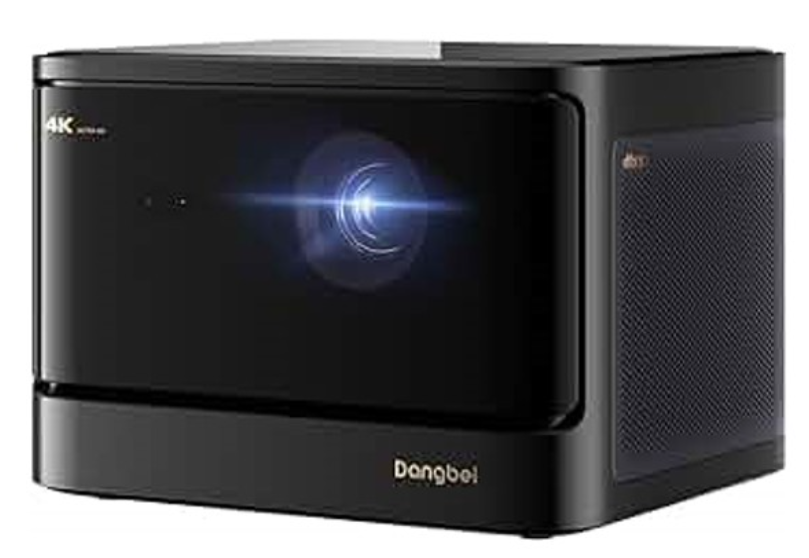
Introduction
The Dangbei DBOX02 Smart Projector is a cutting-edge 4K UHD laser projector designed for home entertainment enthusiasts seeking a premium cinematic experience. Utilizing advanced ALPD laser phosphor technology, it delivers bright, vivid images with a peak brightness of 2,450 ISO lumens, making it suitable for both daytime and nighttime viewing. The projector supports true 4K resolution (3840 x 2160 pixels) alongside HDR10+ decoding, providing rich color depth and lifelike picture clarity on screens up to an impressive 200 inches.
Key benefits of the Dangbei DBOX02 include its smart Google TV operating system with licensed Netflix support, built-in dual 12-watt Dolby Digital speakers for immersive sound, and advanced features such as auto-focus, AI brightness adjustment, and intelligent obstacle avoidance for seamless setup and use. Its compact yet robust design, weighing just under 9 pounds, fits well in modern living spaces.
This projector is ideal for cinephiles, gamers, and home office users wanting an all-in-one device that combines premium visuals with smart streaming capabilities. The dangbei DBOX02 is priced around $1,399 to $1,899, available through official channels and select retailers worldwide since its release in May 2024.
Specifications
- Display Technology
- 0.47 in,DLP
- Display Resolution
- 3840 x 2160
- Throw Ratio
- 1.27:1
- Speakers
- 2 × 12W
- Bluetooth Version
- 5.2
- WI-FI
- Dual Frequency 2.4/5.0 GHz
- Dimensions (Lx W x H)
- 236 × 201.5 × 167 mm
- 9.29 x 7.93 x 6.57 inches
- Weight
- 3.98kg / 8.77lb
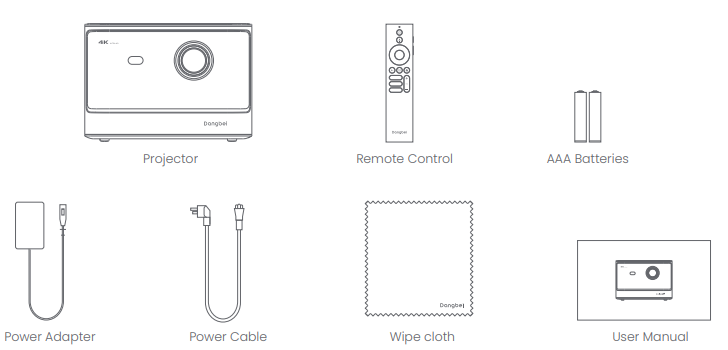
Packing List
Before using this product, please check that all items are included in the box.
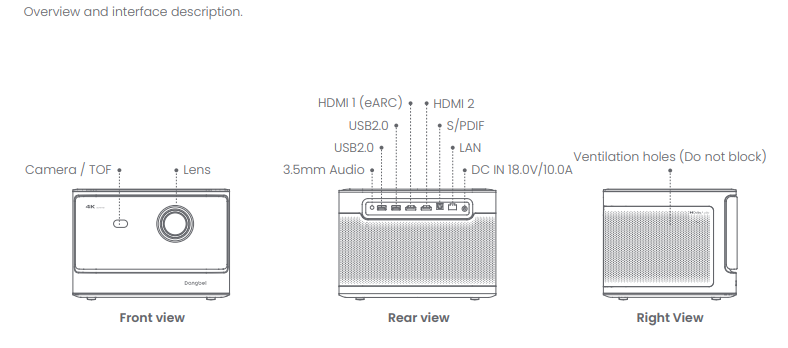
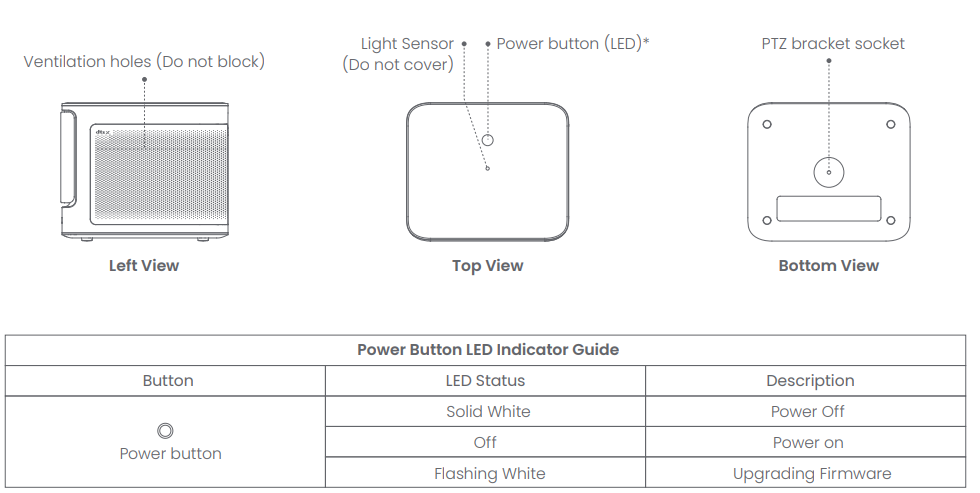
Projector Overview
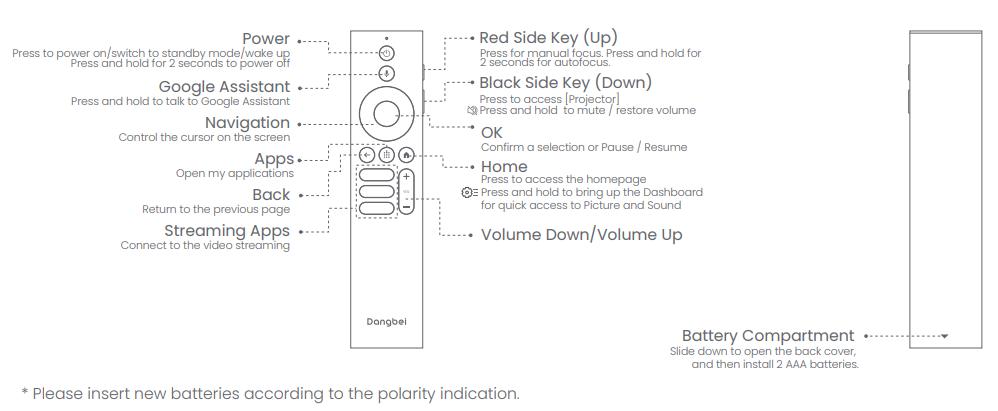
Remote Control Overview
- Open the battery compartment cover of the remote control.
- Install 2 AAA batteries
- Put back the battery compartment cover.
Getting Started
Placement
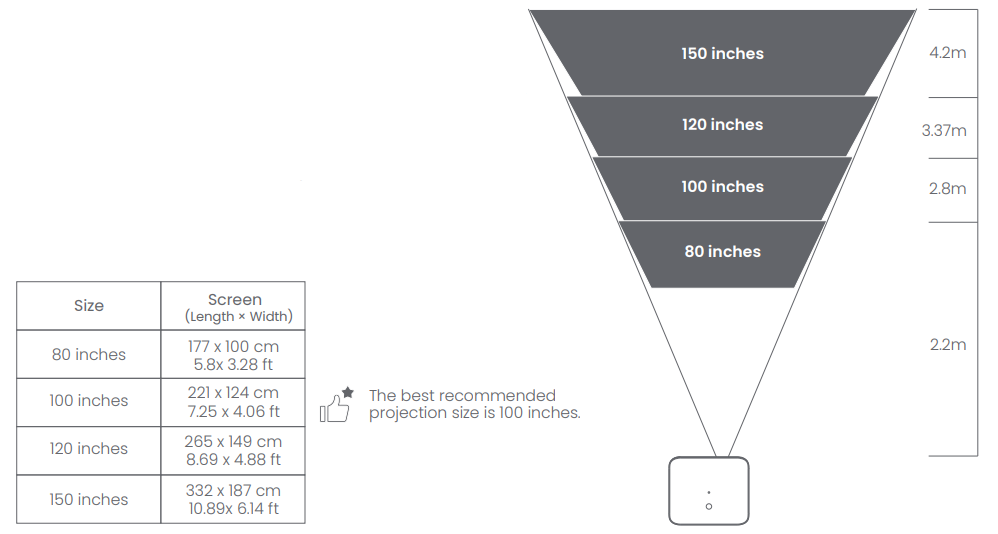
Position the projector on a stable, flat surface in front of the projection surface. A flat and white projection surface is recommended. Please follow the instructions below to determine the distance between the projector and the projection surface,
and the corresponding projection size:
Power on
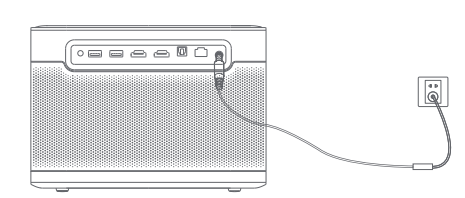
- Connect the projector to the power outlet.
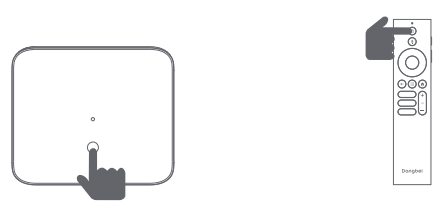
- Press the power button on the projector or remote control to turn on the projector.
Standby Mode / Power off
Press the power button on the projector or remote control to enter standby mode.
Press and hold the power button on the projector or remote control for 2 seconds to turn off the projector.
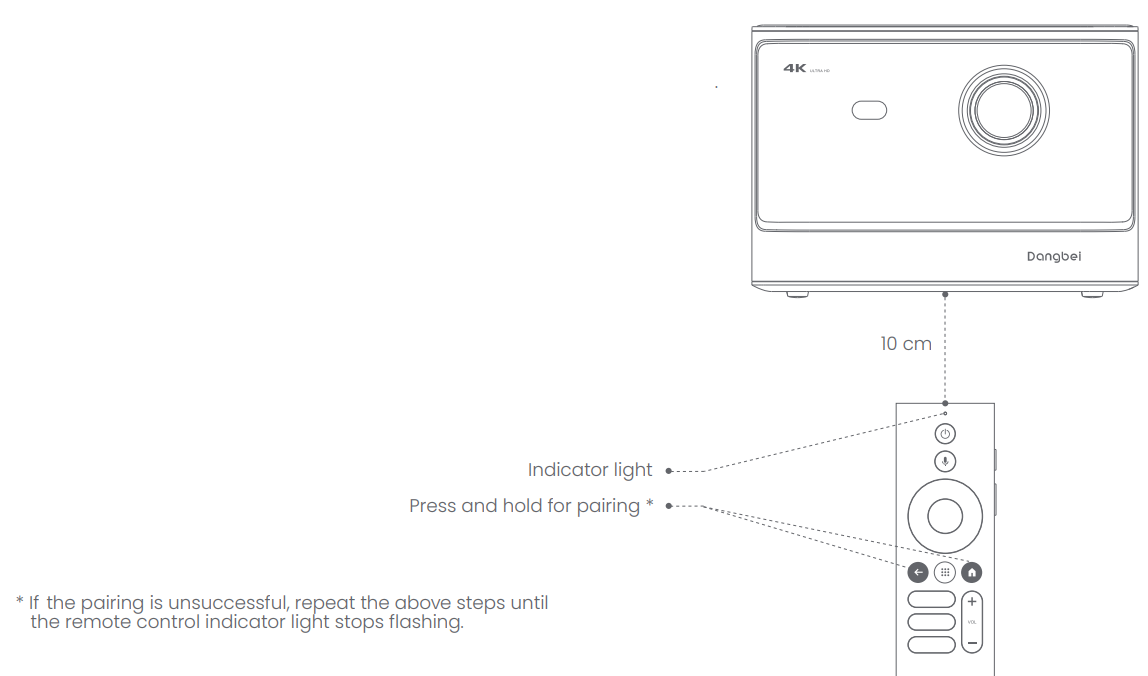
Remote Control Pairing
- Turn on the projector and wait for the Bluetooth pairing prompt on the screen. ㆍ
- Bring the remote control within 10 cm / 0.33 ft of the projector.
- Simultaneously press and hold the
 eyes.
eyes. - Release the keys after the indicator light starts flashing.
- Wait until you hear two "beep" sounds, indicating a successful pairing.
Troubleshooting
No audio output
- Check if you have double-clicked the black side key on the remote control to put the projector in mute mode.
- Check if the projector interface "HDMI 1 (eARC)" or Bluetooth is connected to an external audio device.
No image output
- Press the power button located on the rear of the projector. The power button indicator light will turn off if the projector enters projection mode successfully.
- Ensure that the power adaptor has power output.
No network
- Enter settings, and check the network connection status in the network option.
- Ensure that the network cable is correctly inserted into the projector interface "LAN".
- Ensure that the router is correctly configured.
Blurry Image
- Adjust the focus or keystone.
- The projector and screen/wall must be positioned at an effective distance.
- The projector lens is not clean.
Non-rectangular Image
- Place the projector perpendicular to the screen/wall if the keystone correction function is not used.
- Use the keystone correction function to adjust the display.
Automatic keystone correction failed
- Ensure that the Camera/TOF on the front panel is not blocked or dirty.
- The best automatic keystone correction distance is 2.0-4.0m, horizontal ±30°.
Autofocus failure
- Ensure that the Camera/TOF on the front panel is not blocked or dirty.
- The best autofocus distance is 2.0-4.0m, horizontal ±20°.
Smart Eye Protection failed
- Ensure that the Camera/TOF on the front panel is not blocked or dirty
- The optimal sensing range is located around the center of the image. Being too close to the edges may result in the eye protection feature not triggering.
Intelligent Screen Fit failure
- Ensure that the projector is correctly positioned, so that the projected image extends beyond the edges of the screen.
- Ensure that the projection screen has a colored border/frame on all four sides, so that the projector can recognize the frame.
- Ensure that the red box pattern is within the screen frame, and is not blocked.
The Remote Control is unresponsive
- Ensure that the remote control is successfully paired via Bluetooth. If the pairing is successful, the LED light will flash once when you press any button. When you press and hold any button, the LED light will remain solid.
- If the pairing is unsuccessful, the LED light will flash three times when you press any button. When you press and hold any button, the LED light will flash three times and then remain solid.
- Check if the power indicator is still on without pressing any buttons. If it is, check the status of the remote control buttons to ensure they are not being pressed.
- Ensure that there are no interferences or obstructions between the projector and the remote control.
- Check the battery and installation polarity.
Connect the Bluetooth devices.
- Enter settings , open the [Remotes&Accessories] to pair more Bluetooth devices.
Pros & Cons of the Dangbei DBOX02 Smart Projector
Pros
- Stunning 4K Image Quality: True 4K UHD resolution with HDR10+ support ensures vibrant, detailed visuals suitable for movies, sports, and gaming.
- Powerful Laser Brightness: 2,450 ISO lumens brightness allows clear images even in moderately lit rooms, outperforming many traditional LED projectors.
- Smart Streaming Integration: The Google TV platform with licensed Netflix means easy access to popular streaming apps without extra devices.
- Exceptional Sound: Dual 12W Dolby Digital speakers deliver rich, immersive audio, reducing the need for external sound systems.
- Advanced Auto Features: Includes auto-focus using dToF+camera, vertical keystone correction, AI brightness adjustment, and intelligent screen fit for hassle-free setup.
Cons
- Fixed Throw Ratio: The 1.27:1 throw ratio limits placement flexibility compared to zoom lens projectors, requiring careful distance planning.
- No Lens Shift: Lack of lens shift functionality means physical alignment is needed for perfect image positioning.
- Price Point: While competitive for laser 4K projectors, the $1,399–$1,899 price range may be steep for casual users or budget buyers.
- Limited 3D Support: Supports 3D Full HD but lacks some advanced 3D formats, which could limit appeal for dedicated 3D content fans.
Customer Reviews and Feedback on the Dangbeiei DBOX02 Smart Projector
Users commonly praise the daDangbeiBOX02 Smart Projector for its brilliant 4K image quality and impressive brightness, noting how it outperforms many similarly priced competitors in daylight viewing. The Google TV integration and licensed Netflix are frequently highlighted as convenient features that enhance the smart home cinema experience. Average star ratings hover around 4.5 out of 5, with testimonials emphasizing crisp visuals and excellent built-in sound.
Common complaints include the fixed throw ratio requiring precise setup and occasional software glitches in early firmware versions. Some users mention the projector's weight and size as less portable compared to compact competitors. However, many recommend it for home theater setups, citing the value delivered for the price, especially given its laser life expectancy of 30,000 hours and comprehensive feature set.
Faqs
How do I set up the dangbei DBOX02 Smart Projector for the first time?
What should I do if the dangbei DBOX02 Smart Projector image is blurry or out of focus?
Can the dangbei DBOX02 Smart Projector stream Netflix and other apps directly?
What are the connectivity options available on the dangbei DBOX02 Smart Projector?
How do I optimize brightness and image quality on the dangbei DBOX02 Smart Projector?
How can I troubleshoot sound issues on the dangbei DBOX02 Smart Projector?
What maintenance is required to keep the dangbei DBOX02 Smart Projector functioning well?
Is the dangbei DBOX02 Smart Projector compatible with 3D content and gaming consoles?
More dangbei manuals
- Setup & Pairing: Dangbei N2 mini Smart Projector User Manual
- Setup & Pairing: Dangbei Atom Smart Projector User Manual
- Setup & Pairing: Dangbei MP1 Max Smart Projector User Manual
- Setup & Pairing: Dangbei DBOX02 Pro Smart Projector User Manual
- Setup & Pairing: Dangbei Freedo Portable Projector User Manual
Leave a Comment