
How to Use: Fitbit Charge 3 Fitness Tracker User Manual
Content
Fitbit Charge 3 Fitness Tracker
Introduction
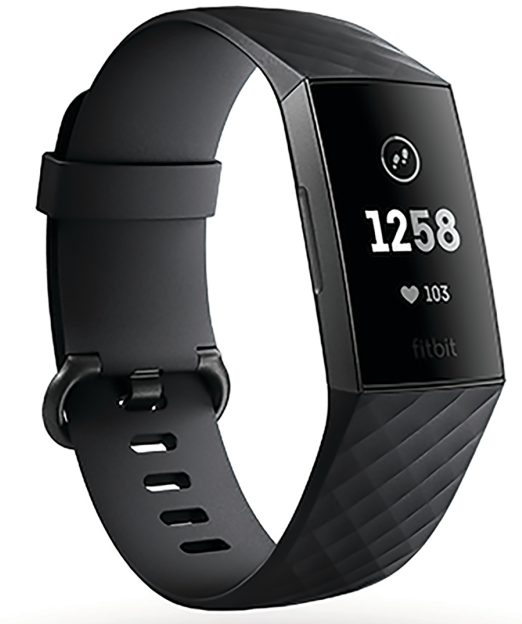
The Fitbit Charge 3 Fitness Tracker is a sleek, versatile wearable designed to help users monitor their health and fitness with ease and precision. Combining an elegant design with advanced tracking technology, this device offers features ideal for fitness enthusiasts, casual exercisers, and those focused on overall wellness. Whether you're running, swimming, or simply tracking daily activity and sleep, the Charge 3 provides comprehensive insights directly from your wrist.
Key benefits include continuous heart rate monitoring with Fitbit’s PurePulse technology, water resistance up to 50 meters,, allowing for swim tracking, and smart notifications that keep you connected without needing to check your phone constantly. It supports over 15 exercise modes, guided breathing sessions for stress management, and detailed sleep analysis, making it a complete health companion.
Targeted at individuals seeking a balance between smart features and fitness tracking, the Charge 3 fits well for athletes, office workers, and health-conscious users alike. Its user-friendly interface and compatibility with both Android and iOS devices broaden its appeal.
The Fitbit Charge 3 typically retails between $100 and $150, making it a competitively priced fitness tracker available through major electronics retailers and online stores.
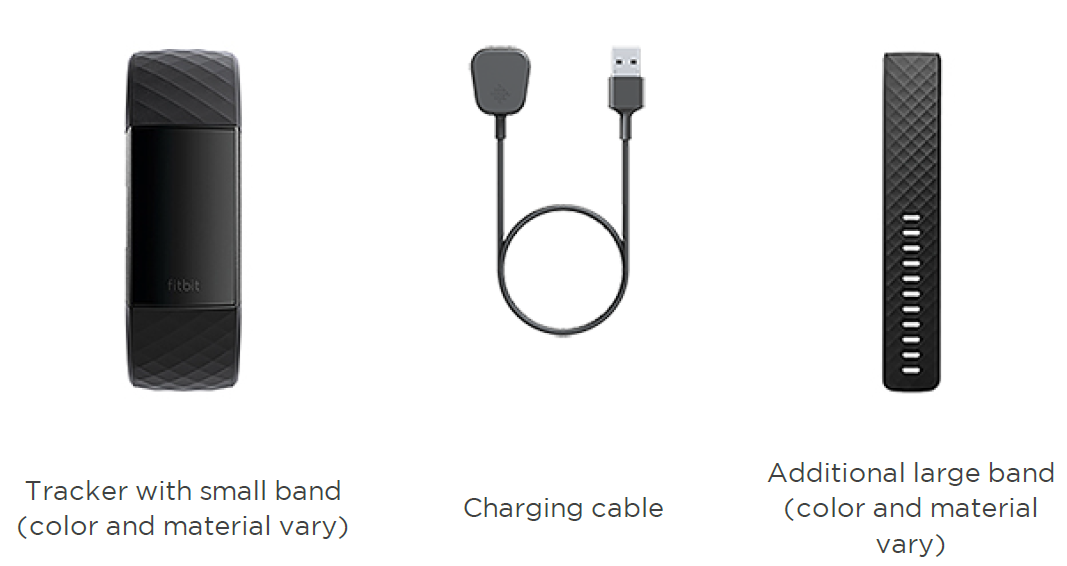
What's in the box
General Info and Specifications
Sensors
Fitbit Charge 3 contains the following sensors and motors:
- A MEMS 3-axis accelerometer, which tracks motion patterns
- An altimeter, which tracks altitude changes
- An optical heart-rate tracker
- A vibration motor
Materials
The housing and buckle on Charge 3 are made of anodized aluminum. While anodized aluminum can contain traces of nickel, which can cause an allergic reaction in someone with nickel sensitivity, the amount of nickel in all Fitbit products meets the European Union's stringent Nickel Directive.
The Charge 3 classic band is made of a flexible, durable elastomer material similar to that used in many sports watches.
Wireless technology
Charge 3 contains a Bluetooth 4.0 radio transceiver, and Fitbit Pay-enabled devices contain an NFC chip.
Haptic feedback
Charge 3 contains a vibration motor for alarms, goals, notifications, and reminders.
Battery
Charge 3 contains a rechargeable lithium-polymer battery.
Memory
Charge 3 stores your data, including daily stats, sleep information, and exercise history, for 7 days. Sync your tracker with the Fitbit app to access your historical data.
Display
Charge 3 has an OLED display.
Band size
Band sizes are shown below. Note that accessory bands sold separately may vary slightly.
| Small band | Fits a wrist between 5.5 - 7.1 inches (140 mm - 180 mm) in circumference |
| Large band | Fits a wrist between 7.1 - 8.7 inches (180 mm - 220 mm) in circumference |
Environmental conditions
| Operating temperature | 14° to 113° F (-10° to 45° C) |
| Non-operating temperature | -4° to 14° F (-20° to -10° C) 113° to 140°F (45° to 60° C) |
| Maximum operating altitude | 30,000 feet (9,144 m) |
Learn more
To learn more about your tracker, how to track your progress in the Fitbit app, and how to build healthy habits with Fitbit Premium, visit help.fitbit.com.
Return policy and warranty..
Find warranty information and the fitbit.com return policy on our website.
Set up Charge 3
For the best experience, use the Fitbit app for iPhones and iPads or Android phones. You can also set up Charge 3 on Windows 10 devices. If you don’t have a compatible phone or tablet, use a Bluetooth-enabled Windows 10 PC. Keep in mind that a phone is required for calls, texts, the calendar, and smartphone app notifications.
To create a Fitbit account, you're prompted to enter your birthdate, height, weight, and sex to calculate your stride length and to estimate distance, basal metabolic rate, and calorie burn. After you set up your account, your first name, last initial, and profile picture are visible to all other Fitbit users. You have the option to share other information, but most of the information you provide to create an account is private by default.
Charge your tracker
A fully-charged Charge 3 has a battery life of up to 7 days. Battery life and charge cycles vary with use and other factors; actual results will vary.
To charge Charge 3:
- Plug the charging cable into the USB port on your computer, a UL-certified USB wall charger, or another low-energy charging device.
Clip the other end of the charging cable to the port on the back of Charge 3. The pins on the charging clip must lock securely with the gold contacts on the back of the tracker. Charge 3 vibrates, and a battery icon appears on the screen.
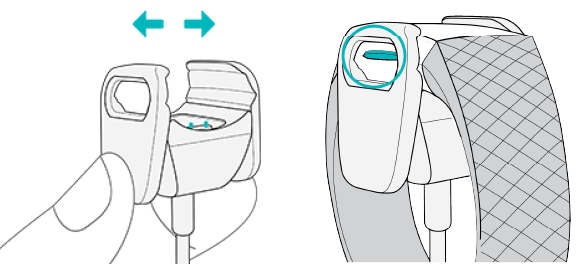
Charging fully takes about 1-2 hours. While the tracker charges, you can press the button to check the battery level. A fully-charged tracker shows a solid battery icon with a smile.
Set up with your phone or tablet..
Set up Charge 3 with the Fitbit app. The Fitbit app is compatible with most popular phones and tablets. For more information, see fitbit.com/devices.
To get started:
Download the Fitbit app:
- Apple App Store for iPhones and iPads
- Google Play Store for Android phones
- Microsoft Store for Windows 10 devices
Install the app, and open it.
- If you already have a Fitbit account, log in to your account > tap the Today tab > your profile picture > Set Up a Device.
- If you don't have a Fitbit account, tap Join Fitbit to be guided through a series of questions to create a Fitbit account.
Continue to follow the on-screen instructions to connect Charge 3 to your account.
When you're done with setup, read through the guide to learn more about your new tracker and then explore the Fitbit app.
For more information, see help.fitbit.com.
Set up with your Windows 10 PC
If you don't have a compatible phone, you can set up and sync Charge 3 with a Bluetooth-enabled Windows 10 PC and the Fitbit app.
To get the Fitbit app for your computer:
- Click the Start button on your PC and open the Microsoft Store.
- Search for "Fitbit app". After you find it, click Free to download the app to your computer.
- Click Microsoft account to sign in with your existing Microsoft account. If you don't already have an account with Microsoft, follow the on-screen instructions to create a new account.
- Open the app.
- If you already have a Fitbit account, log in to your account, and tap the account icon
 > Set Up a Device.
 - If you don't have a Fitbit account, tap Join Fitbit to be guided through a series of questions to create a Fitbit account.
- If you already have a Fitbit account, log in to your account, and tap the account icon
- Continue to follow the on-screen instructions to connect Charge 3 to your account.
When you're done with setup, read through the guide to learn more about your new tracker and then explore the Fitbit app.
See your data in the Fitap. t ap..p
Sync Charge 3 to transfer your data to the Fitbit app, where you can view your activity and sleep data, log food and water, participate in challenges, and more.
Each time you open the Fitbit app, Charge 3 syncs automatically when it's nearby. You can also use the Sync Now option in the app at any time.
Wear Charge 3
Place Charge 3 around your wrist. If you need to attach a different size band, or if you purchased another band, see the instructions in "Change the band" on page 13.
Placement for all-day wear vs. exercise
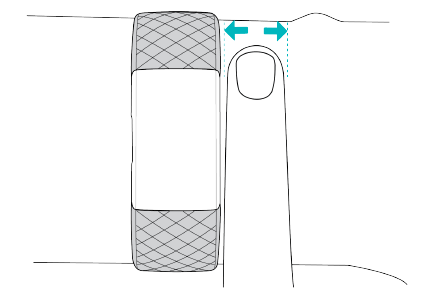
When you're not exercising, wear Charge 3 a finger's width above your wrist bone.
For optimized heart-rate tracking while exercising:
During a workout, experiment with wearing your tracker a bit higher on your wrist for an improved fit. Many exercises, such as bike riding or weight lifting, cause you to bend your wrist frequently, which could interfere with the heart-rate signal if the tracker is lower on your wrist.
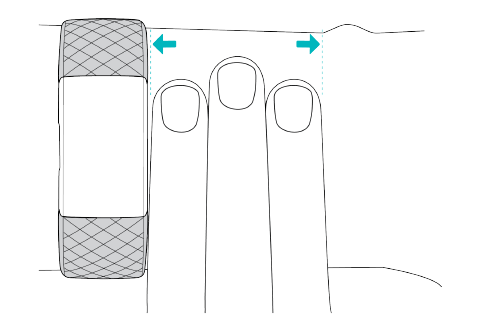
- Wear your tracker on top of your wrist, and make sure the back of the device is in contact with your skin.
- Consider tightening your band before a workout and loosening it when you’re done. The band should be snug but not constricting (a tight band restricts blood flow, potentially affecting the heart-rate signal).
Handedness
For greater accuracy, you must specify whether you wear Charge 3 on your dominant or non-dominant hand. Your dominant hand is the one you use for writing and eating. To start, the Wrist setting is set to non-dominant. If you wear Charge 3 on your dominant hand, change the Wrist setting in the Fitbit app:
From the Today in the Fitbit app, tap your profile picture > Charge 3 tile Wrist > Dominant.
Troubleshooting
If Charge 3 isn't working properly, see our troubleshooting steps below. Visit help.fitbit.com for more information.
Heart-rate signal missing
Charge 3 continuously tracks your heart rate while you're exercising and throughout the day. If the heart-rate sensor on your tracker has difficulty detecting a signal, dashed lines appear.
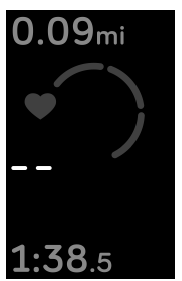
If your tracker doesn't detect a heart-rate signal, first make sure heart-rate tracking is turned on in the Settings app on your tracker. Next, make sure you're wearing your tracker correctly, either by moving it higher or lower on your wrist or by tightening or loosening the band. Charge 3 should be in contact with your skin. After holding your arm still and straight for a short time, you should see your heart rate again.
For more information, see help.fitbit.com.
GPS signal missing
Environmental factors, including tall buildings, dense forest, steep hills, and thick cloud cover, can interfere with your phone's ability to connect to GPS satellites. If your phone is searching for a GPS signal during an exercise, "connecting" appears at the top of the screen.
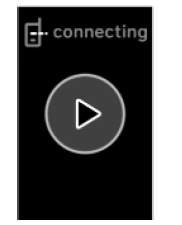
For best results, wait for your phone to find the signal before you start your workout.
Other issues
If you experience any of the following issues, restart your tracker:
- Won't sync
- Won't respond to taps, swipes, or button presses
- Won't track steps or other data
For instructions, see "Restart Charge 3" on page 43.
For more information or to contact Customer Support, see help.fitbit.com.
Pro & Cons of Fitbit Charge 3 Fitness Tracker
- Pros:
- Accurate 24/7 heart rate monitoring with PurePulse technology for detailed fitness insights
- Waterproof design suitable for swimming, a feature not common in all fitness trackers at this price point
- Long battery life lasting up to 7 days, reducing charging frequency
- Smartphone notifications and quick replies keep you connected without interrupting workouts
- Comprehensive Fitbit app integration offering sleep, activity, and menstrual health tracking
- Cons:
- No built-in GPS; requires a connected smartphone for accurate outdoor run tracking
- Limited quick reply functionality is restricted to Android devices
- Display is grayscale, which may seem less vibrant compared to some color screen competitors
- Some users note occasional syncing delays with the Fitbit app
- Advanced features like Fitbit Pay are only available in special editions
Overall, the Fitbit Charge 3 provides excellent value for money, especially for users prioritizing heart rate accuracy and swim tracking. However, for those requiring standalone GPS or full smartwatch capabilities, alternatives like the Fitbit Charge 4 or other brands may be preferable.
Customer Reviews of Fitbit Charge 3 Fitness Tracker
Users frequently praise the Charge 3 for its comfort, accurate heart rate monitoring, and reliable sleep tracking. Many appreciate how the device seamlessly integrates with the Fitbit app, offering motivation and personalized fitness goals. The water resistance feature is a standout, with swimmers especially satisfied by its performance in pools.
Common complaints include the lack of built-in GPS, which limits precise outdoor workout tracking without a phone, and the Android-only quick reply feature, which excludes iOS users. Some reviewers report minor issues with syncing notifications and occasional touchscreen sensitivity problems, though these are often resolved with software updates.
Customer star ratings typically range between 4 to 4.5 out of 5 stars, reflecting strong overall satisfaction. Many recommend the Fitbit Charge 3 Fitness Tracker as a reliable mid-range fitness tracker that balances smart features and health monitoring efficiently.[5][7][8]
Faqs
How do I set up Fitbit Charge 3 Fitness Tracker for the first time?
What should I do if my Fitbit Charge 3 Fitness Tracker is not working properly?
Can I use the Fitbit Charge 3 Fitness Tracker with connected GPS?
How often should I clean my Fitbit Charge 3 Fitness Tracker?
What are the key features that make Fitbit Charge 3 Fitness Tracker different?
Can I use the Fitbit Charge 3 Fitness Tracker with both Android and iOS devices?
How do I customize exercise settings on my Fitbit Charge 3 Fitness Tracker?
What should I do if my Fitbit Charge 3 Fitness Tracker's GPS is not connecting?
More fitbit manuals
- How to Use: Fitbit Charge 3 User Manual
- Fitbit Alta Smart Fitness Tracker Version 1.3 User Guide
- Setup: Fitbit Charge 4 Fitness Tracker Instruction Manual
- How to Use: Fitbit Blaze 101 Smart Fitness Watch FB502SBUS User Manual
- How to Use: Fitbit Charge 5 Fitness Tracker User Manual
- Fitbit Sense Advanced Smartwatch FB512BKBK User Guide
Leave a Comment